---
title: "Changing an FTP user password"
description: "Find out how to change the password for an FTP user created on your OVHcloud Web Hosting plan"
url: https://docs.ovhcloud.com/en/guides/web-cloud/web-hosting/ftp-change-password
lang: en
lastUpdated: 2026-06-03
---
# Changing an FTP user password
## Objective
OVHcloud web hosting plans provide access to an online file storage space, which you can use via the **FTP** protocol: FTP storage space.
You can access this space using an **FTP user** and its associated password.
This access allows you to [put your website online](/en/guides/web-cloud/web-hosting/hosting-how-to-get-my-website-online.md).
**This guide explains how to change the password for an FTP user created on your OVHcloud Web Hosting plan.**
:::warning
OVHcloud is providing you with services for which you are responsible, with regard to their configuration and management. You are therefore responsible for ensuring they function correctly.
This guide is designed to assist you in common tasks as much as possible. Nevertheless, we recommend that you contact a [specialist service provider](https://partner.ovhcloud.com/en-gb/directory/) and/or discuss the issue with our community if you have difficulties or doubts. You can find more information in the ["Go further"](#go-further) section of this guide.
:::
## Requirements
- An OVHcloud [Web Hosting plan](https://www.ovhcloud.com/en-gb/web-hosting/)
***
### OVHcloud Control Panel Access
- **Direct link:** Hosting plans
- **Navigation path:** Web Cloud > Hosting plans > Select your web hosting plan
***
## Instructions
### Modify the FTP user password
:::info
For more information on password management best practices, please refer to the guide "[Setting and managing an account password](/en/guides/account-and-service-management/account-information/manage-ovh-password.md)".
:::
Depending on which OVHcloud [Web Hosting plan](https://www.ovhcloud.com/en-gb/web-hosting/) you have, there are two different ways to change your FTP user password.
**Click on your plan to view the content.**
Free hosting, Starter, Personal and Startup plans (single FTP user)
Click on the tabs below to view each of the **3** steps.
**Step 1**
Go to the Hosting plans page, then select the web hosting plan concerned.

**Step 2**
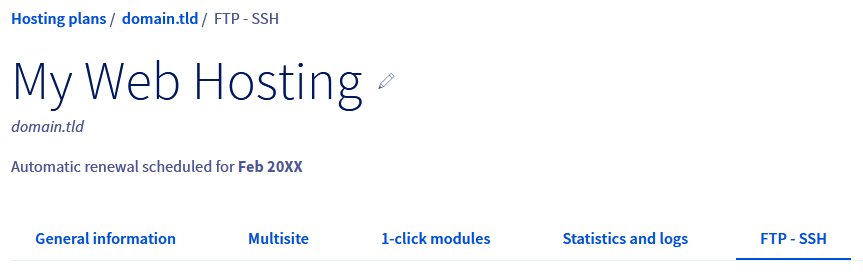
Click on the FTP - SSH tab.
**Step 3**
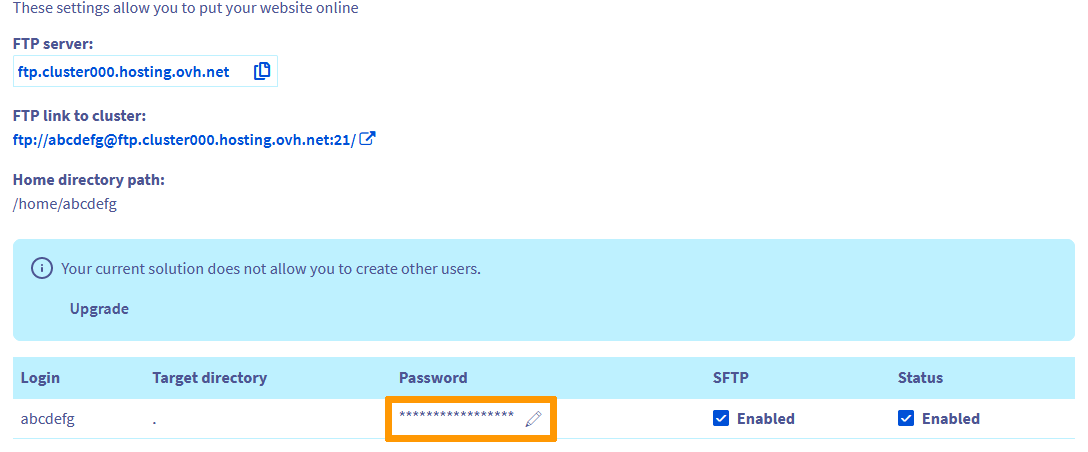
A table will display the _FTP users_ created on your Web Hosting plan. Click on the _pencil icon_ in the Password column, enter the new password **in accordance with the password policy**, then confirm the change by clicking on the _green_ validation button.
Professional, Performance, Agency, Agency Plus and Agency Max plans (multiple FTP users)
Click on the tabs below to view each of the **3** steps.
**Step 1**
Go to the Hosting plans page, then select the web hosting plan concerned.

**Step 2**
Click on the FTP - SSH tab.

**Step 3**
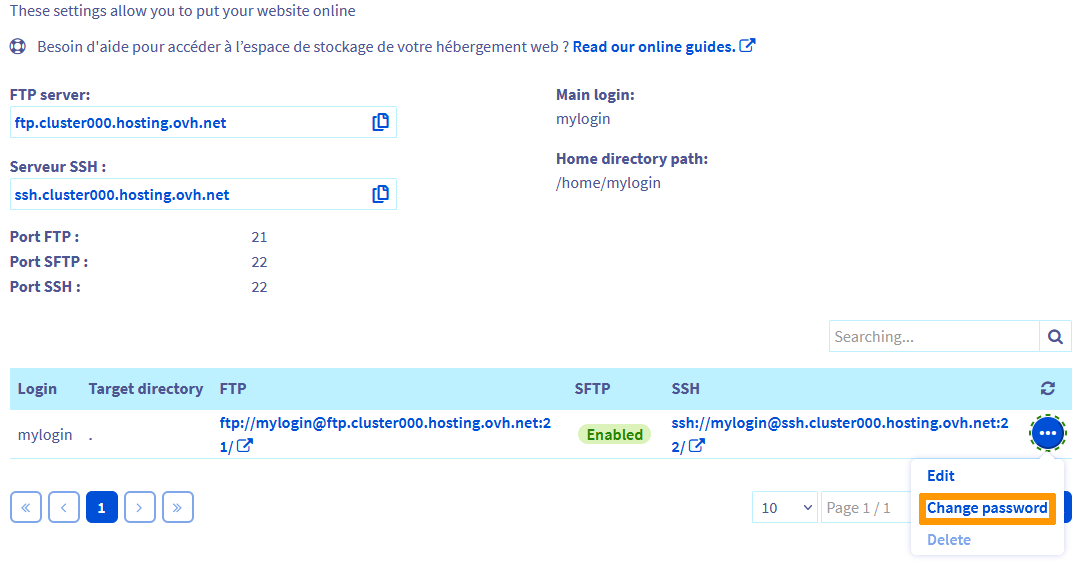
A table will display the _FTP users_ created on your Web Hosting plan. Click on the ... button to the right of the FTP user concerned, then Change password. In the window that pops up, enter the new password you want **by following the password policy**, enter it again and click the Confirm button.
:::info
Your new password must respect the following **password policy**:
- Minimum 9 characters
- Maximum 30 characters
- At least one capital letter
- At least one lower-case letter
- At least one number
- Be composed only of numbers and letters
:::
Then go to the `Ongoing tasks
` tab and refresh the page regularly. Your change will be effective within a few minutes.
### Access your storage space
To access your FTP storage space, please refer to our guide ["Logging in to your Web Hosting plan's FTP storage space"](/en/guides/web-cloud/web-hosting/ftp-connection.md).
## Go further [](#)
[Setting and managing an account password](/en/guides/account-and-service-management/account-information/manage-ovh-password.md)
[Logging in to your Web Hosting plan's FTP storage space](/en/guides/web-cloud/web-hosting/ftp-connection.md)
[Put your website online](/en/guides/web-cloud/web-hosting/hosting-how-to-get-my-website-online.md)
For specialised services (SEO, development, etc.), contact [OVHcloud partners](https://partner.ovhcloud.com/en-gb/directory/).
If you would like assistance using and configuring your OVHcloud solutions, please refer to our [support offers](https://www.ovhcloud.com/en-gb/support-levels/).
Join our [community of users](https://community.ovhcloud.com/).