---
title: "Web hosting - How to enable SFTP access"
description: "Find out how to enable SFTP access on your OVHcloud web hosting"
url: https://docs.ovhcloud.com/en/guides/web-cloud/web-hosting/enable-sftp
lang: en
lastUpdated: 2026-06-08
---
# Web hosting - How to enable SFTP access
## Objective
OVHcloud web hosting offers provide access to a storage space where you can upload the files of your websites or applications. Access to this space is possible via an FTP or SSH user with the passwords associated with them.
Just like the **F**ile **T**ransfer **P**rotocol (**FTP**), the **S**ecure **F**ile **T**ransfer **P**rotocol (**SFTP**) allows you to transfer data from your device to the storage space of your web hosting.
The only difference is that SFTP uses a secure channel to exchange data. The data transmitted via this protocol is automatically encrypted.
**Find out how to enable SFTP access on your OVHcloud web hosting.**
## Requirements
- An [OVHcloud web hosting plan](https://www.ovhcloud.com/en-gb/web-hosting/uc-multisite/)
***
### OVHcloud Control Panel Access
- **Direct link:** Hosting plans
- **Navigation path:** Web Cloud > Hosting plans > Select your web hosting plan
***
## Instructions
### Enable SFTP access for an FTP user on your web hosting
**Click on one of the two lines below, depending on your web hosting offer, to display the explanations.**
Enable SFTP on a
**Free hosting**
,
**Starter**
,
**Personal**
, or
**Startup**
web hosting offer
Click on the tabs below to view each of the **3** steps.
**Step 1**
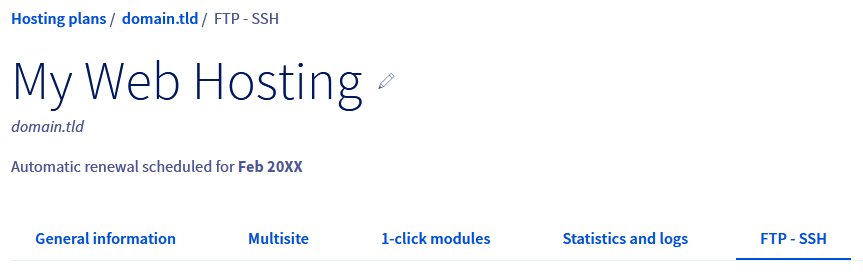
Go to the Hosting plans page, then select the web hosting plan concerned.

**Step 2**
On the page that pops up, click on the FTP - SSH tab.
**Step 3**
At the bottom of the page, in the table, check the box in the **SFTP** column for the relevant FTP user. The page will automatically refresh.
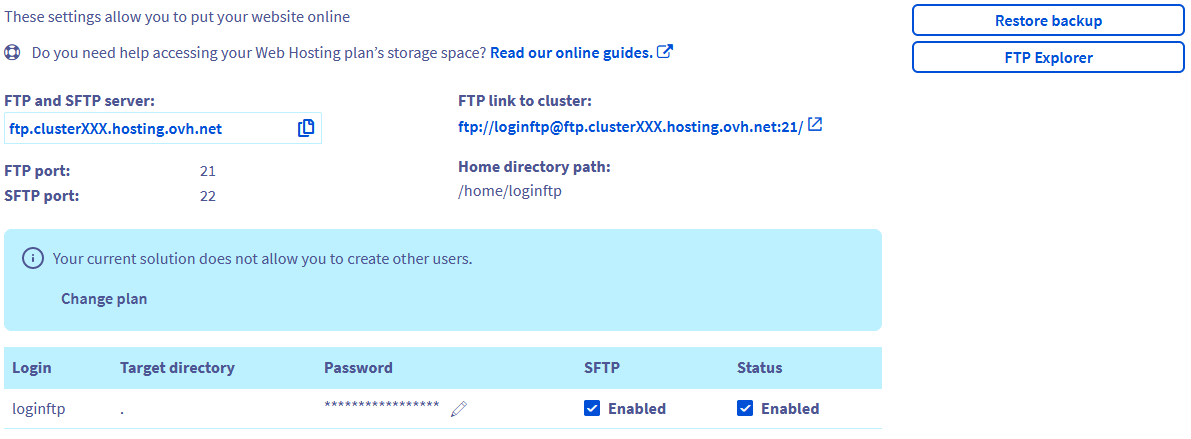Once the **SFTP** option is enabled, you will be able to use the SFTP protocol on your web hosting with the relevant FTP user.
Enable SFTP on a
**Professional**
,
**Performance**
,
**Agency**
,
**Agency Plus**
, or
**Agency Max**
web hosting offer
Click on the tabs below to view each of the **4** steps.
**Step 1**
Go to the Hosting plans page, then select the web hosting plan concerned.

**Step 2**
On the page that pops up, click on the FTP - SSH tab.

**Step 3**
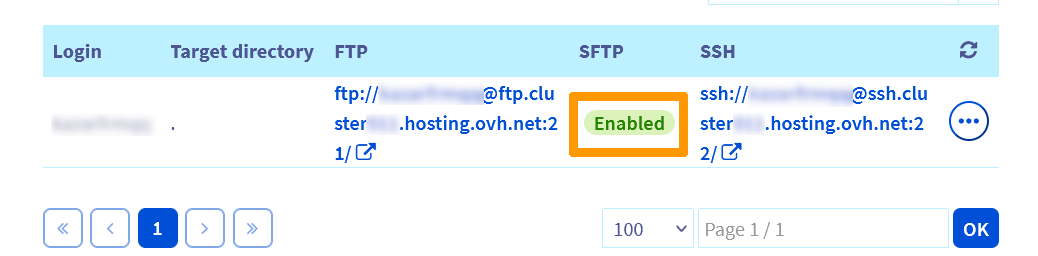
At the bottom of the page, in the table, check the status in the **SFTP** column for the relevant FTP user:
- **Enabled**: The SFTP protocol is already active for this user.
- **Disabled**: Click on the ... button to the right of the relevant line, then on Edit.
**Step 4**
In the window that opens, in the **Connection protocols** section, select FTP and SFTP or FTP, SFTP and SSH if you also need to enable the SSH protocol.
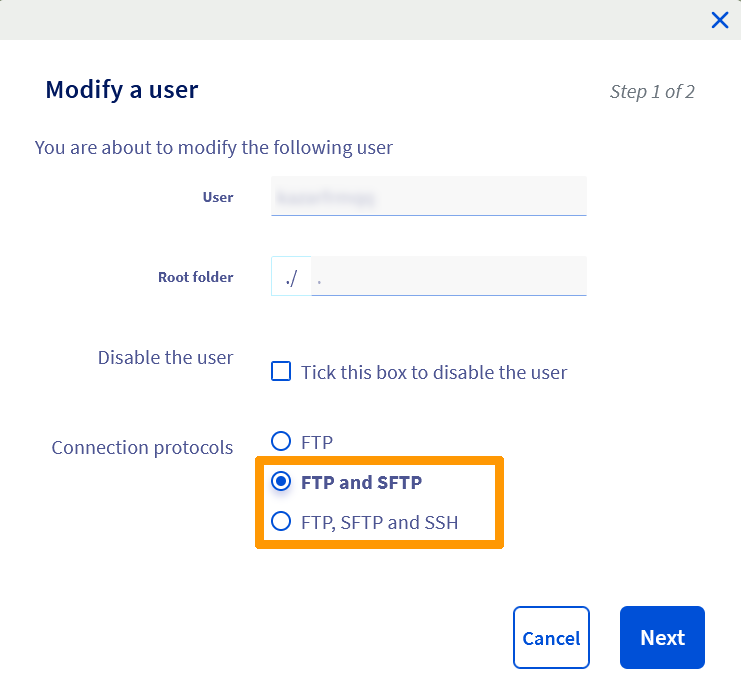Then click on Next, then on Confirm to complete the activation of SFTP for the relevant user.
### Connect to your web hosting via SFTP
For this, refer to our guide « [Logging in to your web hosting plan’s FTP storage space](/en/guides/web-cloud/web-hosting/ftp-connection.md) ».
## Go further
[Changing an FTP user password](/en/guides/web-cloud/web-hosting/ftp-change-password.md)
[Accessing a web hosting plan via SSH](/en/guides/web-cloud/web-hosting/ssh-on-webhosting.md)
[Using PuTTy for Windows](/en/guides/web-cloud/web-hosting/ssh-using-putty-on-windows.md)
[Tutorial - Using FileZilla with your OVHcloud hosting](/en/guides/web-cloud/web-hosting/ftp-filezilla-user-guide.md)
[Tutorial - Using Cyberduck with your OVHcloud hosting](/en/guides/web-cloud/web-hosting/ftp-cyberduck-user-guide-on-mac.md)
For specialised services (SEO, development, etc.), contact [OVHcloud partners](https://partner.ovhcloud.com/en-gb/directory/).
If you would like assistance using and configuring your OVHcloud solutions, please refer to our [support offers](https://www.ovhcloud.com/en-gb/support-levels/).
Join our [community of users](https://community.ovhcloud.com/).