---
title: "Troubleshooting an \\"Index of\\" page"
description: "Find out how to get your website back online if it displays an \\"Index of\\" page"
url: https://docs.ovhcloud.com/en/guides/web-cloud/web-hosting/diagnostic-index-of
lang: en
lastUpdated: 2025-10-28
---
# Troubleshooting an "Index of" page
## Objective
An "**Index of**" page appears in at least one of the following cases:
- The [configuration of your domain name with your website](/en/guides/web-cloud/web-hosting/multisites-configure-multisite.md) is not correctly set to your target directory.
- The target folder to which your domain name points does not contain **index.html** or **index.php** files.
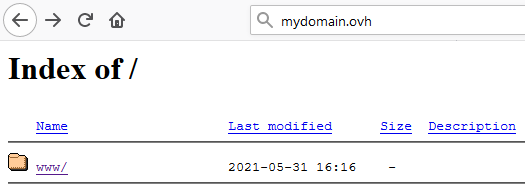
**This guide explains how to troubleshoot the display of an "Index of" page.**
:::warning
OVHcloud is providing you with services for which you are responsible, with regard to their configuration and management. You are therefore responsible for ensuring they function correctly.
This guide is designed to assist you in common tasks as much as possible. Nevertheless, we recommend that you contact a [specialist service provider](https://partner.ovhcloud.com/en-gb/directory/) and/or discuss the issue with our community on if you have difficulties or doubts. You can find more information in the [Go further](#go-further) section of this guide.
:::
## Requirements
- A [domain name](https://www.ovhcloud.com/en-gb/domains/)
- An [OVHcloud Web Hosting plan](https://www.ovhcloud.com/en-gb/web-hosting/)
***
### OVHcloud Control Panel Access
- **Direct link:** Web hosting
- **Navigation path:** Web Cloud > Hosting plans > Select your web hosting plan
***
## Instructions
### Understanding the origin of the "Index of" page
Your domain name is declared to access a target directory (a `Root Folder`
) on the server [FTP](/en/guides/web-cloud/web-hosting/ftp-connection.md)
of your web hosting plan. You can do this via the [Multisite](/en/guides/web-cloud/web-hosting/multisites-configure-multisite.md)
tab in your web hosting plan, in your OVHcloud Control Panel
.
The "**Index of**" page indicates that the target directory does not contain a **index.php** or **index.html** file. A file of this type is the _entry point_ for your website. This file name is standardised.
To view your website, you will need to link your domain to the `Root folder`
containing this file **index.php**
or **index.html**
to view it from the `Multisite
` section of your hosting plan.
:::info
If you want to temporarily link your domain to a `Root folder` that does not contain an **index.php** or **index.html** file, you can prevent the list of folders from being displayed on your site by following this [tutorial](/en/guides/web-cloud/web-hosting/htaccess-what-else-can-you-do.md#prevent-the-content-of-a-directory-from-being-listed). You can also protect access to your folders with a [password](/en/guides/web-cloud/web-hosting/htaccess-protect-directory-by-password.md).
We recommend that you contact a [specialist provider](https://partner.ovhcloud.com/en-gb/directory/) if you have difficulties setting up this configuration. Indeed, our support teams will not be able to assist you with any changes to the internal programming of your website.
:::
### Resolving the most common cause of an "Index of" page
You have imported the files of your site **mydomain.ovh** into the `www` folder of your hosting. However, your domain name is not linked to this folder in the `Root folder` column of your website.
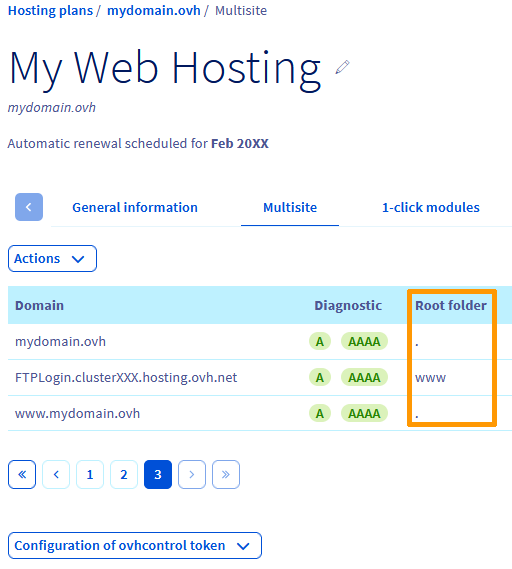
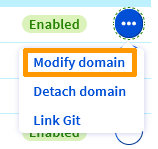
Modify the `Root folder`
by clicking on the `...
` button in the row of the domain name concerned, then `Modify domain
`:
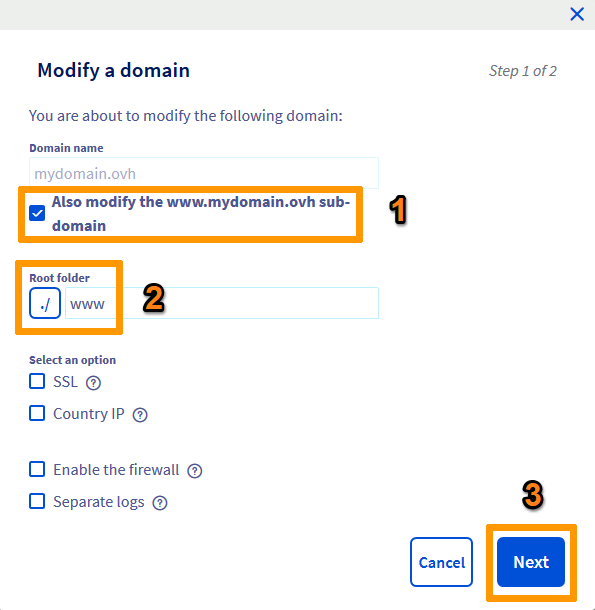
In the window that opens:
- Select the Also modify the [www.mydomain.ovh](http://www.mydomain.ovh) sub-domain (1) box.
- Specify the directory containing your site's **index.php** or **index.html** file as `Root folder` (2).
- Click on Next (3).
:::info
It is not mandatory to use the `www` directory as `Root folder`. You can install your website in another folder on your [FTP server](/en/guides/web-cloud/web-hosting/ftp-connection.md).
:::
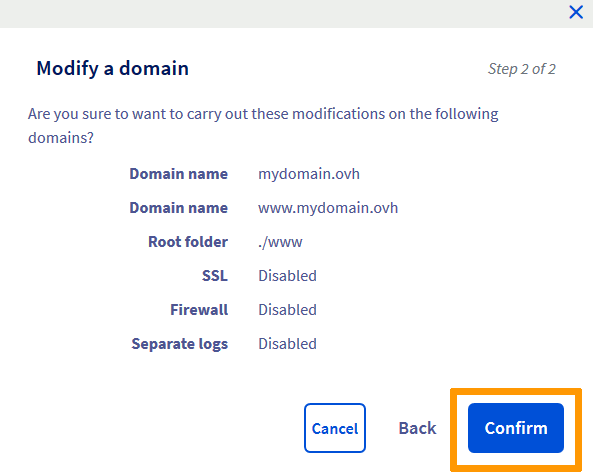
In the next window, click on `Confirm
`.
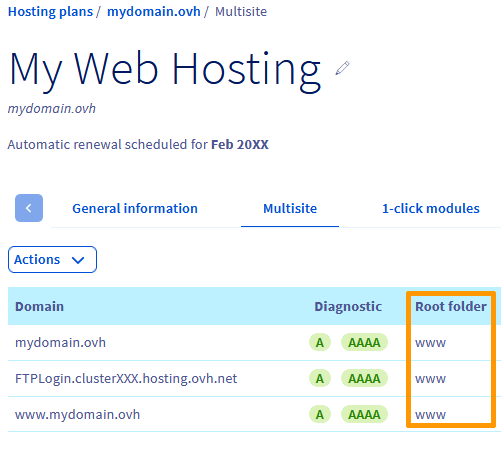
In a few minutes (remember to refresh your browser), you will see the following result:
Finally, check that your website appears correctly. Otherwise, reboot your device and clear your browser cache if necessary.
Also make sure that a **index.php** or **index.html** file is present in your target directory.
## Go further [](#)
[Resolve the most common 1-click module errors](/en/guides/web-cloud/web-hosting/diagnostic-errors-module1clic.md)
[Resolve the "Website not installed" error](/en/guides/web-cloud/web-hosting/multisites-website-not-installed.md)
[Hosting multiple websites on your Web Hosting plan](/en/guides/web-cloud/web-hosting/multisites-configure-multisite.md)
For specialised services (SEO, development, etc.), contact [OVHcloud partners](https://partner.ovhcloud.com/en-gb/directory/).
If you would like assistance using and configuring your OVHcloud solutions, please refer to our [support offers](https://www.ovhcloud.com/en-gb/support-levels/).
Join our [community of users](https://community.ovhcloud.com/).