---
title: "Troubleshooting common database errors"
description: "Find out how to diagnose the most common cases of database errors"
url: https://docs.ovhcloud.com/en/guides/web-cloud/web-hosting/diagnosis-database-errors
lang: en
lastUpdated: 2026-06-08
---
# Troubleshooting common database errors
## Objective
Your database usage may result in anomalies on your website or error messages in the OVHcloud Control Panel
, as well as on the [phpMyAdmin interface](/en/guides/web-cloud/web-hosting/sql-create-database.md)
.
**Find out how to troubleshoot database errors with OVHcloud Web Hosting plans.**
:::warning
OVHcloud is providing you with services for which you are responsible, with regard to their configuration and management. You are therefore responsible for ensuring they function correctly.
This guide is designed to assist you in common tasks as much as possible. However, we recommend that you contact a [specialist service provider](https://partner.ovhcloud.com/en-gb/directory/) and/or discuss the issue with our community if you have difficulties or doubts. You can find more information in the [Go further](#go-further) section of this guide.
:::
## Requirements
- An [OVHcloud Web Hosting plan](https://www.ovhcloud.com/en-gb/web-hosting/).
- An OVHcloud database service: [Start SQL](https://www.ovhcloud.com/en-gb/web-hosting/options/start-sql/) or [Web Cloud Databases](https://www.ovhcloud.com/en-gb/web-cloud/databases/).
***
### OVHcloud Control Panel Access
- **Direct link:** Hosting plans
- **Navigation path:** Web Cloud > Hosting plans > Select your web hosting plan
***
## Instructions
### "Error establishing a database connection"

#### Check ongoing incidents
First, check on the [Web Cloud Status](https://web-cloud.status-ovhcloud.com/) page whether your datacentre, your web hosting cluster, your Web Cloud Databases server, or your database is not affected by an incident on the OVHcloud infrastructure.
**Click on the information you are looking for to view the content.**
Find the datacentre of your web hosting plan
Click on the tabs below to view each of the **2** steps in succession.
**Step 1**
Go to the Hosting plans page, then select the relevant web hosting plan.

**Step 2**
In the General information tab, locate the `Datacentre`.
Find the cluster and filer of your web hosting plan
Refer to our guide "[Finding out the cluster and filer of your web hosting plan](/en/guides/web-cloud/web-hosting/how-to-know-cluster-and-filer.md)".
Find the Web Cloud Databases server name
Click on the tabs below to view each of the **2** steps in succession.
**Step 1**
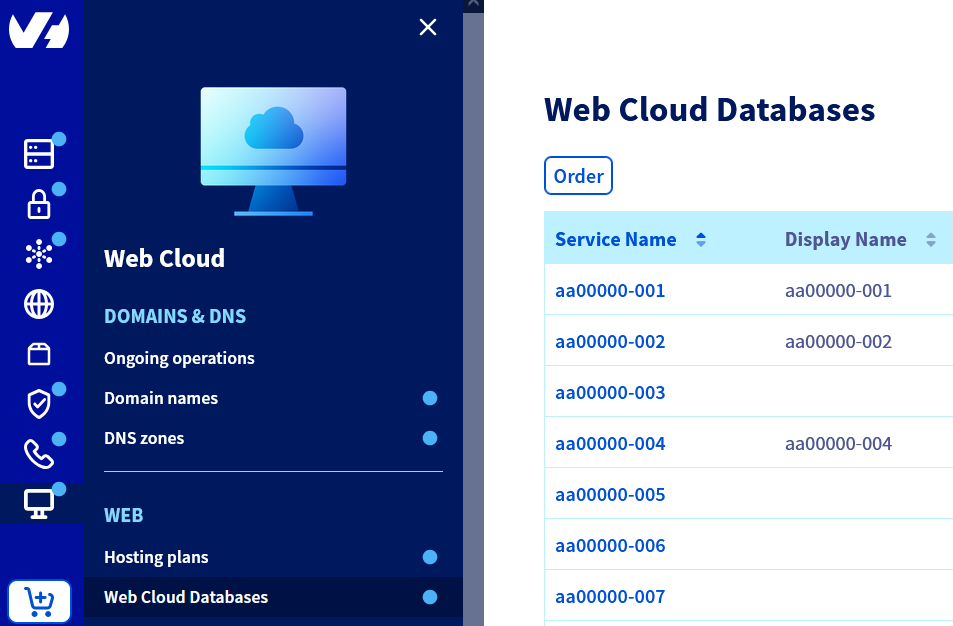
Go to the Web Cloud Databases page, then select the relevant service.
**Step 2**
Locate `Host name` in the `SQL` section of `Login information`.
Find your web hosting database server
Refer to our guide "[Finding your database server](/en/guides/web-cloud/web-hosting/sql-find-server.md)".
#### Verify login credentials for your database [](#)
Log in to the file storage space of your Web Hosting plan by [FTP](/en/guides/web-cloud/web-hosting/ftp-connection.md) and find your website's configuration file (for example, a WordPress website will have a **wp-config.php** file located in the folder containing your website).
:::warning
The name and content of the file relevant for database connection information depends on the CMS used for the website. This does not lie in the scope of responsibility of OVHcloud.
We recommend that you contact the publisher of the [CMS](/en/guides/web-cloud/web-hosting/cms-install-1-click-modules.md) concerned or a [specialised service provider](https://partner.ovhcloud.com/en-gb/directory/) if necessary. We will not be able to assist you with this.
:::
Then check the **exact** match between the login details for [phpMyAdmin](/en/guides/web-cloud/web-hosting/sql-create-database.md#accessing-the-phpmyadmin-interface) and the login details for your website's configuration file.
If necessary, change your [database password](/en/guides/web-cloud/web-hosting/sql-change-password.md).
#### Example for WordPress
If your website displays an **"Error establishing a database connection"** message and your hosting cluster is not affected by an [incident](https://web-cloud.status-ovhcloud.com/), log in to the [FTP storage space](/en/guides/web-cloud/web-hosting/ftp-connection.md) of your hosting and open the directory containing your website (by default, this is the `www` folder).
If this is a WordPress site, open the file `wp-config.php`.
```php
define('DB_NAME', 'my_database');
/** MySQL database username */
define('DB_USER', 'my_user');
/** MySQL database password */
define('DB_PASSWORD', 'my_password');
/** MySQL hostname */
define('DB_HOST', 'my_server.mysql.db:port');
```
Click on the tabs below to view each of the **2** steps in succession.
**Step 1**
Go to the Hosting plans page, then select the relevant web hosting plan.

**Step 2**
Click on the Databases tab, then check the correspondence between the elements displayed and those in the file `wp-config.php`:
- **my\_database** must match what is noted as `Database name`;
- **my\_user** must match what is noted as `User name`;
- **my\_password** corresponds to your [database password](/en/guides/web-cloud/web-hosting/sql-change-password.md);
- **my\_server.mysql.db** must match the `Server address`.
:::info
If you are unable to restore access to your website as a result of these changes, [back up your database](/en/guides/web-cloud/web-hosting/sql-database-export.md)
then [restore it to an earlier date](/en/guides/web-cloud/databases/db-restore-import-database.md#restoring-an-existing-backup)
from your OVHcloud Control Panel
.
Contact a [specialised service provider](https://partner.ovhcloud.com/en-gb/directory/) if necessary. We will not be able to assist you with this.
:::
### You have exceeded the authorised quota
You have received an email notification stating that the amount of data on your database exceeds the authorised limit. Your database has therefore been switched to read-only mode. This will prevent your website from being modified.

There are three ways you can unblock your database in this situation.
#### Method 1: Upgrade your subscription
If you have a **Starter** or **Personal** Web Hosting plan, we recommend that you switch to the [high-performance offer](https://www.ovhcloud.com/en-gb/web-hosting/). This subscription change will increase the size of your database which will automatically reopen it. This method is the simplest and does not require any particular technical expertise.
:::warning
The increase of the size of your database may be linked to a malfunction in your website's internal code.
In this case, changing your Web Hosting plan would be ineffective, as your database will continue to fill up.
If you notice a sudden increase in the size of your database, or if you have a "blog" type site that normally does not use much data, we advise you to contact a [specialised service provider](https://partner.ovhcloud.com/en-gb/directory/) as soon as possible. We will not be able to provide you with support on this matter.
:::
To upgrade your subscription, click on the tabs below to view each of the **3** steps in succession.
**Step 1**
Go to the Hosting plans page, then select the relevant web hosting plan.

**Step 2**
Click on the ... button in the `Solution` section on the right-hand side of the screen.
**Step 3**
Click Change plan.
If you are already subscribing to a **Performance** offer, refer to [method 2](#method2).
#### Method 2: Migrate your data to a larger database [](#)
You can also migrate your data to a new database:
- Order a larger [database service](https://www.ovhcloud.com/en-gb/web-hosting/options/start-sql/) if necessary, then [create the new database](/en/guides/web-cloud/web-hosting/sql-create-database.md);
- [Duplicate the content of the old database](/en/guides/web-cloud/web-hosting/copy-database.md) to the new database **or** perform an [export of your data](/en/guides/web-cloud/web-hosting/sql-database-export.md), then [import your data](/en/guides/web-cloud/web-hosting/sql-importing-mysql-database.md) in the new database;
- Integrate the credentials of the new database into the [configuration file](#config_file) of your site.
:::info
If you have a **Performance**, **Agency**, **Agency Plus** or **Agency Max** Web Hosting plan, you can also [activate a free Web Cloud Databases service](/en/guides/web-cloud/databases/db-getting-started.md).
:::
#### Method 3: Delete unnecessary data
Once you have made a [database backup](/en/guides/web-cloud/web-hosting/sql-database-export.md), log in to your [phpMyAdmin interface](/en/guides/web-cloud/web-hosting/sql-create-database.md#accessing-the-phpmyadmin-interface) to delete any unnecessary data using the Drop, Delete and Truncate commands.
To recalculate the quota, click on the tabs below to view each of the **3** steps in succession.
**Step 1**
Go to the Hosting plans page, then select the relevant web hosting plan.

**Step 2**
Click on the Databases tab, then on the ... button next to the database concerned.
**Step 3**
Click Recalculate the quota.
:::warning
This operation requires advanced technical knowledge. We recommend contacting a [specialised service provider](https://partner.ovhcloud.com/en-gb/directory/) if you need to use this method. We will not be able to assist you with this.
:::
#### Method 4: Optimise your database
To optimise your database, follow the instructions in our guide "[Configuring your database server](/en/guides/web-cloud/databases/db-configure-optimise-database-server.md#optimise-your-databases)".
To recalculate the quota, click on the tabs below to view each of the **3** steps in succession.
**Step 1**
Go to the Hosting plans page, then select the relevant web hosting plan.

**Step 2**
Click on the Databases tab, then on the ... button next to the database concerned.
**Step 3**
Click Recalculate the quota.
:::warning
If the advice on how to optimise your database is not sufficient to unblock the access to your website, we recommend you to contact our [community](https://community.ovhcloud.com/) or [OVHcloud partners](https://partner.ovhcloud.com/en-gb/directory/). We will not be able to assist you in this regard.
:::
### RAM overflows (Web Cloud Databases only)
The following message indicates that your [Web Cloud Databases](/en/guides/web-cloud/databases/db-getting-started.md) server has consumed too much resources on the OVHcloud infrastructure:
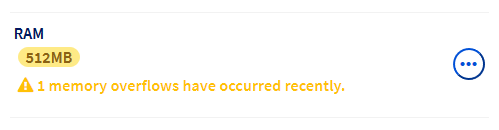
To increase the [amount of RAM](/en/guides/web-cloud/databases/db-configure-optimise-database-server.md#modify-ram-web-cloud-db), click on the tabs below to view each of the **3** steps in succession.
**Step 1**
Go to the Web Cloud Databases page, then select the relevant service.

**Step 2**
In the General information tab, locate the `RAM` section.
**Step 3**
Click on the ... button in the `RAM` section, then click Change the amount of RAM.
:::warning
To increase the amount of RAM, the database needs to be a standalone service and not one of those included with a **Performance**, **Agency**, **Agency Plus** or **Agency Max** web hosting plan. If you want to increase the amount of RAM of a database included in these [web hosting offers](https://www.ovhcloud.com/en-gb/web-hosting/), you first need to detach it.
To detach the database, refer to our guide "[Detaching a Web Cloud Databases from your web hosting plan](/en/guides/web-cloud/databases/db-detach-from-web-hosting.md)".
:::
You can also optimise your database by following the instructions of our guide "[Configuring your database server](/en/guides/web-cloud/databases/db-configure-optimise-database-server.md#optimise-your-databases)".
:::info
If you experience any difficulties in decreasing the use of resources on your database server, please contact our [community of users](https://community.ovhcloud.com/) or [OVHcloud partners](https://partner.ovhcloud.com/en-gb/directory/). We will not be able to assist you with this.
:::
### Database import errors
#### "Access denied for user to database"
> **"#1044 - Access denied for user to database"**
This error message means that the database you are trying to import contains elements that are not authorised on the OVHcloud shared infrastructure.
First make sure that your database is empty. To do this, click on the tabs below to view each of the **3** steps in succession.
**Step 1**
Go to the Hosting plans page, then select the relevant web hosting plan.

**Step 2**
Click the Databases tab, then the ... button next to the database, then Recalculate the quota.
**Step 3**
If the database is not empty, [back up the existing data](/en/guides/web-cloud/web-hosting/sql-database-export.md) then delete it before relaunching the import operation.
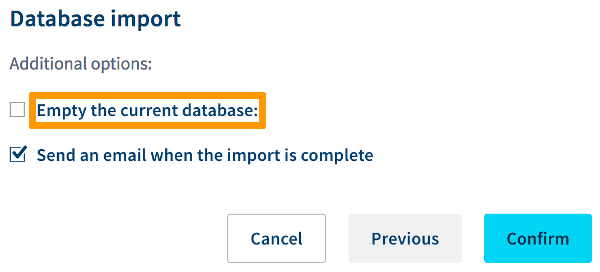
You can also tick the Empty the current database box just before [launching the import](/en/guides/web-cloud/web-hosting/sql-importing-mysql-database.md#import-your-own-backup-via-your-control-panel):
If necessary, contact our [user community](https://community.ovhcloud.com/) or a [specialised service provider](https://partner.ovhcloud.com/en-gb/directory/) for more information. We will not be able to assist you in correcting this issue.
:::info
**Which elements in my database import script can cause a "#1044 - Access denied for user to database" error?**
:::
You cannot have a **"trigger"** in your database's import script on OVHcloud shared hosting servers. In this situation, import your database to a [Web Cloud Databases server](/en/guides/web-cloud/databases/db-getting-started.md).
The following query is also not allowed:
```sql
CREATE DATABASE IF NOT EXISTS `Database-Name` DEFAULT CHARACTER SET latin1 COLLATE latin1_swedish_ci;
```
Use this line instead:
```sql
USE `Database-Name`;
```
Replace `Database-Name`
with the name of the database as displayed in your OVHcloud Control Panel
.
#### "MySQL server has gone away"
> **"ERROR 2006 : MySQL server has gone away"**
This error message appears when [importing a database](/en/guides/web-cloud/databases/db-restore-import-database.md#importing-a-local-backup) on a [Web Cloud Databases server](/en/guides/web-cloud/databases/db-getting-started.md). In most cases, it is caused by the quantity of data to be imported being too large or by non-optimised SQL queries in the import script.
To resolve this issue, you can:
- Increase the [amount of RAM](/en/guides/web-cloud/databases/db-configure-optimise-database-server.md#modify-ram-web-cloud-db). To do this, click on the tabs below to view each of the **3** steps in succession.
**Step 1**
Go to the Web Cloud Databases page, then select the relevant service.

**Step 2**
In the General information tab, locate the `RAM` section.
**Step 3**
Click on the ... button in the `RAM` section, then click Change the amount of RAM.
- Split your database in order to import it through multiple operations instead of one. (For any questions on the necessary steps, contact our [community](https://community.ovhcloud.com/) or [OVHcloud partners](https://partner.ovhcloud.com/en-gb/directory/). We will not be able to assist you with this.)
- [Optimise your database](/en/guides/web-cloud/databases/db-configure-optimise-database-server.md#optimise-your-databases), then repeat the export/import operations.
### Unable to access phpMyAdmin
#### "Access denied for user"
> **"mysqli::real\_connect(): (HY000/1045): Access denied for user"**
This error message may appear when connecting to your database by [phpMyAdmin](/en/guides/web-cloud/web-hosting/sql-create-database.md#accessing-the-phpmyadmin-interface). It indicates that the credentials entered are incorrect.
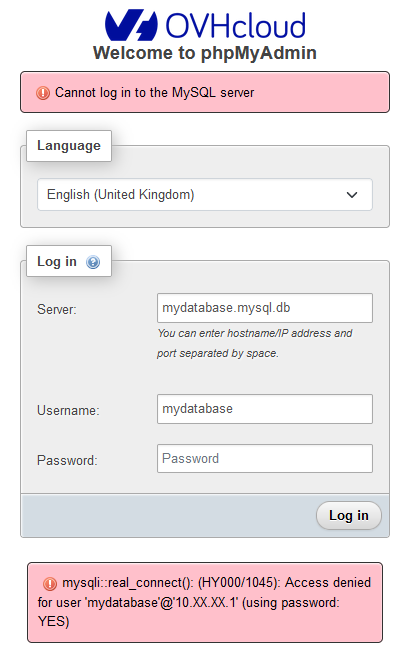
In this situation, [check the credentials entered](/en/guides/web-cloud/databases/db-connecting-database-server.md#instructions) and change your [database password](/en/guides/web-cloud/web-hosting/sql-change-password.md) if necessary.
#### "Too many connections"
> **"mysqli\_real\_connect(): (HY000/1040): Too many connections"**
The maximum number of active connections for databases delivered with a shared hosting ([Start SQL](https://www.ovhcloud.com/en-gb/web-hosting/options/start-sql/)) is **30**.
This number increases to **200**
for the [Web Cloud Databases service](/en/guides/web-cloud/databases/db-getting-started.md)
. (This setting can be modified in the `Configuration
` section of your database service.)
A "Too many connections" error when [connecting to phpMyAdmin](/en/guides/web-cloud/web-hosting/sql-create-database.md#accessing-the-phpmyadmin-interface) appears if this maximum number of connections is exceeded.
In this situation, you will need to [optimise your databases](/en/guides/web-cloud/databases/db-configure-optimise-database-server.md#optimise-your-databases) in order to reduce the number of active connections.
:::warning
If you have any questions about the changes you need to make in order to reduce the number of active connections to your database, please contact our [community](https://community.ovhcloud.com/) or [OVHcloud partners](https://partner.ovhcloud.com/en-gb/directory/). We will not be able to assist you in this regard.
:::
### "Name or service not known"
> **"mysqli::real\_connect(): (HY000/2002): php\_network\_getaddresses: getaddrinfo failed: Name or service not known"**
This error message appears when [connecting to phpMyAdmin](/en/guides/web-cloud/databases/db-connecting-database-server.md) if the server name entered is incorrect.
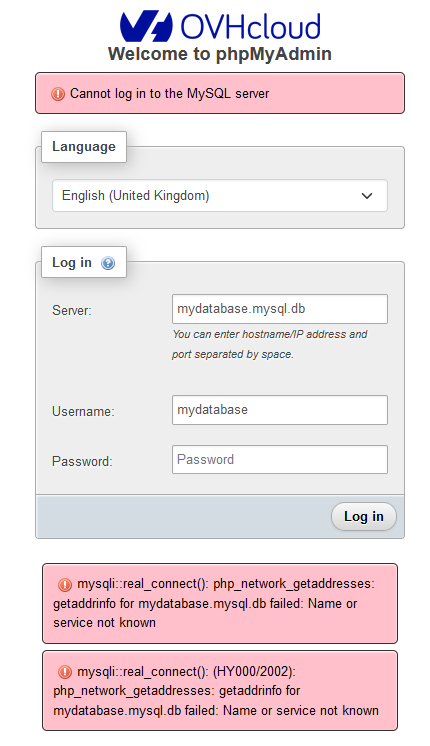
Check the server name for the relevant database service.
**Click on the relevant situation to view the content.**
Database on a web hosting plan
Click on the tabs below to view each of the **2** steps in succession.
**Step 1**
Go to the Hosting plans page, then select the relevant web hosting plan.

**Step 2**
Click on the Databases tab. The server name to enter is listed in the `Server address` column.
Database on a Web Cloud Databases server
Click on the tabs below to view each of the **2** steps in succession.
**Step 1**
Go to the Web Cloud Databases page, then select the relevant service.

**Step 2**
In the General information tab, the server name to enter is listed in the `Login information` section, under `SQL`, labelled as `Host name`.
### Unable to connect to a Cloud Databases database
Having a [Web Cloud Databases](/en/guides/web-cloud/databases/overview.md) server allows you to [connect to your databases](/en/guides/web-cloud/databases/db-connecting-database-server.md) from your computer or a server outside of the OVHcloud infrastructure.
If this connection is not possible, first check that you have [authorised your public IP address](/en/guides/web-cloud/databases/db-getting-started.md) to connect to the database server.
If this operation has been carried out, contact your ISP or the [OVHcloud partners](https://partner.ovhcloud.com/en-gb/directory/). We will not be able to assist you in this situation.
## Go further [](#)
[Getting started with Web Cloud Databases](/en/guides/web-cloud/databases/db-getting-started.md)
For specialised services (SEO, development, etc.), contact [OVHcloud partners](https://partner.ovhcloud.com/en-gb/directory/).
Join our [community of users](https://community.ovhcloud.com/).