---
title: "Video Center - Embed a video on your website"
description: "Copy the embed code of your video from Video Center and add it to your website in under 5 minutes via iframe, CMS editor or WordPress HTML block."
url: https://docs.ovhcloud.com/en/guides/web-cloud/video-center/website-integration
lang: en
lastUpdated: 2026-05-27
---
# Video Center - Embed a video on your website
## Objective
**OVHcloud Video Center** is a video hosting platform that generates an embed code (iframe) you can use to display your videos on any website.
**By following this guide, your video hosted on Video Center will be visible on your website and responsive on both mobile and desktop.**
3 methods are covered depending on your environment:
- **Embed code (iframe)**: use this method if you have access to the HTML code of your website.
- **CMS editor (Content Management System)**: suitable for Wix, Squarespace, Webflow, Joomla and other common CMSs.
- **WordPress without a plugin**: using the native HTML block of the Gutenberg editor.
**Estimated time: less than 5 minutes.**
## Requirements
- An active [OVHcloud Video Center](https://www.ovhcloud.com/en-gb/video-center/).
- Access to your website editing tools (back office, theme editor or HTML files).
***
### OVHcloud Control Panel Access
- **Direct link:** Video Center
- **Navigation path:** Web Cloud > Video Center
***
## Instructions
### Retrieving the embed code of your video
Whichever method you choose, start by copying the embed code from Video Center.
The embed code is generated automatically by Video Center for each video, from its details page. Click the tabs below to display each of the **3** steps in turn.
**Step 1**
Go to the Video Center page in your OVHcloud Control Panel.
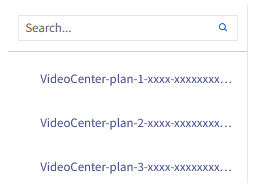Select your offer from the list.
**Step 2**
On the page that opens, click Access Video Center.
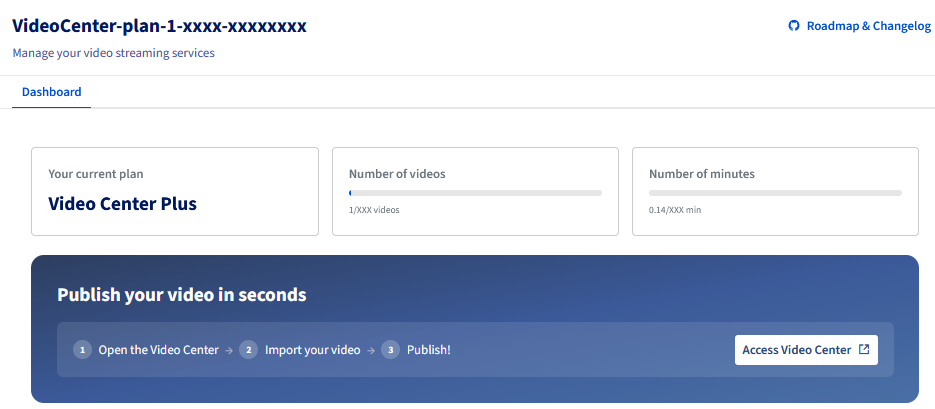
**Step 3**
Click the video you want to embed to open its details page.
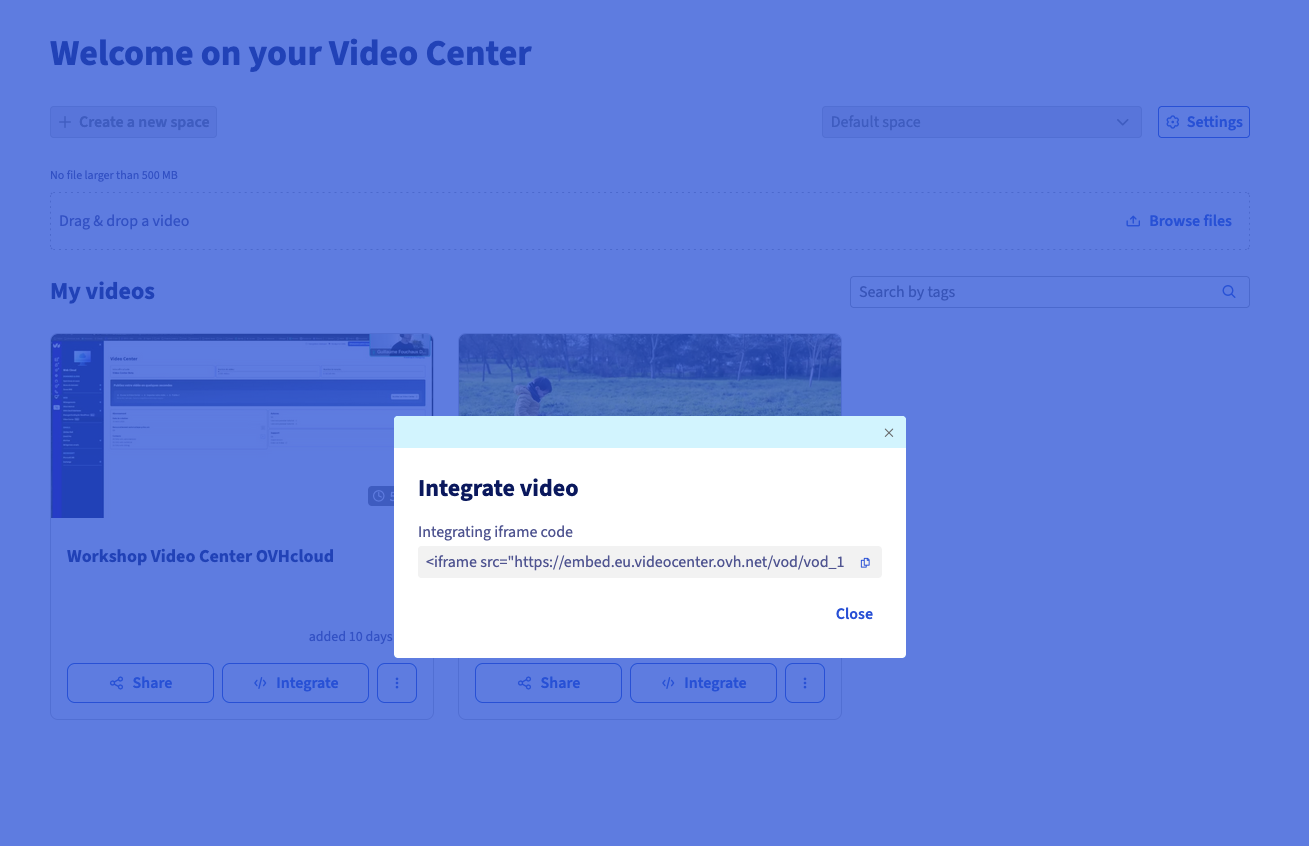Click Share or Embed code, then copy the code displayed.
The code looks like this:
```html
```
:::info
Keep this code handy: you will use it for the 3 methods described below.
:::
### Embedding the video on your website
**Choose the method that matches your environment.**
Method 1 — Embed code (iframe) in plain HTML
Use this method if you have direct access to the HTML code of your page.
- **Open the HTML file of your page**: in your code editor (Visual Studio Code, Dreamweaver, etc.), open the page where you want to display the video.
- **Position the cursor**: place it where you want the video to appear.
- **Paste the embed code**: paste the code copied from Video Center.
- **Save and publish**: save your file and upload it to your server (**FTP**: **F**ile **T**ransfer **P**rotocol, deployment, etc.).
Example result in your HTML file:
```html
```
Method 2 — CMS editor (Wix, Squarespace, Webflow, Joomla…)
Most CMSs provide a **custom HTML block** to insert third-party code into a page.
- **Open the page editor**: open the page where you want to display the video for editing.
- **Add an HTML block**: depending on your CMS, use the block listed below.
- **Paste the embed code**: paste the iframe code copied from Video Center into the HTML block field.
- **Confirm and publish**: confirm the insertion and publish the page.
Block to use depending on the CMS:
- **Wix**: **Wix App** > **HTML Code**.
- **Squarespace**: **Block** > **Code**.
- **Webflow**: **Element** > **Embed**.
- **Joomla**: **Editor** > disable the HTML filter > paste the code.
- **PrestaShop**: **Module** > **Custom HTML**.
:::info
If your CMS filters iframes for security reasons, look in its settings for the option **"Allow raw HTML"** or **"Disable content filter"**.
:::
Method 3 — WordPress without a plugin (HTML block)
WordPress natively includes a **Custom HTML** block in the Gutenberg editor. No plugin is required.
- **Open the page or post**: from your WordPress dashboard, open the page or post for editing.
- **Add a Custom HTML block**: click + to add a block, then search for and select **Custom HTML**.
- **Paste the embed code**: paste the iframe code copied from Video Center into the HTML block.
- **Preview**: click Preview to check the rendering before publishing.
- **Publish**: click Update or Publish.
:::info
If you are using the old WordPress editor (TinyMCE / Classic), switch to **Text** mode (not Visual) before pasting the code, then switch back to Visual mode to check the rendering.
:::
### Customising the embedded video player
How can I change the video size?
Adjust the `width` and `height` attributes in the iframe code:
```html
```
How can I make the video responsive on mobile?
Wrap the iframe in a CSS container for fluid rendering across all screen sizes:
```html
```
:::info
The `padding-bottom: 56.25%` ratio corresponds to the **16:9** format (the most common). For a 4:3 format, use `75%`.
:::
How can I disable full screen?
Remove the `allowfullscreen` attribute if you want to prevent full-screen mode:
```html
```
### Verifying the integration of your video
Before considering the integration complete, check the following points:
**On desktop:**
- The video displays correctly on the page.
- The player loads without an error message.
- Playback starts when you click Play.
- Full screen works (if enabled).
**On mobile:**
- The video adjusts to the screen width (responsive).
- Playback works on iOS (Safari) and Android (Chrome).
- The video is not cut off by the edges of the screen.
:::info
Test on a real device rather than via your browser's simulation mode — behaviour can differ on iOS.
:::
## Common issues
Why is my video not displaying?
Depending on the cause:
- **The embed URL is incorrect**: go back to Video Center and copy the embed code again.
- **The video is still being processed**: wait for encoding to finish in Video Center before embedding it.
- **The CMS filters iframes**: enable iframe authorisation in its settings.
- **The site is in HTTPS but the embed URL is in HTTP**: check that the URL in the iframe starts with `https://`.
Why does the sound not work?
Some browsers block autoplay with sound. Manual playback (clicking Play) works as expected.
Why is the video badly sized or overflowing?
Use the responsive technique described in the **Customising the embedded video player** section above with the relative CSS container.
How can I resolve a "Content blocked" message in WordPress?
Go to Settings > Reading in WordPress and check that external iframes are not blocked. Some security plugins (Wordfence, iThemes Security) may filter iframes.
:::warning
Never fully disable your CMS security filters. Only add the `streaming.media.ovhcloud.com` domain to the list of allowed sources if this option is available.
:::
## Go further
[Manage your videos in OVHcloud Video Center](/en/guides/web-cloud/video-center/manage-videos.md)
For specialised services (SEO, development, etc.), contact the [OVHcloud partners](https://partner.ovhcloud.com/en-gb/directory/).
Join our [community of users](https://community.ovhcloud.com/).