---
title: "Sending SMS messages that allow replies"
description: "Find out how to send SMS messages that recipients can reply to from your OVHcloud Control Panel, and manage the reply reception options"
url: https://docs.ovhcloud.com/en/guides/web-cloud/messaging/sms/sms-with-reply
lang: en
lastUpdated: 2026-06-15
---
# Sending SMS messages that allow replies
:::info
OVHcloud SMS offers are only available in the following countries: France, the United Kingdom, Ireland, Spain, Italy and Poland.
:::
:::warning
SMS response is available in France only.
:::
## Objective
The [SMS response](https://www.ovhcloud.com/fr/sms/marketing/sms-response/) service lets you send an SMS message that the recipient can reply to. You can thus create a reply exchange (booking a medical appointment, games, etc.) with your recipient.
The sender of the SMS response will be a random short number. Its use is included in your SMS offer and the reply is not charged at a premium rate for the recipient.
:::info
**Important**
- The SMS response service is only available for France.
- When your recipient sends a reply, one SMS credit (minimum) is deducted.
- When you reply again to your recipient, one SMS credit (minimum) is deducted.
:::
## Requirements
- An [OVHcloud SMS account](https://www.ovhcloud.com/en-gb/sms/) with credits.
***
### Accessing the OVHcloud Control Panel
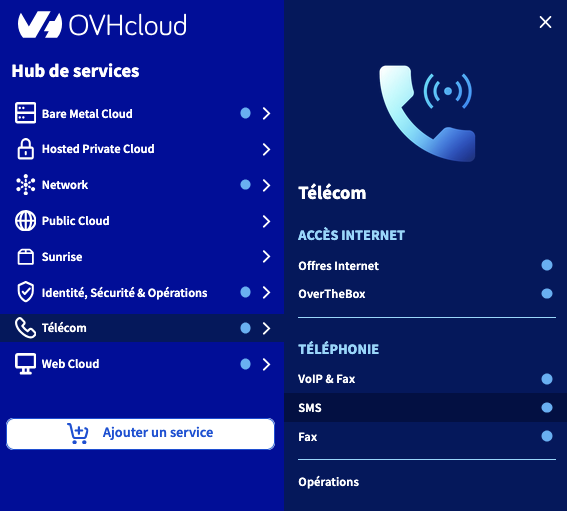
- **Direct link:** SMS
- **To access your services:** Telecom > SMS > Select your SMS account
***
## Instructions
### How it works and limitations
Replies are possible from French mobile operators (Bouygues Telecom, Free, Orange, SFR and their associated virtual operators (MVNOs)).
This means that only numbers geolocated in France and associated with a subscription with one of these operators use compatible SMS messages and will have their replies processed.
Recipients can only reply to your SMS when you use the [virtual number](https://www.ovhcloud.com/en-gb/sms/virtual-numbers) or the short number when sending. The latter, with 5 digits, is randomly assigned and is specific to the conversation. It therefore cannot be kept.
The SMS reply service works very simply:
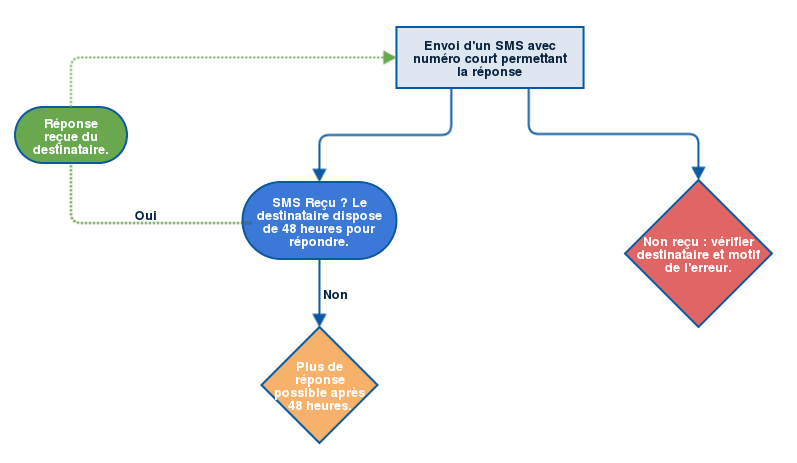
The service lets the recipient reply to the SMS received within 48 hours. After this time, the reply will not be taken into account.
The reply (if you enable it) can then be:
- **Automatic** and **unique**: you define a reply (in the Control Panel) that will be sent systematically.
- **Dynamic**: you call a script that handles the reply.
### Managing the reply options
Before sending your SMS response, we recommend that you configure the reply reception options.
In the tab bar, click `Options
` then `Reply options
`.
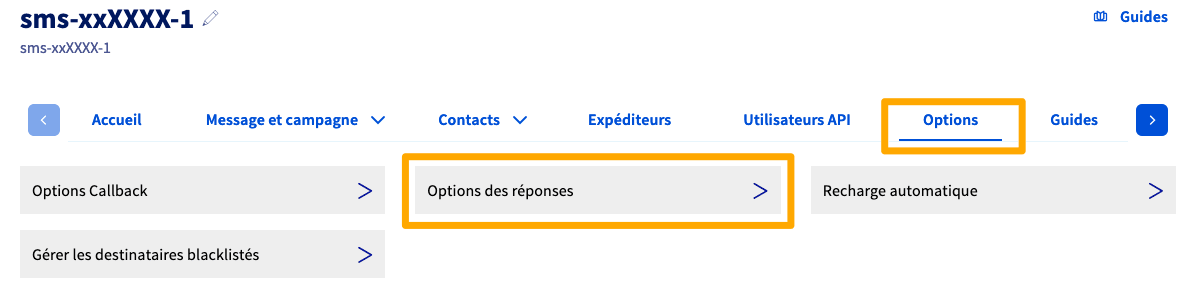
You can configure an **action on reception** (to reply to your recipient or trigger a script) and/or a **notification on reception** (to keep yourself informed of your recipients' replies).
#### Action on reception
From the drop-down menu, choose one of the options offered:
| Option | Additional action |
| ---------------------------- | ----------------------------------------------------------------------------------------------------------------------------------------------------------------- |
| Reply with a predefined text | Enter the text that will be sent by SMS to the recipient
(the corresponding number of credits will be debited from your SMS account on each automatic reply) |
| Call a CGI | Enter the URL of your CGI script |
| None | None |
Once your option is configured, click the `Confirm
` button.
:::info
If you choose to reply by SMS, the short number sending the message may be different from the short number that sent your initial SMS.
:::
#### Notification on reception
:::warning
**Information on data confidentiality**
This notification service must be reserved for your own use.
Indeed, the notifications contain information relating to the recipient of your SMS as well as data from your OVHcloud account (name of the SMS account containing your OVHcloud identifier).
:::
Click `Add a notification
` to access the following menu.
Then configure a notification by email or by SMS.
- Email notification
- Sender: you must enter a valid email address belonging to you.
- Email address: enter the recipient email address of the notification.
- SMS notification
- Sender: choose a sender from those already validated in your SMS account.
- Number: enter the recipient number of the notification in **international format**.
Once your notification is configured, click the `Confirm
` button. You can add several notifications, edit them or delete them.
### Sending an SMS response
In the Control Panel, select the `Home
` tab of your SMS account. Then click `Send an SMS
`.
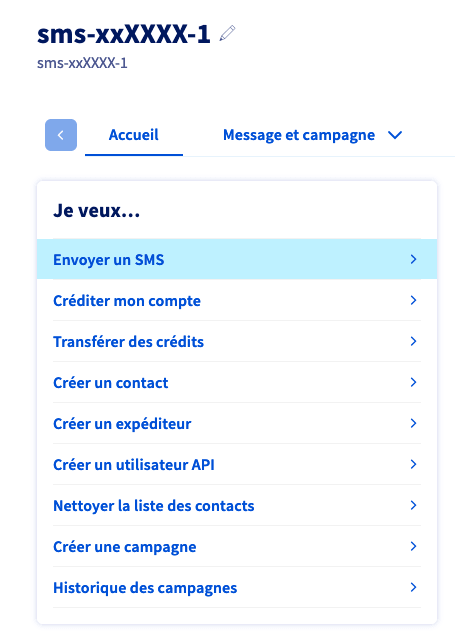
Make sure that your sender is the `Number enabling replies (France only)`.

Then fill in the fields for the recipient(s) and your message. For more details, refer to [our guide on sending SMS messages from the Control Panel](/en/guides/web-cloud/messaging/sms/send-sms-control-panel.md).
### Viewing replies
In the Control Panel, click the `Message and campaign
` tab of your SMS account and select `SMS management
`. Then click `SMS received
`.
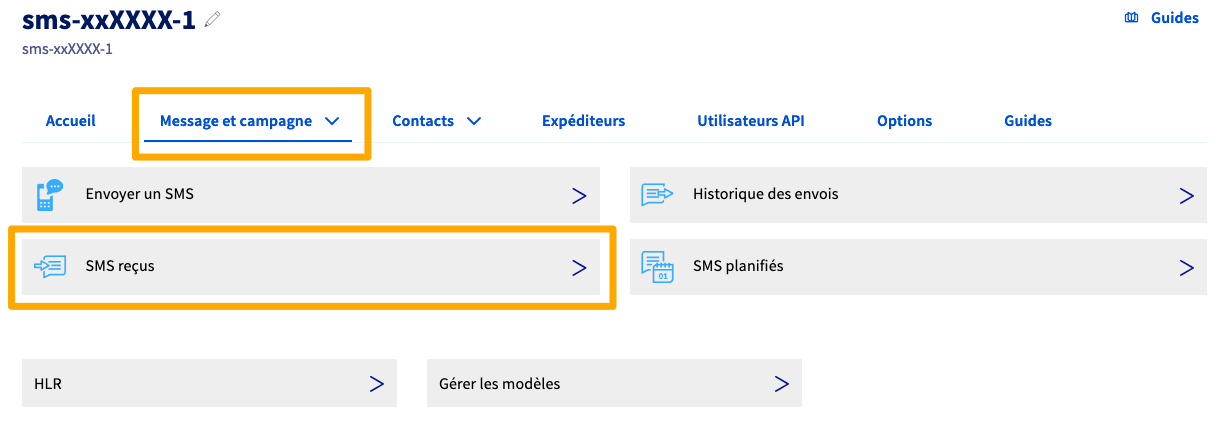
A table lists all the SMS messages received in reply to your sends. You can sort these SMS messages by clicking the column headers of the table.
## Go further
Talk to our [community of users](https://community.ovhcloud.com/).