---
title: "Manage your SMS history"
description: "Find out how to view your sent messages log from your OVHcloud account"
url: https://docs.ovhcloud.com/en/guides/web-cloud/messaging/sms/sms-history
lang: en
lastUpdated: 2025-12-30
---
# Manage your SMS history
:::info
OVHcloud SMS offers are only available in the following countries: France, the United Kingdom, Ireland, Spain, Italy and Poland.
:::
## Objective
You can view and download a log of your sent SMS messages from your OVHcloud Control Panel. This guide will explain how to do this.
## Requirements
- An [OVHcloud SMS account](https://www.ovhcloud.com/en-gb/sms/) with at least 1 sent SMS.
***
### OVHcloud Control Panel Access
- **Direct link:** SMS
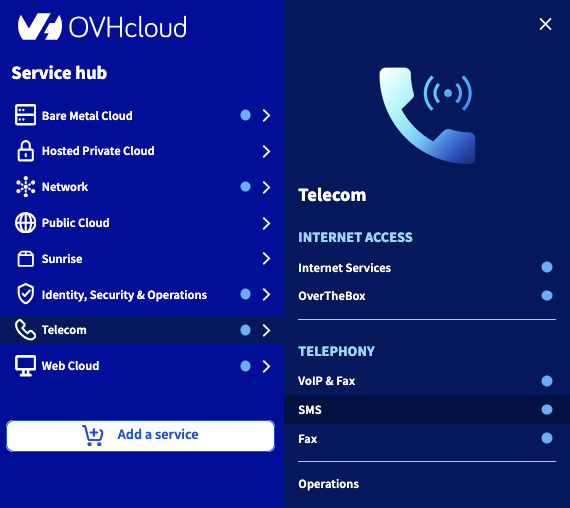
- **Navigation path:** Telecom > SMS > Select your SMS account
***
## Instructions
The log records the date, time, sender, recipient and contents of the sent SMS.
:::info
In the OVHcloud Control Panel, you can view SMS messages sent in the last 6 months (or the last 5,000 SMS messages if you have sent more than 5,000 SMS messages in the last 6 months).
To view older SMS messages (up to the last 12 months), you will need to download your SMS history in CSV format. See [Step 2 of this guide](#csv).
:::
### Step 1: Viewing the log in your Control Panel
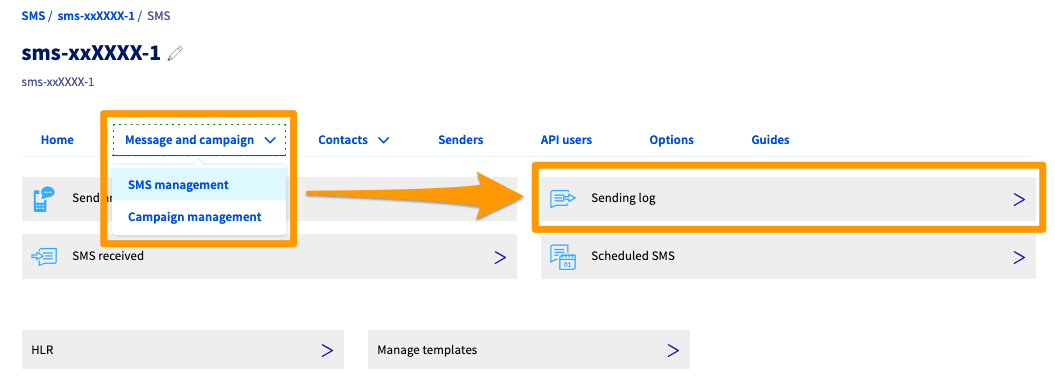
In the tab bar, click `Message and campaign
` then `SMS Management
` to access your unit SMS history or `Campaign Management
` to access your SMS campaign history.
Then click on `Sending log
` or `Statistics and history
`.
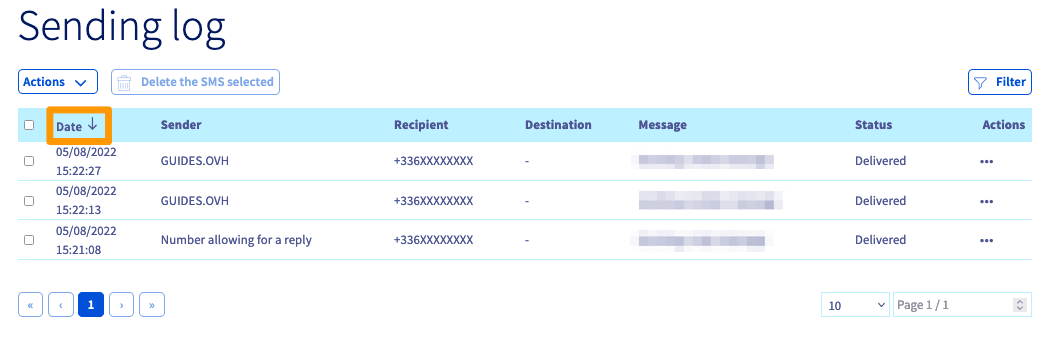
You can click on the ‘Date’ column on the left to sort your log by send date.
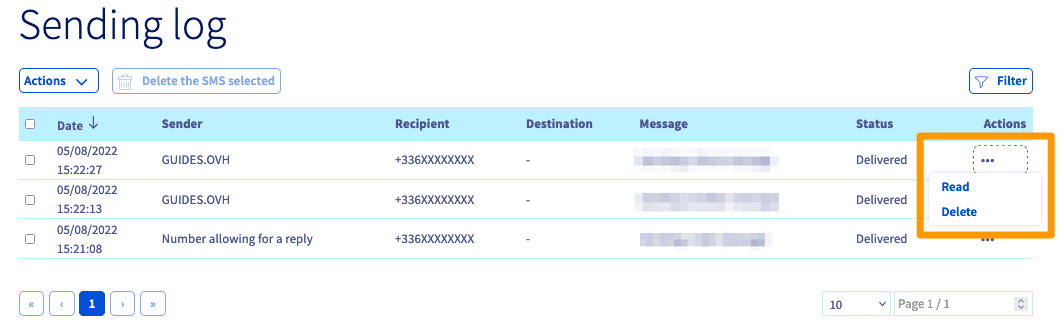
The Actions `...
` heading at the end of each SMS allows you to view or delete the message.
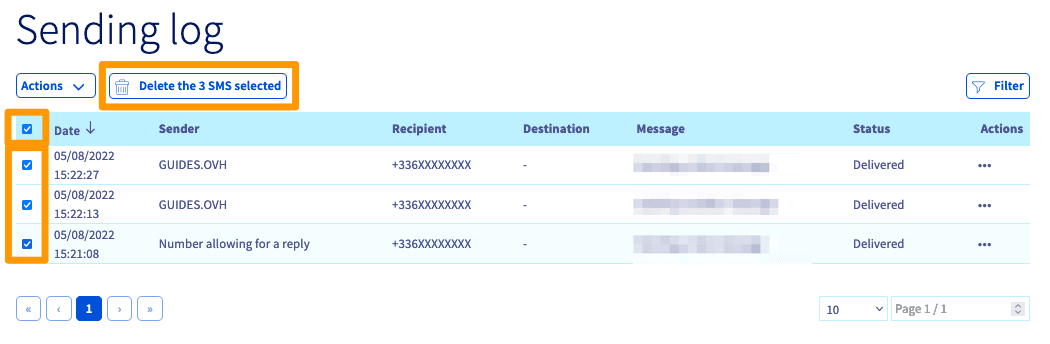
To delete several SMS messages at once, tick the boxes next to each message. The `Delete the SMS selected
` button will appear above the log.
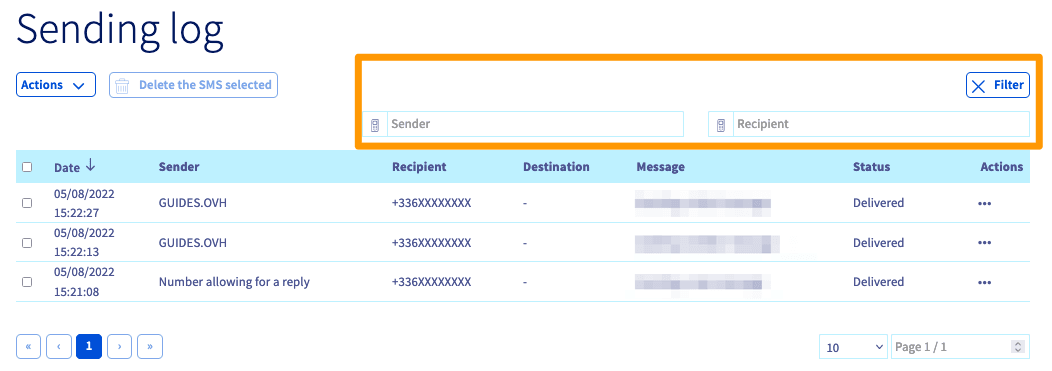
The `Filter
` button allows you to filter your search by sender (if you have several senders) or by recipient.
### Step 2: Downloading the sending log as a CSV [](#)
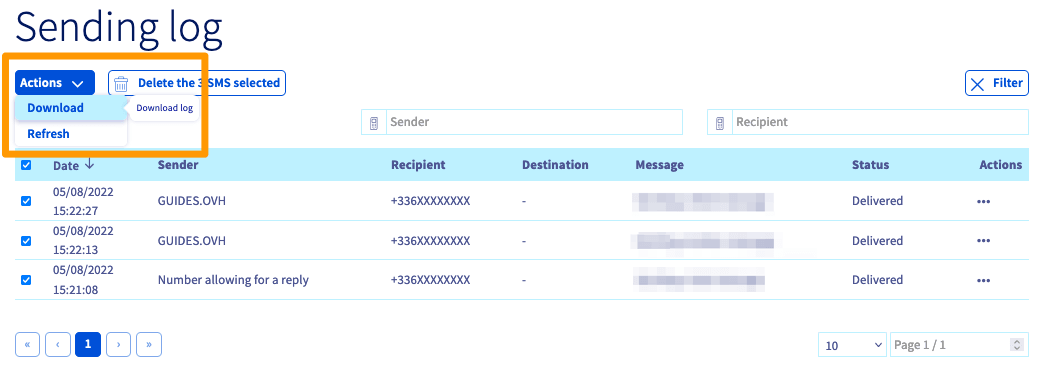
Click on the `Actions
` button above your log then on `Download
` to download your SMS log in a .csv format.
You can then view the log using a spreadsheet program. The information will display as in the example below.
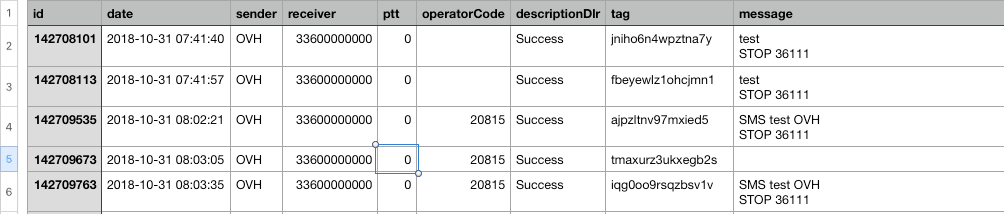
Here is a breakdown of the information included in the log:
| Title | Description |
| :------------- | :---------------------------------------------------------------------------------------------------------------------------------------------------- |
| id | the unique id for the sent SMS used by our servers |
| date | the date and time that the SMS was sent |
| sender | the sender of the SMS message |
| receiver | the recipient’s phone number |
| ptt | the return code on the SMS status |
| operatorCode | the network ID of the mobile operator to which we sent the SMS |
| descriptionDlr | the description of the ptt code received and therefore the status of the SMS |
| tag | the tag attributed either manually via the APIs (to one or more SMS messages) or automatically by our servers to each sent SMS (or each SMS campaign) |
| message | the content of the SMS |
Further information about the ptt codes and various DLR IDs can be found in the final section of the guide [Everything you need to know about SMS users](/en/guides/web-cloud/messaging/sms/sms-users.md#callback-url).
## Go further
Join our [community of users](https://community.ovhcloud.com/).