---
title: "How to create an SMS recipient list"
description: "Find out how to create a list of SMS recipients and import it into your OVHcloud Control Panel"
url: https://docs.ovhcloud.com/en/guides/web-cloud/messaging/sms/liste-de-destinataire-sms
lang: en
lastUpdated: 2022-08-05
---
# How to create an SMS recipient list
:::info
OVHcloud SMS offers are only available in the following countries: France, the United Kingdom, Ireland, Spain, Italy and Poland.
:::
## Objective
To send an SMS campaign to multiple contacts, you can import one or more recipient lists into your OVHcloud Control Panel.
**Find out how to create a list of SMS recipients via a spreadsheet or text editor, and import it into the OVHcloud Control Panel.**
## Requirements
- an active [OVHcloud SMS account](https://www.ovhcloud.com/en-gb/sms/)
- a spreadsheet or text editor tool
***
### OVHcloud Control Panel Access
- **Direct link:** SMS
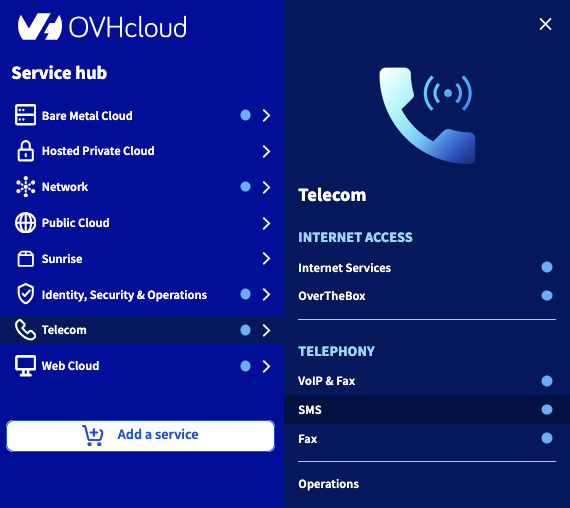
- **Navigation path:** Telecom > SMS > Select your SMS account
***
## Instructions
### Step 1: Creating your recipient list
#### Creating your list via a spreadsheet
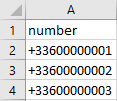
You can create a recipient list via a spreadsheet, or use a list that already exists. This list must be in .csv format, and have the layout below in a spreadsheet:
:::warning
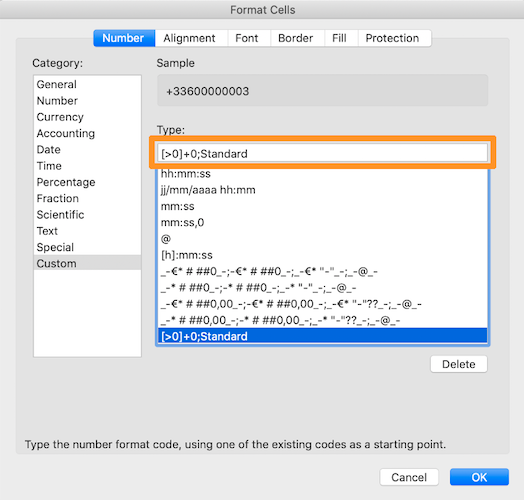
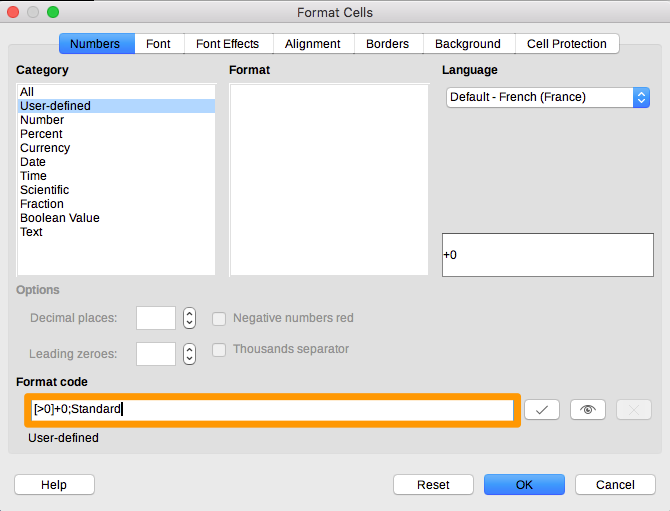
To ensure that the spreadsheet does not perform any automatic calculations on your numbers, you must customise the format of your `number` column.
In Microsoft Excel, select your entire `number`
column, right-click, and click `Format Cells
`. Click `Custom
` and enter the following value in the `Type`
field: `[>0]+0;Standard`
.
Under LibreOffice, select your entire `number`
column, right-click, and click `Format Cells...
`. Enter the following value in the Format `Format code`
: `[>0]+0;Standard`
:::
If you open a .csv file with a notepad program, it should look similar to this:
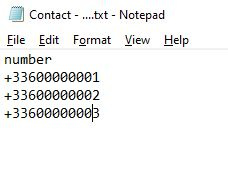
The following points are vital for your recipient list to be processed properly on the OVHcloud Control Panel:
- All of your contacts must be on the same sheet in your spreadsheet file, in a number column.
- Delete special characters (like accents) — they won't be accepted when importing the .csv file to the OVHcloud Control Panel.
- Phone numbers must be entered in international format (e.g. for a UK phone number: +44712345678).
- Save your spreadsheet file in .csv format (separator: semi-colon).
#### Creating your list with a text editor
An alternative method involves creating a .txt file via a text editor or notepad program.
- Enter `number` into the first line.
- Enter your phone numbers in international format (+44712345678), with one number per line.
You should end up with the result below:

### Step 2: Importing your list into the OVHcloud Control Panel
Click on the `Contacts
` tab and `Create a contact
` list.
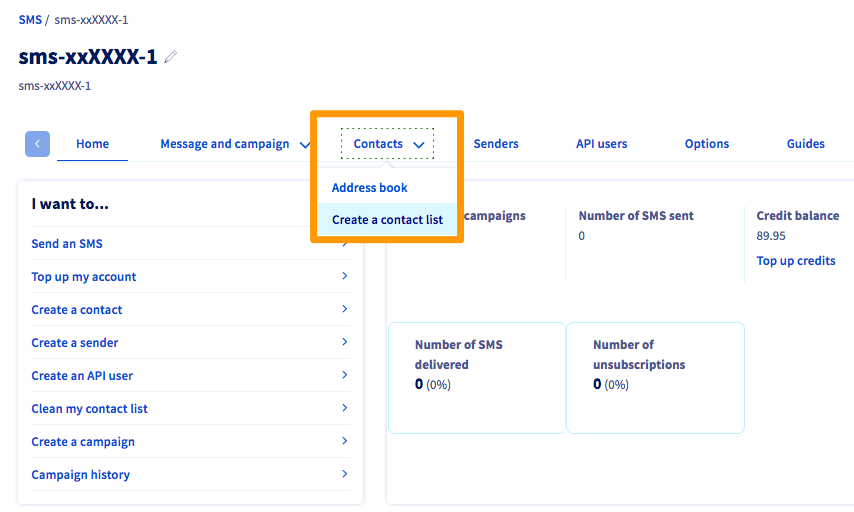
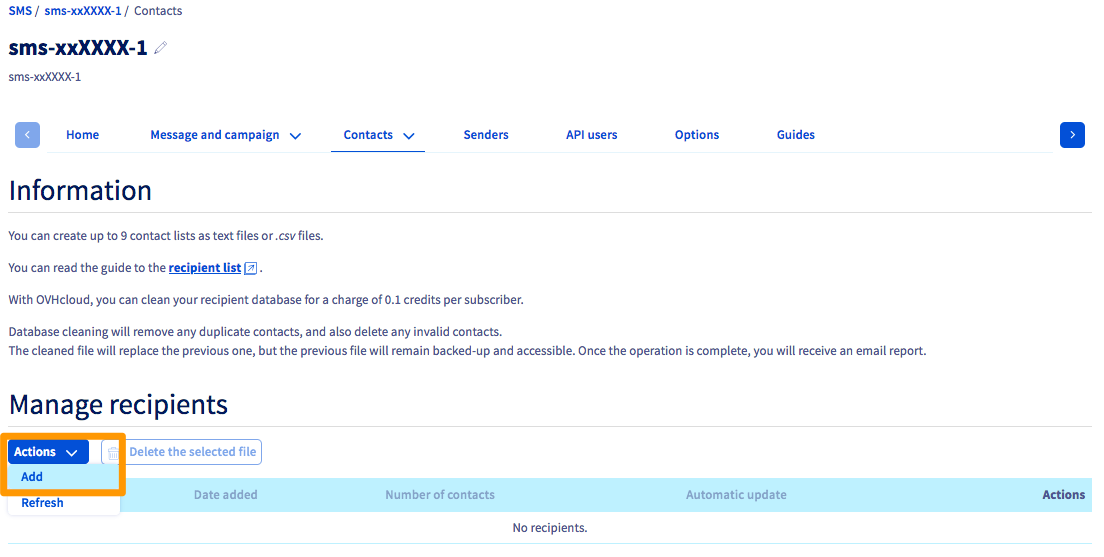
You can create up to 9 contact lists.
To do this, click `Actions
`, then `Add
`.
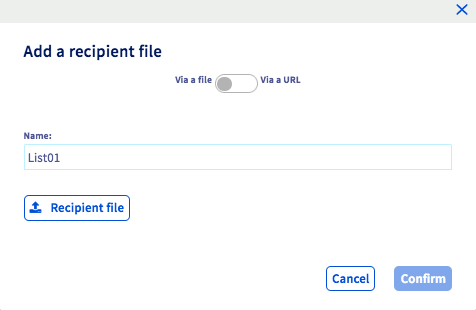
Name your recipient list, and import your local file on to the OVHcloud Control Panel.
### Step 3: Sending an SMS to your recipient list
Now that your list has been imported, you can follow the instructions in our guide on [Sending SMS messages via the OVHcloud Control Panel](/en/guides/web-cloud/messaging/sms/send-sms-control-panel.md) to send an SMS to the recipients of this list.
## Go further
[Sending SMS messages via the OVHcloud Control Panel](/en/guides/web-cloud/messaging/sms/send-sms-control-panel.md)
[Managing SMS address books](/en/guides/web-cloud/messaging/sms/sms-address-books.md)
Join our [community of users](https://community.ovhcloud.com/).