---
title: "Managing WordPress websites with MainWP on Managed Hosting"
description: "Manage all your WordPress websites from MainWP, included with Managed Hosting — updates, bulk actions, and centralised monitoring."
url: https://docs.ovhcloud.com/en/guides/web-cloud/managed-hosting/mainwp-site-management
lang: en
lastUpdated: 2026-05-26
---
# Managing WordPress websites with MainWP on Managed Hosting
## Objective
**MainWP** is a self-hosted, open-source dashboard included with your **Managed Hosting for WordPress** offer. It lets you manage all your WordPress websites from a centralised interface, without going through each individual site's administration.
:::info
MainWP is a third-party tool, independent of OVHcloud. OVHcloud hosts and provides access to the MainWP interface, but does not handle functional support for the tool. For advanced questions about MainWP features, refer to the [official MainWP documentation](https://docs.mainwp.com/).
:::
**Find out how to manage your WordPress websites with MainWP.**
## Requirements
- An active **Managed Hosting for WordPress** offer with at least one WordPress website created.
***
### OVHcloud Control Panel Access
- **Direct link:** Managed hosting for WordPress
- **Navigation path:** Web Cloud > Managed hosting for WordPress
***
## Instructions
### 1. Accessing the MainWP interface
You can access MainWP in a few clicks from your Managed Hosting for WordPress resource. Click the tabs below to view each of the **3** steps.
**Step 1**
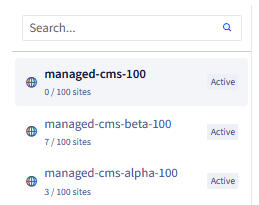
Go to the Managed hosting for WordPress page in your OVHcloud Control Panel and identify the resource to manage from the list displayed.
**Step 2**
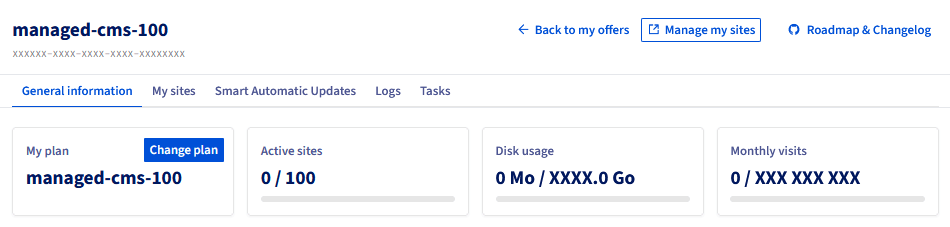
Click Manage under the resource concerned. The **General information** page displays the details of your offer (subscription, quotas, contacts).
**Step 3**
Click Manage websites at the top right. The MainWP interface opens in a new tab.
:::info
Access MainWP via the direct link in your OVHcloud Control Panel. No additional installation is required — MainWP is preinstalled on your Managed Hosting for WordPress resource.
:::
### 2. Understanding the MainWP interface
The MainWP interface is organised around 2 main concepts:
- **Dashboard**: central view listing all your connected sites with their status.
- **Child Sites**: each of your WordPress websites managed via MainWP.
The dashboard groups 3 main areas:
- **Sites list**: displays all your WordPress websites with their status (online/offline, available updates).
- **Status indicators**: number of pending updates (WordPress core, plugins, themes).
- **Side menu**: navigation to the Sites, Updates, Plugins, Security sections, etc.
### 3. Managing your WordPress websites — individual actions
#### 3.1 Accessing the administration of a WordPress website
- **Locate the WordPress website**: in the list of WordPress websites on the MainWP dashboard, find the WordPress website you want to administer.
- **Open the administration**: click WP Admin next to the WordPress website to go directly to its WordPress dashboard.
#### 3.2 Updating a WordPress website individually
- **Open the WordPress website details**: click the name of the WordPress website in the list.
- **Review available updates**: the detail screen displays pending updates (WordPress core, plugins, themes).
- **Update**: click Update next to each item, or Update All to apply all updates at once.
:::warning
Back up or snapshot your WordPress website before any major update. Some plugin updates may cause incompatibilities. Refer to the "[Back up your WordPress websites with MainWP](/en/guides/web-cloud/web-hosting/mainwp-backup.md)" guide to create a restore point.
:::
### 4. Bulk actions
Bulk actions apply an operation to several WordPress websites at once, without having to repeat it for each one.
#### 4.1 Selecting several WordPress websites
- **Display the list of WordPress websites**: from the MainWP dashboard, go to the Sites section.
- **Select the target WordPress websites**: tick the boxes next to each WordPress website to include in the bulk action. Use Select All to include all your WordPress websites.
#### 4.2 Updating several WordPress websites at once
- **Select the WordPress websites**: tick the WordPress websites to update (see §4.1).
- **Launch the bulk update**: click Updates in the bulk actions menu.
- **Choose the components to update**: select the items concerned (WordPress core, plugins, themes).
- **Apply**: click Update. MainWP applies the updates sequentially on each selected WordPress website.
:::info
Updates are applied in the order of the list, which may take a few minutes depending on the number of WordPress websites.
:::
#### 4.3 Installing or activating a plugin on several WordPress websites
- **Access plugin management**: in the MainWP menu, click Plugins.
- **Select the plugin**: find the plugin to install or activate in the list.
- **Choose the target sites**: select the WordPress websites to apply the action to.
- **Apply**: click Install or Activate as required.
#### 4.4 Other bulk actions available
- **Deactivate a plugin** on all selected WordPress websites.
- **Delete a plugin** from selected WordPress websites.
- **Install a theme** on several WordPress websites at once.
- **Activate a theme** on selected WordPress websites.
- **Publish content** (post or page) on several WordPress websites.
:::info
Some advanced actions (customer reports, advanced security monitoring, automated backups) require **MainWP extensions** (premium). Refer to the [list of MainWP extensions](https://docs.mainwp.com/).
:::
### 5. How to monitor the status of your WordPress websites?
MainWP displays the health status of your WordPress websites in real time:
- **WordPress website online (green)**: the WordPress website responds correctly.
- **WordPress website offline (red)**: the WordPress website is unreachable, or the MainWP connection is lost.
- **Available updates**: number of pending updates (core / plugins / themes).
- **Detected vulnerabilities**: plugin or theme with a known security flaw.
:::warning
If a WordPress website appears "offline" in MainWP, the WordPress website is not necessarily unreachable for your visitors. It may indicate a connection problem between MainWP and the child WordPress website (Child Site plugin disabled, password change, etc.).
:::
## Support scope and limitations
- **MainWP hosting**: managed by OVHcloud, included in your offer.
- **MainWP functioning**: responsibility of the MainWP publisher.
- **MainWP updates**: managed automatically by OVHcloud.
- **Advanced functional support**: contact the [MainWP community](https://docs.mainwp.com/).
## Go further
[Official MainWP documentation](https://docs.mainwp.com/) — guides, extensions and FAQ.
[Getting started with Managed Hosting for WordPress](/en/guides/web-cloud/managed-hosting/wordpress.md)
[Back up your WordPress websites with MainWP](/en/guides/web-cloud/web-hosting/mainwp-backup.md)
For specialised services (SEO, development, etc.), contact [OVHcloud partners](https://partner.ovhcloud.com/en-gb/directory/).
Join our [community of users](https://community.ovhcloud.com/).