---
title: "Zimbra Pro - Configuring your email account on the Zimbra mobile app"
description: "Find out how to configure your Zimbra Pro email account on the official Zimbra app for Android and iOS, and sync your emails, folders, calendars and contacts"
url: https://docs.ovhcloud.com/en/guides/web-cloud/email-and-collaborative-solutions/zimbra/zimbra-app-android-ios
lang: en
lastUpdated: 2026-07-28
---
# Zimbra Pro - Configuring your email account on the Zimbra mobile app
## Objective
The official Zimbra app lets you access your Zimbra Pro email account and keep all its collaborative data — emails, folders, calendars and contacts — in sync in a single, free application. The Zimbra app is available on Android and iOS.
**Find out how to configure your Zimbra Pro email account on the official Zimbra app.**
:::warning
OVHcloud provides services for which you are responsible with regard to their configuration and management. It is therefore your responsibility to ensure that they function correctly.
This guide is designed to help you with common tasks. Nevertheless, we recommend contacting a [specialised partner](https://partner.ovhcloud.com/en-gb/directory/) or the software publisher if you encounter any difficulties. OVHcloud cannot provide you with technical support in this regard. You can find more information in the "[Go further](#go-further)" section of this guide.
:::
## Requirements
- A [Zimbra Pro](https://www.ovhcloud.com/en-gb/emails/zimbra-emails/) account
- The Zimbra app installed on your device (see the download links below)
- Login details for the email account you would like to configure
[### App Store→
Download the Zimbra app for iPhone and iPad.
](https://apps.apple.com/gb/app/zimbra-email-collaboration/id1554848550)[### Google Play→
Download the Zimbra app for Android.
](https://play.google.com/store/apps/details?id=com.zimbra.modernapp&hl=en)
## Instructions
### Configuring your email account
Follow the steps below to configure your email account:
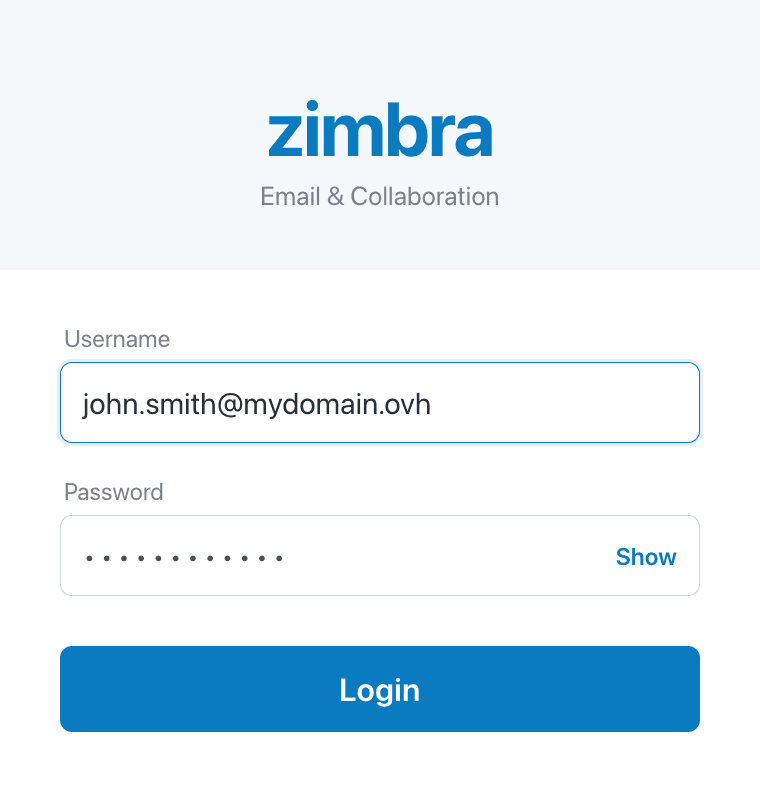
1. When you first launch the application, enter your **Zimbra Pro email address** and the associated **password**, then press Login.
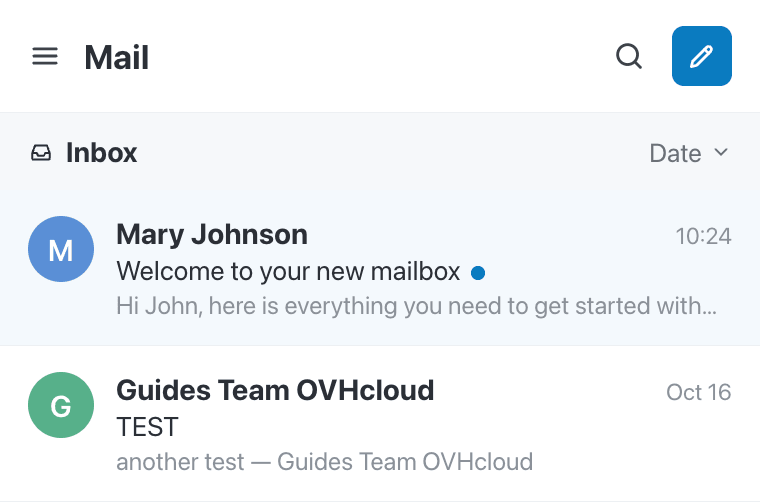
 2. You now have access to the content of your email account. By default, your inbox appears.
 :::tip
The Zimbra app interface is similar to the webmail interface. For more details on the features and settings, please read our [How to use Zimbra webmail](/en/guides/web-cloud/email-and-collaborative-solutions/mx-plan/email-zimbra.md) guide.
:::
### Synchronising your emails, folders, calendars and contacts
Because the Zimbra app is the native client for your Zimbra Pro account, it synchronises all your collaborative data at once — no extra configuration is required. Once logged in, the following data is kept up to date on your device:
- **Emails and folders**: your inbox and your full folder tree.
- **Calendars**: your events and appointments.
- **Contacts**: your address book.
Use the menu `☰
` in the upper left corner of the screen to switch between your emails, calendars and contacts.
### View another Zimbra email account [](#)
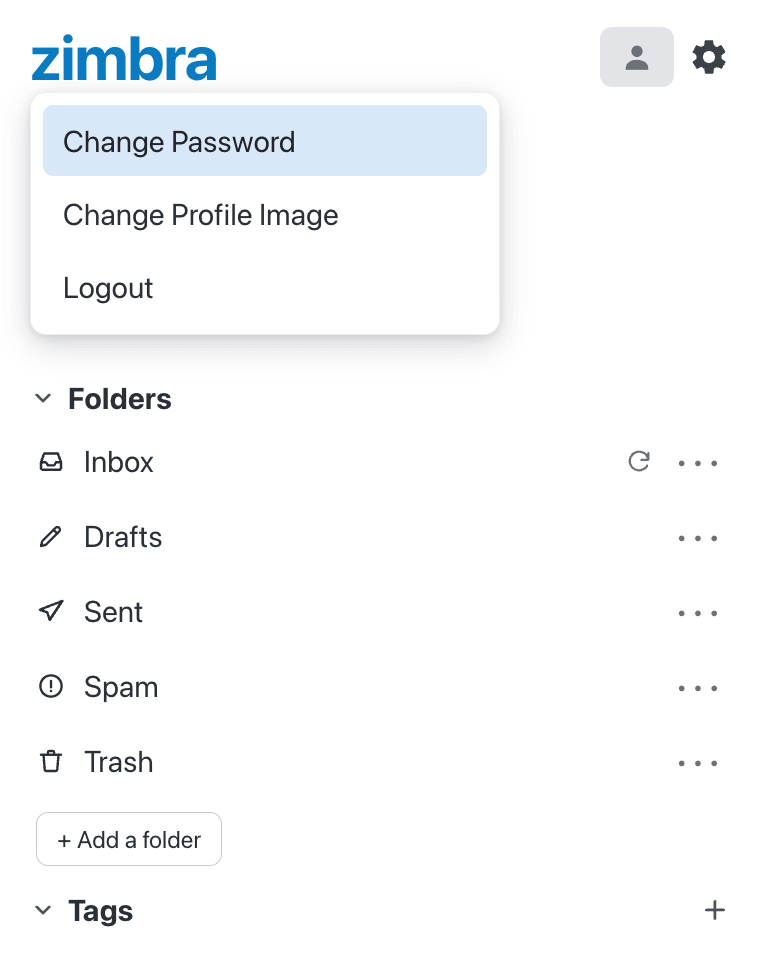
The Zimbra app only allows you to configure one email account at a time. To view another Zimbra email account, log out of the one you are currently using.
Select the profile icon at the top right of your screen, then press `Logout
`.
### What if a blank screen appears when I launch the application?
This is a loading error caused by network connectivity. We recommend waiting a few moments for the application to finish attempting to connect.
If nothing happens, check that your mobile network connectivity is correct, then close the application completely and restart it. Repeat as necessary.
If the problem persists, reinstall the application. This will reset the settings and eliminate potential corruption in the application configuration file.
## Go further [](#)
[Getting started with the Zimbra solution](/en/guides/web-cloud/email-and-collaborative-solutions/zimbra/getting-started-zimbra.md)
[Zimbra - Configuring your email account on an email client](/en/guides/web-cloud/email-and-collaborative-solutions/zimbra/mail-apps.md)
[How to use Zimbra webmail](/en/guides/web-cloud/email-and-collaborative-solutions/mx-plan/email-zimbra.md)
[OVHcloud Zimbra FAQ](/en/guides/web-cloud/email-and-collaborative-solutions/mx-plan/faq-zimbra.md)
For specialised services (SEO, development, etc.), contact [OVHcloud partners](https://partner.ovhcloud.com/en-gb/directory/).
If you would like assistance using and configuring your OVHcloud solutions, please refer to our [support offers](https://www.ovhcloud.com/en-gb/support-levels/).
Join our [community of users](https://community.ovhcloud.com/).
:::tip
The Zimbra app interface is similar to the webmail interface. For more details on the features and settings, please read our [How to use Zimbra webmail](/en/guides/web-cloud/email-and-collaborative-solutions/mx-plan/email-zimbra.md) guide.
:::
### Synchronising your emails, folders, calendars and contacts
Because the Zimbra app is the native client for your Zimbra Pro account, it synchronises all your collaborative data at once — no extra configuration is required. Once logged in, the following data is kept up to date on your device:
- **Emails and folders**: your inbox and your full folder tree.
- **Calendars**: your events and appointments.
- **Contacts**: your address book.
Use the menu `☰
` in the upper left corner of the screen to switch between your emails, calendars and contacts.
### View another Zimbra email account [](#)
The Zimbra app only allows you to configure one email account at a time. To view another Zimbra email account, log out of the one you are currently using.
Select the profile icon at the top right of your screen, then press `Logout
`.

### What if a blank screen appears when I launch the application?
This is a loading error caused by network connectivity. We recommend waiting a few moments for the application to finish attempting to connect.
If nothing happens, check that your mobile network connectivity is correct, then close the application completely and restart it. Repeat as necessary.
If the problem persists, reinstall the application. This will reset the settings and eliminate potential corruption in the application configuration file.
## Go further [](#)
[Getting started with the Zimbra solution](/en/guides/web-cloud/email-and-collaborative-solutions/zimbra/getting-started-zimbra.md)
[Zimbra - Configuring your email account on an email client](/en/guides/web-cloud/email-and-collaborative-solutions/zimbra/mail-apps.md)
[How to use Zimbra webmail](/en/guides/web-cloud/email-and-collaborative-solutions/mx-plan/email-zimbra.md)
[OVHcloud Zimbra FAQ](/en/guides/web-cloud/email-and-collaborative-solutions/mx-plan/faq-zimbra.md)
For specialised services (SEO, development, etc.), contact [OVHcloud partners](https://partner.ovhcloud.com/en-gb/directory/).
If you would like assistance using and configuring your OVHcloud solutions, please refer to our [support offers](https://www.ovhcloud.com/en-gb/support-levels/).
Join our [community of users](https://community.ovhcloud.com/).