---
title: "Zimbra - Set up a WebDAV folder on your computer"
description: "Set up WebDAV access to your Zimbra Briefcase on your computer to manage and share your files directly from your system"
url: https://docs.ovhcloud.com/en/guides/web-cloud/email-and-collaborative-solutions/zimbra/webdav-mount
lang: en
lastUpdated: 2026-02-10
---
# Zimbra - Set up a WebDAV folder on your computer
## Objective
Zimbra Pro email accounts have a storage space, called **Briefcase**, which can be used to exchange files via the WebDAV feature. This feature is available via the Zimbra Webmail and can also be set up on your computer to display the Briefcase as a storage volume.
**Find out how to mount a Zimbra WebDAV folder on your computer.**
## Requirements
- An OVHcloud [Zimbra Pro](https://www.ovhcloud.com/en-gb/emails/) email address.
- A Windows or macOS computer.
- The credentials related to the email address attached to the Zimbra Pro account.
## Instructions
WebDAV (Web-based Distributed Authoring and Versioning) is an extension of the HTTP protocol that allows you to manage files remotely on a server and modify them as if they were local.
The storage space allocated to your Zimbra email account is shared between your emails and the files in the Briefcase. Each file uploaded to the Zimbra Briefcase cannot exceed 100 MB.
In this documentation, we will use the example email address `john.smith@mydomain.ovh` and we will mount the `Briefcase` folder which is present by default.
### Mount a folder from Windows
Before you can connect to your WebDAV folder from the Windows Explorer, you need to enable and configure the services related to connecting to a WebDAV volume.
#### 1. Enable the WebClient service
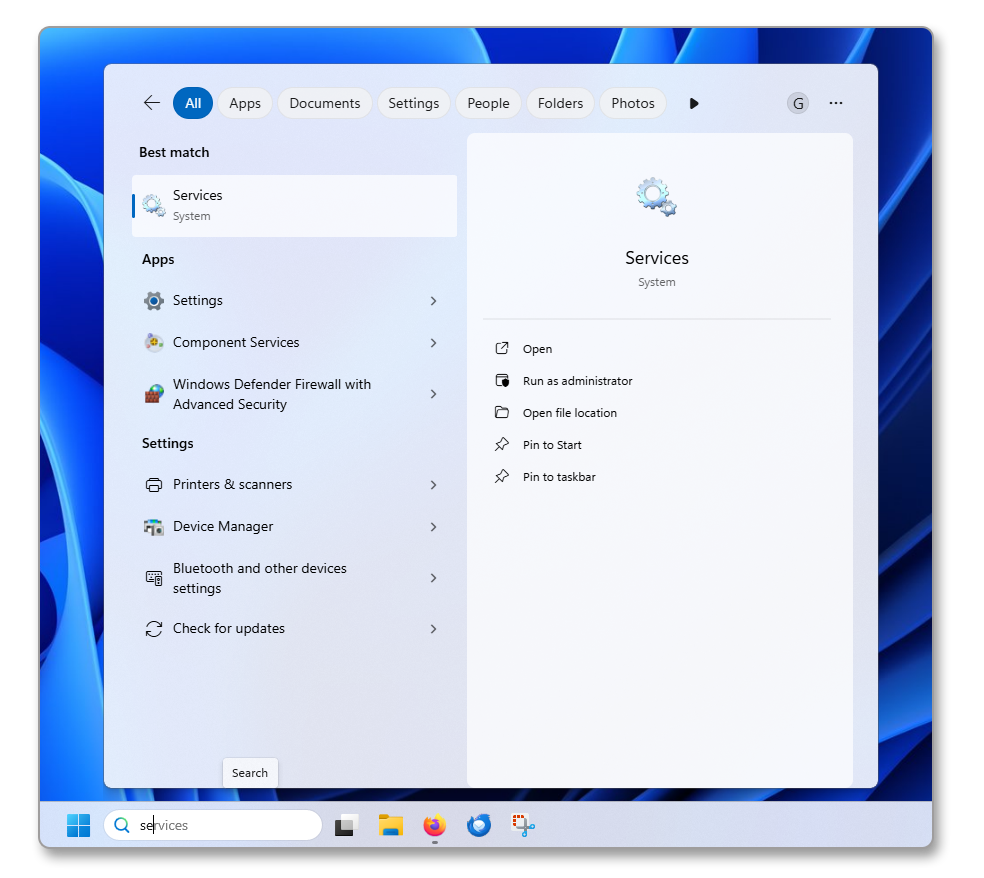
**Step 1**
- Open Services from the Windows Start menu.
**Step 2**
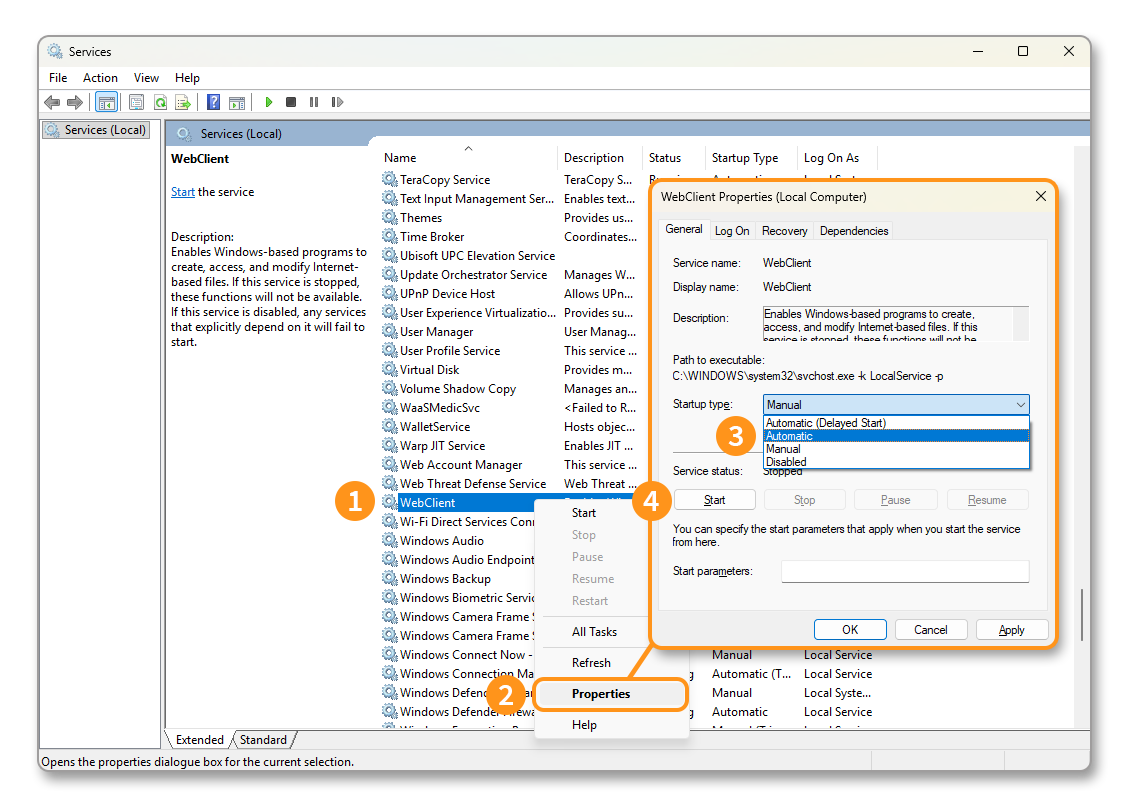
1. Identify the **WebClient** service in the list.
2. Right-click on **WebClient**, then click on Properties.
3. Switch the _Startup type_ to **Automatic**.
4. Click on Start to start the service, then click on OK to confirm the changes.
#### 2. Modify the WebClient registry key
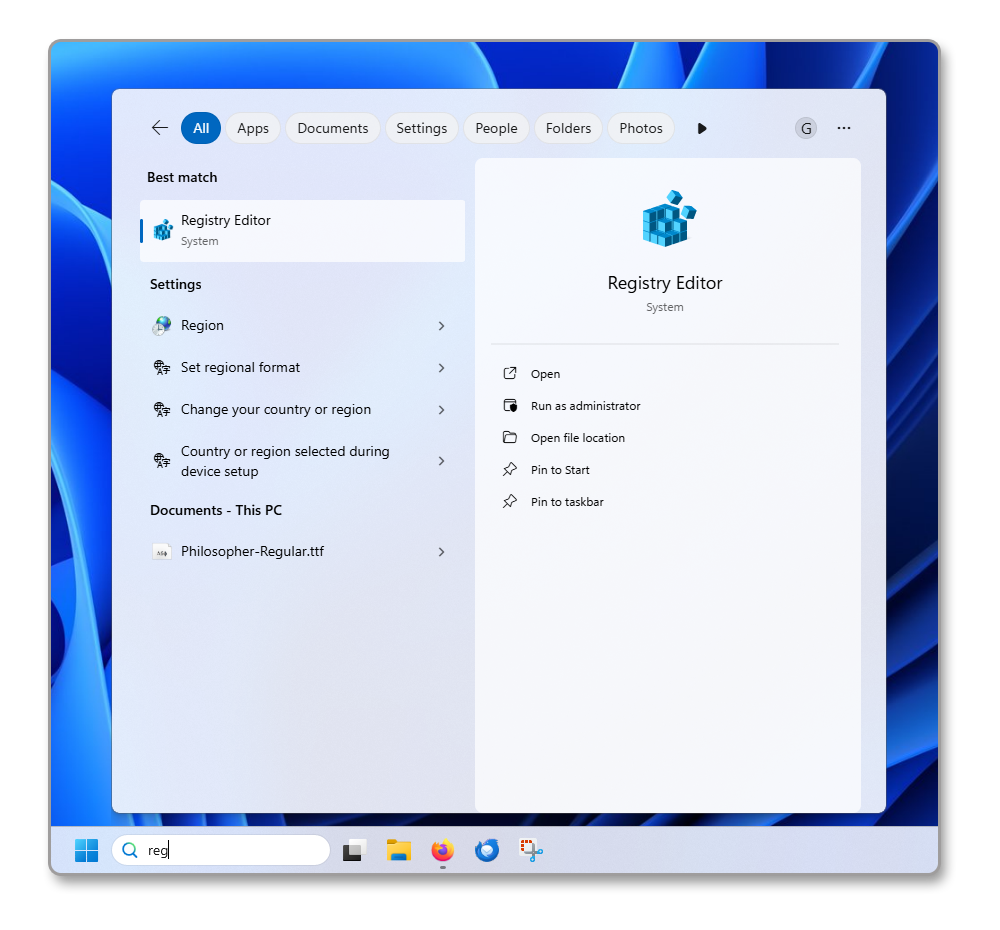
**Step 1**
- Open the Registry Editor from the Windows Start menu.
**Step 2**
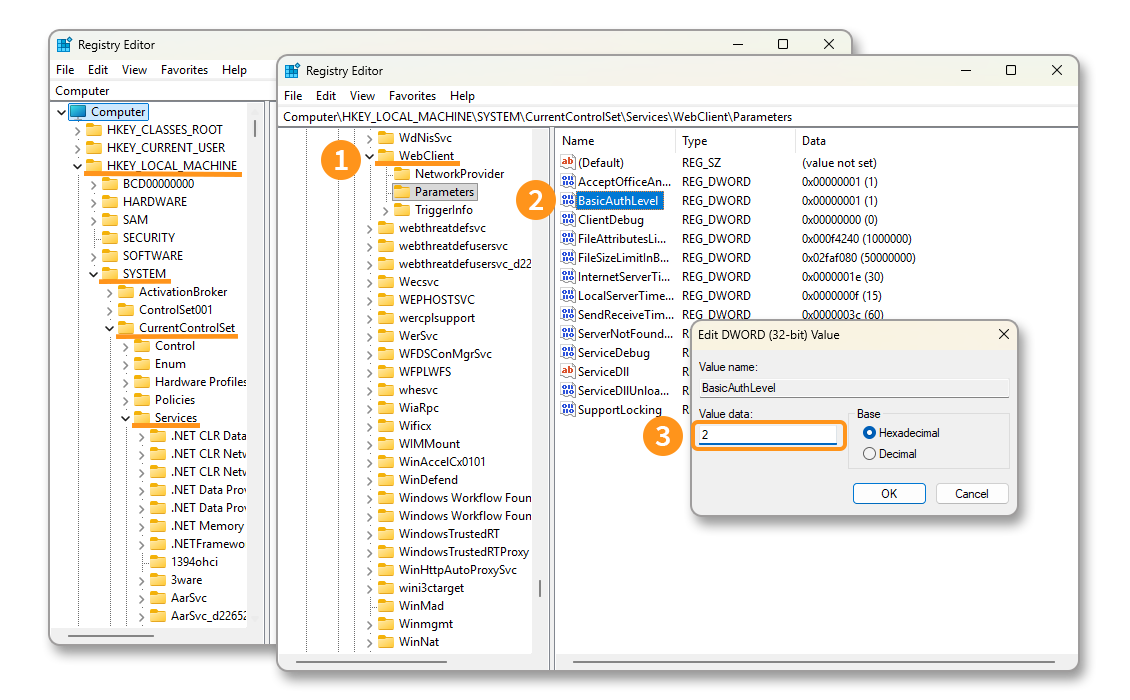
1. Identify the **WebClient** service in the `HKEY_LOCAL_MACHINE\SYSTEM\CurrentControlSet\Services\WebClient\Parameters\BasicAuthLevel` tree.
2. Double-click on the registry key `BasicAuthLevel`.
3. Change the _Value data_: by default set to `1`, replace it with the value `2` and then click on OK to confirm the changes.
#### 3. Import the Zimbra server SSL certificate
:::info
To export the SSL certificate, we used the [Mozilla Firefox](https://www.firefox.com/) browser.
:::
**Step 1**
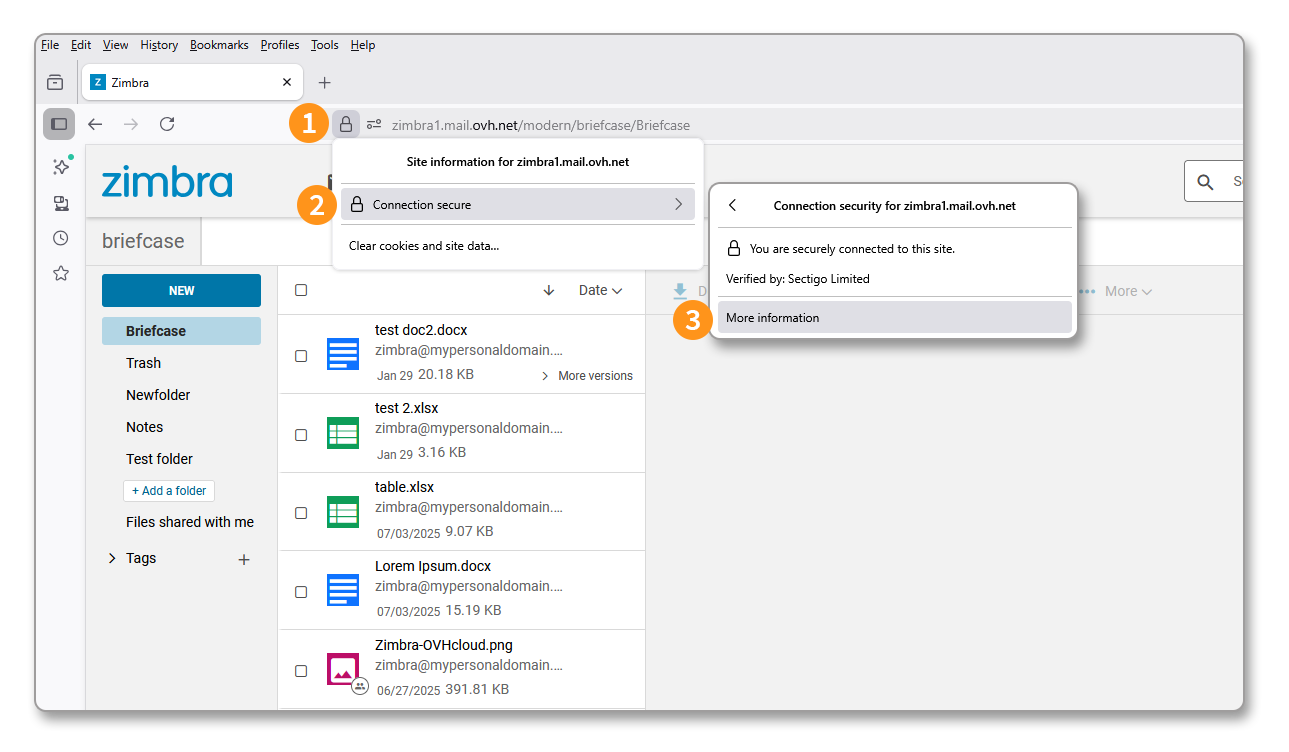
1. Open your web browser, load the page [https://zimbra1.mail.ovh.net/](https://zimbra1.mail.ovh.net/), then click on the padlock icon in the address bar.
2. Click on Secure Connection.
3. Click on More information.
**Step 2**
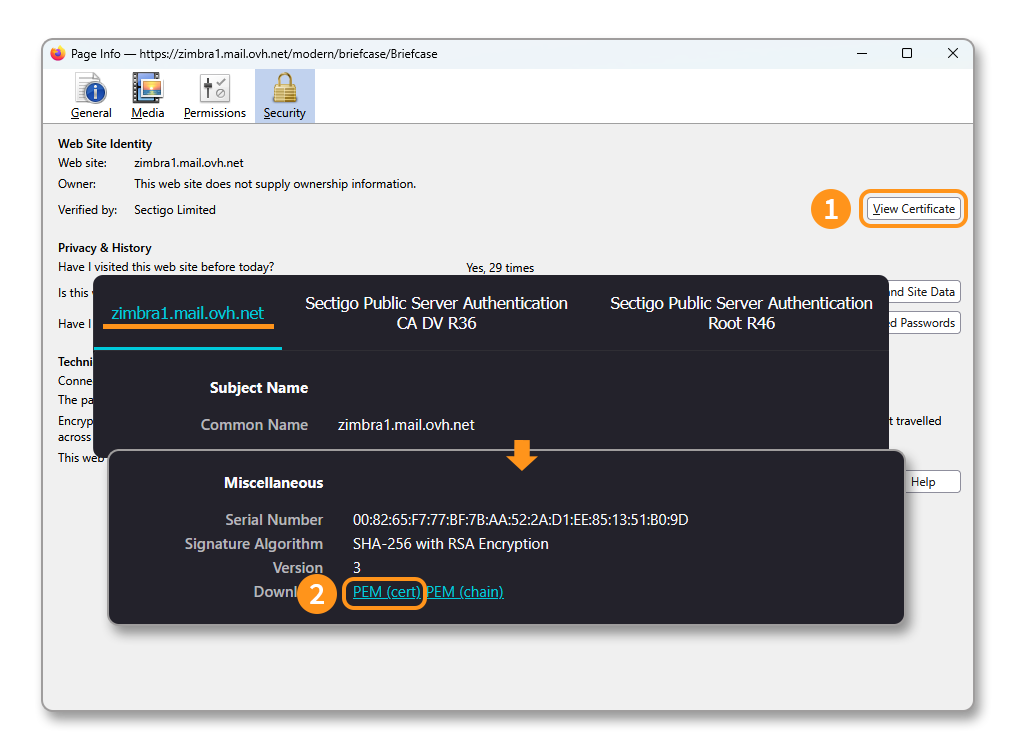
1. Click on View Certificate.
2. From the window that appears, stay on the `zimbra1.mail.ovh.net` tab and click on PEM (cert) to download the SSL certificate.
**Step 3**
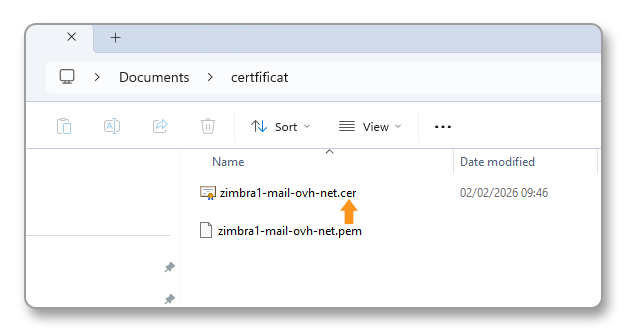
- Change the file extension from `.pem` to `.cer`.
**Step 4**
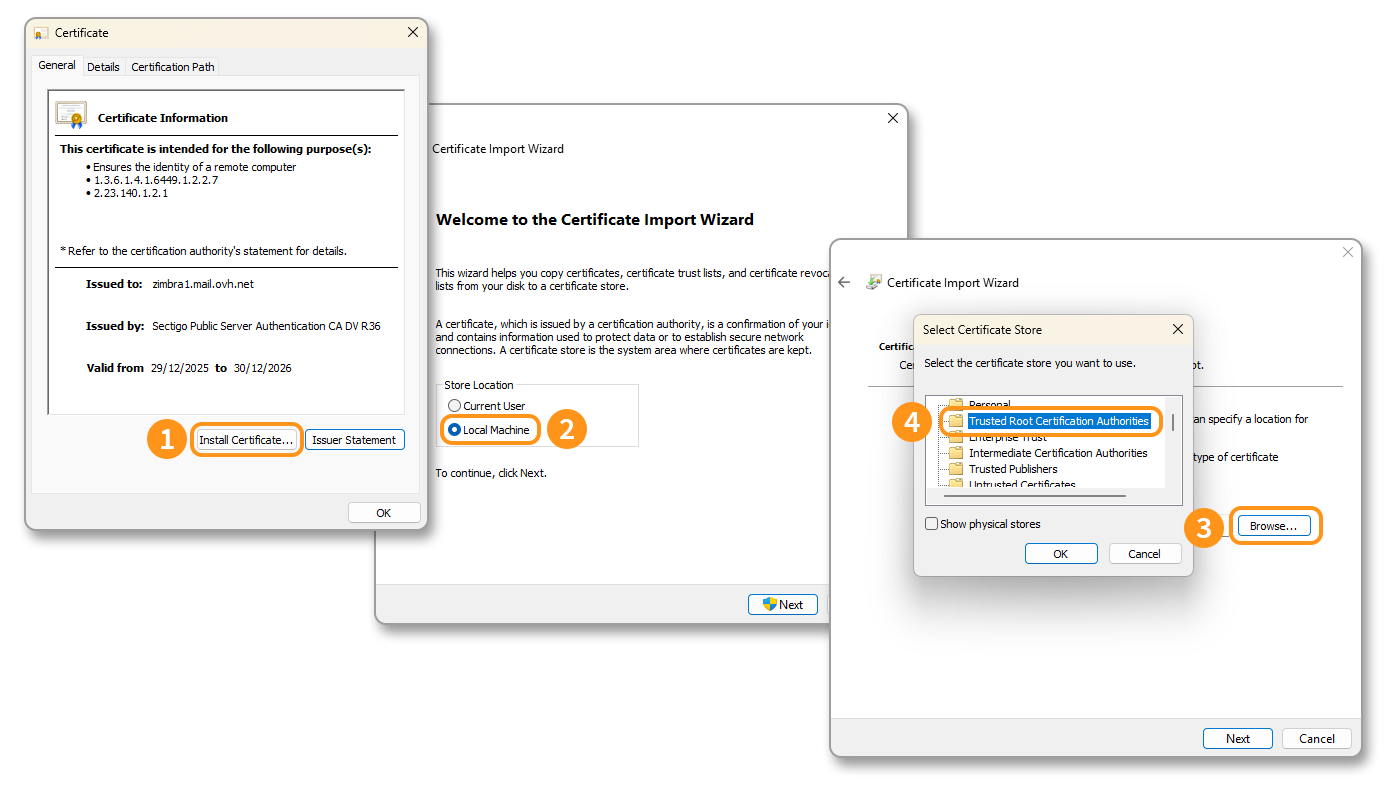
1. Open the file `zimbra1-mail-ovh-net.cer`, then click on Install Certificate….
2. Click on Local Machine, then click on Next.
3. Check `Place all certificates in the following store`, then click on Browse….
4. Select the `Trusted Root Certification Authorities` folder, then click on OK.
#### 4. Mount the volume
In our example, we are using the Zimbra account email address `john.smith@mydomain.ovh` and the `Briefcase` folder, created by default in the Zimbra storage space.
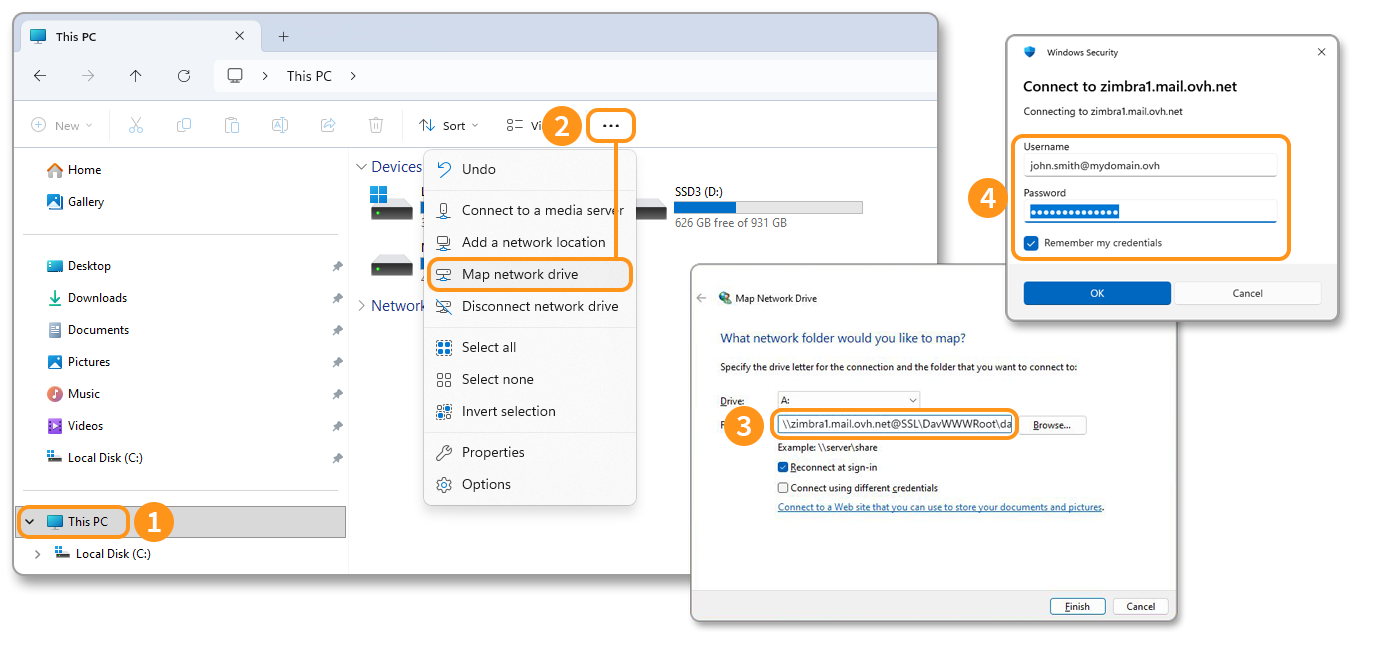
1. Open the Windows file explorer and click on This PC.
2. In the top bar, click on the button …, then on Map network drive.
3. In the window that appears, enter the folder path. According to our example, the path is `\\zimbra1.mail.ovh.net@SSL\dav\john.smith@mydomain.ovh\Briefcase`. Click on Finish.
4. An authentication window opens, enter the `Username` corresponding to the full email address and the `Password` associated with it. Click on OK.
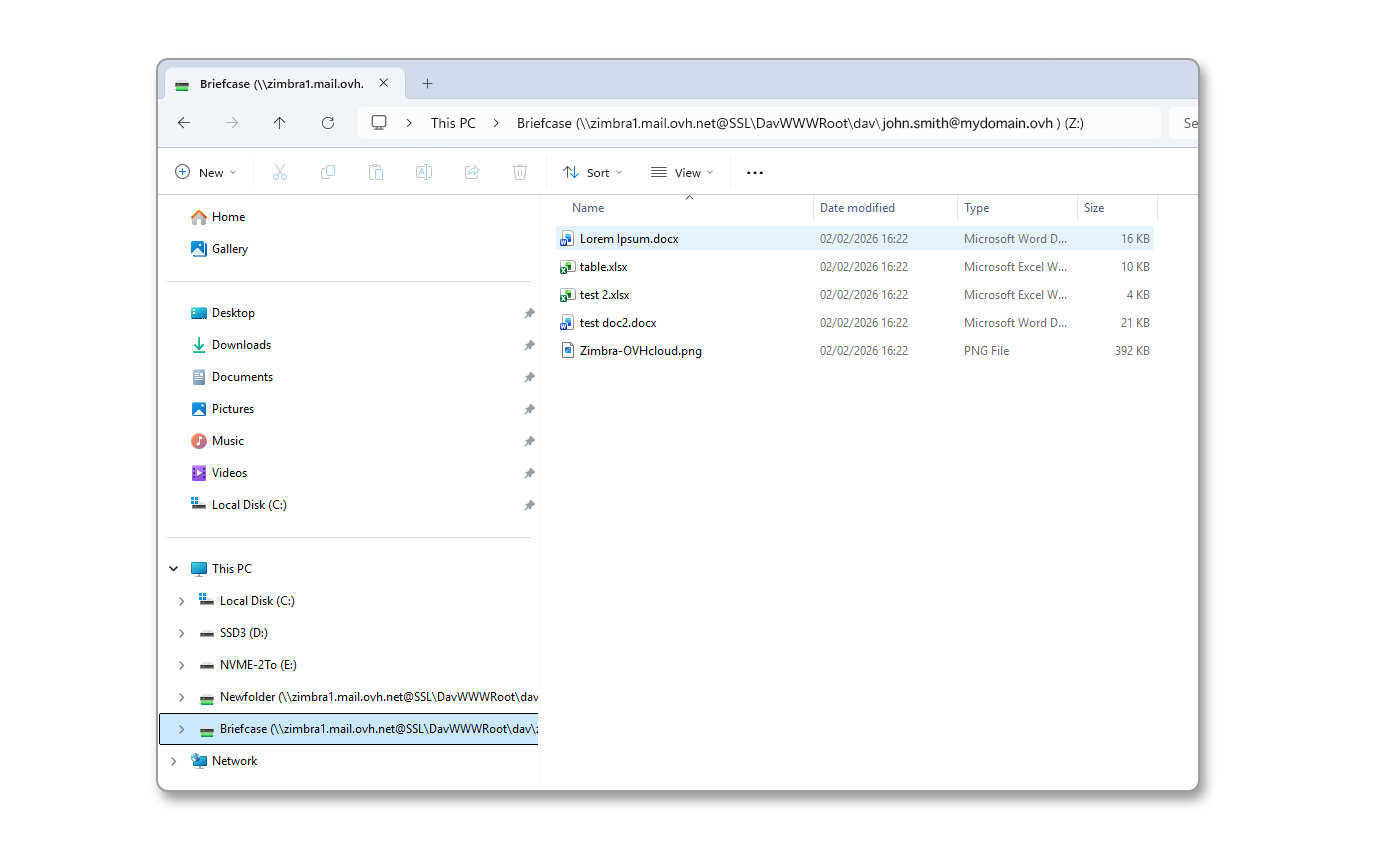
Your network volume is now displayed. You can place your files in it, up to a limit of 100 MB per file.
### Mount a folder from macOS
On macOS, it is not necessary to enable a service or register the SSL certificate, you just need to mount the volume directly from the **Finder**.
**Step 1**
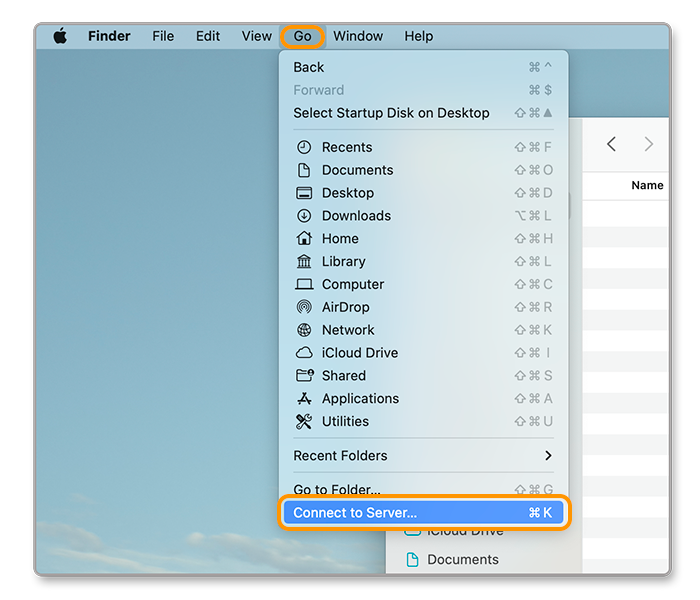
- Open the **Finder**.
- In the top bar, click on the Go menu.
- Click on Connect to Server (`⌘ + K`).
**Step 2**
:::warning
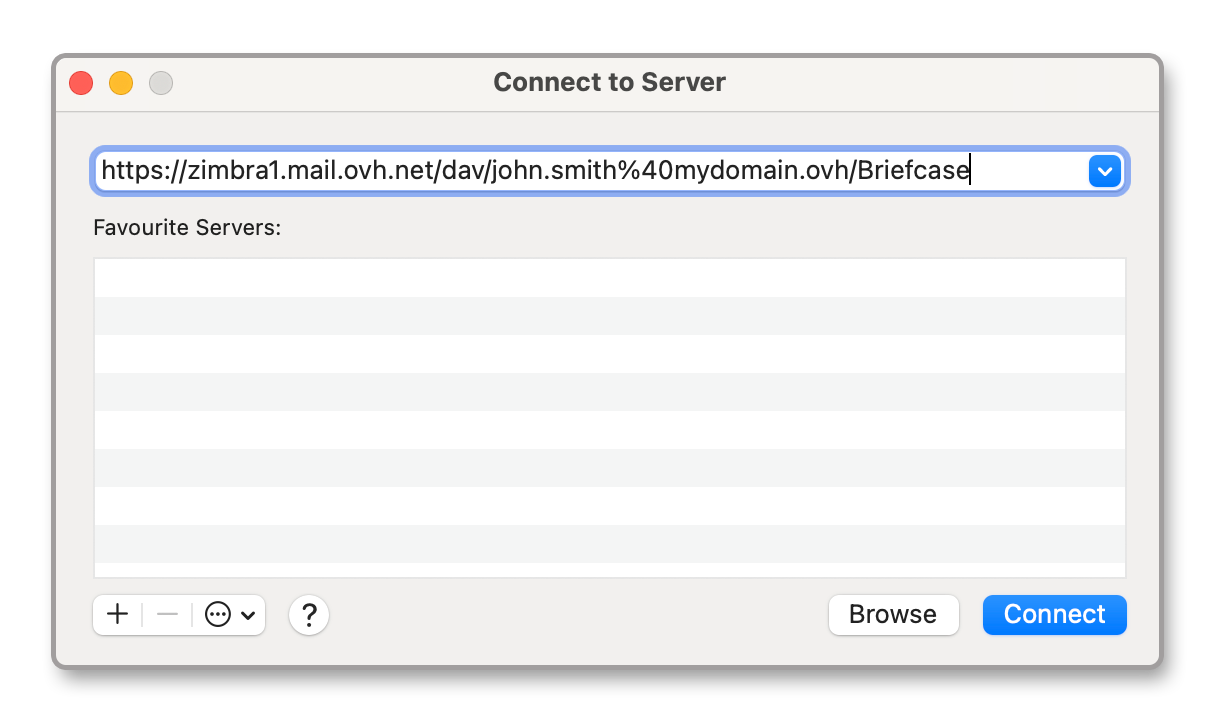
It is important to replace the `@` in your email address with `%40` in the path entry.
:::
- From the window that appears, enter the connection path suitable for your email address and the folder you want to connect. According to our example, the path is `https://zimbra1.mail.ovh.net/dav/john.smith%40mydomain.ovh/Briefcase`.
- Click on Connect.
**Step 3**
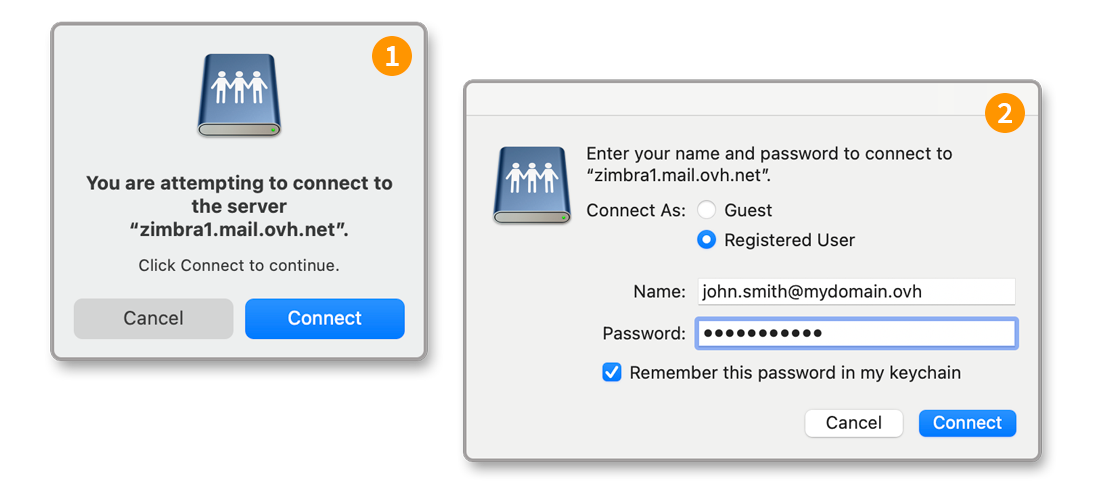
1. A server validation window for `zimbra1.mail.ovh.net` appears, click on Connect.
2. A new window will ask you to enter the `Name` corresponding to your full email address and the `Password` associated with it. Check `Remember this password in my keychain` if you want to keep it for a future connection to another folder. Click on Connect to mount the volume.
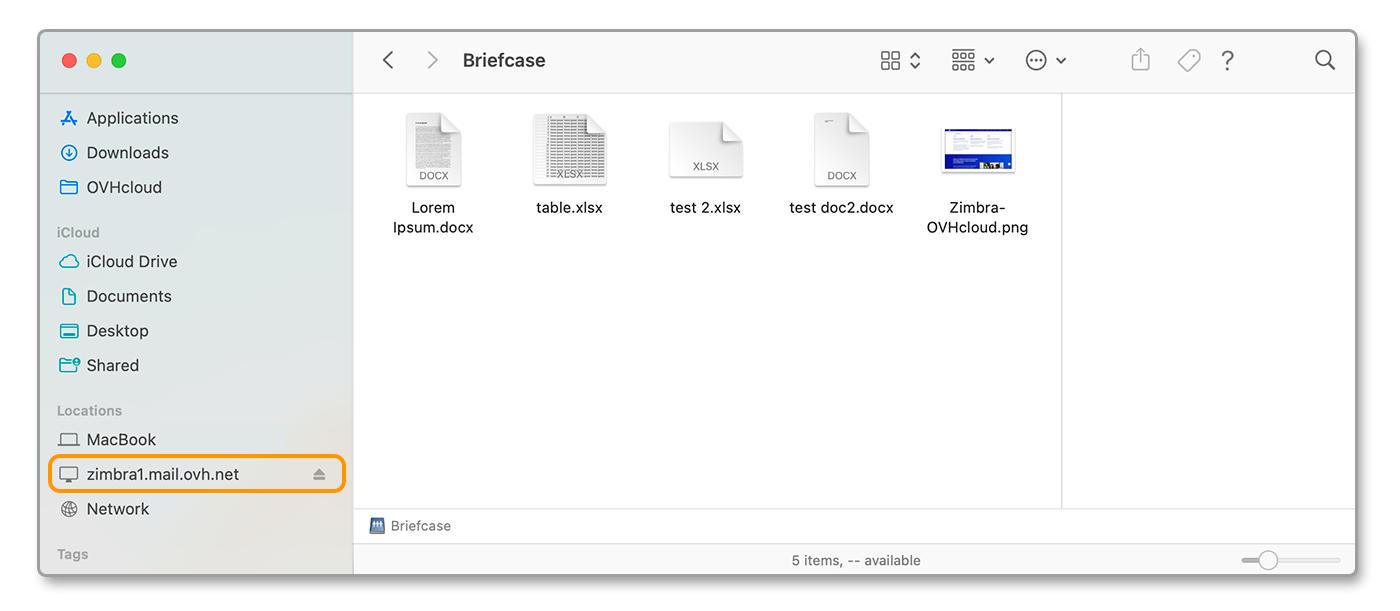
You now have access to your Zimbra Briefcase storage space. You can place any type of file in it that does not exceed 100 MB.
## Go further [](#)
[Getting started with the Zimbra offer](/en/guides/web-cloud/email-and-collaborative-solutions/zimbra/getting-started-zimbra.md)
[Set up your Zimbra email address on an email client](/en/guides/web-cloud/email-and-collaborative-solutions/zimbra/mail-apps.md)
[Using the Zimbra webmail](/en/guides/web-cloud/email-and-collaborative-solutions/mx-plan/email-zimbra.md)
[Zimbra OVHcloud solution FAQ](/en/guides/web-cloud/email-and-collaborative-solutions/mx-plan/faq-zimbra.md)
For specialized services (SEO, development, etc.), contact the [OVHcloud partners](https://partner.ovhcloud.com/en-gb/directory/).
If you need assistance with the use and configuration of your OVHcloud solutions, we offer you to consult our various [support offers](https://www.ovhcloud.com/en-gb/support-levels/).
Join our [community of users](https://community.ovhcloud.com/community/en).