---
title: "What to do if your email address is blocked for spam"
description: "Unblock an email address blocked for spam: identify the cause of the suspicious activity, fix it and contact OVHcloud support."
url: https://docs.ovhcloud.com/en/guides/web-cloud/email-and-collaborative-solutions/troubleshooting/locked-for-spam
lang: en
lastUpdated: 2026-05-28
---
# What to do if your email address is blocked for spam
## Objective
When your email address is blocked for spam, this means that suspicious activity has been detected when sending emails from that address. In this situation, you can no longer send emails from this email address. You then need to understand why suspicious activity was detected and take action to prevent this situation from recurring.
**Find out how to respond when your address is blocked for spam.**
## Requirements
- An [OVHcloud email solution](https://www.ovhcloud.com/en/emails/).
- You are logged in to your OVHcloud Control Panel.
***
### Access to the OVHcloud Control Panel
**MX Plan:**
- **Direct link:** MX Plan
- **To access your services:** Web Cloud > MX Plan > Select your MX Plan service
**Zimbra (Starter / Pro):**
- **Direct link:** Zimbra
- **To access your services:** Web Cloud > Zimbra Mail > Select your Zimbra service
**Email Pro:**
- **Direct link:** Email Pro
- **To access your services:** Web Cloud > Email Pro > Select your platform
**Exchange:**
- **Direct link:** Exchange
- **To access your services:** Web Cloud > Exchange > Select your platform
***
## Instructions [](#)
Before continuing, if the block concerns an MX Plan email address, identify the email technology used by your solution in order to follow the correct unblocking process. For **Zimbra Starter** and **Zimbra Pro** solutions, go directly to the **Zimbra** tab in step 2, without skipping the checks in step 1.
:::info
**Identify the email technology of your MX Plan solution.**
Depending on the activation date of your MX Plan solution or following a recent migration, the associated email technology may differ. This version is characterised by its webmail interface. To identify it:
- From the General information tab, check the technology used under the **Webmail** label in the Subscription section.
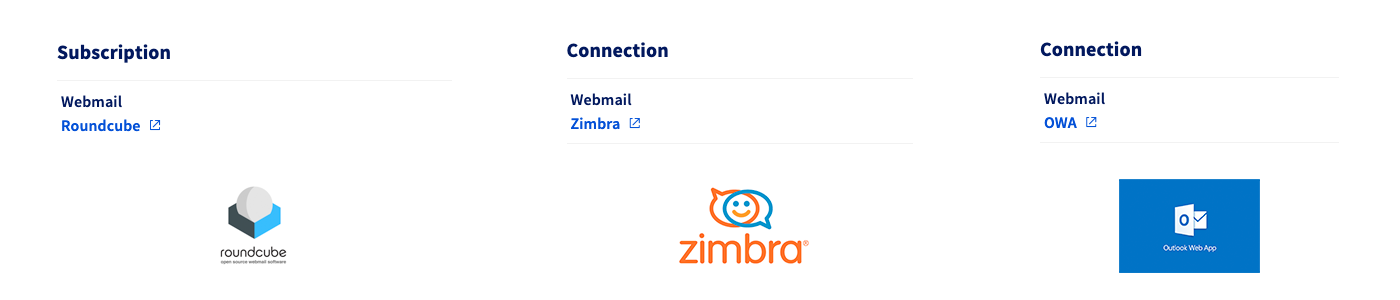
- If the technology displayed is **Roundcube**, follow the instructions in the **MX Plan - Roundcube** tab.
- If the technology displayed is **OWA** (Outlook Web App), follow the instructions in the **MX Plan - OWA** tab.
- If the technology displayed is **Zimbra**, follow the instructions in the **Zimbra** tab (the procedure is common to MX Plan - Zimbra, Zimbra Starter and Zimbra Pro).
:::
### Step 1: Understand and address the cause of the block [](#)
When suspicious activity is detected on outgoing emails, the address concerned is automatically blocked. In this situation, you can no longer send emails from this email address.
:::warning
"Suspicious activity" means that:
- The anti-spam server, which scans emails as they are sent, has found that one or more elements of the email are considered suspicious and may constitute spam.
- The sending frequency and the number of recipients are too high and contribute to the activity being considered as spamming. To carry out mass mailings, you need to use a mailing list service rather than a standard email address.
The precise reasons for a block cannot be disclosed, in order to prevent any attempt to bypass the spam detection system. To test the content of an email, you can use a tool external to OVHcloud such as [Mailtester](https://www.mail-tester.com/).
:::
First of all, check with the user(s) of the blocked email address that they are not directly responsible for the block, following an unusual use of the email address (for example, mass email sending). If this is the case, you must rectify the situation before unblocking the address.
If the suspicious activity detected by the anti-spam system was not initiated by the legitimate user(s) of the email address, take the following measures:
- Run an antivirus scan on each device that uses the email address blocked for spam, and apply a fix if any are infected.
- Check all software using the credentials of the email address blocked for spam (for example: fax machine, business software, email client).
- Check the redirections applied to the email address blocked for spam.
- Check the filters applied to the email address blocked for spam, via an email client or webmail.
- Check the auto-replies configured on the email address blocked for spam, via an email client or webmail.
:::info
Filters, redirections and auto-replies configured directly on the webmail (Zimbra, OWA) or in your email client are not accessible to OVHcloud support: support cannot check them on your behalf. These checks must be carried out by you, from the webmail or from a device already configured with the address.
:::
:::warning
If the block concerns an address using the **Zimbra** technology (MX Plan - Zimbra, Zimbra Starter or Zimbra Pro), the address is **no longer accessible**: the Zimbra webmail login is suspended in addition to email sending. Filters, redirections and auto-replies can therefore no longer be consulted from the webmail.
:::
#### Set up a filter to isolate SPAM / DCE messages
To reduce the risk of recurrence after unblocking, we recommend adding a filter on the email address:
- The filter must **isolate** emails whose subject contains the labels **"SPAM"** or **"DCE"** (_Dirty Commercial Email_), for example by moving them to a dedicated folder. **Do not delete them automatically**: deletion would cause any false positives (legitimate messages wrongly flagged) to be lost.
- **Keep** any existing **redirection rules** in place: do not delete them when adding the filter.
This filter is configured from the webmail or an email client.
### Step 2: Check the status and access the support ticket
Select the email solution concerned in the following tabs:
**Exchange**
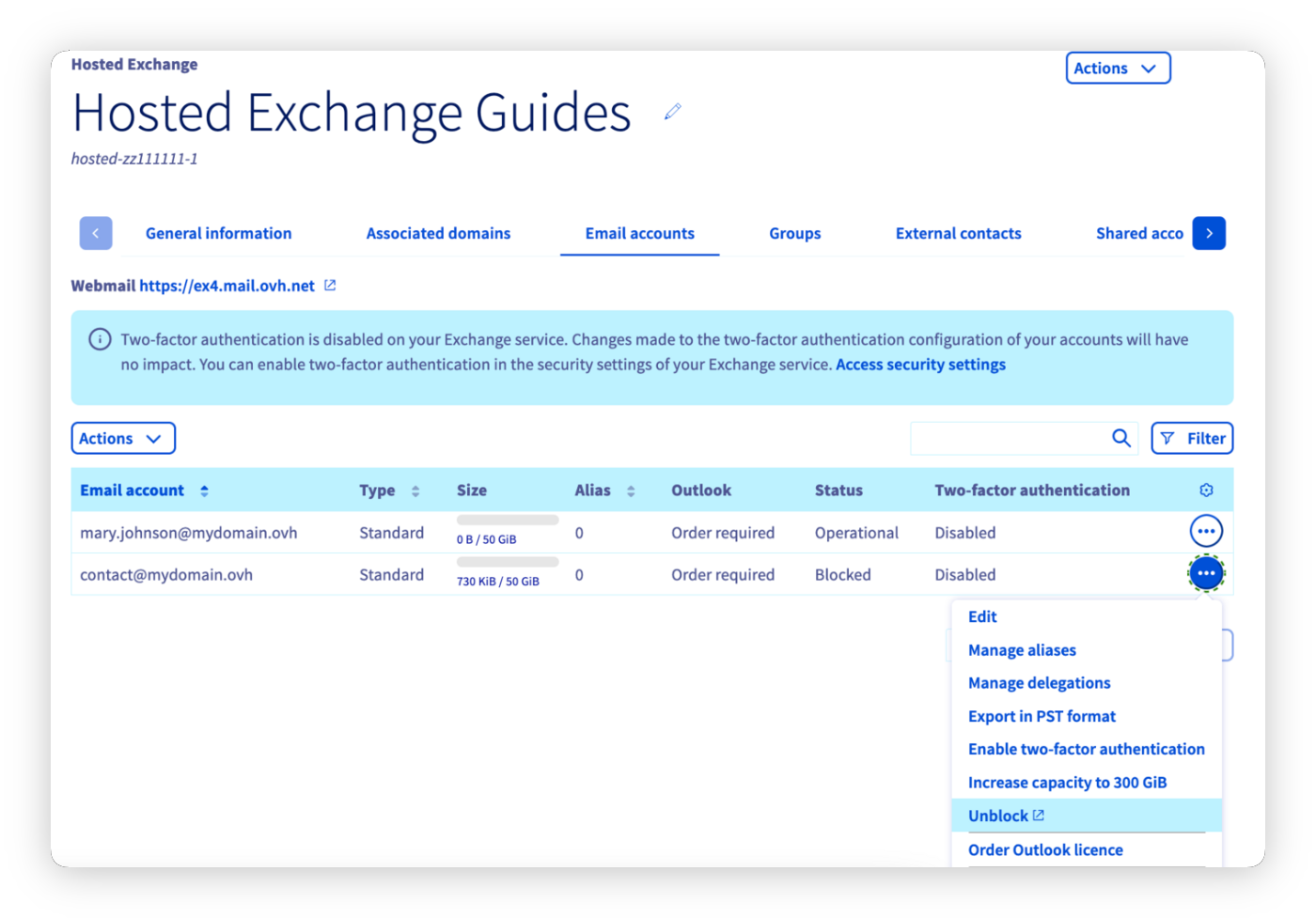
Go to the Email accounts tab of your platform. If the "Status" column for the email address concerned shows "Blocked", click ... to the right of the account, then Unblock. The email address is not unblocked automatically. Contact the support team via the support ticket by answering the 3 questions asked.
Proceed to [step 3](#step3) of the guide.
**Email Pro**
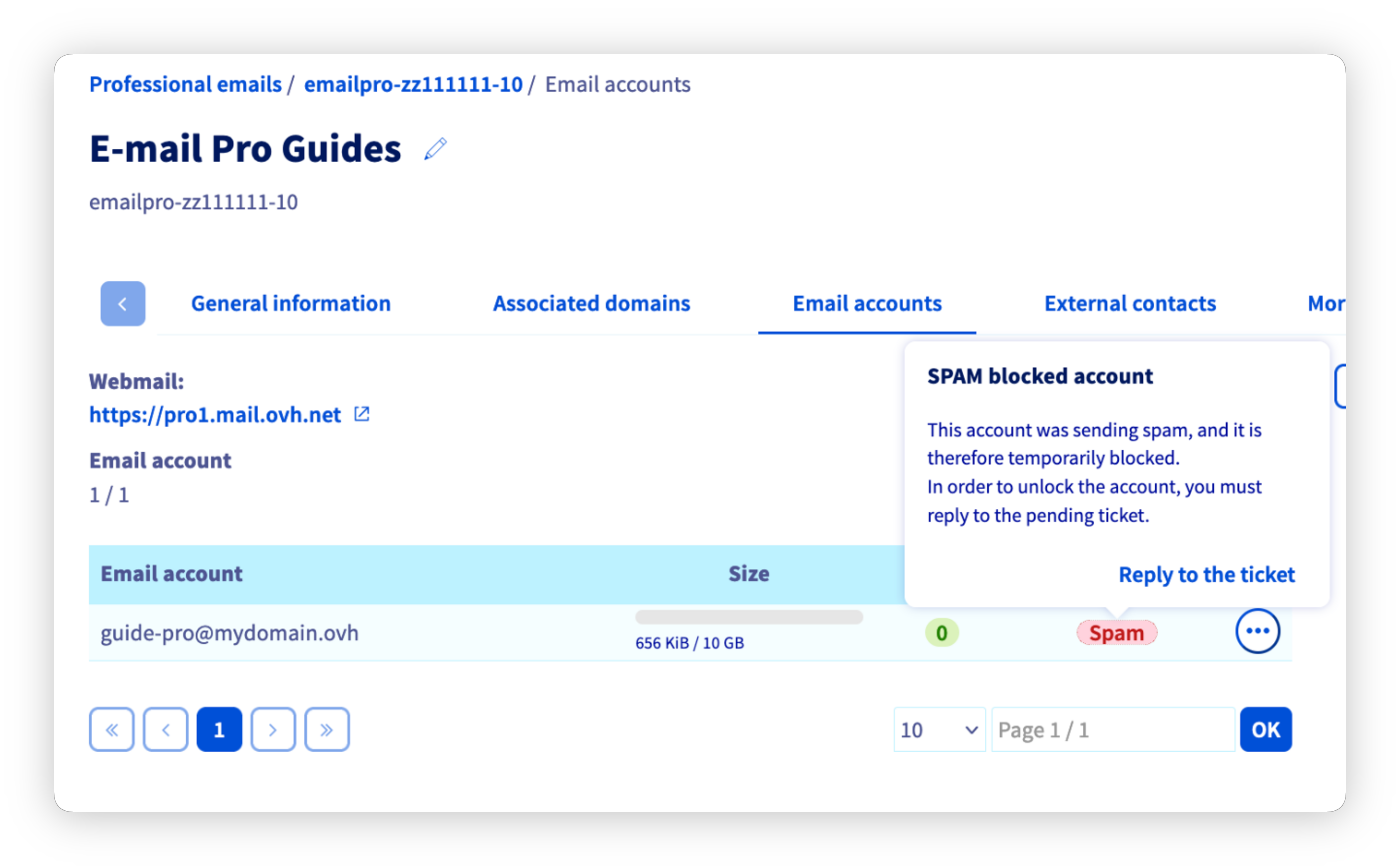
Go to the Email accounts tab of your platform. If the "Status" column to the right of the email address concerned shows "Spam", click on it, then on Reply to the ticket. The email address is not unblocked automatically. Contact the support team via the support ticket by answering the 3 questions asked.
Proceed to [step 3](#step3) of the guide.
**MX Plan - OWA**
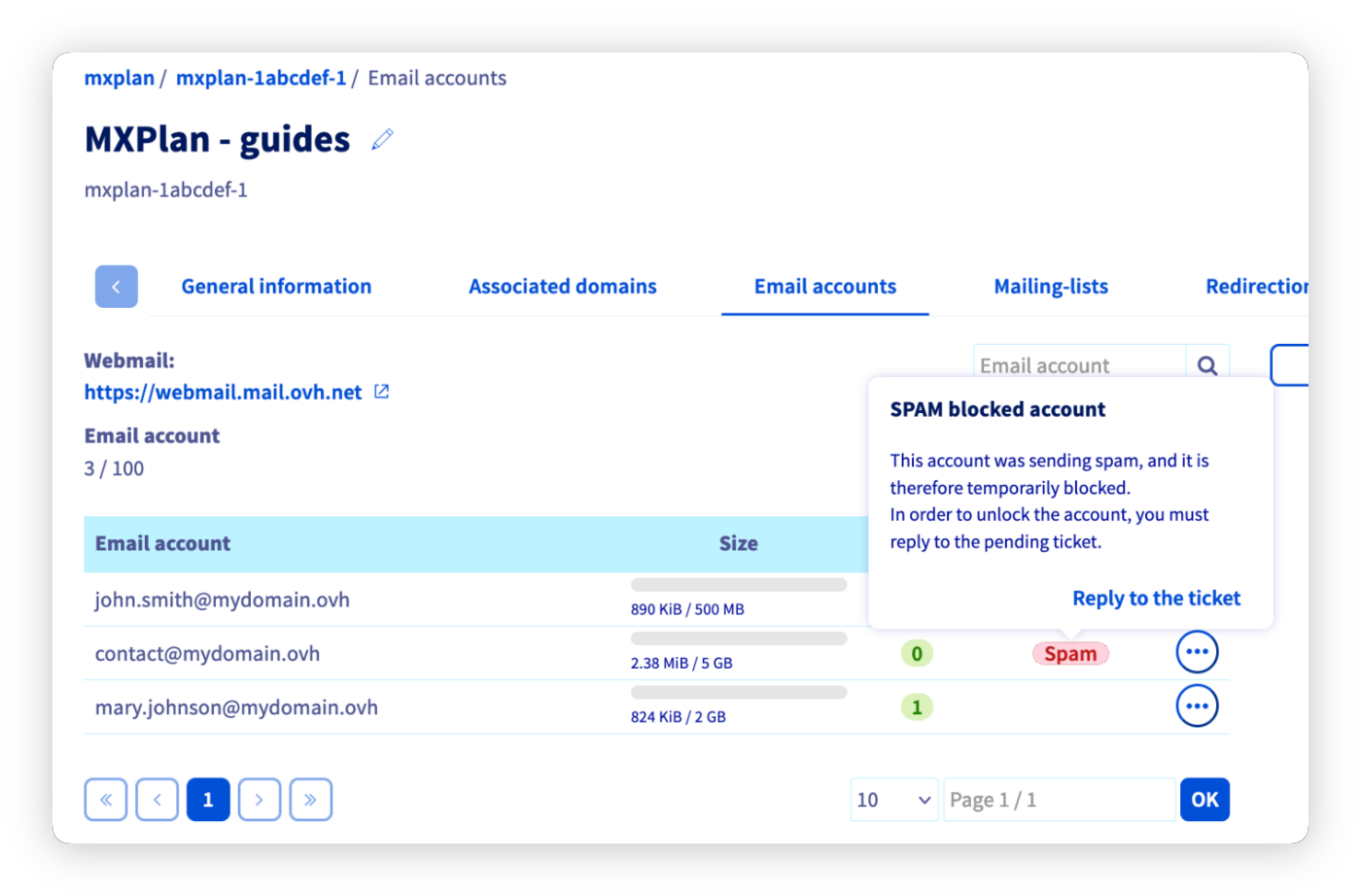
Go to the Email accounts tab of your platform. If the "Status" column to the right of the email address concerned shows "Spam", click on it, then on Reply to the ticket. The email address is not unblocked automatically. Contact the support team via the support ticket by answering the 3 questions asked.
Proceed to [step 3](#step3) of the guide.
**Zimbra**
This tab applies to all addresses using the **Zimbra** technology: **MX Plan - Zimbra**, **Zimbra Starter** and **Zimbra Pro**. The unblocking process is identical for these three solutions.
When the block is applied, **no support ticket is generated automatically** and the address is no longer accessible (Zimbra webmail and email sending are both disabled).
To get the address unblocked:
1. Carry out the checks described in [step 1](#step1), based on the elements you can access (user devices, third-party software, redirections visible from another access).
2. **Manually create a support ticket** from your OVHcloud Control Panel.
3. In the ticket, specify:
- The email address affected by the block;
- The associated service (MX Plan, Zimbra Starter or Zimbra Pro) and its identifier;
- The corrective actions already taken (antivirus scans, removal of non-legitimate senders, addition of the SPAM/DCE filter, etc.).
Once the ticket has been processed by support, the address is unblocked. [Step 3](#step3) does not apply in this case.
**MX Plan - Roundcube**
If the block concerns an MX Plan email address with **Roundcube** webmail, no support ticket is generated.
Before taking any action, it is **essential to identify the cause of the block** by carrying out the checks in [step 1](#step1) (potentially infected devices, third-party software, redirections, filters, auto-replies).
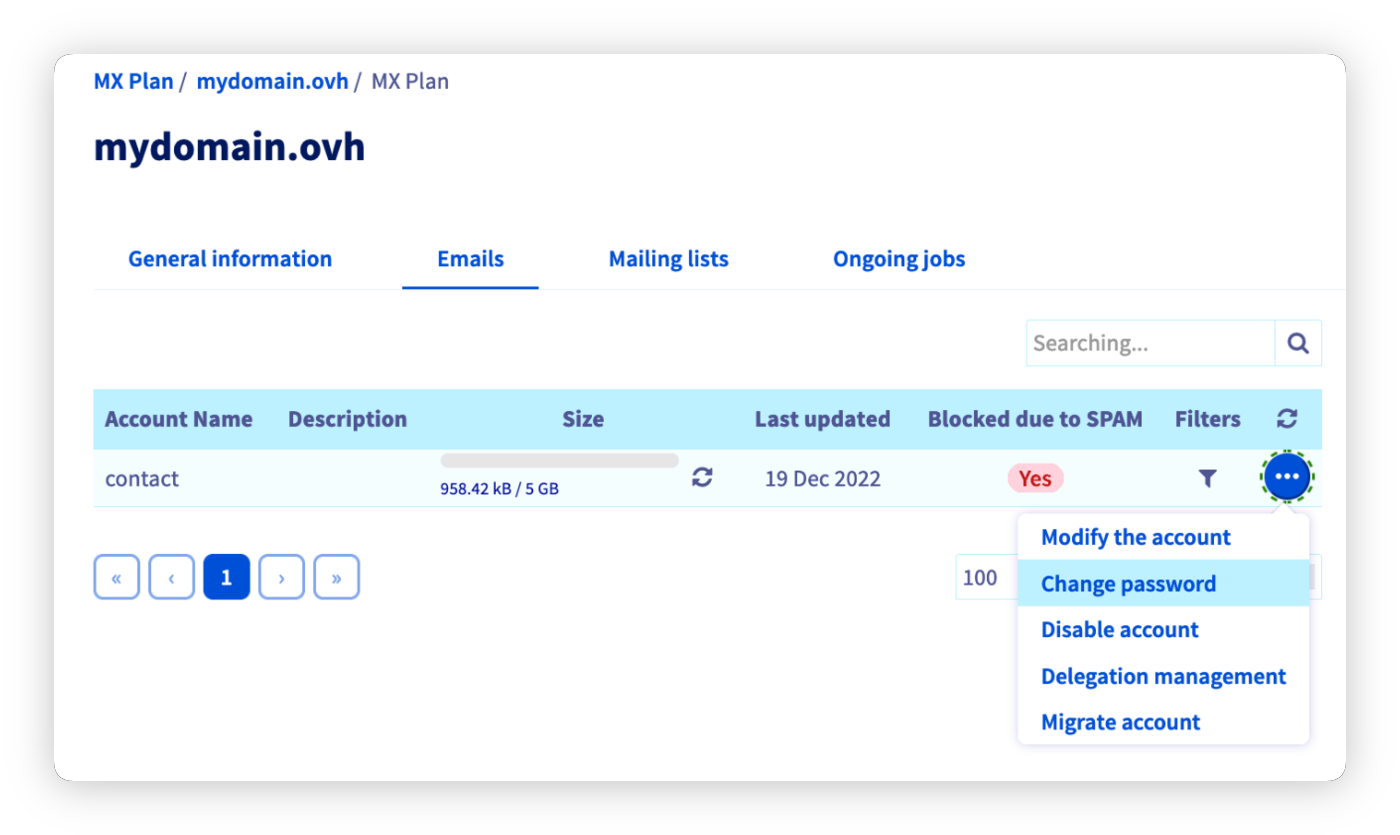
In the Emails tab of your platform, the "Blocked for SPAM" column shows "Yes" when the address is blocked.
:::warning
**Do not unblock the address yourself.** Even if the interface allows it, you must **contact OVHcloud support** by creating a support ticket from your Control Panel, so that the origin of the block can be verified before any unblocking. Premature unblocking, without addressing the cause, exposes the address to immediate recurrence.
:::
:::warning
Changing the password is **not systematic**. It should only be done **if a compromise is suspected** (infected device, leaked or shared credentials, unauthorised access). Changing the password without an identified cause masks the real problem and exposes the address to recurrence.
:::
:::info
In rare cases, the "Blocked for SPAM" column may show "No" even though the email address is blocked. The procedure remains the same: contact OVHcloud support.
:::
To get the address unblocked, **manually create a support ticket** from your OVHcloud Control Panel, specifying:
- The email address affected by the block;
- The associated MX Plan service and its identifier;
- The corrective actions already taken (antivirus scans, removal of non-legitimate senders, addition of the SPAM/DCE filter, etc.).
Once the ticket has been processed by support, the address is unblocked. [Step 3](#step3) does not apply in this case.
### Step 3: Access the support ticket [](#)
Following step 2, you will be redirected to the "My support requests" window. Click the `...
` button to the right of the ticket with the subject "Account locked for spam.", then click `See more information
`.
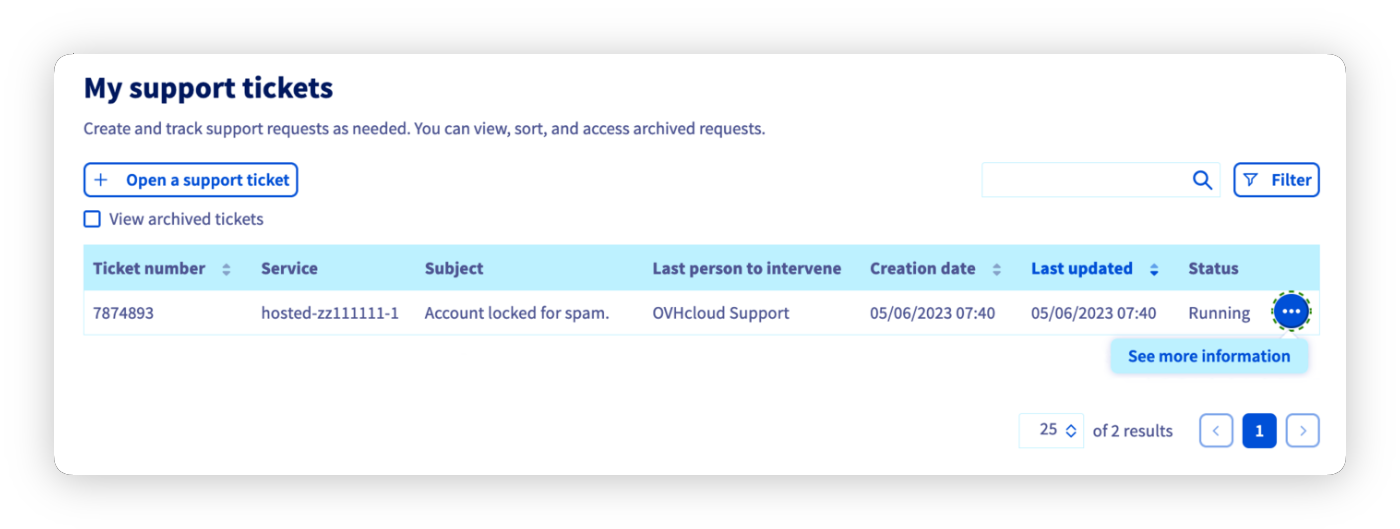
Here you will find the email that was sent to you, which generates a support ticket.
The support ticket reads as follows:
> Dear Customer,
>
> Our system has detected that the address **[youraddress@example.com](mailto:youraddress@example.com)**, hosted on our systems under the **servicename** service, is a source of spam.
> The sending of emails has therefore been temporarily disabled.
>
> We have currently detected **X** suspicious message(s).
>
> To help us re-enable sending for the address: **[address@example.com](mailto:address@example.com)**,
> please reply to this email by answering the following questions:
>
> - Are you the sender of the email in question (see the header below)?
>
> - Do you have a redirection rule to another email address?
>
> - Have you responded to a Spam?
>
> These answers will help us re-enable your account quickly.
Following this message, a sample of headers from the sent emails has been provided to you.
These headers help determine the routing and origin of the sent emails.
:::info
Once your ticket has been processed by customer support and your email address has been unblocked, only change the password **if a compromise is suspected** based on the checks carried out in [step 1](#step1) (infected device, shared or leaked credentials, unauthorised access). Changing the password is **not systematic**.
If a new password is needed, make sure it is sufficiently strong. Use a reputable password generator and choose a long, complex passphrase that is unique to this address.
:::
## Go further
To manage the aliases and redirections of your email address, see the guide [Using email aliases and redirections](/en/guides/web-cloud/email-and-collaborative-solutions/common-email-features/feature-redirections.md).
To view your filters and auto-replies from the webmail, see the guides [Using your email address from the Roundcube webmail](/en/guides/web-cloud/email-and-collaborative-solutions/mx-plan/email-roundcube.md) and [Using the Zimbra webmail](/en/guides/web-cloud/email-and-collaborative-solutions/mx-plan/email-zimbra.md).
For specialised services (SEO, development, etc.), contact [OVHcloud partners](https://partner.ovhcloud.com/en/directory/).
If you would like assistance using and configuring your OVHcloud solutions, please refer to our [support offers](https://www.ovhcloud.com/en/support-levels/).
Join our [community of users](https://community.ovhcloud.com/community/en).