---
title: "Managing the storage space for an email account"
description: "Find out how to manage and optimise an email account storage space"
url: https://docs.ovhcloud.com/en/guides/web-cloud/email-and-collaborative-solutions/troubleshooting/email-manage-quota
lang: en
lastUpdated: 2026-06-08
---
# Managing the storage space for an email account
## Objective
Every OVHcloud email account has a dedicated storage space. By managing your storage space properly, you can avoid it becoming full, also known as “overquota”. By default, the emails you receive and send are stored on the server of your email account. You can also store your emails locally on your computer using an email client (Outlook, macOS Mail, Thunderbird, etc.).
**This guide explains how to manage and optimise the storage space of email accounts.**
## Requirements
- A preconfigured OVHcloud email solution:
- **MX Plan** available with a [web hosting plan](https://www.ovhcloud.com/en-gb/web-hosting/), or included in a [free hosting](https://www.ovhcloud.com/en-gb/domains/free-web-hosting/).
- **MX Plan** available with a [web hosting plan](https://www.ovhcloud.com/en-gb/web-hosting/).
- [Exchange](https://www.ovhcloud.com/en-gb/emails-exchange/).
- [Email Pro](https://www.ovhcloud.com/en-gb/emails/email-pro/).
- [Zimbra](https://www.ovhcloud.com/en-gb/emails/zimbra-emails/).
- Login credentials for the email account concerned
***
### OVHcloud Control Panel Access
**MX Plan:**
- **Direct link:** MX Plan
- **Navigation path:** Web Cloud > MX Plan > Select your MX Plan service
**Email Pro:**
- **Direct link:** Email Pro
- **Navigation path:** Web Cloud > Email Pro > Select your platform
**Exchange:**
- **Direct link:** Exchange
- **Navigation path:** Web Cloud > Exchange > Select your platform
***
:::info
**Special cases**
- Regarding the free hosting solution, you will need to activate it beforehand in order to create an email account. You can do this from your OVHcloud Control Panel by going to the domain name concerned.
- For [web hosting plans](https://www.ovhcloud.com/en-gb/web-hosting/), you will need to activate your MX Plan before continuing with this guide. To do this, please refer to our guide on [Activating the email addresses included in your web hosting plan](/en/guides/web-cloud/web-hosting/activate-email-hosting.md).
:::
:::info
**Identify the email technology for your MX Plan solution.**
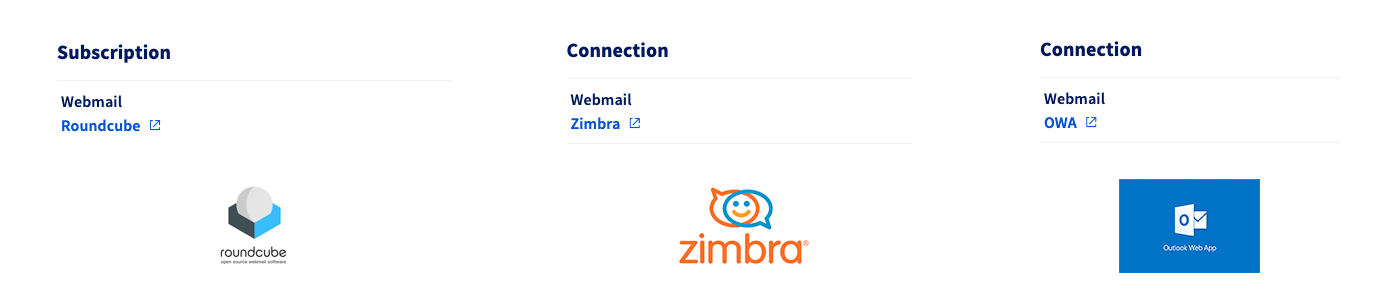
Depending on the activation date of your MX Plan solution, or on a recent migration, the email technology associated with it may differ. This version is characterized by its webmail interface. To identify it:
- In the General information tab, note the technology used under the **Webmail** comment in the Subscription or Connection box.
:::
## Instructions [](#)
The storage space management for your email account will be broken down into 3 steps in this guide. They can be done in order or independently, depending on your need.
- [**Check**](#check-quota) the current quota for your email account. In this step, you can evaluate your current resource usage, for the next 2 steps.
- [**Optimise**](#optimise) your email account. In this step, you will find tips that will help you maintain a storage space without any extra elements.
- [**Archive** or **Change email offer**](#archiveorswitch). If the previous step is not enough, you will find the information you need to set up a local archive space (on your computer) for your emails via your email software. You will also find the information you need to change your account’s email solution to an offer with more storage space.
### 1. **Check**
your email account quota [](#)
You can do this via the OVHcloud Control Panel if you are managing the email service concerned, or via webmail if you are the sole user of the email account.
#### From the Control Panel [](#)
In the OVHcloud Control Panel
, go to the `Web Cloud
` section, then follow the instructions for your solution:
**MX Plan**
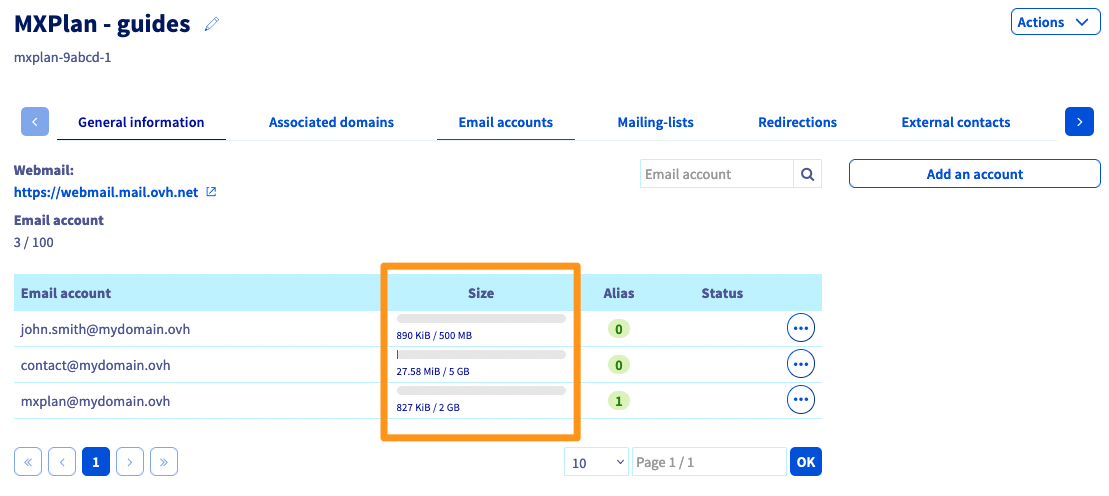
Click MX Plan, then choose the name of the MX Plan service concerned. Go to the Email accounts tab. The window that appears will display the existing email accounts. In the `Size` column, you can see your email account’s current storage consumption.
**Email Pro**
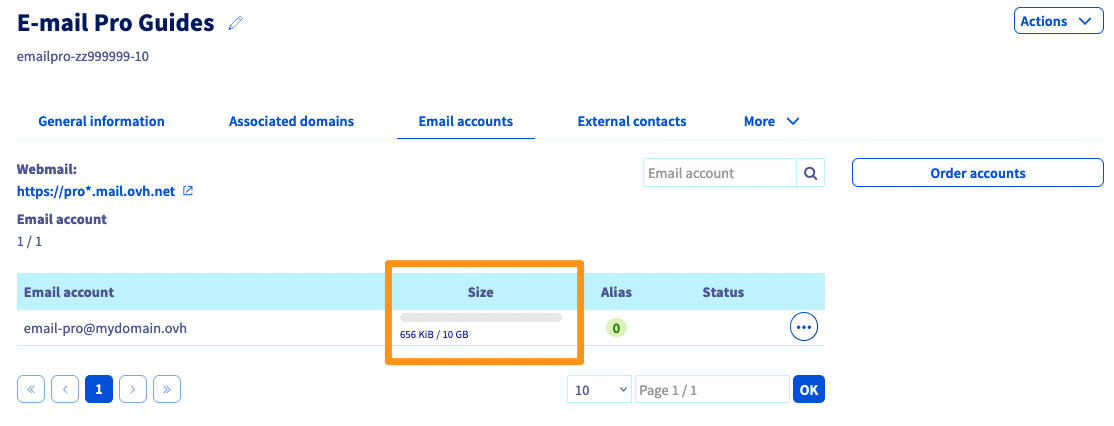
Click Email Pro, then choose the name of the platform concerned. Go to the Email accounts tab. The window that appears will display the existing email accounts. In the `Size` column, you can see your email account’s current storage consumption.
**Exchange**
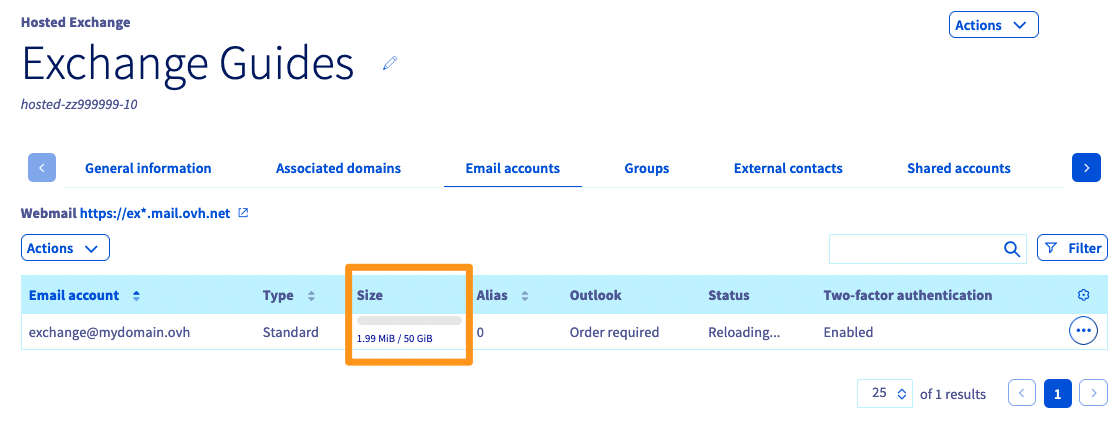
Click Microsoft / Exchange, then choose the name of the platform concerned. Go to the Email accounts tab. The window that appears will display the existing email accounts. In the `Size` column, you can see your email accounts’s current storage consumption.
**Zimbra**
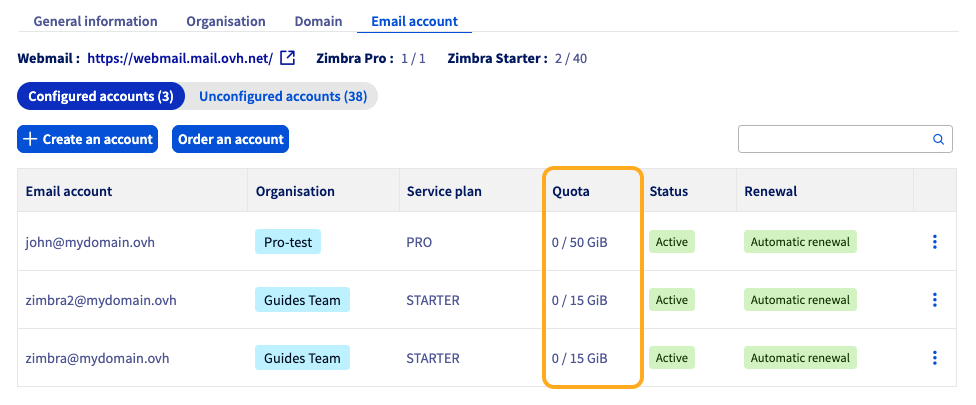
Click Zimbra Mail. Go to the Email account tab. The window that opens will display the existing email accounts. In the `Quota` column, you can see how much storage your email address is currently consuming.
#### From webmail [](#)
Go to the page [Webmail](https://www.ovhcloud.com/en-gb/mail/) and enter the login information for your email account. Select the webmail client of your solution below:
**OWA: MX Plan / Email Pro / Exchange**
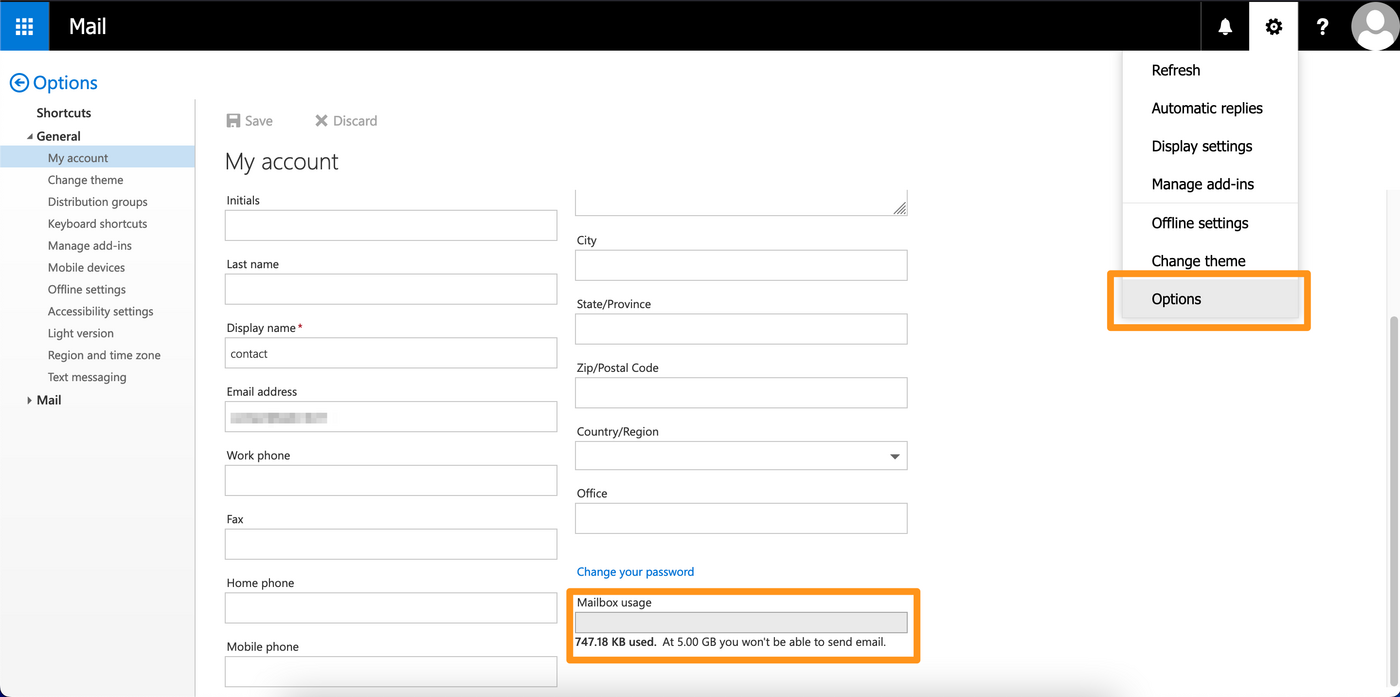
Click the gear icon on the top right and select Options. Click My account in the General section in the left-hand column. You can view your account’s current quota in the lower right-hand corner of the form.
**Roundcube: MX Plan**
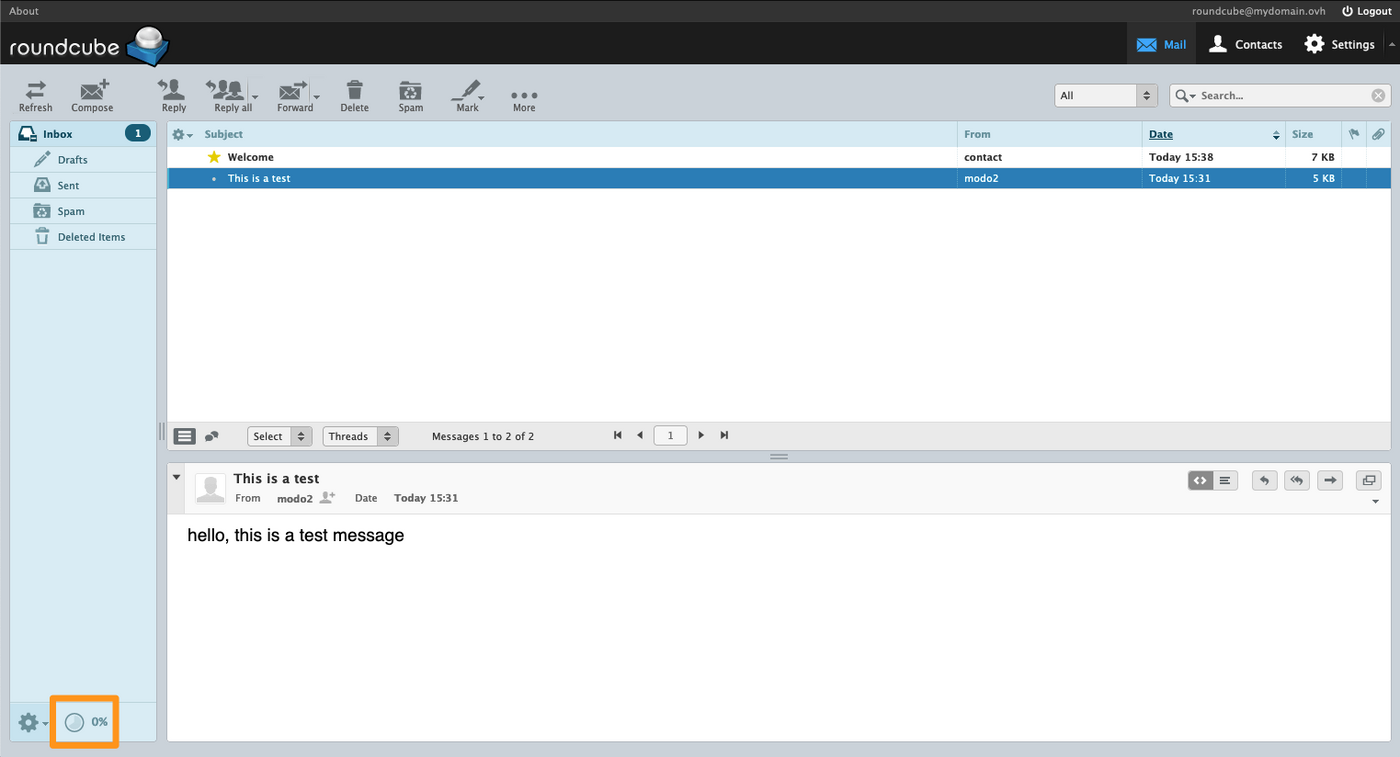
When you are logged in to the Roundcube webmail, the quota is visible on the lower left-hand side, represented by a circular diagram and the percentage used.
**Zimbra: MX Plan / Zimbra Starter / Zimbra Pro**
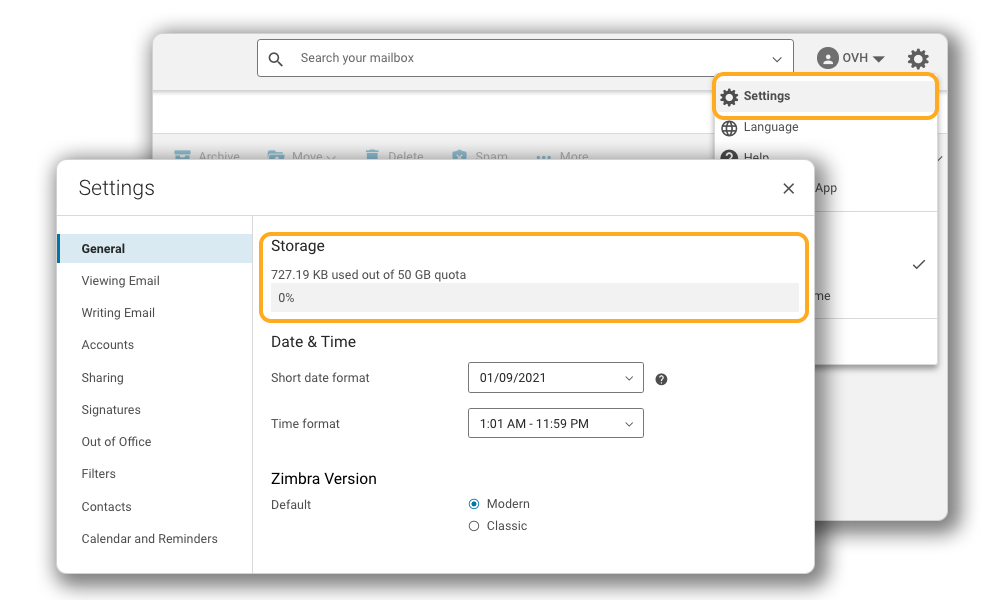
When you are logged in to the Zimbra webmail, click on the cogwheel (⚙) in the top right-hand corner of your interface, then click Settings. In the General tab, you can view the quota used under the heading “Storage space”.
### 2. **Optimise**
your email account [](#)
If your email account is full, you will no longer be able to receive emails.
When a person sends you an email, they receive an error message in the form of an automatic reply, such as _"552, 5.2.2". The email account to which you sent a message has exhausted its quota."_
.
When your email account is full, you can still send emails. However, these emails cannot be stored in your "sent messages" folder.
#### Optimise the space allocated to your email account
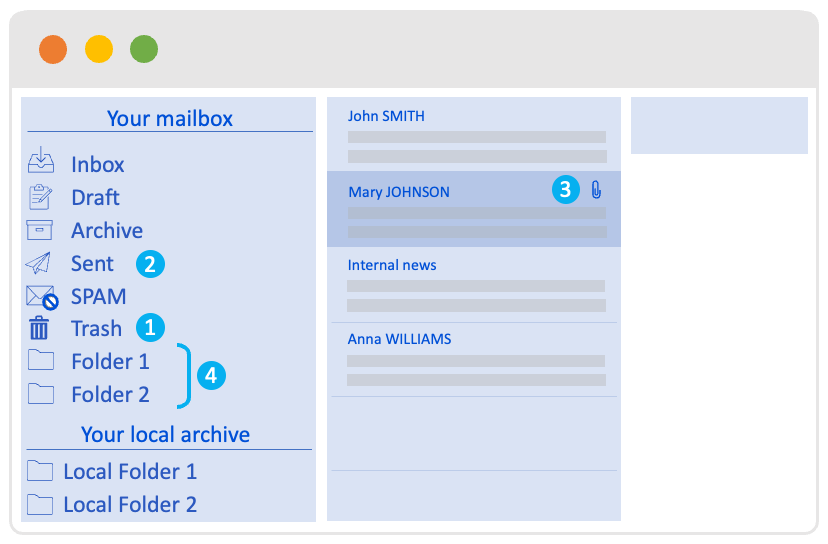
Before you perform any other operation on your email account, you will need to familiarise yourself with the content of your email account, in order to remove any unnecessary elements. Please check some of them:
- 1 **Deleted items (Trash)**: It contains the items you have deleted. To avoid cumulating emails in this folder, we recommend emptying the trash regularly.
- 2 **Sent items**: When you send an email to a recipient, a copy of this email is stored in the “Sent items” folder. We recommend that you regularly purge this folder or archive its contents, locally on your computer or remotely on a cloud storage space.
- 3 **Stored emails containing large attachments**: Emails with attachments take up more space on your email account. We recommend storing large items locally on your computer or remotely on a cloud storage space.
- 4**Folder organisation**: When you have a lot of folders on your email account, it is harder to keep track of the used space on your email account. Take regular inventory of your folders and their contents.
#### Increase the capacity of your email account
You can increase the storage capacity of your email account, if it has not reached its maximum capacity. Below, you will find the approach to follow, depending on your solution:
**MX Plan**
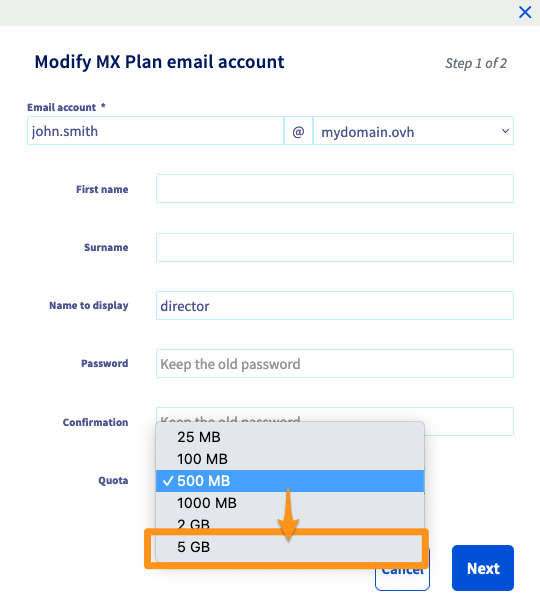
The capacity of an MX Plan account can range from 2.5 MB to 5 GB. If it is full and its capacity is less than 5 GB, you can modify its capacity via the OVHcloud Control Panel.
In the Email accounts tab, click the ... button to the right of the account you want to change, and then click Edit.
From the Quota box, select the desired size, click Next, then Confirm.
**Email Pro**
The Email Pro solution has a unique capacity of 10 GB. To increase it, you need to switch to a plan that includes more storage space. Follow the steps below to[change your email service](#switchingoffer).
**Exchange**
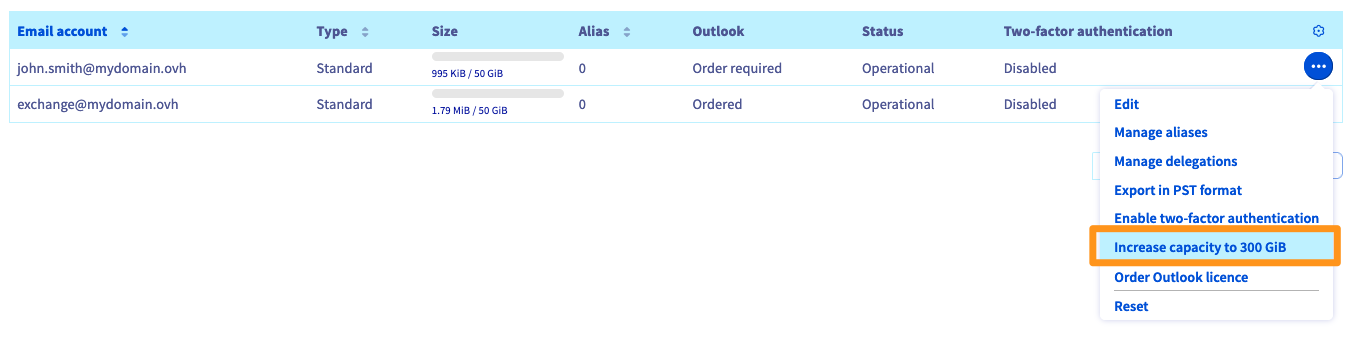
If your Exchange account reaches 50 GB saturation, it is possible for the **Hosted** and **Provider** offers to subscribe to an extension option to extend its capacity to 300 GB.
From the Email accounts tab on your platform, click the ... button to the right of the account you want to modify, then click on Increase capacity to 300 GB. Choose your billing method and click Validate.
If your Exchange account has already filled up its 300 GB of storage on a **Hosted** or **Provider** offer, you will need to free up space on your Exchange account by deleting obsolete items or [archive your emails](#archiveorswitch) on your computer locally. This also applies to 50 GB Exchange accounts that are included in a **Private** solution.
**Zimbra**
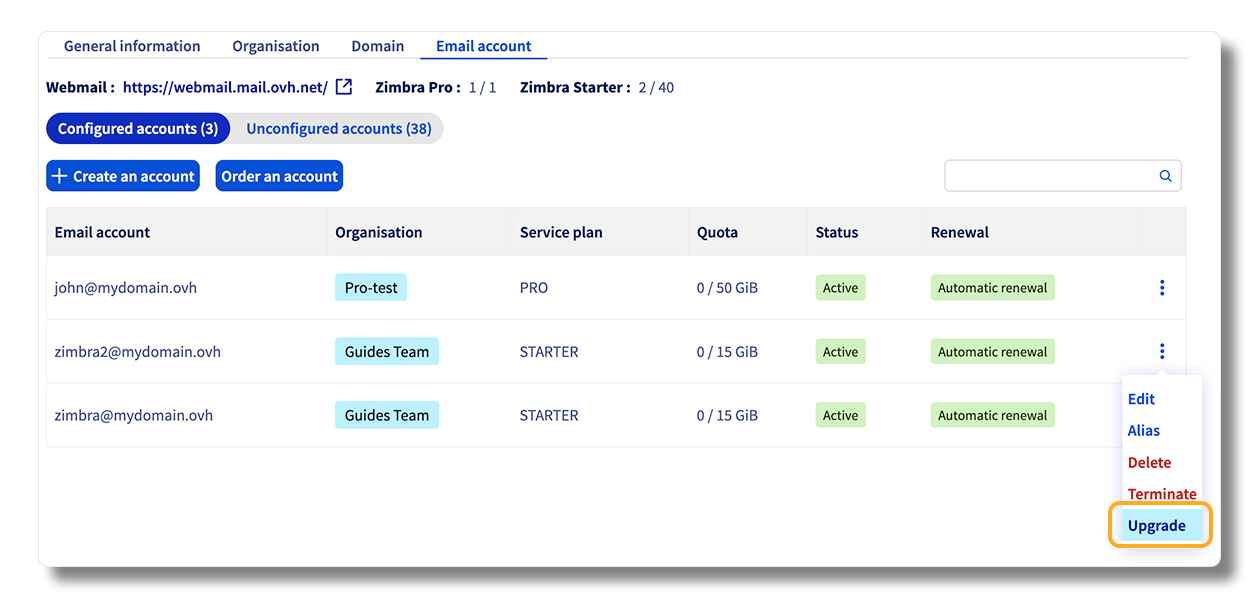
The Zimbra Starter solution includes 15 GB of storage. If you would like to increase its capacity, you can switch to the Zimbra Pro solution.
In the Email account tab of your platform, click the ... button to the right of the account you want to modify, then click Upgrade.
If you have a Zimbra Pro or Business solution, you already have the maximum capacity of 50 GB. You will need to free up space on your Zimbra account by deleting unnecessary items, or [archive your emails](#archiveorswitch) on your computer locally.
### 3. **Archive**
emails or **change your email solution**
[](#)
#### Archive your emails locally on your computer
:::warning
The following information is based on an IMAP configuration for your email account, which is the most common configuration. With the POP configuration, emails are already stored locally on your computer. Archiving these emails is therefore not relevant for storage space management.
:::
When you set up your email address on your email client in IMAP, the visible content **by default**, corresponds to what is **synced on the email server**. This means that the emails are loaded on your computer but disappear if they are deleted from the server. To **archive them to your computer**, you must configure your email software.
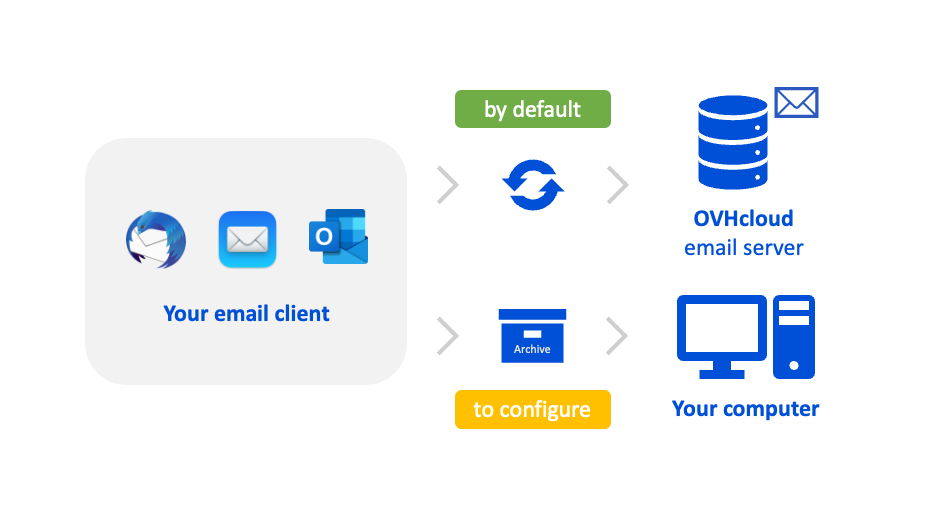
If you want, you can free the storage space of your email account by storing your emails directly on your computer. To do this, you will need to use an email client installed on your computer.
The role of email software is to convert your emails into files, so that they can be stored on your computer. However, you will need to configure your email software’s archive feature. The emails will then be stored in a local folder and not directly on the server of your email account.
Below is a nonexhaustive list of configuration guides for email clients on computers, depending on the solution you have:
- IMAP protocol on the **MX Plan** and **Email Pro** offers
- MAPI protocol on the **Exchange** offer for Windows Outlook
- EWS protocol on the **Exchange** offer for macOS Outlook
**MX Plan and Zimbra Starter**
Configuring an MX Plan account on **Windows**:
- [Windows 10 Mail](/en/guides/web-cloud/email-and-collaborative-solutions/mx-plan/how-to-configure-windows-10.md) (included with Windows)
- [Outlook for MX Plan](/en/guides/web-cloud/email-and-collaborative-solutions/mx-plan/how-to-configure-outlook-2016.md)
- [Thunderbird](/en/guides/web-cloud/email-and-collaborative-solutions/mx-plan/how-to-configure-thunderbird-windows.md) (free)
Configuring an MX Plan account on **macOS**:
- [Mail](/en/guides/web-cloud/email-and-collaborative-solutions/mx-plan/how-to-configure-mail-macos.md) (included with macOS)
- [Outlook](/en/guides/web-cloud/email-and-collaborative-solutions/mx-plan/how-to-configure-outlook-2016-mac.md)
- [Thunderbird](/en/guides/web-cloud/email-and-collaborative-solutions/mx-plan/how-to-configure-thunderbird-mac.md) (free)
**Email Pro**
Configuring an Email Pro account on **Windows**:
- [Windows 10 Mail](/en/guides/web-cloud/email-and-collaborative-solutions/email-pro/windows-10-mailapp-configuration.md) (included with Windows)
- [Outlook](/en/guides/web-cloud/email-and-collaborative-solutions/email-pro/outlook-windows-configuration.md)
- [Thunderbird](/en/guides/web-cloud/email-and-collaborative-solutions/email-pro/how-to-configure-thunderbird.md) (free)
Configuring an Email Pro account on **macOS**:
- [Mail](/en/guides/web-cloud/email-and-collaborative-solutions/email-pro/macos-mailapp-configuration.md) (included with macOS)
- [Outlook](/en/guides/web-cloud/email-and-collaborative-solutions/email-pro/outlook-macos-configuration.md)
- [Thunderbird](/en/guides/web-cloud/email-and-collaborative-solutions/email-pro/thunderbird-macos-configuration.md) (free)
**Exchange**
Configuring an Exchange account on **Windows**:
- [Windows 10 Mail](/en/guides/web-cloud/email-and-collaborative-solutions/microsoft-exchange/how-to-configure-windows-10.md) (included with Windows)
- [Outlook](/en/guides/web-cloud/email-and-collaborative-solutions/microsoft-exchange/how-to-configure-outlook-2016.md)
- [Thunderbird](/en/guides/web-cloud/email-and-collaborative-solutions/microsoft-exchange/thunderbird-windows-configuration.md) (free)
Configuring an Exchange account on **macOS**:
- [Mail](/en/guides/web-cloud/email-and-collaborative-solutions/microsoft-exchange/how-to-configure-mail-macos.md) (included with macOS)
- [Outlook](/en/guides/web-cloud/email-and-collaborative-solutions/microsoft-exchange/how-to-configure-outlook-2016-mac.md)
- [Thunderbird](/en/guides/web-cloud/email-and-collaborative-solutions/microsoft-exchange/how-to-configure-thunderbird-mac.md) (free)
**Zimbra Pro**
Configuring a Zimbra account on **Windows**:
- [Outlook](/en/guides/web-cloud/email-and-collaborative-solutions/zimbra/zimbra-outlook-windows.md)
Configuring a Zimbra account on **macOS**:
- [Mail](/en/guides/web-cloud/email-and-collaborative-solutions/zimbra/zimbra-mail-macos.md)
- [Outlook](/en/guides/web-cloud/email-and-collaborative-solutions/zimbra/zimbra-outlook-macos.md)
Once you have installed your email software, follow the instructions below to prepare the archive folder.
**Outlook**
In Outlook, make sure that the folder "archive" or "on my computer" is present in your left-hand column so that you can put the items you want to keep locally on your computer. See the Microsoft documentation for preparing your archive folder:
- [Archiving in Outlook for Windows](https://support.microsoft.com/en-gb/office/archive-in-outlook-for-windows-25f75777-3cdc-4c77-9783-5929c7b47028)
- [About folders on my computer in Outlook for Mac](https://support.microsoft.com/en-gb/office/about-on-my-computer-folders-in-outlook-for-mac-c91b8729-924d-4c25-a5f6-38883d0f763d)
**Mail macOS**
From Mail on macOS, create a folder that will appear in the "On my Mac" section in the left-hand column. To do this, follow the Apple documentation:
- [Create or delete mailboxes in Mail on Mac](https://support.apple.com/en-gb/guide/mail/mlhlp1021/15.0/mac/12.0)
**Thunderbird**
Via Thunderbird from Windows, macOS or Linux, you can move your emails to a folder in the left pane. Use the Mozilla documentation:
- [Message Archiving](https://support.mozilla.org/en-US/kb/archived-messages)
#### Change your email solution to increase capacity [](#)
Select the current solution for your email account from the menu below:
**MX Plan**
If your email account already has a maximum capacity of 5 GB, you can opt for a migration to a [10 GB **Email Pro** solution](https://www.ovhcloud.com/en-gb/emails/email-pro/) or a 50 GB [**Hosted Exchange** offer](https://www.ovhcloud.com/en-gb/emails/hosted-exchange/). To do this, please order the solution that suits your needs, and follow our guide on [Migrating an MX Plan email account to Email Pro or Exchange](/en/guides/web-cloud/email-and-collaborative-solutions/migrating/migration-control-panel.md).
**Email Pro**
The Email Pro offer has a unique capacity of 10GB. You can choose to migrate to a [50 GB **Hosted Exchange** solution](https://www.ovhcloud.com/en-gb/emails/hosted-exchange/). To do this, order Hosted Exchange and follow our guide on [Migrating your email account from one OVHcloud email platform to another](/en/guides/web-cloud/email-and-collaborative-solutions/migrating/migration-platform.md).
**Exchange**
If your Exchange account is saturated with 50 GB of space, you can subscribe to an extension option to expand its capacity to 300 GB. This only possible if the Exchange account is on a **Hosted** or **Provider** offer.
In the Email accounts tab on your Exchange platform, click the ... button to the right of the account you want to modify, then click Increase capacity to 300 GB.

**Zimbra**
The Zimbra Starter solution includes 15 GB of storage. If you would like to increase capacity, you can switch to the Zimbra Pro solution.
In the Email account tab of your platform, click the ... button to the right of the account you want to modify, then click Upgrade.
## Go further
[Migrating an MX Plan email account to Email Pro or Exchange](/en/guides/web-cloud/email-and-collaborative-solutions/migrating/migration-control-panel.md)
[Manually migrate your email account](/en/guides/web-cloud/email-and-collaborative-solutions/migrating/manual-email-migration.md)
[Migrating your email account from one OVHcloud email platform to another](/en/guides/web-cloud/email-and-collaborative-solutions/migrating/migration-platform.md)
If you would like assistance using and configuring your OVHcloud solutions, please refer to our [support offers](https://www.ovhcloud.com/en-gb/support-levels/).
Join our [community of users](https://community.ovhcloud.com/community/en).