---
title: "How to obtain an Outlook licence for Exchange"
description: "Find out how to subscribe to an Outlook licence from your OVHcloud Exchange platform and how to activate it"
url: https://docs.ovhcloud.com/en/guides/web-cloud/email-and-collaborative-solutions/microsoft-exchange/office-outlook-license
lang: en
lastUpdated: 2025-04-28
---
# How to obtain an Outlook licence for Exchange
## Objective
With an Outlook licence you can use the Outlook email client to view and manage the emails in your Exchange account.
OVHcloud offers the Outlook licence for a monthly cost of €2 ex VAT. It will be linked to an OVHcloud Exchange account that you manage.
After subscribing, you can download the Outlook client as one of the following 3 versions:
- Outlook for Windows 32 bit
- Outlook for Windows 64 bit
- Outlook for MAC 64 bit
**This guide explains how to order an Outlook licence from your OVHcloud Exchange platform and how to activate it.**
***
### OVHcloud Control Panel Access
- **Direct link:** Exchange
- **Navigation path:** Web Cloud > Exchange > Select your platform
***
## Instructions
### Ordering an Outlook licence
#### For a Hosted Exchange account
Click on the `...
` icon to the right of the account concerned, then on `Order an Outlook
` licence.
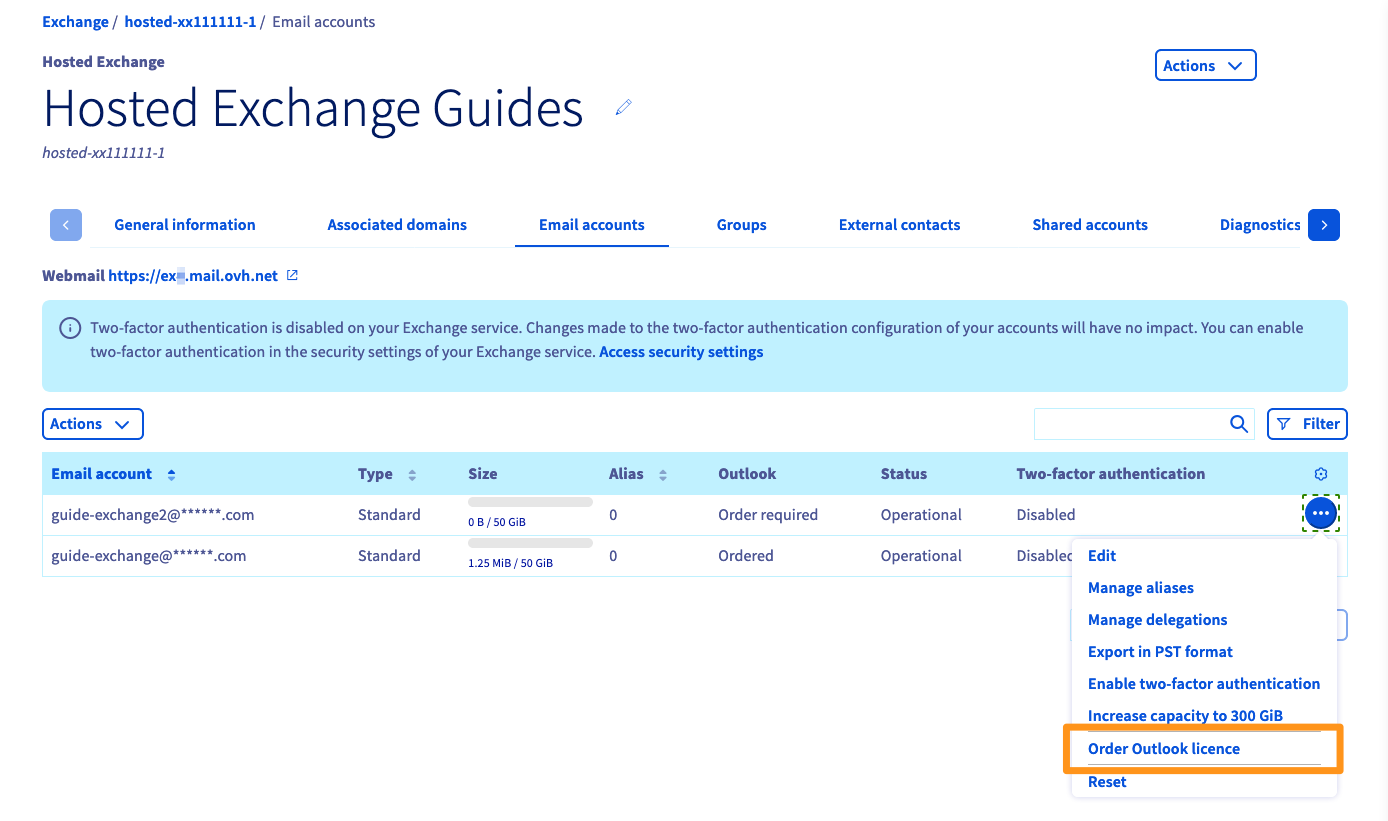
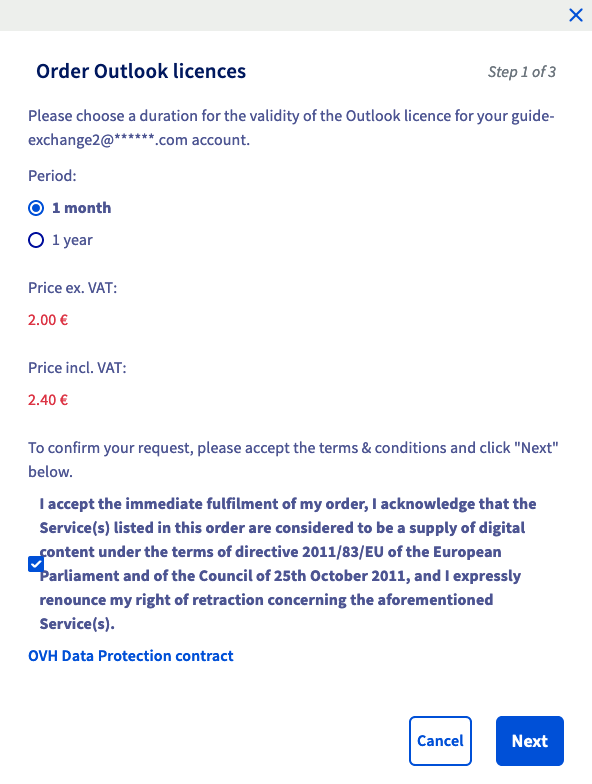
Set the renewal frequency for your Outlook licence, and confirm the conditions. Then click `Next
`.
Once you have verified your order summary, use the `Pay
` button to generate the purchase order. You will be redirected to a new page where you can pay for your order using the payment methods available to you.
You will need to wait a few moments for your Outlook licence to become available in the OVHcloud Control Panel.
#### For a Private Exchange account
Click on the `...
` icon to the right of the account concerned, then on `Activate Outlook licence
`.
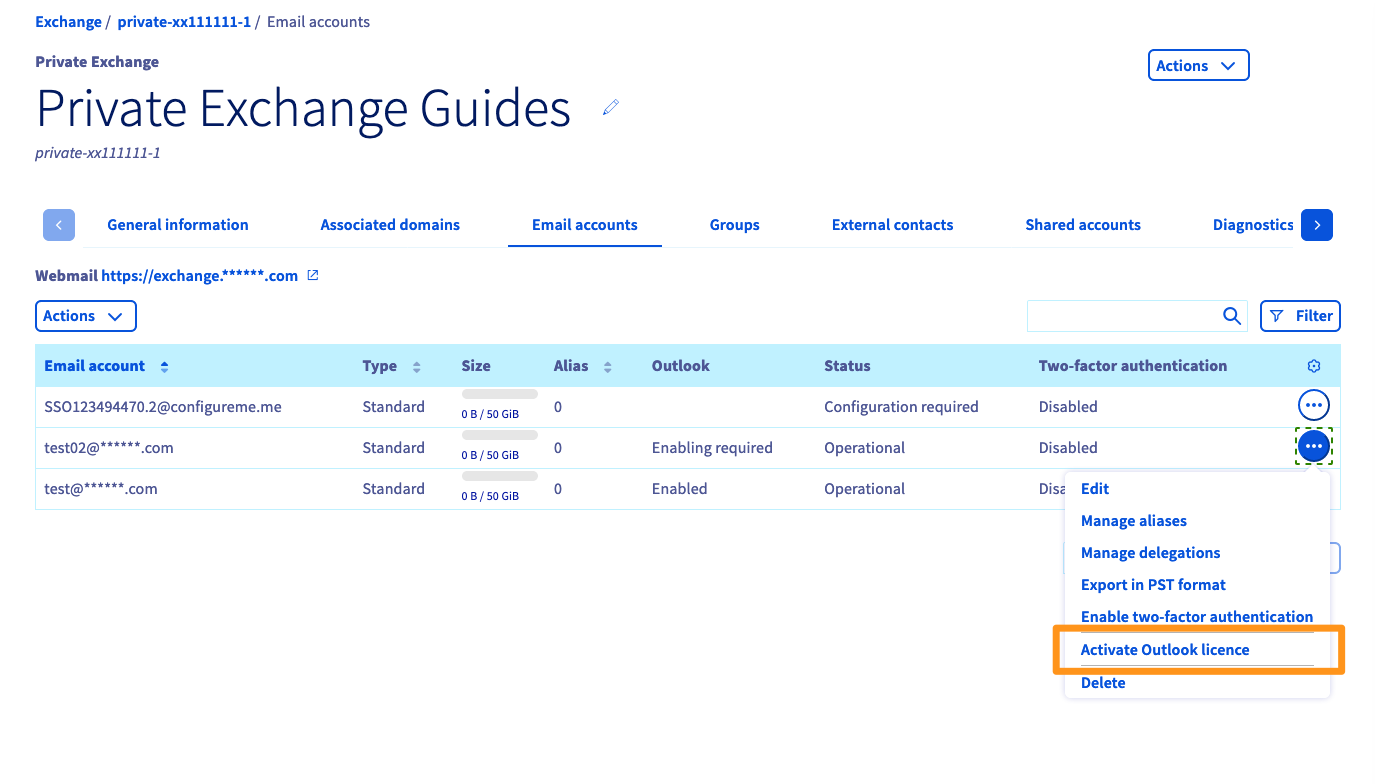
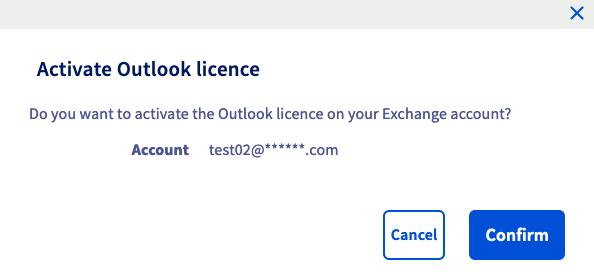
A window will appear, asking you if you want to activate the Outlook licence on your Exchange account. Click `Confirm
` to activate the licence for the account concerned.
You will need to wait a few moments for your Outlook licence to become available in the OVHcloud Control Panel.
:::info
Your Outlook licence will be billed on your Private Exchange platform every month.
:::
### Downloading and installing Outlook
You now need to download the appropriate Outlook installation file for your device.
In the management interface for your Exchange platform, click on the `...
` icon to the right of the account concerned, then on `Use Outlook licence
`.
Choose the version from the drop-down menu based on your operating system and language, then click `Next
`.
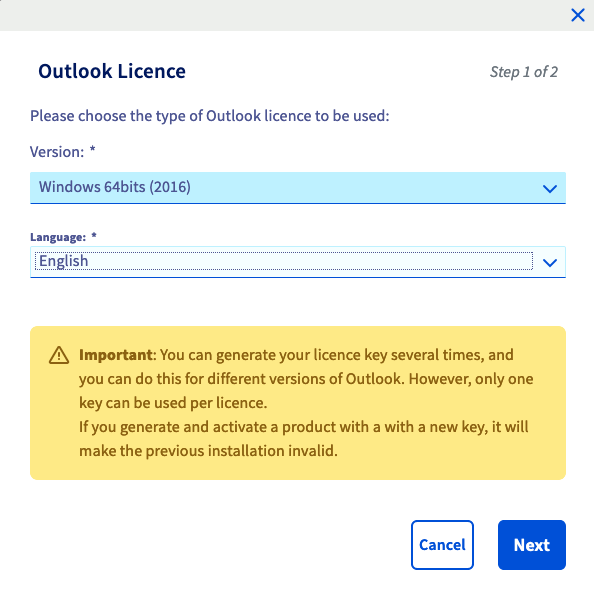
After a few moments, a download link is generated, along with a licence key needed to activate your Outlook installation.
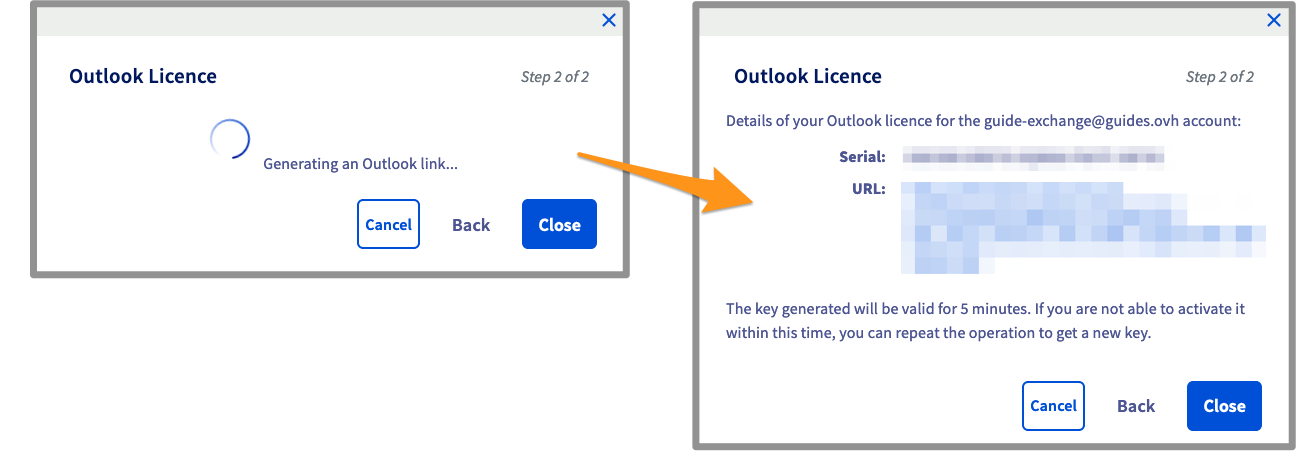
The downloaded file is in the .ISO format, i.e. a disk image. Start the installation and enter the licence key when prompted.
### Deleting the Outlook licence from your account
Click on the `...
` icon to the right of the account concerned, then on `Delete Outlook licence
`.
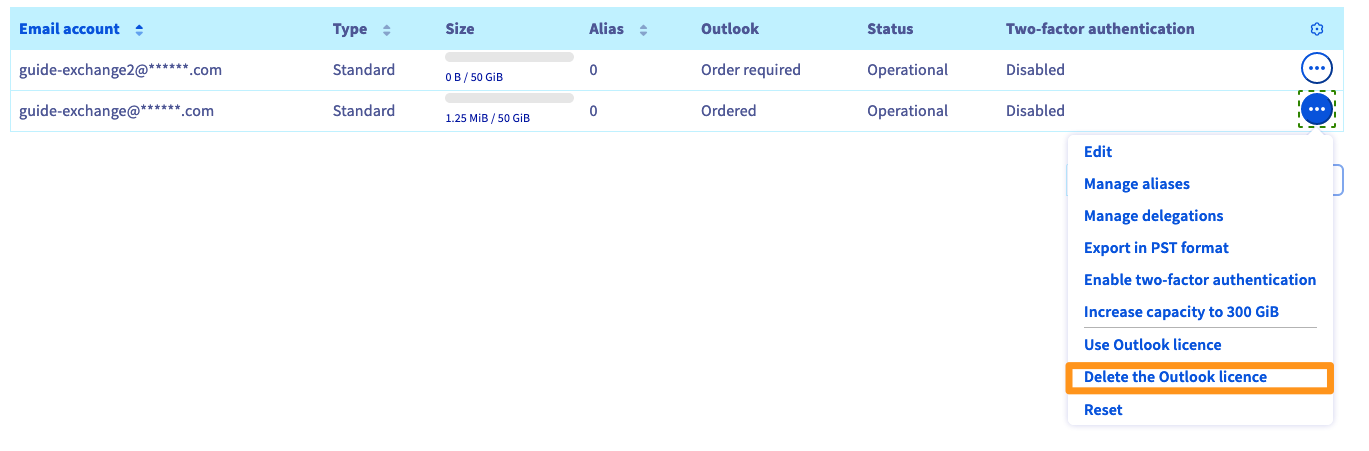
Once you have confirmed, you are reminded that the licence will be permanently deleted on its expiry date.
## Go further [](#)
Join our [community of users](https://community.ovhcloud.com/community/en).