---
title: "Exchange - Configure your email account on Thunderbird for Windows"
description: "Set up your Exchange mailbox in Thunderbird for Windows with the correct IMAP/POP and SMTP server settings, and back up your emails."
url: https://docs.ovhcloud.com/en/guides/web-cloud/email-and-collaborative-solutions/microsoft-exchange/how-to-configure-thunderbird-windows
lang: en
lastUpdated: 2026-03-24
---
# Exchange - Configure your email account on Thunderbird for Windows
## Objective
Exchange accounts can be configured on various compatible email clients. This allows you to use your email address from your preferred device. Thunderbird is a free and open-source email client.
**This guide explains how to configure your Exchange email address on Thunderbird for Windows.**
## Requirements
- A [Hosted Exchange](https://www.ovhcloud.com/en-gb/emails/hosted-exchange/) or [Private Exchange](https://www.ovhcloud.com/en-gb/emails/private-exchange/) email account
- The Thunderbird software installed on your Windows device
- The credentials for the email account you want to configure
***
### OVHcloud Control Panel Access
- **Direct link:** Exchange
- **Navigation path:** Web Cloud > Exchange > Select your platform
***
Information regarding the administration and configuration of OVHcloud services
This guide will show you how to use OVHcloud solutions with external tools, and the changes you need to make in specific contexts. You may need to adapt the instructions according to your situation.
If you experience any difficulties carrying out these operations, we recommend that you contact a specialist service provider or discuss the issue with our [community](https://community.ovhcloud.com/). OVHcloud cannot provide you with technical support in this regard. You can find more information in the [Go further](#go-further) section of this guide.
## Instructions
:::info
In our example, we use the server reference: ex?.mail.ovh.net. The "?" must be replaced with the number corresponding to your Exchange service's server.
Click this link to access the Exchange section. The server name is displayed in the **Connection** section of the General information tab.
:::
### Add the account
- **On the first launch of the application**: a configuration wizard appears and prompts you to enter your email address.
- **If an account is already configured on the application**:
1. Click on the ☰ menu in the top horizontal bar.
2. Click on New Account.
3. Click on Email Address.
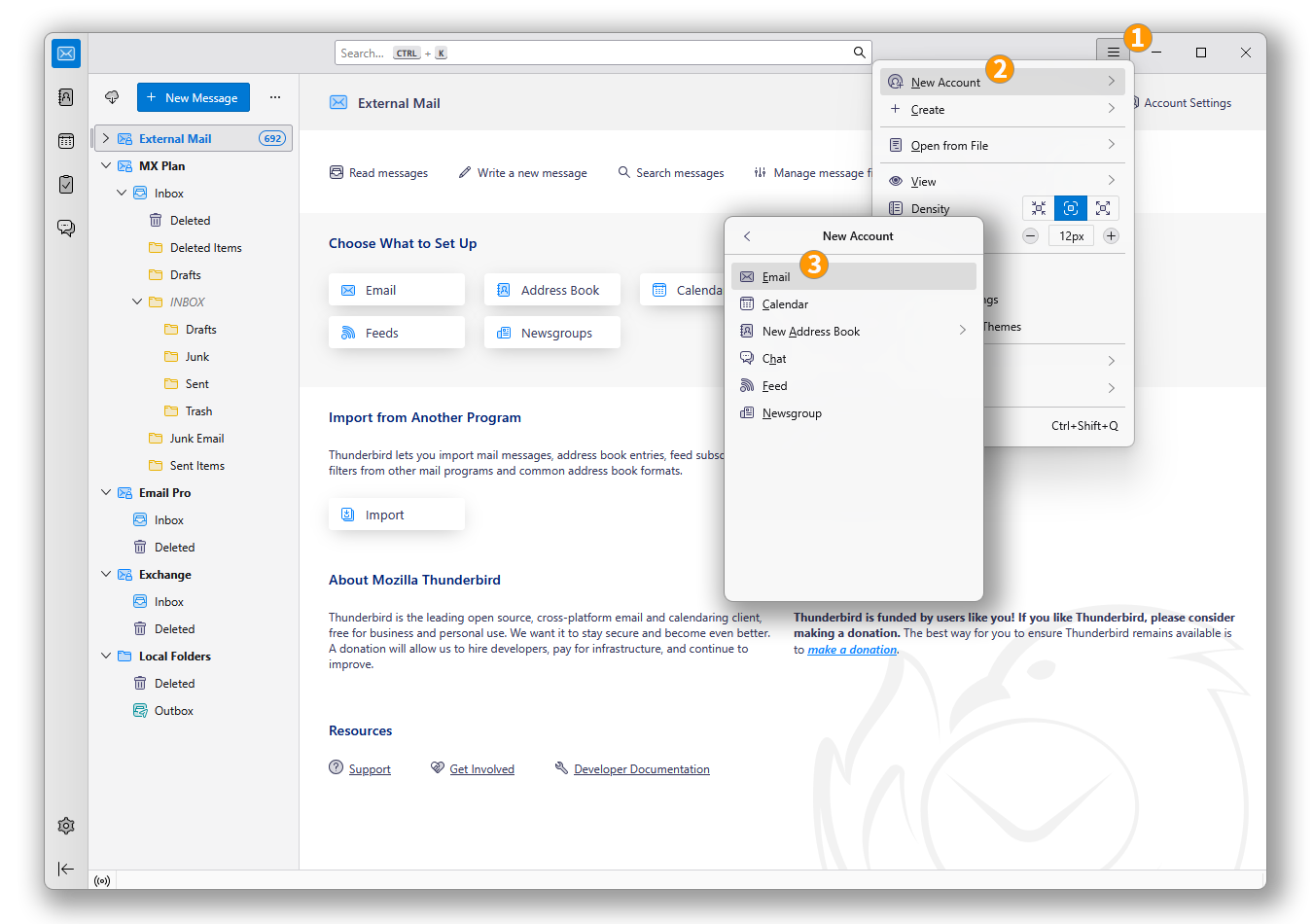
Follow the configuration steps by clicking successively on the **5** tabs below:
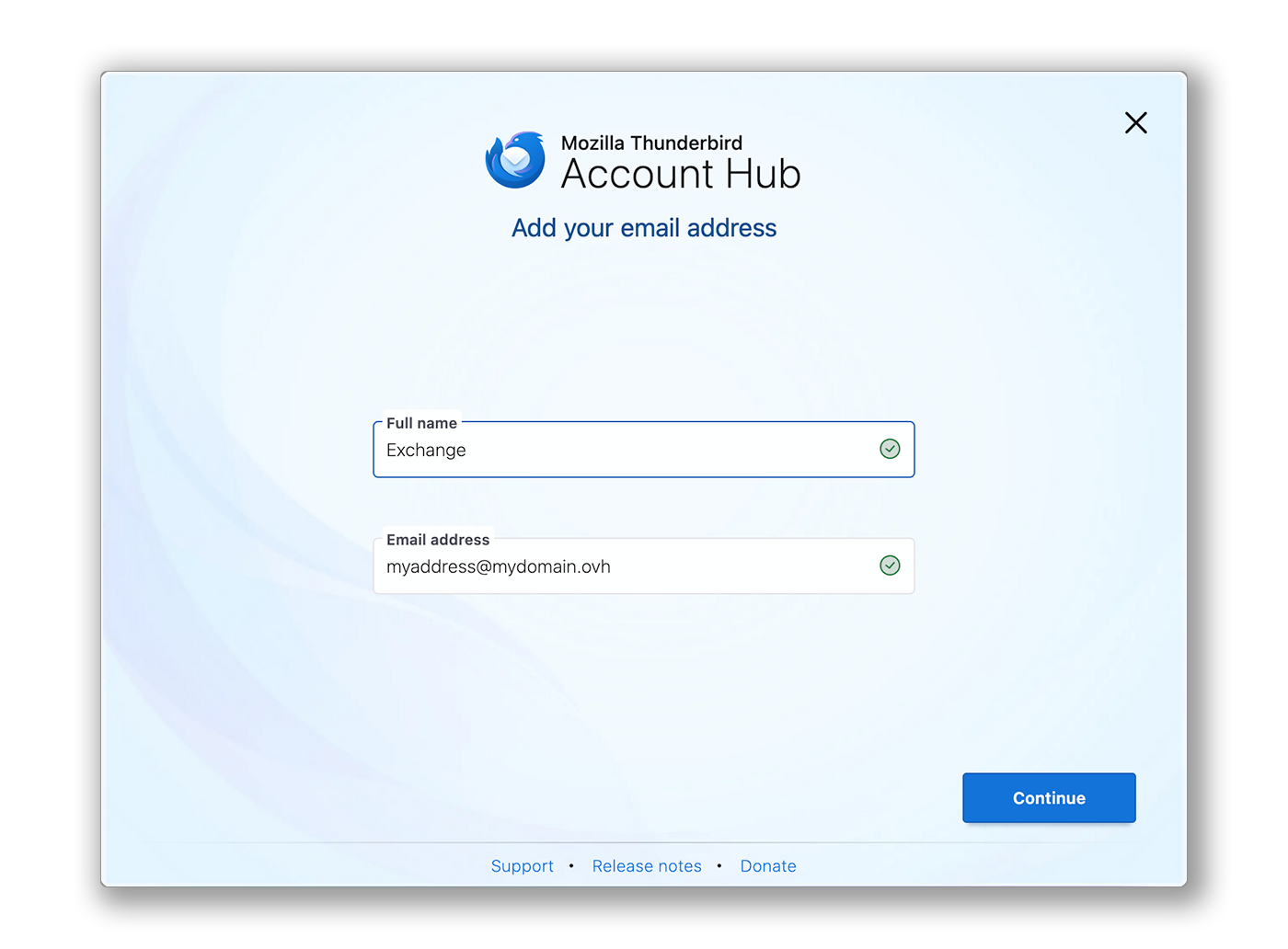
**Step 1**
In the window that appears, enter the following two pieces of information:
- Your full name (display name).
- The email address to configure.
Click on Continue to complete the settings.
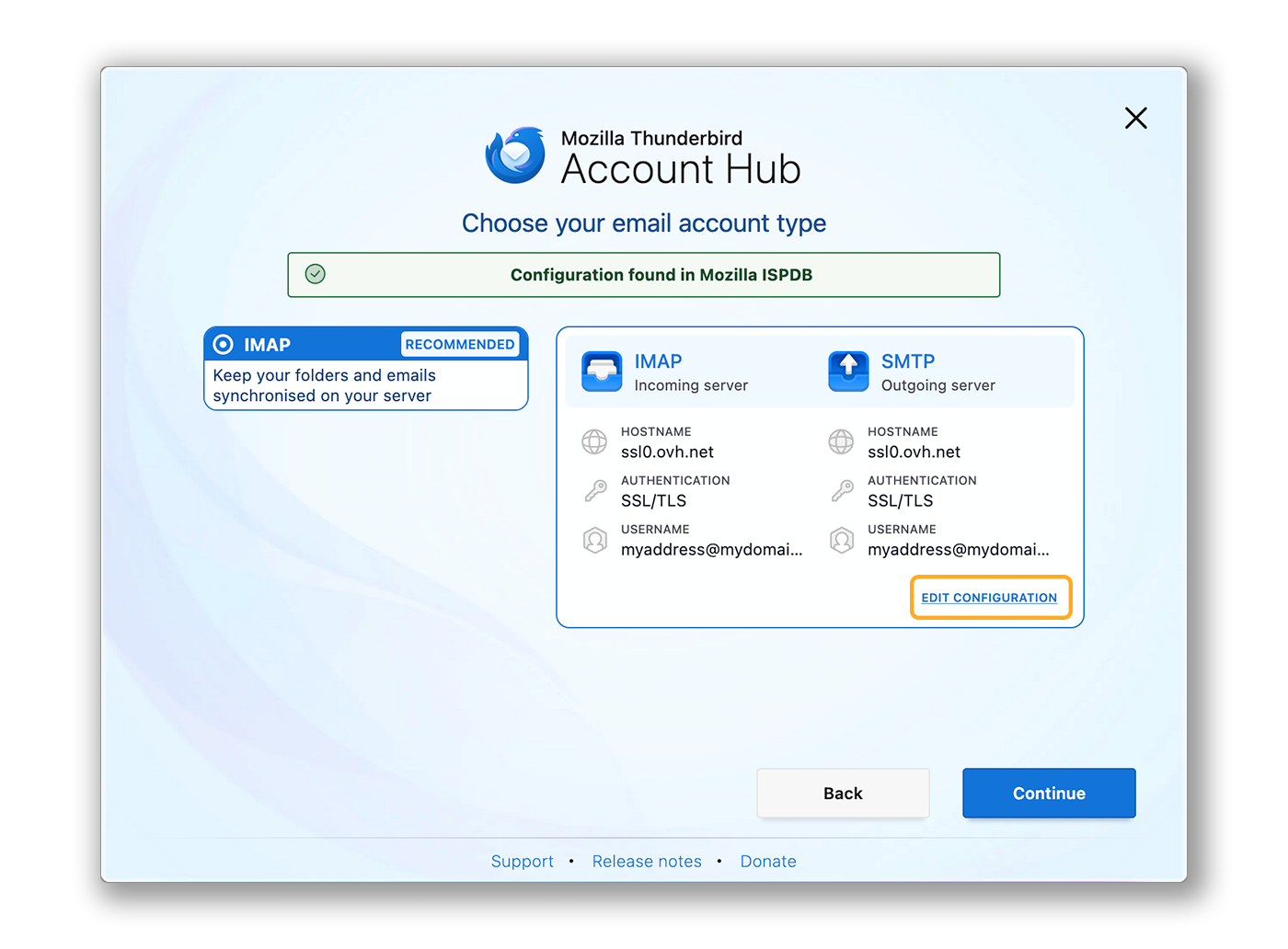
**Step 2**
When Thunderbird detects an OVHcloud domain name, an automatic configuration related to the MX Plan offer is proposed. Click on MODIFY THE CONFIGURATION.
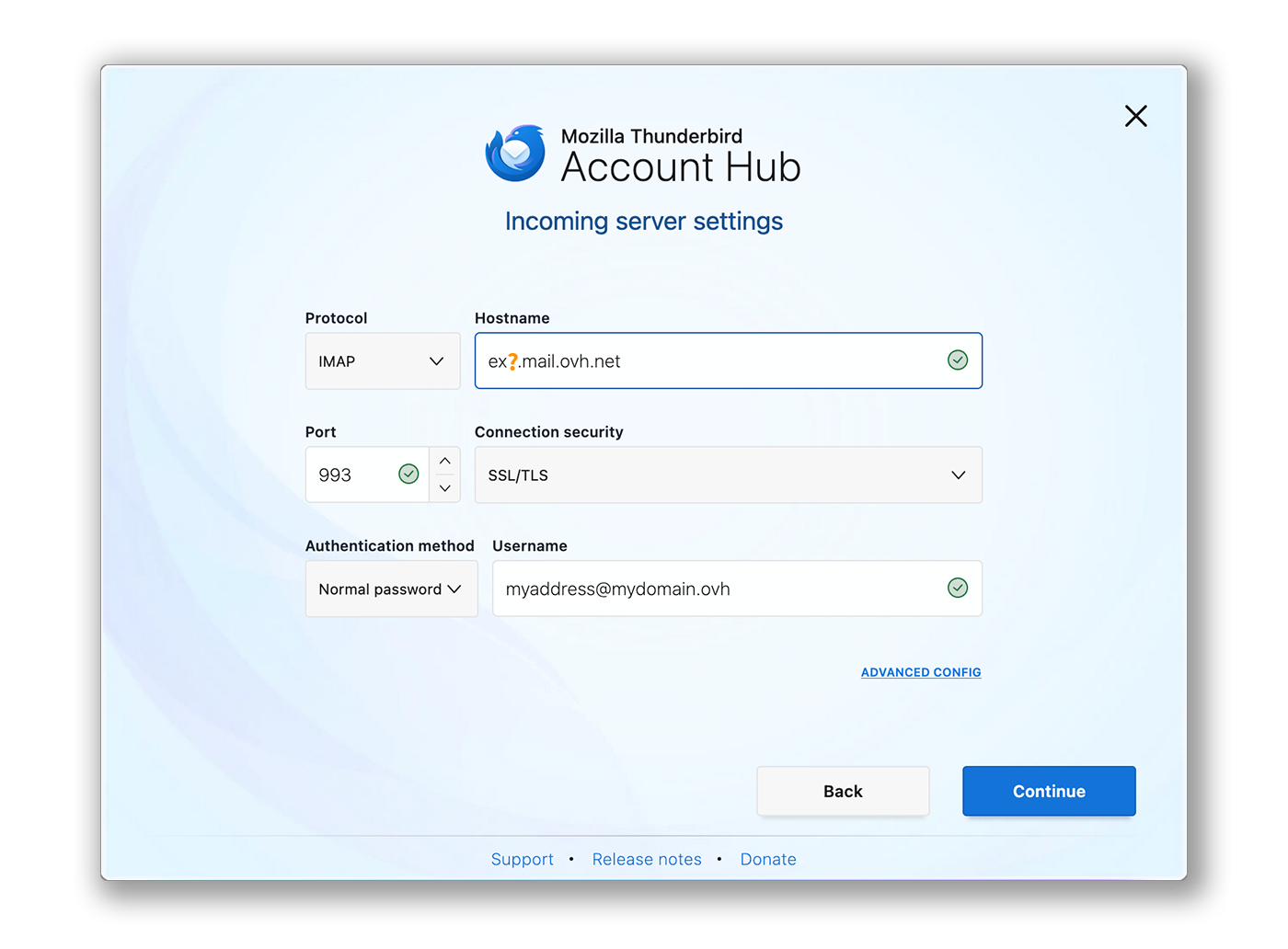
**Step 3**
Incoming server settings:
- **Protocol**: IMAP
- **Hostname**: ex?.mail.ovh.net (replace the "?" with your server number)
- **Port**: 993
- **Connection security**: SSL/TLS
- **Authentication method**: Normal password
- **Username**: Your full email address
**Step 4**
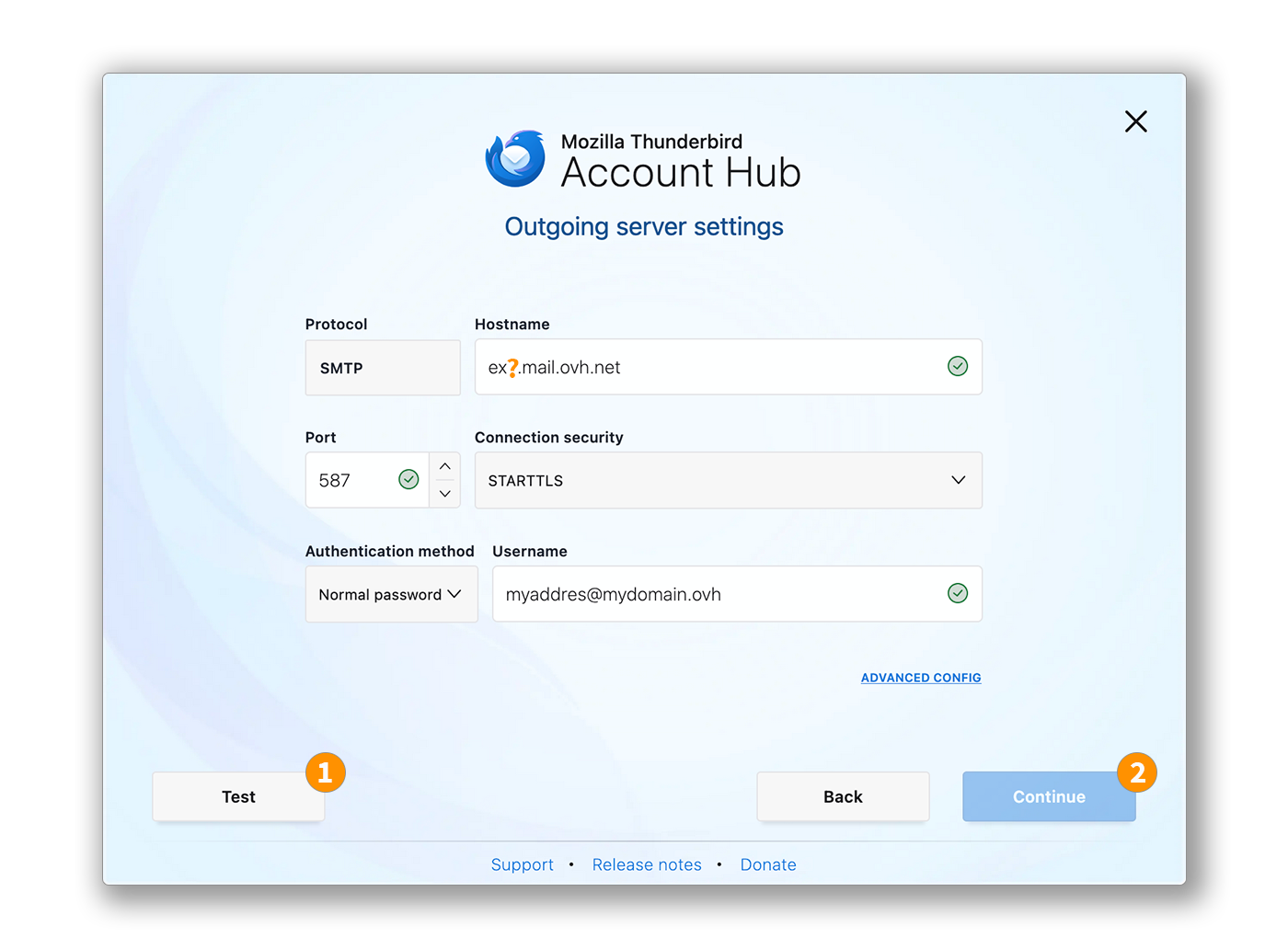
Outgoing server settings:
- **Protocol**: SMTP
- **Hostname**: ex?.mail.ovh.net (replace the "?" with your server number)
- **Port**: 587
- **Connection security**: STARTTLS
- **Authentication method**: Normal password
- **Username**: Your full email address
1\. Click on Test to verify the entered settings.
2\. Click on Continue to validate these settings.
**Step 5**
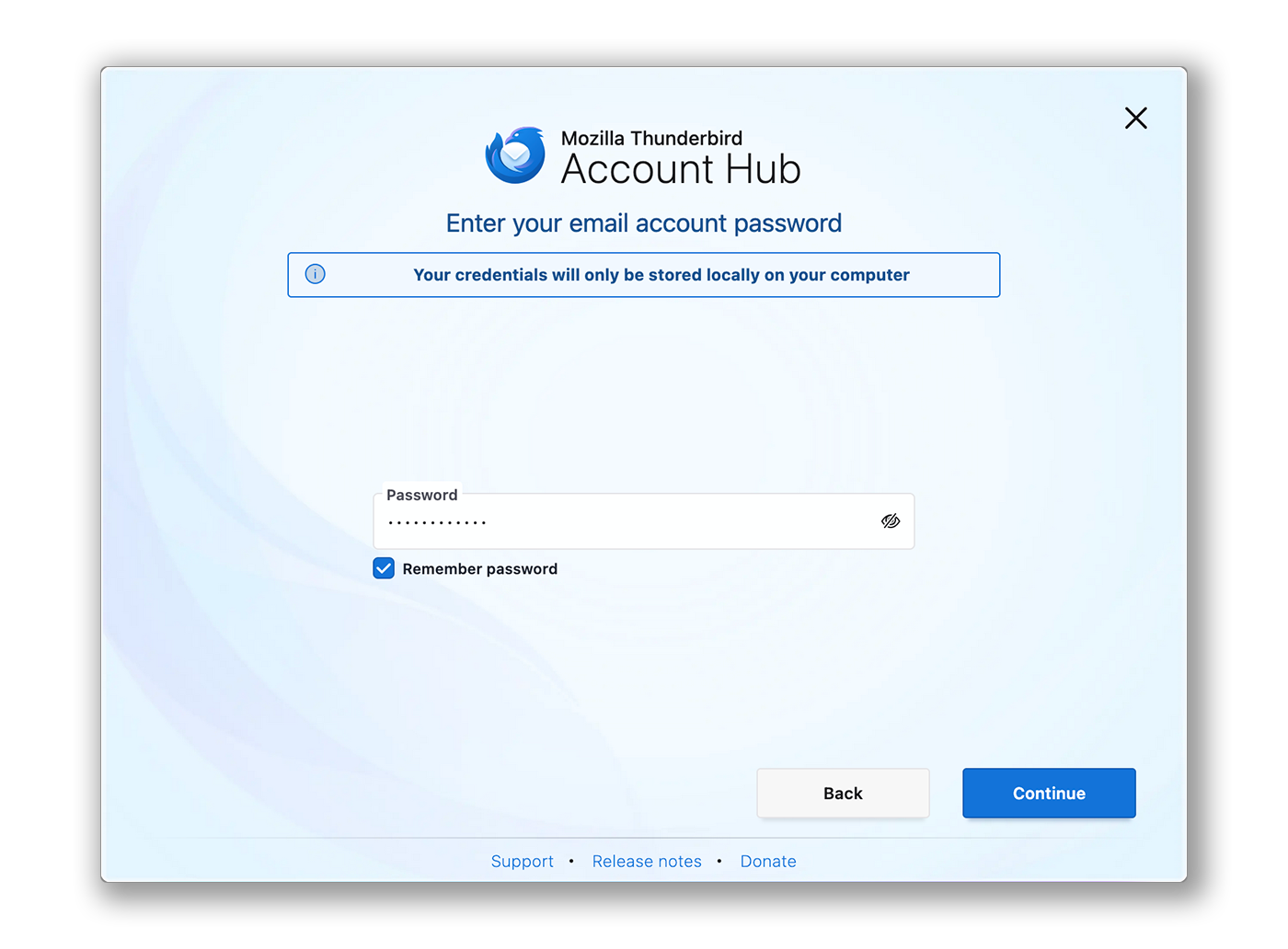
Enter the password associated with the email account, then click on Continue to finalize the configuration.
:::info
**POP configuration**
If you want a POP configuration for your email address, replace the settings in **Step 3** with the following:
Incoming server settings:
- **Protocol**: POP3
- **Hostname**: ex?.mail.ovh.net (replace the "?" with your server number)
- **Port**: 995
- **Connection security**: SSL/TLS
- **Authentication method**: Normal password
- **Username**: Your full email address
:::
### Use the email address
Once your email address is configured, you can start sending and receiving emails.
OVHcloud also offers a web application to access your email address from a browser. To open the OVHcloud webmail, click on [this link](https://www.ovhcloud.com/en-gb/mail/). You can log in using the credentials of your email address.
### Retrieve a backup of your email account
If you need to perform an operation that could result in the loss of your email account data, we recommend making a backup of the affected email account beforehand. To do this, refer to the "**Export**" section in the "**Thunderbird**" part of our guide "[Manually migrate your email address](/en/guides/web-cloud/email-and-collaborative-solutions/migrating/manual-email-migration.md)".
### Modify existing settings
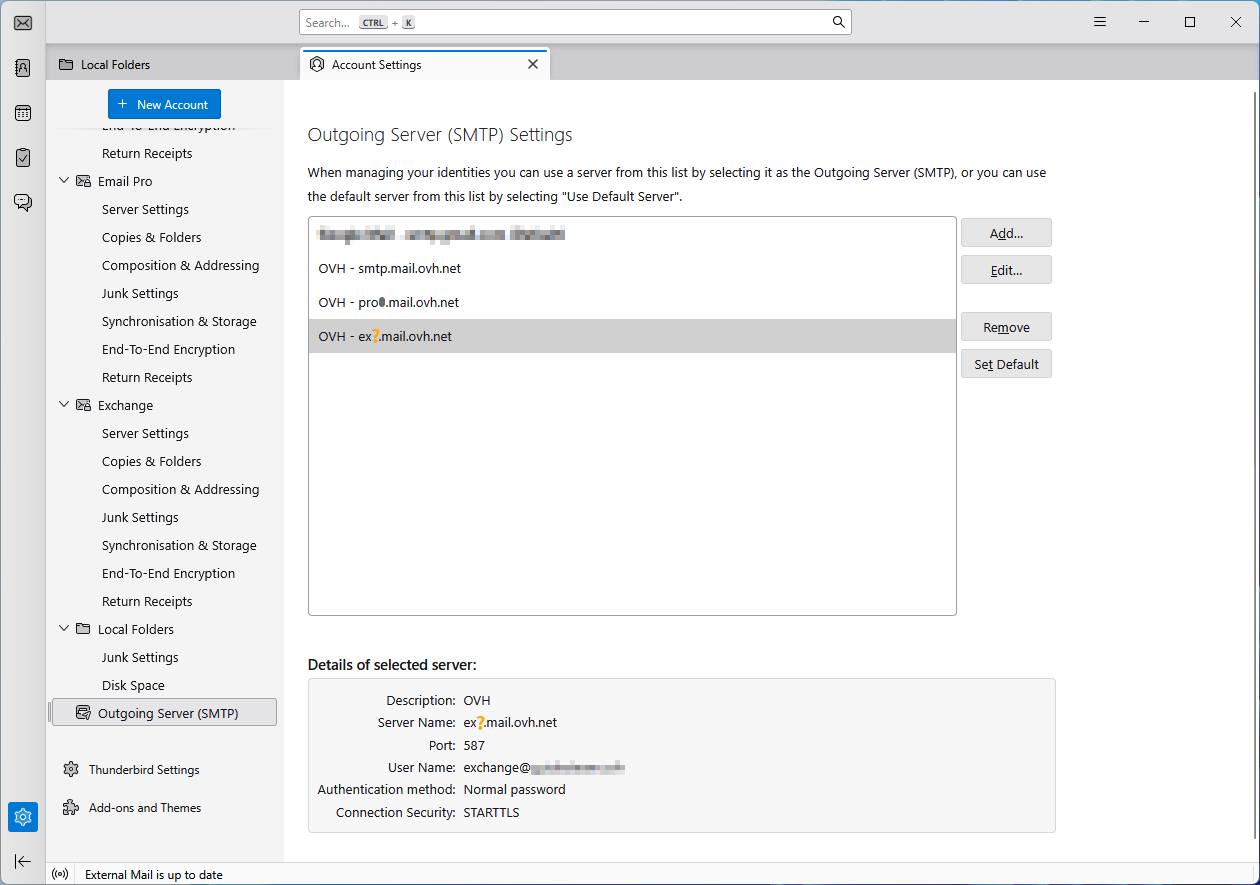
If your email account is already configured and you need to access the account settings to modify them:
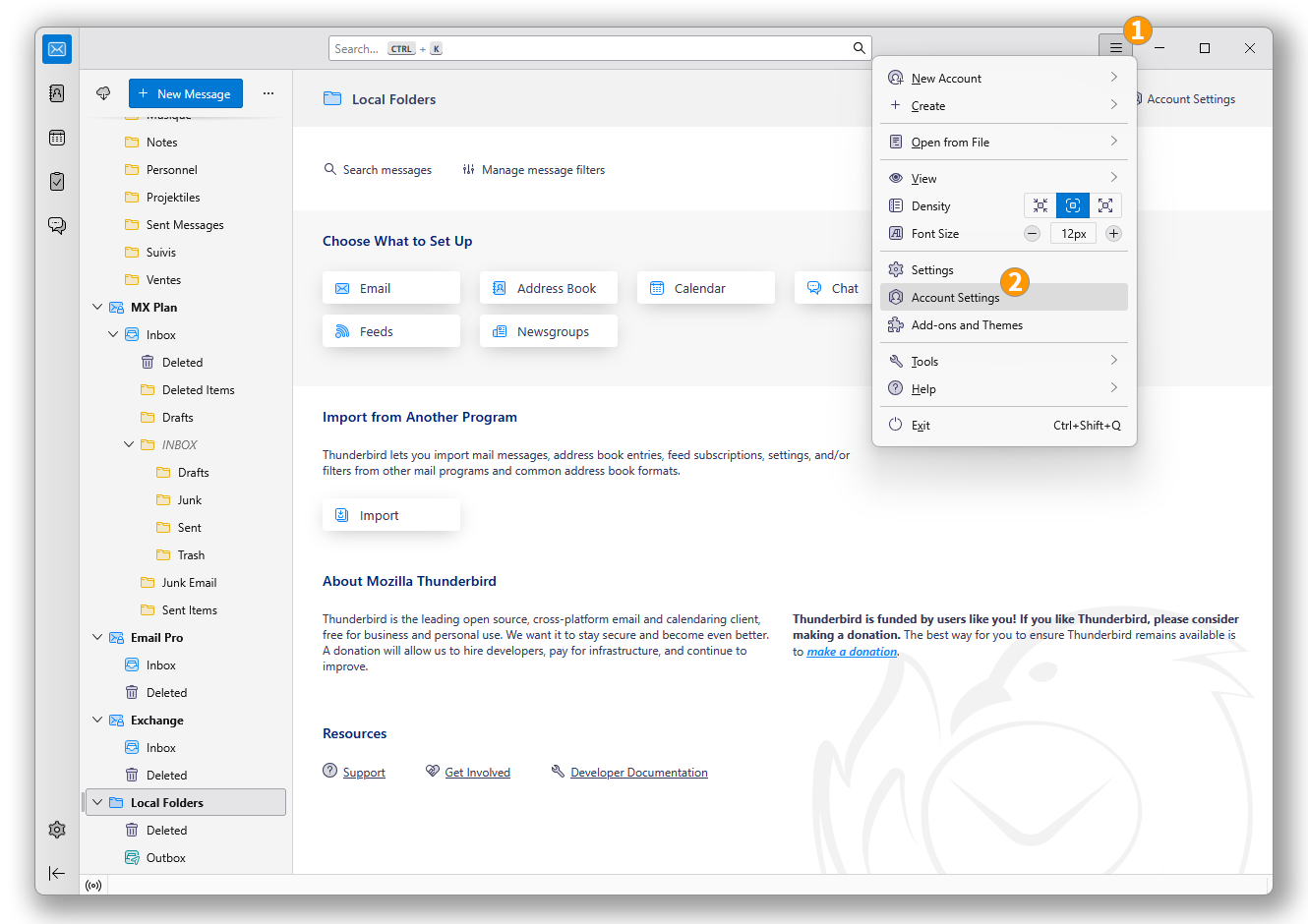
1. Click on the ☰ menu in the top horizontal bar.
2. Click on Account Settings.
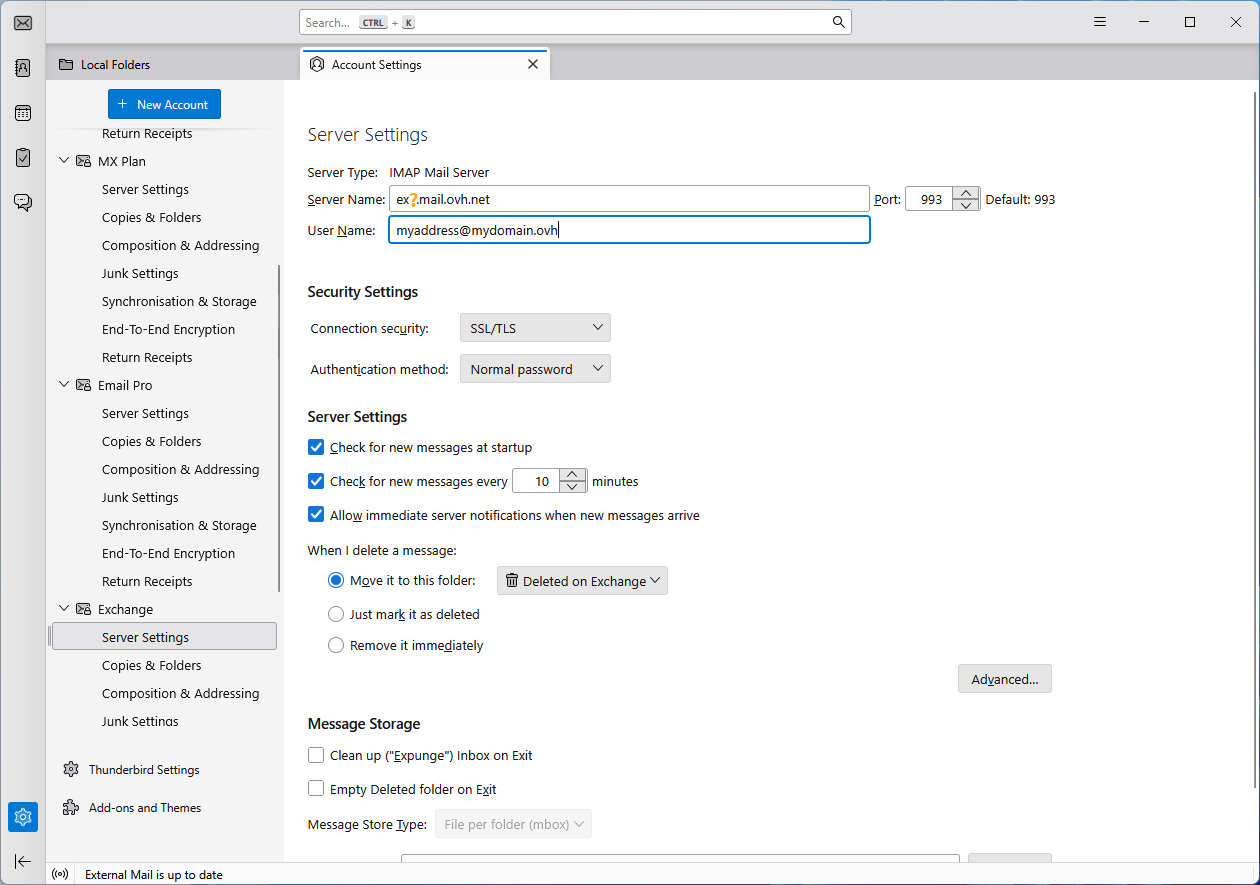
- To modify settings related to the **reception** of your emails, click on Server Settings in the left column under your email address.
- To modify settings related to the **sending** of your emails, click on Outgoing Server (SMTP) at the bottom of the left column.
- Click on the relevant email address in the list, then click on Edit.
## Go further [](#)
:::info
For more information on configuring an email address from the Thunderbird email client, consult [Mozilla's help center](https://support.mozilla.org/products/thunderbird).
:::
[Getting started with Hosted Exchange](/en/guides/web-cloud/email-and-collaborative-solutions/microsoft-exchange/exchange-starting-hosted.md)
[Getting started with Private Exchange](/en/guides/web-cloud/email-and-collaborative-solutions/microsoft-exchange/exchange-starting-private.md)
For specialised services (SEO, development, etc.), contact [OVHcloud partners](https://partner.ovhcloud.com/en-gb/directory/).
If you would like assistance using and configuring your OVHcloud solutions, please refer to our [support offers](https://www.ovhcloud.com/en-gb/support-levels/).
Join our [community of users](https://community.ovhcloud.com/).