---
title: "Exchange - Configuring your email address in Outlook for macOS"
description: "Find out how to configure your Exchange account in Outlook for macOS."
url: https://docs.ovhcloud.com/en/guides/web-cloud/email-and-collaborative-solutions/microsoft-exchange/how-to-configure-outlook-2016-mac
lang: en
lastUpdated: 2024-10-09
---
# Exchange - Configuring your email address in Outlook for macOS
## Objective
You can configure Exchange accounts on email clients, if they are compatible. By doing so, you can use your email address through your preferred email application.
## Requirements
- You must have an [Exchange](https://www.ovhcloud.com/en-gb/emails-exchange/) solution.
- You must have Microsoft Outlook installed on your Mac.
- You need to have the required credentials for the email address you would like to configure.
***
### OVHcloud Control Panel Access
- **Direct link:** Exchange
- **Navigation path:** Web Cloud > Exchange > Select your platform
***
:::info
Are you using Outlook for Windows? Read our guide: [Configuring your Exchange account in Outlook for Windows](/en/guides/web-cloud/email-and-collaborative-solutions/microsoft-exchange/how-to-configure-outlook-2016.md).
:::
## Instructions
### Step 1: Add the account
Once you have launched Outlook on your device, you can add an account in two different ways:
- **When you start the application for the first time:** A setup wizard will appear and prompt you to enter your email address.
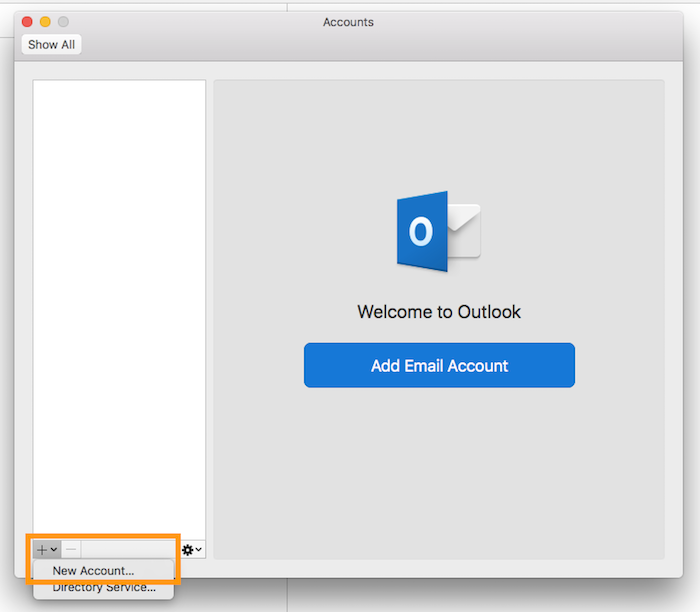
- **If you have already added an account:** Click Tools in the menu bar at the top of your screen, then Accounts. In the window that pops up, click +, then New account.
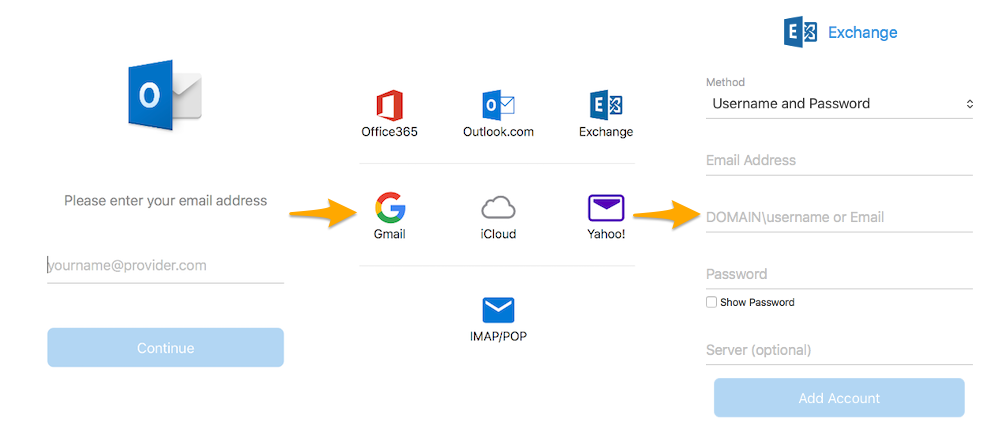
Enter your email address, then click `Continue
`. If you are asked to choose a provider, select `Exchange
`. Then fill in the information requested.
| Information | Description |
| -------------------------------- | ----------------------------------------------------------------------------------------------------------------------------------------------------------------------------------------------------------------------------------------------------------------------------------------------------------------------------------------------------------------------------------------------------------------------------------------- |
| Method | Leave **Username and password** (selected by default). |
| Mail address | Enter a name that will distinguish this account from any other accounts added in Outlook. |
| DOMAIN\username or email address | Enter your full email address. |
| Password | Enter the password for your email address. |
| Server | Depending on the DNS configuration for your domain name, you may not need to enter the server. If you do, enter the details for the server your Exchange service is hosted on. Click this link to access the Exchange section. The server name is displayed in the **Connection** section of the General information tab. |
Once you have entered this information, click `Add account
`. If the information is correct, Outlook will successfully connect to the account.
To check that the account has been properly configured, you can send a test email.
### Step 2: Use the email address
Once you have configured your email address, you can start using it! You can now send and receive emails.
OVHcloud offers a web application that includes various [collaborative features](https://www.ovhcloud.com/en-gb/emails/), which can be accessed at [Webmail](https://www.ovhcloud.com/en-gb/mail/). You can log in using your email credentials.
## Go further
:::info
For more information on configuring an email address from the Outlook app on macOS, see [the Microsoft Help Center](https://support.microsoft.com/en-gb/office/add-an-email-account-to-outlook-for-mac-6aeec61b-86af-40af-8ffe-985d0fc82ddb).
:::
[Configuring an email address included in an MX Plan package or in a web hosting solution in Outlook for Mac](/en/guides/web-cloud/email-and-collaborative-solutions/mx-plan/how-to-configure-outlook-2016-mac.md).
[Configuring your Email Pro account on Outlook for Mac](/en/guides/web-cloud/email-and-collaborative-solutions/email-pro/outlook-macos-configuration.md).
Join our [community of users](https://community.ovhcloud.com/community/en).