---
title: "Exchange - How to create contact groups"
description: "Find out how to manage mailing lists in Exchange"
url: https://docs.ovhcloud.com/en/guides/web-cloud/email-and-collaborative-solutions/microsoft-exchange/feature-groups
lang: en
lastUpdated: 2025-04-28
---
# Exchange - How to create contact groups
## Objective
Exchange groups enable multiple participants to communicate by sending emails to a unique group address. With this collaborative feature you can create and manage mailing lists that include Exchange users as well as external contacts.
**This guide explains how to use Exchange groups via the OVHcloud Control Panel and Outlook Web App (OWA).**
## Requirements
- an [OVHcloud Exchange solution](https://www.ovhcloud.com/en-gb/emails/hosted-exchange/) already set up
***
### OVHcloud Control Panel Access
- **Direct link:** Exchange
- **Navigation path:** Web Cloud > Exchange > Select your platform
***
## Instructions
### Creating a new group
Click on the `Groups
` tab in the horizontal menu.
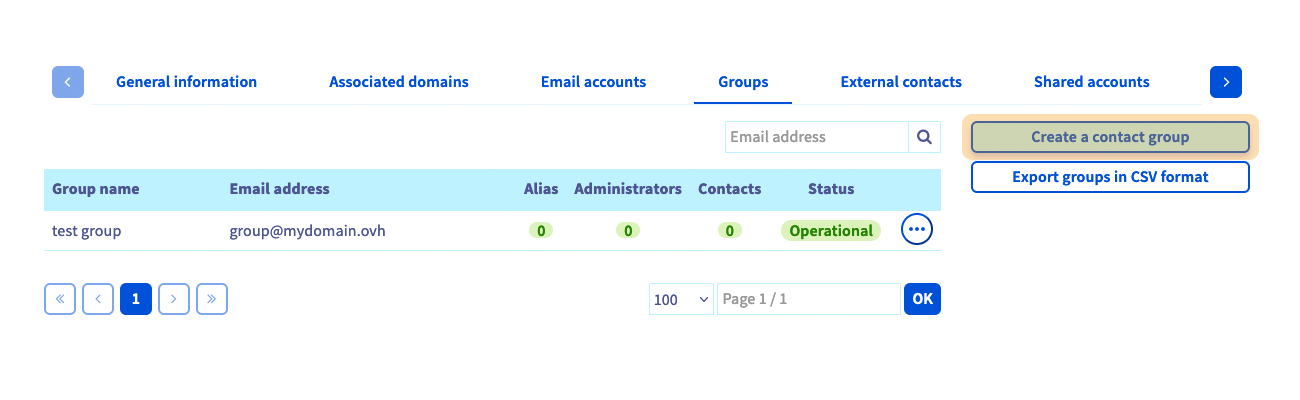
Clicking on `Create a contact group
` will open a new window where you can define the group's settings:
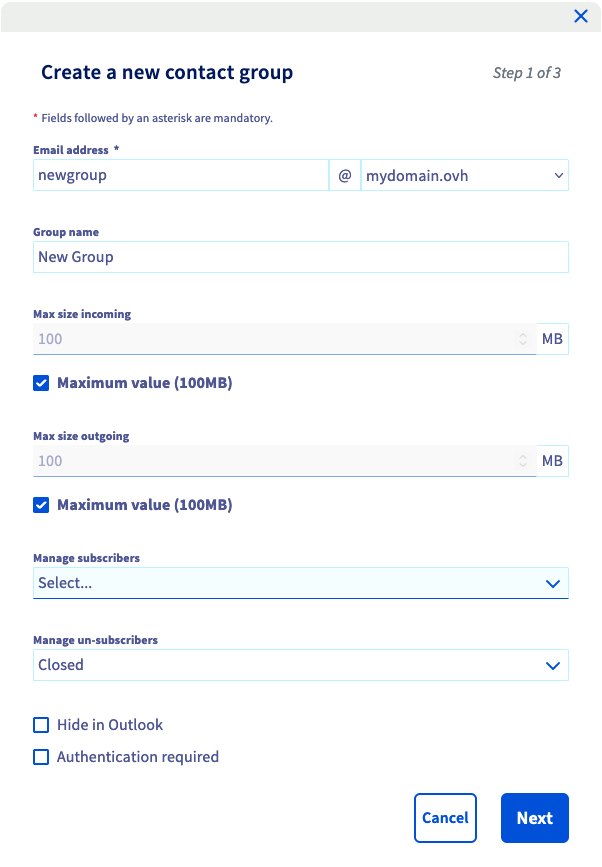
- **Email address**: Set a new address that will send messages to the mailing list. Please note that you cannot enter an existing email address.
- **Group name**: The display name that appears in your OVHcloud Control Panel and in your [OVHcloud webmail](https://www.ovhcloud.com/en-gb/mail/) (OWA).
- **Max size incoming / outgoing**: You can specify the maximum size of incoming and outgoing emails.
- **Hide in Outlook**: If this box is ticked, the group address will not appear in the Exchange service's list of addresses.
- **Authentication required**: If this box is ticked, only users on the same platform will be able to send a message using the group address.
Click `Next
` to continue.
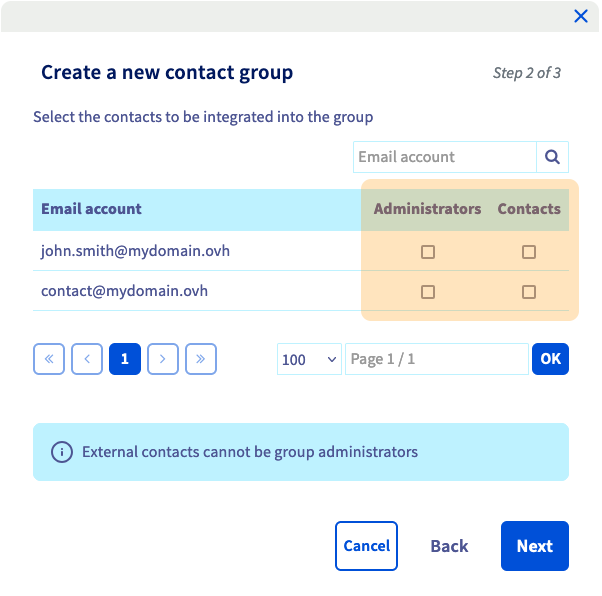
On the second page, select the **Contacts** for the group and designate the **Administrators**. The choices will only include email addresses and external contacts that are already created on the service
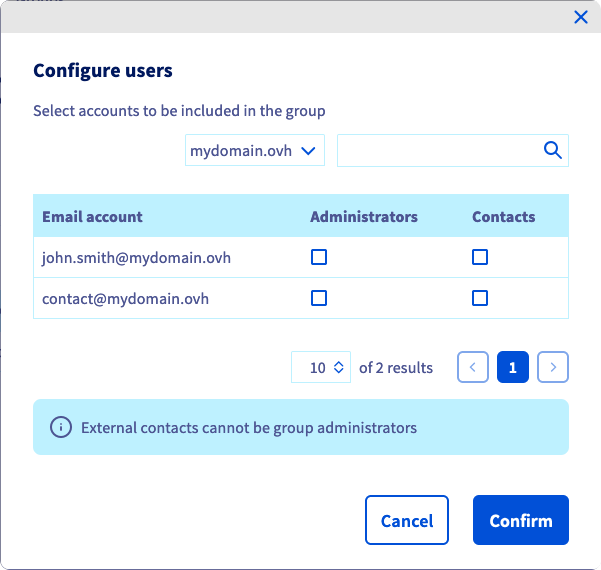
- **Administrators**: Email accounts authorized to send an email to all group contacts.
- **Contacts**: Email accounts that will receive emails sent to the group by administrators.
:::info
Please note that administrators must be configured as **Contacts** in order to receive group emails.
:::
Click `Next
` to continue and click `Confirm
` to finalize your choices.
### Managing groups
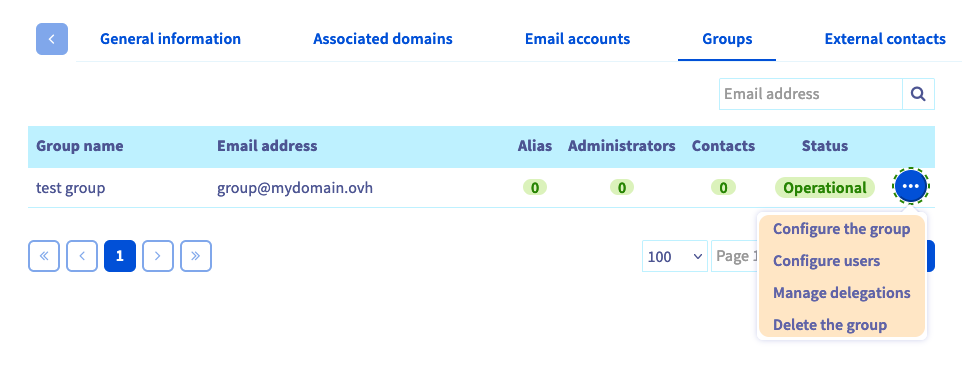
After your group is created, you can adjust the settings described above by clicking `...
` to the right of the group in the table.
#### Managing users in a group
To add `Contacts`
to your group or define `Administrators`
, click the `...
` button, then `Configure users
`. Select the attributes that you want to attach to the email addresses in the `Email account`
column.
:::info
A group can contain a maximum number of 10,000 contacts.
:::
#### Managing group delegations
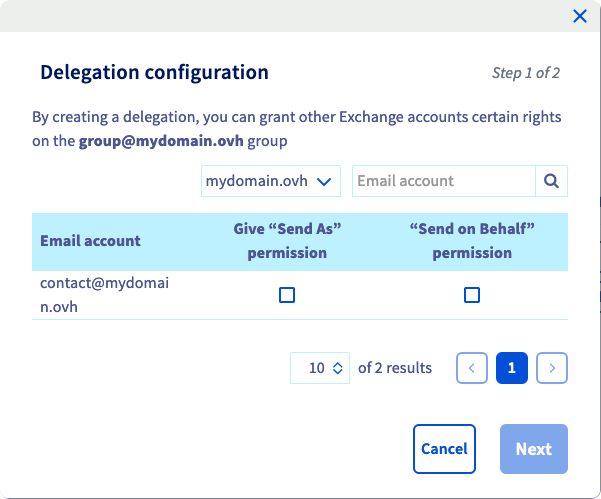
Additionally, the menu item `Manage delegations
` will be displayed. This option allows you to delegate access in the same way as for an Exchange account. Find all the details in [this guide](/en/guides/web-cloud/email-and-collaborative-solutions/microsoft-exchange/permissions-delegation.md)
.
:::info
Please note that any changes to this service may take a few minutes to be applied. You can check the status of most operations by selecting the `More
` and `Recent tasks
` options from the horizontal menu.
:::
### Messaging a group in OWA
You can now test your mailing list via [OVHcloud webmail](https://www.ovhcloud.com/en-gb/mail/) (OWA): simply send an email to the group address.
## Go further [](#)
[Delegating permissions on an Exchange account](/en/guides/web-cloud/email-and-collaborative-solutions/microsoft-exchange/permissions-delegation.md)
[Using the Outlook Web App with an Exchange account](/en/guides/web-cloud/email-and-collaborative-solutions/using-the-outlook-web-app-webmail/email-owa.md)
[Sharing calendars in OWA](/en/guides/web-cloud/email-and-collaborative-solutions/using-the-outlook-web-app-webmail/owa-calendar-sharing.md)
For specialised services (SEO, development, etc.), contact [OVHcloud partners](https://partner.ovhcloud.com/en-gb/directory/).
If you would like assistance using and configuring your OVHcloud solutions, please refer to our [support offers](https://www.ovhcloud.com/en-gb/support-levels/).
Join our [community of users](https://community.ovhcloud.com/community/en).