---
title: "Creating automatic signatures"
description: "Find out how to add automatic signatures to your email accounts"
url: https://docs.ovhcloud.com/en/guides/web-cloud/email-and-collaborative-solutions/microsoft-exchange/feature-footers
lang: en
lastUpdated: 2025-04-28
---
# Creating automatic signatures
## Objective
In the OVHcloud Control Panel, you can create universal signatures (footers) for email addresses using the same domain ("corporate" signature). They will be attached automatically to emails sent from a user's account.
**This guide explains how to create an automatic signature using the OVHcloud Control Panel.**
## Requirements
- an [OVHcloud Exchange](https://www.ovhcloud.com/en-gb/emails/hosted-exchange/) or [Email Pro](https://www.ovhcloud.com/en-gb/emails/email-pro/) solution already set up
***
### OVHcloud Control Panel Access
**Exchange:**
- **Direct link:** Exchange
- **Navigation path:** Web Cloud > Exchange > Select your platform
**Email Pro:**
- **Direct link:** Email Pro
- **Navigation path:** Web Cloud > Email Pro > Select your platform
***
## Instructions
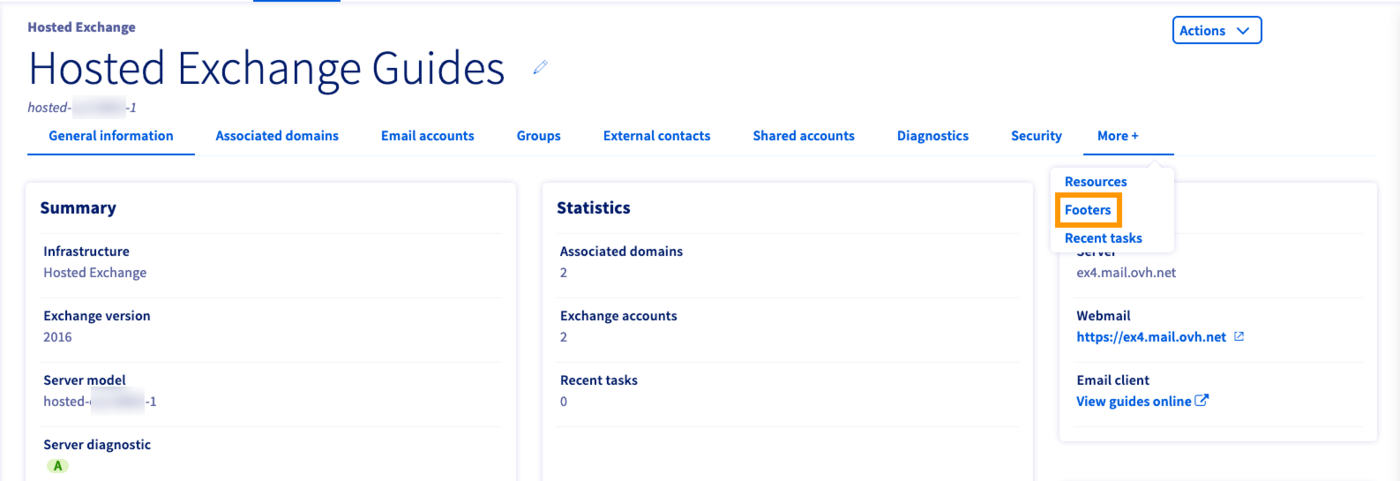
Click on the `More+
` tab in the horizontal menu and select `Footers
`.
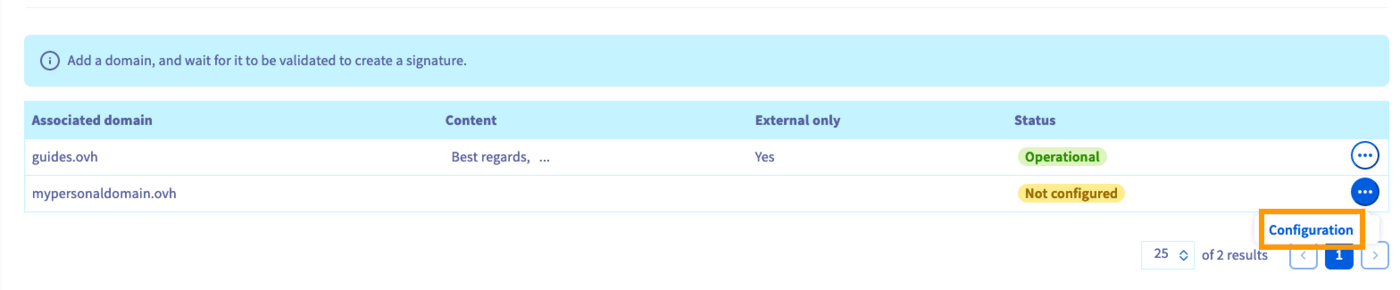
In this section you will see your attached domains, for each of which you can create a footer scheme. Click on `...
` and then on `Configuration
` to open the HTML editor.
The editor offers a selection of variables that correspond to the user's data in their account settings. You can, for example, compose a generic closing message and add an appropriate sign-off or some contact information below it, using the variables. Click on the down-arrow to select a variable, then click `Insert a variable
` to add it into the editing pane.
The footer is created using HTML tags, which allow for some formatting options. Use the tool bar on the top to customise the signature. You can also verify the HTML code by clicking on `Source
`.
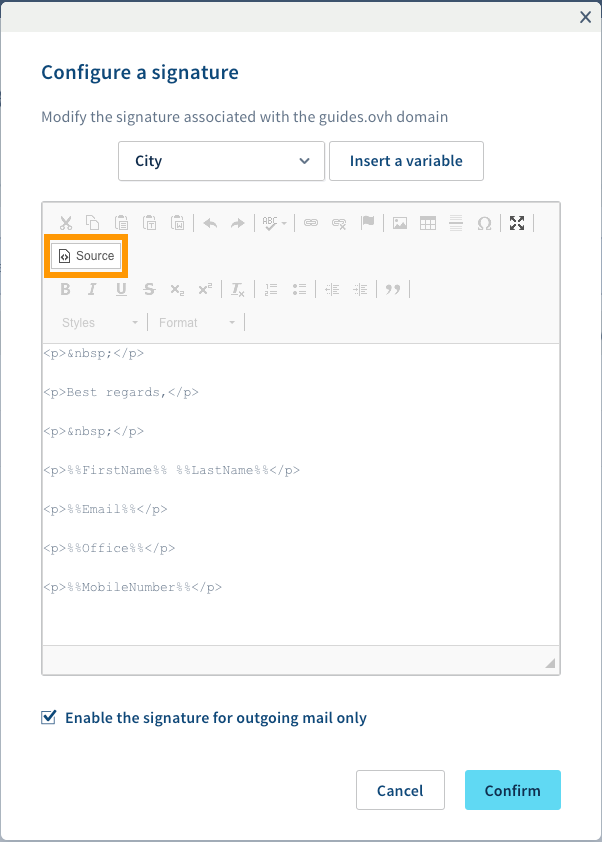
Tick the box "Enable the signature for outgoing mail only" to prevent adding this footer to emails sent between users on the same domain. Click `Confirm
` once the signature is finished. It will now be attached to emails sent from this domain's user accounts. You can edit or delete signatures in the OVHcloud Control Panel after they are created.
Please take the following specifics into consideration before applying signatures for users:
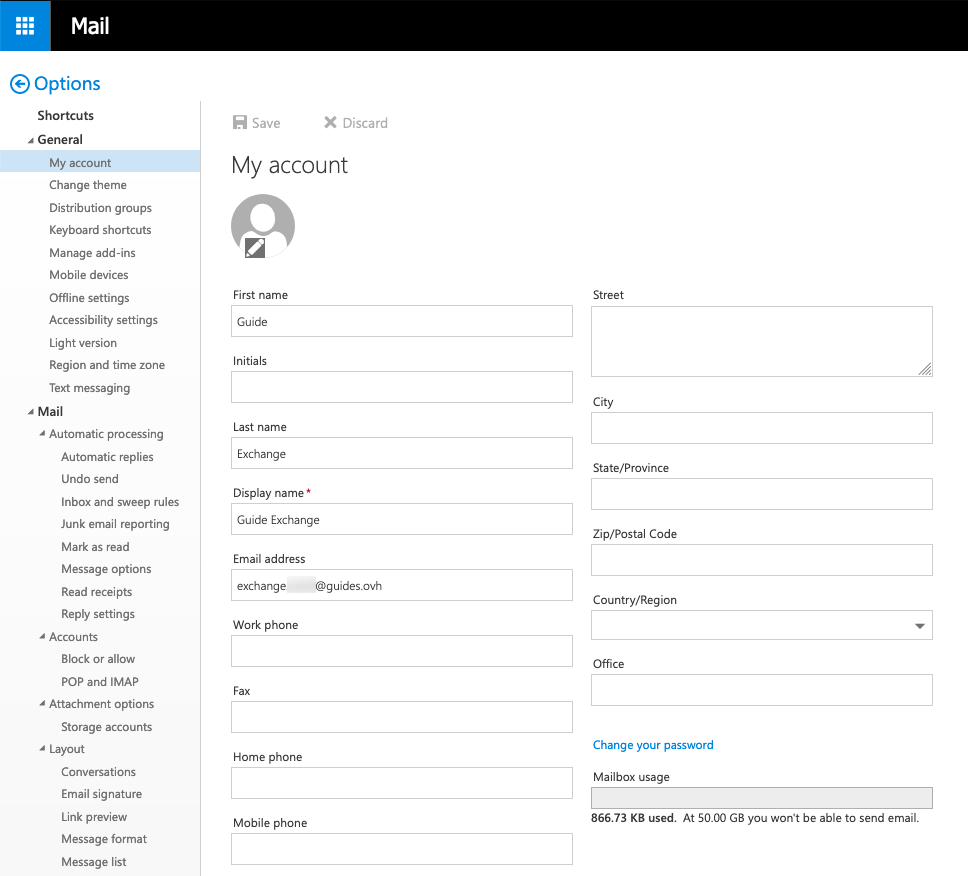
- Apart from "First name", "Surname", and "Display name", the account details cannot be edited from the OVHcloud Control Panel but need to be specified in the user's OWA ("Options", "General", "My account").
- The signature will be added to the email's body without gap, meaning it is advisable to begin the signature with at least one empty line.
- It is not indicated in OWA whether a footer is enabled on this domain and there is **no synchronisation**. If users add their [own signatures](/en/guides/web-cloud/email-and-collaborative-solutions/using-the-outlook-web-app-webmail/email-owa.md#adding-a-signature), emails will include both the individual and the domain-wide footer.
- The editor supports HTML formatting, hyperlinks, images, etc. However, signatures should not rely on these options too heavily. Recipients may use email clients that prevent HTML and embedded images, or the signatures will appear in a different way than intended. Note that HTML tags will be completely removed if a message is sent as "Plain text" from OWA.
- "Initials" are not active on the service. Adding this variable will have no effect.
## Go further [](#)
[Using the Outlook Web App with an Exchange account](/en/guides/web-cloud/email-and-collaborative-solutions/using-the-outlook-web-app-webmail/email-owa.md)
[Delegating permissions on an email account](/en/guides/web-cloud/email-and-collaborative-solutions/microsoft-exchange/permissions-delegation.md)
[How to share calendars via OWA](/en/guides/web-cloud/email-and-collaborative-solutions/using-the-outlook-web-app-webmail/owa-calendar-sharing.md)
Join our [community of users](https://community.ovhcloud.com/community/en).