---
title: "Exporting an Exchange mailbox to a PST file"
description: "Export an Exchange mailbox to a PST archive from the OVHcloud Control Panel or the OVHcloud API, then check and open the archive"
url: https://docs.ovhcloud.com/en/guides/web-cloud/email-and-collaborative-solutions/microsoft-exchange/exchange-export-pst
lang: en
lastUpdated: 2026-09-11
---
> For AI agents: the complete documentation index is available at https://docs.ovhcloud.com/en/llms.txt, the full documentation bundle is available at https://docs.ovhcloud.com/en/llms-full.txt.
# Exporting an Exchange mailbox to a PST file
## Objective
Exporting a mailbox to a Personal Storage Table (PST) file gives you a local copy of its data. Use this copy to archive a mailbox before deleting the account, hand the data over when an employee leaves, move it to another email service, or meet a retention obligation. Microsoft Exchange at OVHcloud can export a mailbox server-side: you request the export, OVHcloud builds it, then you download a ZIP archive containing one or more `.pst` files, `readme.md` and `checksum.txt`. The export does not go through Outlook: the OVHcloud Control Panel and the OVHcloud API each cover the whole operation.
This feature is available for Hosted Exchange, Private Exchange and Trusted Exchange
. It applies to individual mailboxes: groups, shared accounts and resource accounts cannot be exported.
**This guide explains how to export an Exchange mailbox to a PST archive from the OVHcloud Control Panel or the OVHcloud API.**
## Requirements
- A [Hosted Exchange](https://www.ovhcloud.com/en-gb/emails/hosted-exchange/), [Private Exchange](https://www.ovhcloud.com/en-gb/emails/private-exchange/) or [Trusted Exchange](https://www.ovhcloud.com/en-gb/enterprise/products/trusted-exchange/)[Hosted Exchange](https://www.ovhcloud.com/en-gb/emails/hosted-exchange/) service
- Administration rights on the service in the OVHcloud Control Panel
- Enough free local disk space for the ZIP archive and its extracted contents
- For the API method: API credentials created on the OVHcloud token generation page, with at least the `GET`, `POST` and `DELETE` rights on `/email/exchange/*`
:::warning
**One export per mailbox per 24 hours.** After you request an export for an email address, the next one is accepted 24 hours later at the earliest. Plan for it before exporting several mailboxes in a row.
:::
***
### OVHcloud Control Panel Access
- **Direct link:** Exchange
- **Navigation path:** Web Cloud > Exchange > Select your platform
***
## Instructions
### Exporting from the OVHcloud Control Panel
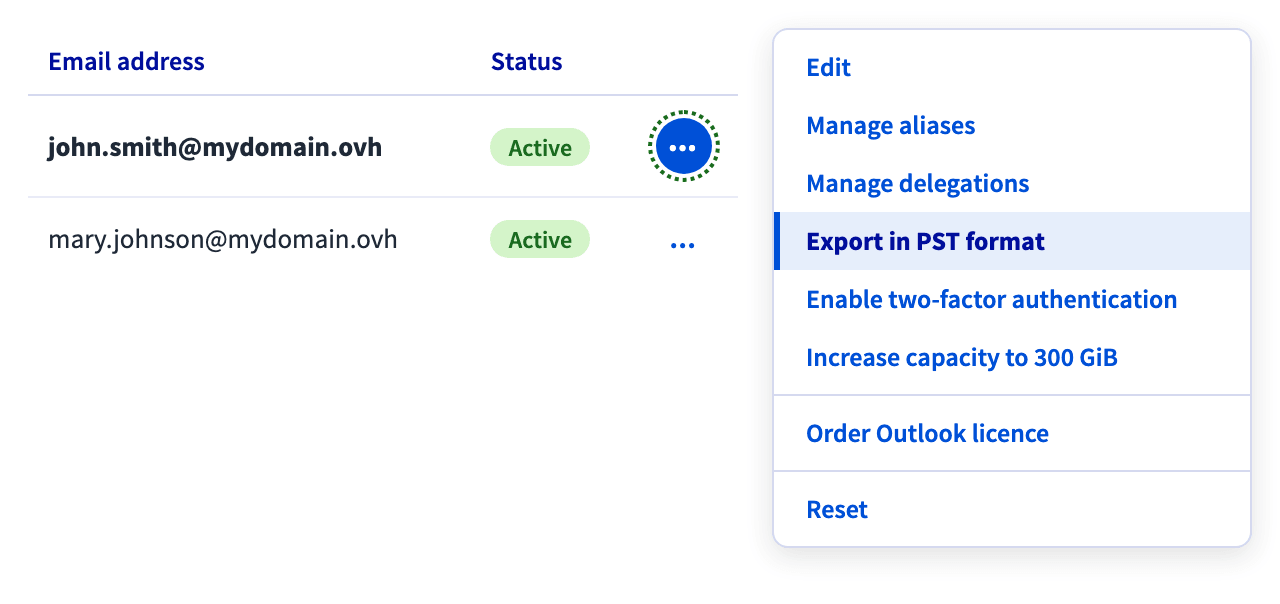
1. Open the Email accounts tab.
2. On the row of the mailbox to export, click ..., then Export in PST format.
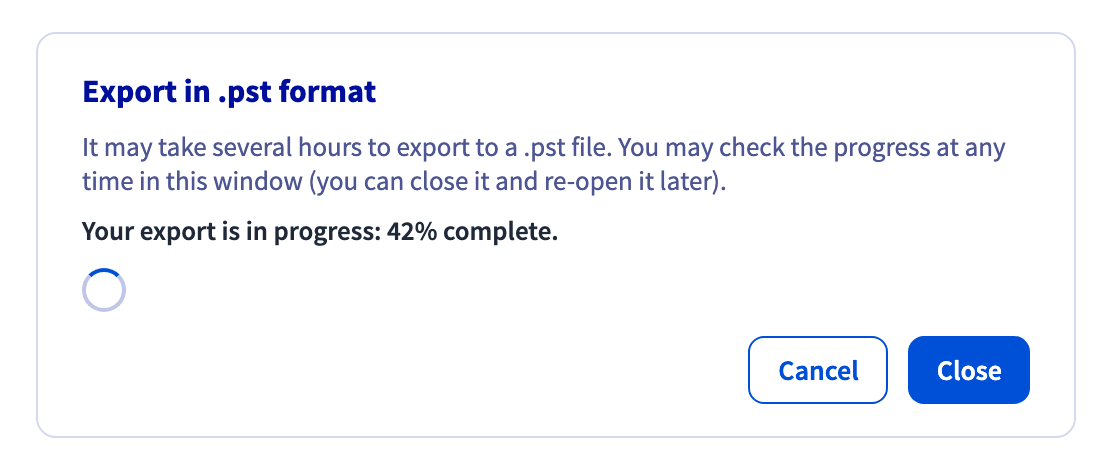
 3. In the **Export in .pst format** window, click
 Download to start the export. It runs in the background and takes between a few minutes and several hours depending on the mailbox size. You can close the window and leave the page: reopen the window at any time to see the progress, shown as a percentage.
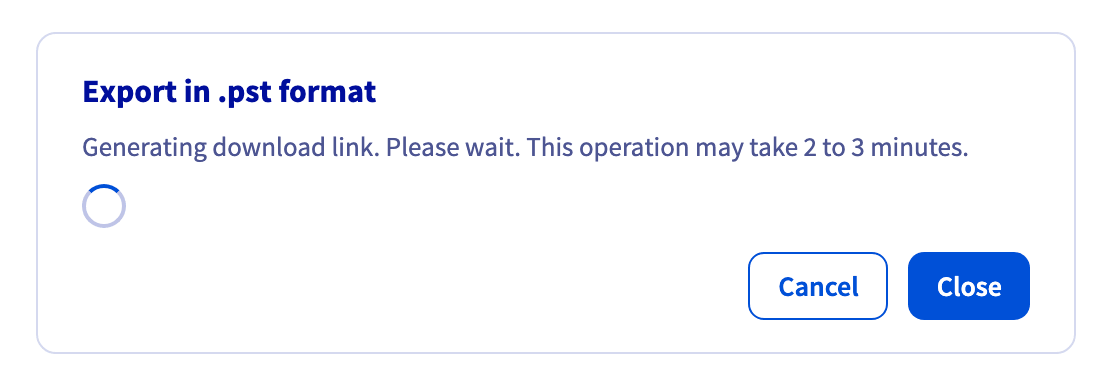
 4. Once the export is complete, open the same
 ... menu and click Export in PST format again. The download link is generated automatically, which takes 2 to 3 minutes.
 5. When the link is ready, the window confirms that the mailbox is available in `.pst` format. Click
 Download to retrieve the ZIP archive, then extract and check it (see the [Checking and opening the archive](#checking-and-opening-the-archive) section).
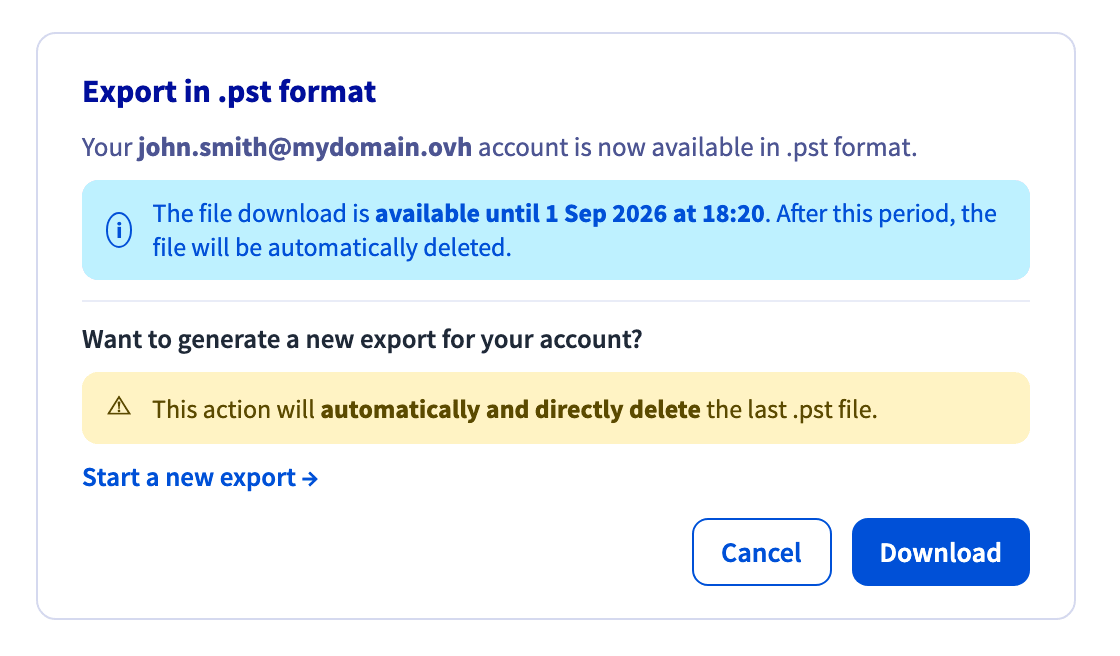 :::info
The download link is temporary: the window shows the date until which the file stays available. After that date, the archive is deleted and you have to request a new export. The same window lets you click `Start a new export
`, which **deletes the previous archive immediately**
.
:::
### Exporting with the OVHcloud API
The whole flow uses 2 objects: `export`
builds the archive and reports its progress, and `exportURL`
provides a temporary download URL. All the calls below belong to the `/email/exchange`
section
of the OVHcloud API.
#### Finding the path parameters
Every call needs 3 values: the organisation name, the service name and the mailbox address. The first 2 are internal names, such as `ab12345-ovh`, not the labels shown in the OVHcloud Control Panel. Retrieve them in order, each call feeding the next.
**1. Organisation** (`organizationName`)
List the Exchange organisations of your account with the API call below:
🇪🇺EU▾
[GET/email/exchange](https://api.eu.ovhcloud.com/console/?section=/email/exchange&branch=v1#get-/email/exchange)
**2. Service** (`exchangeService`)
List the Exchange services of the organisation with the API call below:
🇪🇺EU▾
[GET/email/exchange/{organizationName}/service](https://api.eu.ovhcloud.com/console/?section=/email/exchange&branch=v1#get-/email/exchange/-organizationName-/service)
**3. Mailbox** (`primaryEmailAddress`)
List the email accounts of the service with the API call below:
🇪🇺EU▾
[GET/email/exchange/{organizationName}/service/{exchangeService}/account](https://api.eu.ovhcloud.com/console/?section=/email/exchange&branch=v1#get-/email/exchange/-organizationName-/service/-exchangeService-/account)
Each call returns a list of strings. If the mailbox address contains non-URL-safe characters, percent-encode them in the path (`+` becomes `%2B`, and so on).
#### Requesting the export
Request the export of the mailbox with the API call below:
🇪🇺EU▾
[POST/email/exchange/{organizationName}/service/{exchangeService}/account/{primaryEmailAddress}/export](https://api.eu.ovhcloud.com/console/?section=/email/exchange&branch=v1#post-/email/exchange/-organizationName-/service/-exchangeService-/account/-primaryEmailAddress-/export)
The call takes no body parameter and returns a task confirming only that OVHcloud registered the request:
```json
{
"id": 123456789,
"function": "addExportPstRequest",
"status": "todo",
"todoDate": "2026-09-01T10:12:33+02:00",
"finishDate": null
}
```
A task carries one of the statuses `todo`, `doing`, `done`, `error` or `cancelled`, and its `function` is `addExportPstRequest`, `deleteExportPstRequest` or `generatePstUrl`.
#### Following the progress
Read the export request to follow its progress:
🇪🇺EU▾
[GET/email/exchange/{organizationName}/service/{exchangeService}/account/{primaryEmailAddress}/export](https://api.eu.ovhcloud.com/console/?section=/email/exchange&branch=v1#get-/email/exchange/-organizationName-/service/-exchangeService-/account/-primaryEmailAddress-/export)
| Property | Type | Description |
| ----------------- | -------- | ------------------------------------------------ |
| `creationDate` | datetime | Creation date of the export request |
| `percentComplete` | long | Export progress, as a percentage |
| `taskPendingId` | long | ID of the pending task, `0` when none is running |
```json
{
"creationDate": "2026-09-01T10:12:33+02:00",
"percentComplete": 42,
"taskPendingId": 123456789
}
```
Repeat this call until `percentComplete` reaches `100`, polling at most once a minute. A `404` error means no export request exists for this mailbox: either it was never created, or it has already been removed.
#### Getting the download URL
The `export` object never returns a download URL: unlike the OVHcloud Control Panel, which generates the link for you, the API takes 2 calls.
**1. Generate the URL**
Create the download link, which registers a `generatePstUrl` task, with the API call below:
🇪🇺EU▾
[POST/email/exchange/{organizationName}/service/{exchangeService}/account/{primaryEmailAddress}/exportURL](https://api.eu.ovhcloud.com/console/?section=/email/exchange&branch=v1#post-/email/exchange/-organizationName-/service/-exchangeService-/account/-primaryEmailAddress-/exportURL)
**2. Read the URL**
Once the task is complete, read the generated link with the API call below:
🇪🇺EU▾
[GET/email/exchange/{organizationName}/service/{exchangeService}/account/{primaryEmailAddress}/exportURL](https://api.eu.ovhcloud.com/console/?section=/email/exchange&branch=v1#get-/email/exchange/-organizationName-/service/-exchangeService-/account/-primaryEmailAddress-/exportURL)
| Property | Type | Description |
| ------------ | -------- | --------------------------- |
| `url` | string | Download URL of the archive |
| `expiration` | datetime | Expiry date of the URL |
```json
{
"url": "https://exchange-export.storage.example/abc123/john.smith.zip?token=...",
"expiration": "2026-09-01T11:15:00+02:00"
}
```
The URL is already signed: download the archive directly from it, without an authentication header. A `404` error on the `GET` call means the URL has not been generated yet (the `generatePstUrl` task is still running) or has expired.
:::info
**The URL has a limited validity.** Rely on `expiration` rather than on a fixed duration, and generate the URL only when you are ready to download. Once it has expired, call `POST` on `exportURL` again for a fresh link: as long as the archive still exists, you do not need to redo the export.
:::
#### Removing the export request
Remove the export request with the API call below:
🇪🇺EU▾
[DELETE/email/exchange/{organizationName}/service/{exchangeService}/account/{primaryEmailAddress}/export](https://api.eu.ovhcloud.com/console/?section=/email/exchange&branch=v1#delete-/email/exchange/-organizationName-/service/-exchangeService-/account/-primaryEmailAddress-/export)
Use it to cancel a running export, or to remove the request after downloading the archive so you can request a new one — still subject to the 24-hour limit. The call also deletes the archive on the OVHcloud side: download it first.
### Checking and opening the archive
Whichever method you used, the ZIP archive contains:
| Entry | Description |
| -------------- | -------------------------------------------------------------------- |
| `*.pst` | The mailbox data. A large mailbox is split across several PST files. |
| `readme.md` | Notes from OVHcloud about the export and its contents |
| `checksum.txt` | The SHA-256 hash of each `.pst` file in the archive |
Extract the archive, then compare the PST files with the hashes in `checksum.txt` before importing them: a truncated download produces a PST file that Outlook either refuses to open, or opens with missing data. The commands below assume a ` ` layout, one line per file.
On Windows, with PowerShell:
```powershell
Get-Content .\checksum.txt | Where-Object { $_.Trim() } | ForEach-Object {
$hash, $file = $_.Trim() -split '\s+', 2
$file = $file.TrimStart('*')
$actual = (Get-FileHash $file -Algorithm SHA256).Hash
"{0,-8} {1}" -f $(if ($actual -eq $hash.ToUpper()) { "OK" } else { "MISMATCH" }), $file
}
```
On Linux or macOS:
```bash
sha256sum -c checksum.txt
# john.smith.pst: OK
# john.smith-2.pst: OK
```
If a hash does not match, download the archive again. If it still fails, request a new export.
To open the PST files in classic Outlook for Windows, go to `File
` > `Open & Export
` > `Open Outlook Data File
`, then select each extracted `.pst`
file. At the time of writing, the new Outlook for Windows does not open `.pst`
files.
:::info
**Limitations**
- The export time scales with the mailbox size: minutes for a small mailbox, several hours for a large one. There is no way to speed it up.
- A mailbox holds a single export request, and a new one is only accepted 24 hours after the previous request for the same email address.
- The export applies to individual mailboxes only: groups, shared accounts and resource accounts are not covered.
:::
## Go further [](#)
[Manually migrate your email address](https://docs.ovhcloud.com/en/guides/web-cloud/email-and-collaborative-solutions/migrating/manual-email-migration.md)
[Hosted Exchange - Responsibility model](https://docs.ovhcloud.com/en/guides/web-cloud/email-and-collaborative-solutions/microsoft-exchange/hosted-exchange-responsibility-model.md)
[Private Exchange - Backing up your email accounts with Veeam Backup for Microsoft 365](https://docs.ovhcloud.com/en/guides/web-cloud/email-and-collaborative-solutions/microsoft-exchange/exchange-veeam-backup.md)
[Microsoft Exchange guides](https://docs.ovhcloud.com/en/guides/web-cloud/email-and-collaborative-solutions/microsoft-exchange/landing-page-microsoft-exchange.md)
Join our [community of users](https://community.ovhcloud.com/).
:::info
The download link is temporary: the window shows the date until which the file stays available. After that date, the archive is deleted and you have to request a new export. The same window lets you click `Start a new export
`, which **deletes the previous archive immediately**
.
:::
### Exporting with the OVHcloud API
The whole flow uses 2 objects: `export`
builds the archive and reports its progress, and `exportURL`
provides a temporary download URL. All the calls below belong to the `/email/exchange`
section
of the OVHcloud API.
#### Finding the path parameters
Every call needs 3 values: the organisation name, the service name and the mailbox address. The first 2 are internal names, such as `ab12345-ovh`, not the labels shown in the OVHcloud Control Panel. Retrieve them in order, each call feeding the next.
**1. Organisation** (`organizationName`)
List the Exchange organisations of your account with the API call below:
🇪🇺EU▾
[GET/email/exchange](https://api.eu.ovhcloud.com/console/?section=/email/exchange&branch=v1#get-/email/exchange)
**2. Service** (`exchangeService`)
List the Exchange services of the organisation with the API call below:
🇪🇺EU▾
[GET/email/exchange/{organizationName}/service](https://api.eu.ovhcloud.com/console/?section=/email/exchange&branch=v1#get-/email/exchange/-organizationName-/service)
**3. Mailbox** (`primaryEmailAddress`)
List the email accounts of the service with the API call below:
🇪🇺EU▾
[GET/email/exchange/{organizationName}/service/{exchangeService}/account](https://api.eu.ovhcloud.com/console/?section=/email/exchange&branch=v1#get-/email/exchange/-organizationName-/service/-exchangeService-/account)
Each call returns a list of strings. If the mailbox address contains non-URL-safe characters, percent-encode them in the path (`+` becomes `%2B`, and so on).
#### Requesting the export
Request the export of the mailbox with the API call below:
🇪🇺EU▾
[POST/email/exchange/{organizationName}/service/{exchangeService}/account/{primaryEmailAddress}/export](https://api.eu.ovhcloud.com/console/?section=/email/exchange&branch=v1#post-/email/exchange/-organizationName-/service/-exchangeService-/account/-primaryEmailAddress-/export)
The call takes no body parameter and returns a task confirming only that OVHcloud registered the request:
```json
{
"id": 123456789,
"function": "addExportPstRequest",
"status": "todo",
"todoDate": "2026-09-01T10:12:33+02:00",
"finishDate": null
}
```
A task carries one of the statuses `todo`, `doing`, `done`, `error` or `cancelled`, and its `function` is `addExportPstRequest`, `deleteExportPstRequest` or `generatePstUrl`.
#### Following the progress
Read the export request to follow its progress:
🇪🇺EU▾
[GET/email/exchange/{organizationName}/service/{exchangeService}/account/{primaryEmailAddress}/export](https://api.eu.ovhcloud.com/console/?section=/email/exchange&branch=v1#get-/email/exchange/-organizationName-/service/-exchangeService-/account/-primaryEmailAddress-/export)
| Property | Type | Description |
| ----------------- | -------- | ------------------------------------------------ |
| `creationDate` | datetime | Creation date of the export request |
| `percentComplete` | long | Export progress, as a percentage |
| `taskPendingId` | long | ID of the pending task, `0` when none is running |
```json
{
"creationDate": "2026-09-01T10:12:33+02:00",
"percentComplete": 42,
"taskPendingId": 123456789
}
```
Repeat this call until `percentComplete` reaches `100`, polling at most once a minute. A `404` error means no export request exists for this mailbox: either it was never created, or it has already been removed.
#### Getting the download URL
The `export` object never returns a download URL: unlike the OVHcloud Control Panel, which generates the link for you, the API takes 2 calls.
**1. Generate the URL**
Create the download link, which registers a `generatePstUrl` task, with the API call below:
🇪🇺EU▾
[POST/email/exchange/{organizationName}/service/{exchangeService}/account/{primaryEmailAddress}/exportURL](https://api.eu.ovhcloud.com/console/?section=/email/exchange&branch=v1#post-/email/exchange/-organizationName-/service/-exchangeService-/account/-primaryEmailAddress-/exportURL)
**2. Read the URL**
Once the task is complete, read the generated link with the API call below:
🇪🇺EU▾
[GET/email/exchange/{organizationName}/service/{exchangeService}/account/{primaryEmailAddress}/exportURL](https://api.eu.ovhcloud.com/console/?section=/email/exchange&branch=v1#get-/email/exchange/-organizationName-/service/-exchangeService-/account/-primaryEmailAddress-/exportURL)
| Property | Type | Description |
| ------------ | -------- | --------------------------- |
| `url` | string | Download URL of the archive |
| `expiration` | datetime | Expiry date of the URL |
```json
{
"url": "https://exchange-export.storage.example/abc123/john.smith.zip?token=...",
"expiration": "2026-09-01T11:15:00+02:00"
}
```
The URL is already signed: download the archive directly from it, without an authentication header. A `404` error on the `GET` call means the URL has not been generated yet (the `generatePstUrl` task is still running) or has expired.
:::info
**The URL has a limited validity.** Rely on `expiration` rather than on a fixed duration, and generate the URL only when you are ready to download. Once it has expired, call `POST` on `exportURL` again for a fresh link: as long as the archive still exists, you do not need to redo the export.
:::
#### Removing the export request
Remove the export request with the API call below:
🇪🇺EU▾
[DELETE/email/exchange/{organizationName}/service/{exchangeService}/account/{primaryEmailAddress}/export](https://api.eu.ovhcloud.com/console/?section=/email/exchange&branch=v1#delete-/email/exchange/-organizationName-/service/-exchangeService-/account/-primaryEmailAddress-/export)
Use it to cancel a running export, or to remove the request after downloading the archive so you can request a new one — still subject to the 24-hour limit. The call also deletes the archive on the OVHcloud side: download it first.
### Checking and opening the archive
Whichever method you used, the ZIP archive contains:
| Entry | Description |
| -------------- | -------------------------------------------------------------------- |
| `*.pst` | The mailbox data. A large mailbox is split across several PST files. |
| `readme.md` | Notes from OVHcloud about the export and its contents |
| `checksum.txt` | The SHA-256 hash of each `.pst` file in the archive |
Extract the archive, then compare the PST files with the hashes in `checksum.txt` before importing them: a truncated download produces a PST file that Outlook either refuses to open, or opens with missing data. The commands below assume a ` ` layout, one line per file.
On Windows, with PowerShell:
```powershell
Get-Content .\checksum.txt | Where-Object { $_.Trim() } | ForEach-Object {
$hash, $file = $_.Trim() -split '\s+', 2
$file = $file.TrimStart('*')
$actual = (Get-FileHash $file -Algorithm SHA256).Hash
"{0,-8} {1}" -f $(if ($actual -eq $hash.ToUpper()) { "OK" } else { "MISMATCH" }), $file
}
```
On Linux or macOS:
```bash
sha256sum -c checksum.txt
# john.smith.pst: OK
# john.smith-2.pst: OK
```
If a hash does not match, download the archive again. If it still fails, request a new export.
To open the PST files in classic Outlook for Windows, go to `File
` > `Open & Export
` > `Open Outlook Data File
`, then select each extracted `.pst`
file. At the time of writing, the new Outlook for Windows does not open `.pst`
files.
:::info
**Limitations**
- The export time scales with the mailbox size: minutes for a small mailbox, several hours for a large one. There is no way to speed it up.
- A mailbox holds a single export request, and a new one is only accepted 24 hours after the previous request for the same email address.
- The export applies to individual mailboxes only: groups, shared accounts and resource accounts are not covered.
:::
## Go further [](#)
[Manually migrate your email address](https://docs.ovhcloud.com/en/guides/web-cloud/email-and-collaborative-solutions/migrating/manual-email-migration.md)
[Hosted Exchange - Responsibility model](https://docs.ovhcloud.com/en/guides/web-cloud/email-and-collaborative-solutions/microsoft-exchange/hosted-exchange-responsibility-model.md)
[Private Exchange - Backing up your email accounts with Veeam Backup for Microsoft 365](https://docs.ovhcloud.com/en/guides/web-cloud/email-and-collaborative-solutions/microsoft-exchange/exchange-veeam-backup.md)
[Microsoft Exchange guides](https://docs.ovhcloud.com/en/guides/web-cloud/email-and-collaborative-solutions/microsoft-exchange/landing-page-microsoft-exchange.md)
Join our [community of users](https://community.ovhcloud.com/).