---
title: "Managing the billing for your Email Pro accounts"
description: "Find out how to manage the billing for your Email Pro service"
url: https://docs.ovhcloud.com/en/guides/web-cloud/email-and-collaborative-solutions/email-pro/manage-billing-emailpro
lang: en
lastUpdated: 2025-09-22
---
# Managing the billing for your Email Pro accounts
## Objective
The Email Pro service offers flexible management for account billing. This guide details how to configure it.
**Find out how to manage subscriptions for your Email Pro accounts.**
## Requirements
- An [Email Pro](https://www.ovhcloud.com/en-gb/emails/email-pro/) account
***
### OVHcloud Control Panel Access
- **Direct link:** Email Pro
- **Navigation path:** Web Cloud > Email Pro > Select your platform
***
## Instructions
### Ordering additional accounts
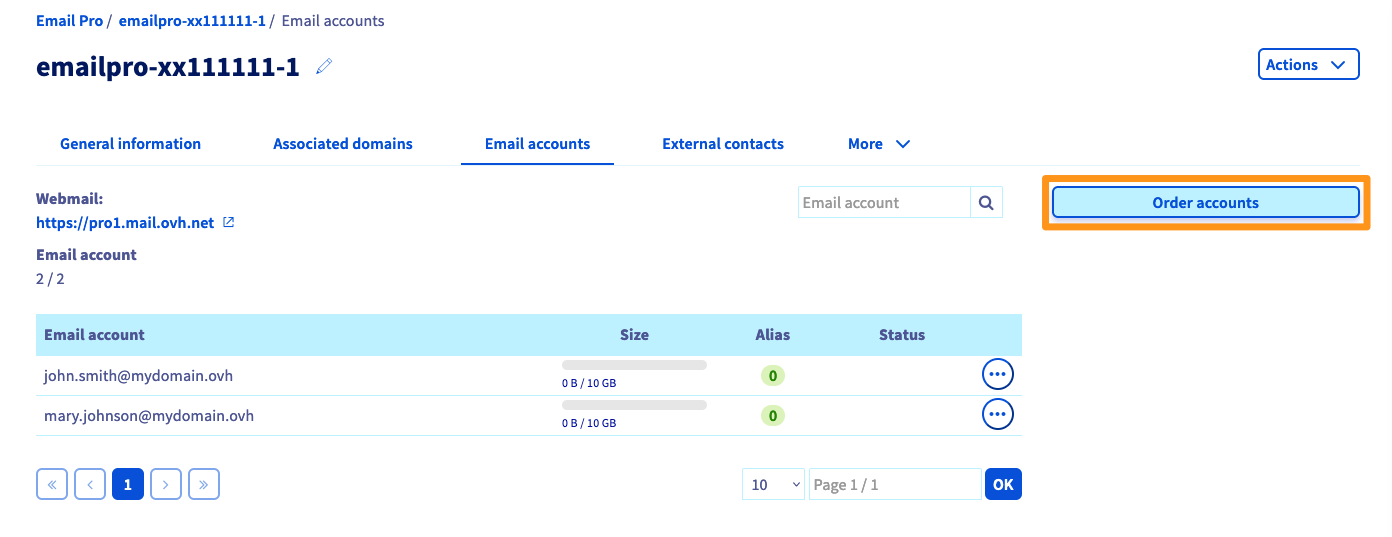
Go to the `Email accounts
` tab, then click `Order accounts
` in the top right-hand corner.
### Modifying the renewal frequency for your accounts [](#)
In the window for managing your Email Pro platform, click the `Actions
` button in the top right-hand corner, then `Billing mode
`.

In the new window, the table allows you to manage the renewal period for each account. You can apply a single billing mode for all accounts by clicking **Monthly**, **Yearly**, or **None**. You can also do this by selecting modes for individual accounts.
- **Monthly**: You are billed for the account each month on the date listed in the **Expiry** column.
- **Yearly**: You are billed for 12 months on the date listed in the **Expiry** column.
- **None**: The account will be suspended, then deleted on the date listed in the **Expiry** column.
:::info
For simplified management, the billing for each Email Pro account is automatically aligned at the beginning of the month. To make this alignment, and move the subscription date if necessary, you will receive an invoice from your Email Pro account on a pro rata basis.
**Example**: An order placed on 08 January with a monthly subscription will be billed again on 08 February. The following invoice will cover the period between February 08 and March 1st.
:::
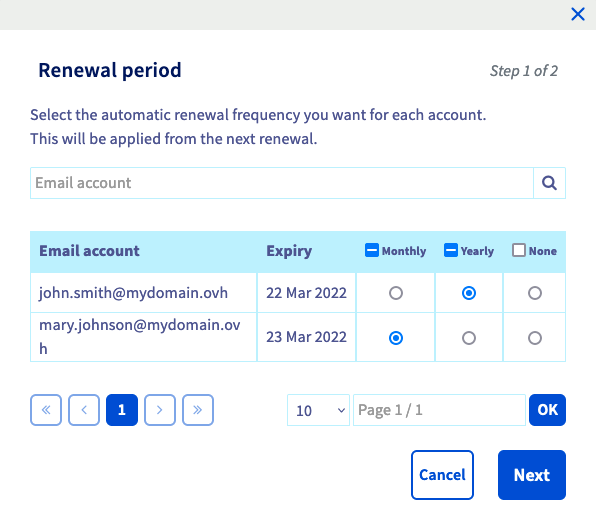
Click `Next
` to access the summary of the requested changes, then click `Confirm
` to confirm your choice.
### Deleting accounts
To delete an account within your Email Pro service, you will need to cancel it by changing its renewal configuration to **None**. To do this, go to the step ["Modifying the renewal frequency for your accounts"](#periodicity).
Once you have cancelled it, the account will be suspended on its expiry date. If you would like to delete the email address hosted by the account before its expiry date, you can reset it.
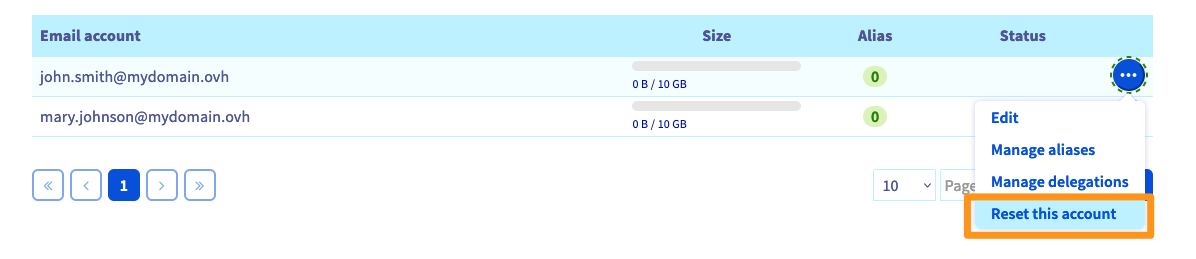
Go to the `Email accounts
` tab of your service, then click on the `...
` button next to the account concerned. Next, click `Reset this account
`. Once you have reset the account, it will remain empty until its expiry date.
### Cancelling the service
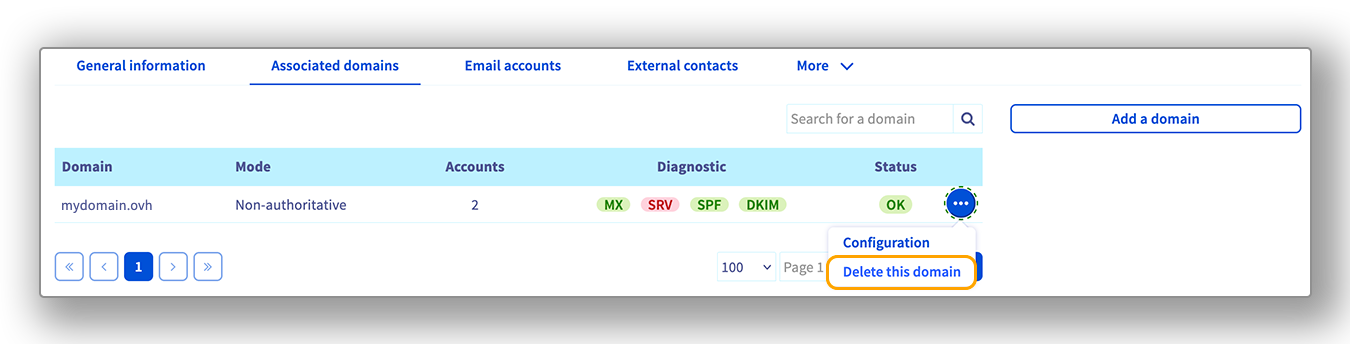
Once you have deleted your email accounts, you will need to delete the domain name(s) associated with your Email Pro platform before cancelling it. To do this, go to the `Associated domains
` tab. Click the `...
` button on the line for the domain name you want to delete, then click `Delete this domain
`.
In the `Email accounts
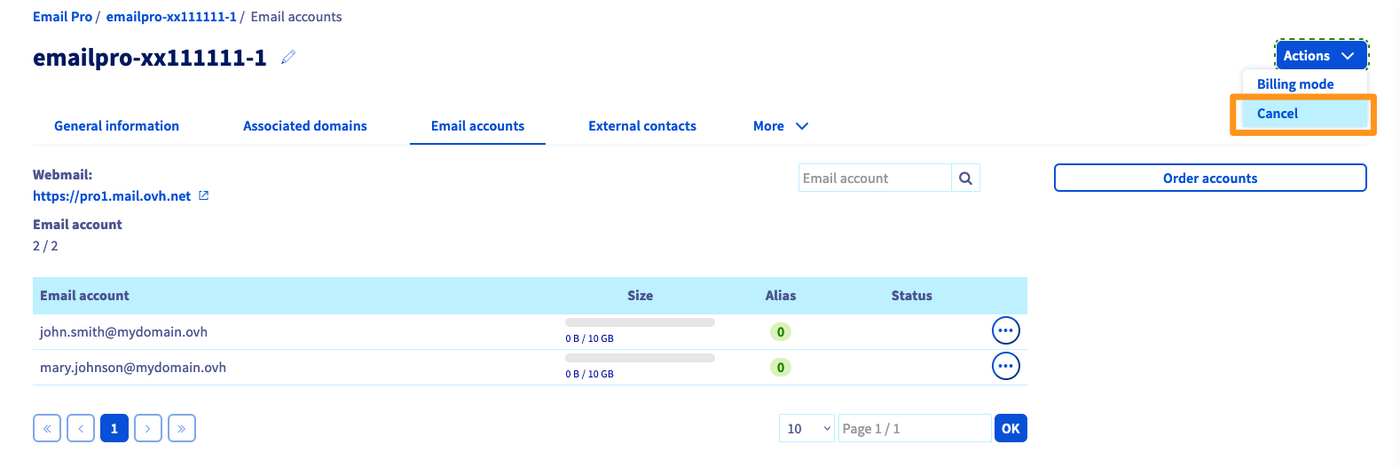
` tab of your service, click the `Actions
` button in the top right-hand corner, then `Cancel
`.
:::info
This action suspends and then deletes all of the Email Pro accounts on their expiry date.
:::
## Go further
Join our [community of users](https://community.ovhcloud.com/community/en).