---
title: "Configuring your Email Pro solution"
description: "Find out how to configure your Email Pro solution"
url: https://docs.ovhcloud.com/en/guides/web-cloud/email-and-collaborative-solutions/email-pro/first-config
lang: en
lastUpdated: 2025-04-28
---
# Configuring your Email Pro solution
## Objective
You have just purchased an Email Pro solution, which gives you affordable professional email addresses to support or start up your business.
**This guide explains the steps to correctly configure your Email Pro solution.**
## Requirements
- An [Email Pro](https://www.ovhcloud.com/en-gb/emails/email-pro/) solution
- An email confirming that your Email Pro solution has been set up
- A domain name
***
### OVHcloud Control Panel Access
- **Direct link:** Email Pro
- **Navigation path:** Web Cloud > Email Pro > Select your platform
***
## Instructions
### Step 1: Add your domain name
:::info
The name of an Email Pro service in the OVHcloud Control Panel begins with _emailpro-_, contains part of your NIC handle, and ends with a number (1 for the first Email Pro service installed, 2 for the second, etc.).
:::
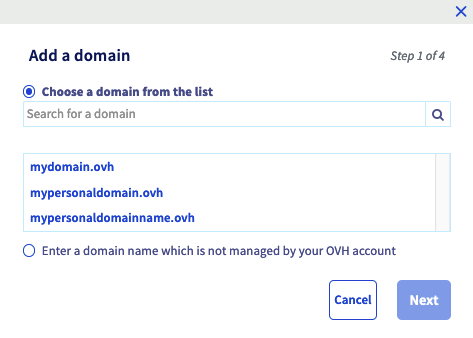
After ordering your Email Pro service, a window will automatically appear prompting you to `Add a domain
`. If the window does not appear, go to the `Associated domains
` tab, then click on the `Add a domain
` button.
You will need to choose an option:
- **Select a domain from the list**. Only the domain names that you manage are displayed in the OVHcloud Control Panel. If the domain name is registered with OVHcloud but does not appear in your Control Panel, you will need to add it with the option to "Enter a domain name not managed by your OVHcloud account".
- **Enter a domain name that is not managed by your OVHcloud account**. Choose this option if the domain name concerned is registered with OVHcloud, but configurable from another customer account, **or** if your domain name is registered with another registrar. You will need to be able to modify the domain name’s configuration (its DNS zone) in order for the Email Pro service to work correctly.
Once you have selected an option, click on the `Next
` button.
The window will then show information on configuring modes.
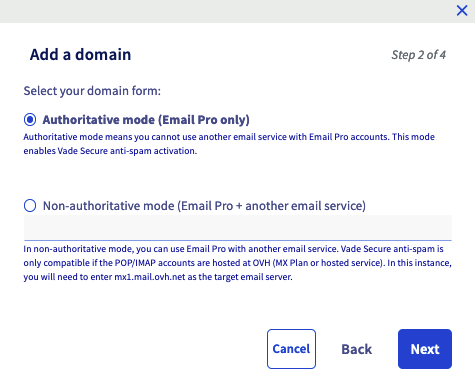
- **If you have entered a non-OVHcloud** domain name, non-authoritative mode will be configured by default.
- **If you have selected a domain name managed by OVHcloud** from the list, you will need to choose between two modes.
- **Authoritative**: Choose this if your Email Pro solution is the only email solution you use with your domain name. It does not allow the use of another email solution with your service.
- **Non-authoritative**: Choose this if you use the Email Pro solution and **another email solution** that uses the same domain name.
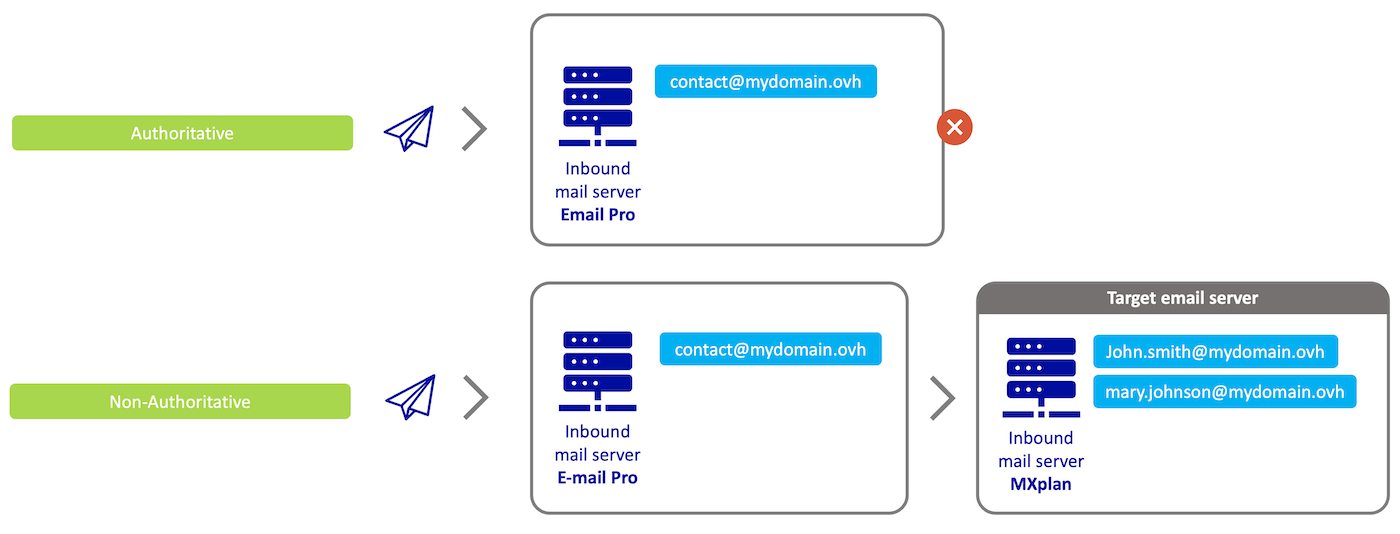
**Understanding Authoritative and Non-Authoritative Modes**
- When an email is sent to your Email Pro (_Inbound mail server Email Pro_) platform in **authoritative** mode, this means that all of your domain name’s email addresses are only hosted on this platform.
For example, if you send an email to the address _[mary.johnson@mydomain.ovh](mailto:mary.johnson@mydomain.ovh)_, the Email Pro server _Inbound mail server Email Pro_ will send a failure message to the sender, because that address does not exist on the Email Pro server "_Inbound mail server Email Pro_".
- When an email is sent to your Email Pro (_Inbound mail server Email Pro_) email platform in **non-authoritative** mode, this means that the email addresses for your domain name are divided between your main email platform (_Inbound mail server Email Pro_) and another email service (_Inbound mail server MX Plan_).
For example, if you send an email to the address _[mary.johnson@mydomain.ovh](mailto:mary.johnson@mydomain.ovh)_, the Email Pro "_Inbound mail server Email Pro_" will send the email to the MX Plan server _Inbound mail server MX Plan_ so that it can deliver it.
:::warning
If you receive the message "**authoritative domain detected**" when adding your domain name to your email platform, this means that this domain name is declared in **authoritative** mode on another email platform. You will need to switch it to **non-authoritative** mode for both platforms so that they can coexist.
:::
If you choose **non-authoritative** mode and use:
- **OVHcloud email (Exchange or MX Plan)**: Enter _mx1.mail.ovh.net_ as the target email server (works the same way with _mx0.mail.ovh.net_, _mx2.mail.ovh.net_, _mx3.mail.ovh.net_, _mx4.mail.ovh.net_).
- **Email external to OVHcloud (email solution from another provider, private email server)**: In the target email server box, enter the host name of the incoming server for this external service, and ensure that it authorises email requests from your Email Pro service.
The choice of mode is not definitive, and can be changed later from the OVHcloud Control Panel.
Click on the `Next
` button to continue adding the domain.
**If you have selected a domain name managed by OVHcloud**
, it can be configured automatically. To do this, tick the boxes you want, and click the `Next
` button to continue adding the domain.
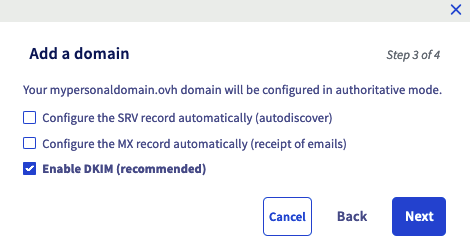
- **SRV**: A DNS record that automatically configures your email software when you add your email address to it.
- **MX**: DNS record for email servers required to receive emails on the domain name concerned.
- **DKIM**: Setting up an encrypted digital signature to secure email exchanges. Refer to our guide on [How to improve email security with a DKIM record](/en/guides/web-cloud/domains/dns-zone-dkim.md) for more information.
**For a non-OVHcloud** domain name, follow Step 3.
At the end of the configuration process, check the information displayed, then click on the `Confirm
` button to start adding the domain.
### Step 2: Configure your domain name
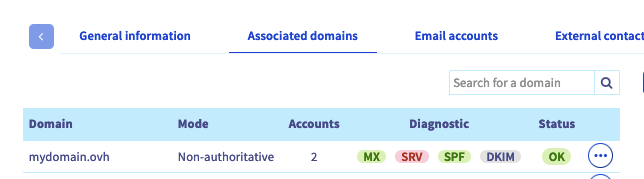
Once you have added the domain name as an associated domain, check its configuration using the table that pops up.
You can use the `Diagnosis
` column to check the domain name’s DNS configuration. A red box will appear if these configurations need to be changed. There are two possibilities:
- **Automatic configuration when you add an OVHcloud domain name**: If you have just made the change, it may take a few hours before it is displayed in the OVHcloud Control Panel.
- **Manual configuration for a non-OVHcloud domain name**: Click on the red box to view the changes you will need to make.
- _For a CNAME_ record, you can use our guide on "[Creating a CNAME record when adding an associated domain](/en/guides/web-cloud/email-and-collaborative-solutions/microsoft-exchange/exchange-dns-cname.md)".
- _For an MX_ record, please refer to our guide on "[Adding an MX record to your domain name’s configuration](/en/guides/web-cloud/domains/dns-zone-mx.md)".
- _For an SRV_ record, modify your DNS zone using the information provided when you click on the box. You can use our guide on "[Editing an OVHcloud DNS zone](/en/guides/web-cloud/domains/dns-zone-edit.md)" to add this record.
- _For an SPF_ record, modify your DNS zone using the information provided when you click on the box. You can use our guide on "[How to improve email security with an SPF record](/en/guides/web-cloud/domains/dns-zone-spf.md)" to add this record.
_For a DKIM_ record, modify your DNS zone using the information provided when you click on the box. You can refer to our guide on "[How to improve email security with a DKIM record](/en/guides/web-cloud/domains/dns-zone-dkim.md)" to add this record.
### Step 3: Configure the Email Pro accounts
To configure your email accounts, go to the `Email accounts
` tab. The table displays the accounts that you have ordered in this format: “_@configureme.me_
”.
To configure them, click the `...
` icon then `Edit
`.
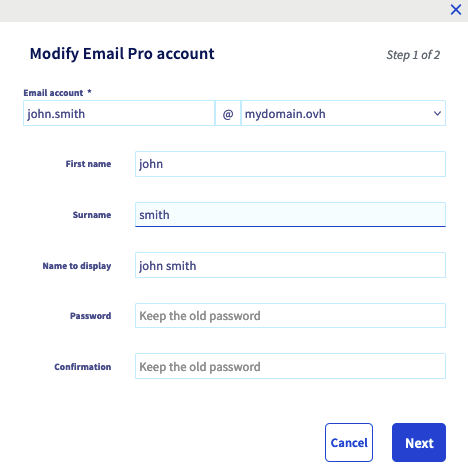
Enter the information requested.
- **Email account**: Enter the name that your email address will bear (your first name.surname, for example), and select the domain in question from the list.
:::warning
The name of your email address must meet the following conditions:
- Minimum 2 characters
- Maximum 32 characters
- No accents
- No special characters, except for the following characters: `.`, `,`, `-` and `_`
:::
- **First name**: Enter a first name.
- **Name**: Enter a name.
- **Display name**: Enter the name that will be displayed as a sender when emails are sent from this address.
- **Password and confirmation**: Set a strong password consisting of at least 8 characters and including at least one upper-case letter, one lower-case letter, and one number. For security reasons, we recommend not using the same password twice, choosing one that does not contain any personal information (e.g. your surname, first name and date of birth), and renewing it regularly.
:::warning
The password must meet the following requirements:
- Minimum 9 characters
- Maximum 30 characters
- No accents
:::
Once the information is complete, click on the `Next
` button, check the information displayed, then click `Confirm
` to start configuring the account.
:::info
Repeat this step as necessary according to the number of accounts you have. You can order additional accounts using the `Order accounts
` button.
:::
### Step 4: Use your email addresses
Once you have configured your accounts, you can start using them straight away. To do this, OVHcloud offers an web application, available [here](https://www.ovhcloud.com/en-gb/mail/). You will need to enter your email address and password to log in.
If this is your first time logging in to OWA with this email address, you will be prompted to set the interface language and time zone. Next, click `Save
` to continue.
:::info
Time zones are listed according to [the UTC (Coordinated Universal Time) standard](https://en.wikipedia.org/wiki/Coordinated_Universal_Time#/media/File:World_Time_Zones_Map.png), not in alphabetical order of cities.
**Example**: For Western Europe, it is UTC +1 (Brussels, Copenhagen, Madrid, Paris).
:::
If you would like to configure your email address on an email client or device (e.g. a smartphone or tablet), you can refer to our [configuration guides](/en/guides/web-cloud/email-and-collaborative-solutions/email-pro/landing-page-email-pro.md). If you simply need the information required to configure your Email Pro account, the settings to use are listed below:
| Server type | Server name | Security type | Port |
| ----------- | ----------------- | ------------- | ---- |
| Incoming | pro?.mail.ovh.net | SSL/TLS | 993 |
| Outgoing | pro?.mail.ovh.net | STARTTLS | 587 |
:::info
In our guides, we use as the server name: pro?.mail.ovh.net. You will need to replace the "?" with the actual number indicating the appropriate server for your Email Pro service.
You can find this information in the `General Information
` tab of your Email Pro service, in the **Connection**
box.
:::
## Go further
[Using the Outlook Web App with an Exchange account](/en/guides/web-cloud/email-and-collaborative-solutions/using-the-outlook-web-app-webmail/email-owa.md)
[Creating inbox rules in OWA](/en/guides/web-cloud/email-and-collaborative-solutions/using-the-outlook-web-app-webmail/creating-inbox-rules-in-owa-mx-plan.md)
[Adding an alias to your email account](/en/guides/web-cloud/email-and-collaborative-solutions/common-email-features/feature-redirections.md)
[Creating automatic replies in OWA](/en/guides/web-cloud/email-and-collaborative-solutions/using-the-outlook-web-app-webmail/owa-automatic-replies.md)
[Managing the billing for your Email Pro accounts](/en/guides/web-cloud/email-and-collaborative-solutions/email-pro/manage-billing-emailpro.md)
[Managing the security policy of an email service](/en/guides/web-cloud/email-and-collaborative-solutions/common-email-features/security-policy.md)
For specialised services (SEO, development, etc.), contact [OVHcloud partners](https://partner.ovhcloud.com/en-gb/directory/).
If you would like assistance using and configuring your OVHcloud solutions, please refer to our [support offers](https://www.ovhcloud.com/en-gb/support-levels/).
Join our [community of users](https://community.ovhcloud.com/community/en).