---
title: "Deleting an email account"
description: "Find out how to delete or reset an email account of your email solution"
url: https://docs.ovhcloud.com/en/guides/web-cloud/email-and-collaborative-solutions/common-email-features/delete-email-account
lang: en
lastUpdated: 2026-06-08
---
# Deleting an email account
## Objective
You want to:
- Delete an email account you no longer use.
- Reset an email account to use it with a new email address.
- Reset an email account in order to cancel it.
**This guide explains how to delete or reset an email account of your email solution.**
## Requirements
- A preconfigured OVHcloud email solution:
- **MX Plan**, available with a [web hosting plan](https://www.ovhcloud.com/en-gb/web-hosting/), included in a [free hosting](https://www.ovhcloud.com/en-gb/domains/free-web-hosting/), or ordered separately.
- **MX Plan**, available with a [web hosting plan](https://www.ovhcloud.com/en-gb/web-hosting/), or ordered separately.
- [**Exchange**](https://www.ovhcloud.com/en-gb/emails-exchange/).
- [**Email Pro**](https://www.ovhcloud.com/en-gb/emails/email-pro/).
- [**Zimbra**](https://www.ovhcloud.com/en-gb/emails/zimbra-emails/).
- Be the Admin contact of the email service concerned
- Access details for the email accounts concerned
***
### OVHcloud Control Panel Access
**MX Plan:**
- **Direct link:** MX Plan
- **Navigation path:** Web Cloud > MX Plan > Select your MX Plan service
**Zimbra:**
- **Direct link:** Zimbra
- **Navigation path:** Web Cloud > Zimbra Mail
**Email Pro:**
- **Direct link:** Email Pro
- **Navigation path:** Web Cloud > Email Pro > Select your platform
**Exchange:**
- **Direct link:** Exchange
- **Navigation path:** Web Cloud > Exchange > Select your platform
***
[](#)
:::info
**Identifying the email technology of your MX Plan solution.**
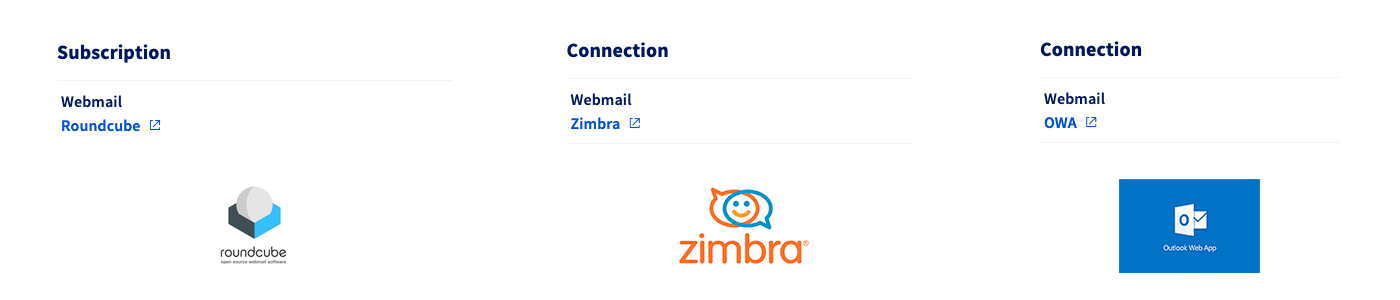
Depending on when your MX Plan solution was activated or on a recent migration, the associated email technology may differ. This technology is characterised by the interface of its webmail. To identify it:
- From the General information tab, note the technology used under the **Webmail** heading in the Subscription box.
:::
## Instructions [](#)
OVHcloud offers 4 email solutions, and the concept of account deletion differs depending on which email solution you choose.
- **MX Plan email**: This offer contains a certain number of email accounts as a bundle. When you delete an account, you free up an account "slot" of the email service.
- **Email Pro**, **Hosted Exchange** and **Zimbra**: These offers are on-demand. You order an individual subscription per email account. If you want to delete an email account, you will need to **reset** it. Once you have reset your email account, you can use this account again to create a new email address. You can also [cancel the subscription](/en/guides/web-cloud/email-and-collaborative-solutions/microsoft-exchange/manage-billing-exchange.md#deleting-accounts) for this account if you wish to permanently delete it.
### Delete or reset an email account
Select the tab corresponding to your email solution:
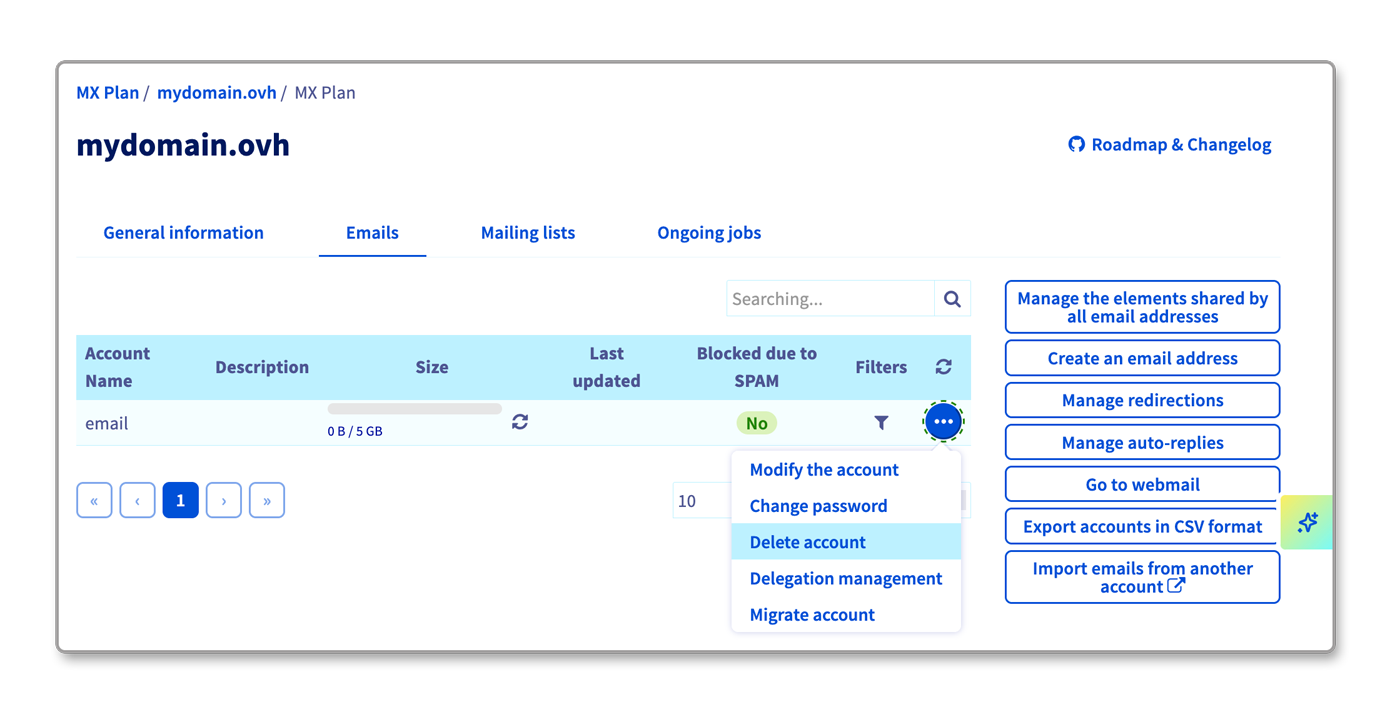
**MX Plan Roundcube**
To identify the email technology associated with your MX Plan service, please refer to the "[Identifying the email technology of your MX Plan solution](#whichmxplan)" section of this guide.
1. Go to the Email accounts tab. The window that appears will display the existing email accounts.
2. Click the ... button to the right of the account you want to modify, then click Disable account.
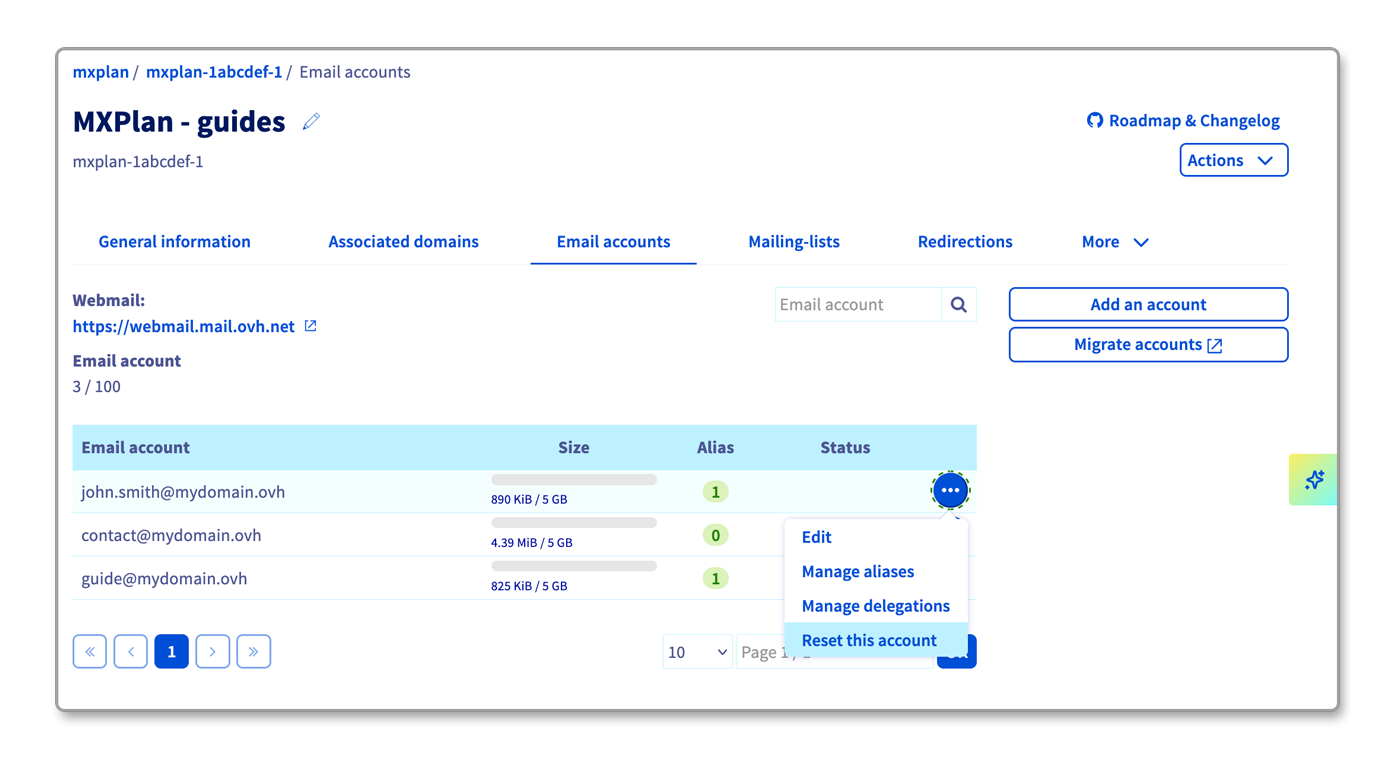
**MX Plan Zimbra/OWA**
To identify the email technology associated with your MX Plan service, please refer to the "[Identifying the email technology of your MX Plan solution](#whichmxplan)" section of this guide.
1. Go to the Email accounts tab. The window that appears will display the existing email accounts.
2. Click the ... button to the right of the account you want to modify, then click Reset this account.
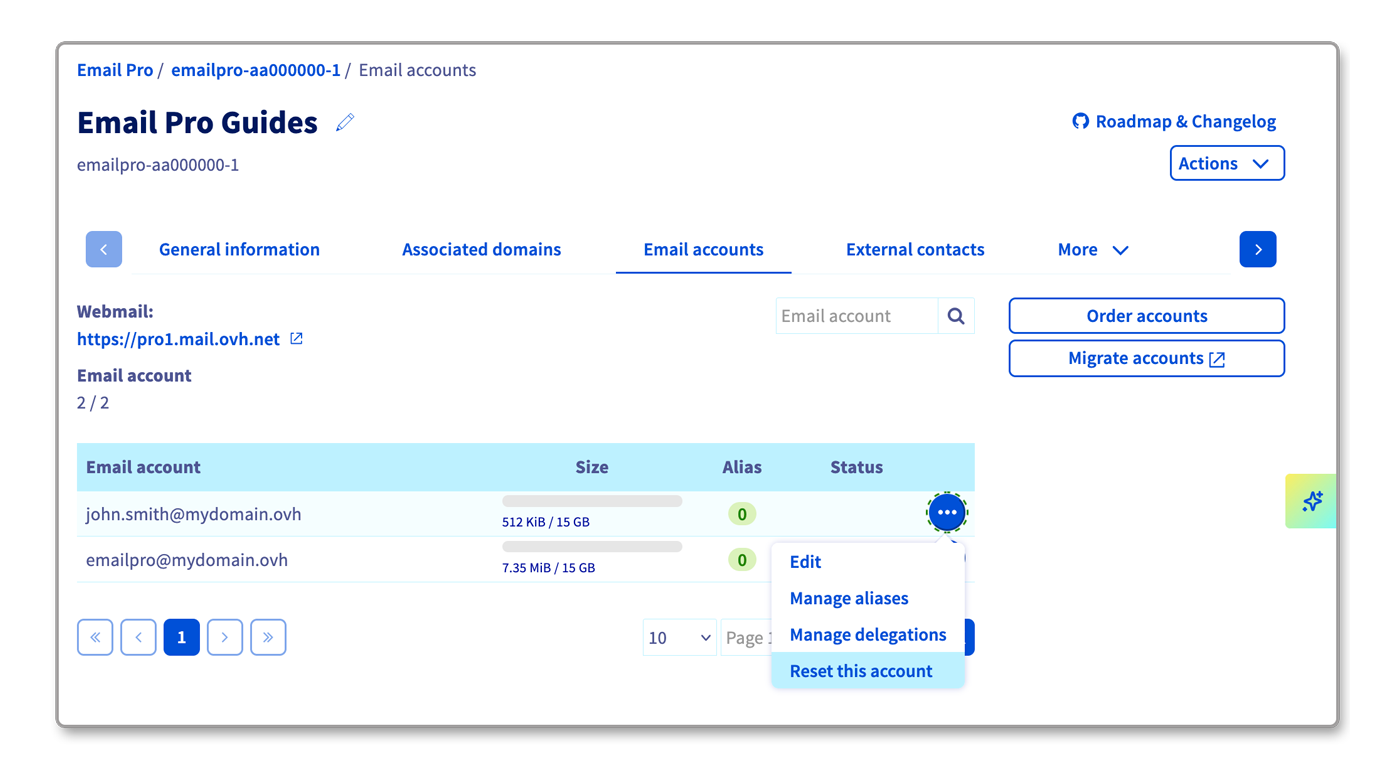
**Email Pro**
1. Go to the Email accounts tab. The window that appears will display the existing email accounts.
2. Click the ... button to the right of the account you want to modify, then click Reset this account.
After resetting your account, if you want to permanently delete it, you must cancel it. To do this, please refer to our guide "[Managing the billing for your Email Pro accounts](/en/guides/web-cloud/email-and-collaborative-solutions/email-pro/manage-billing-emailpro.md)".
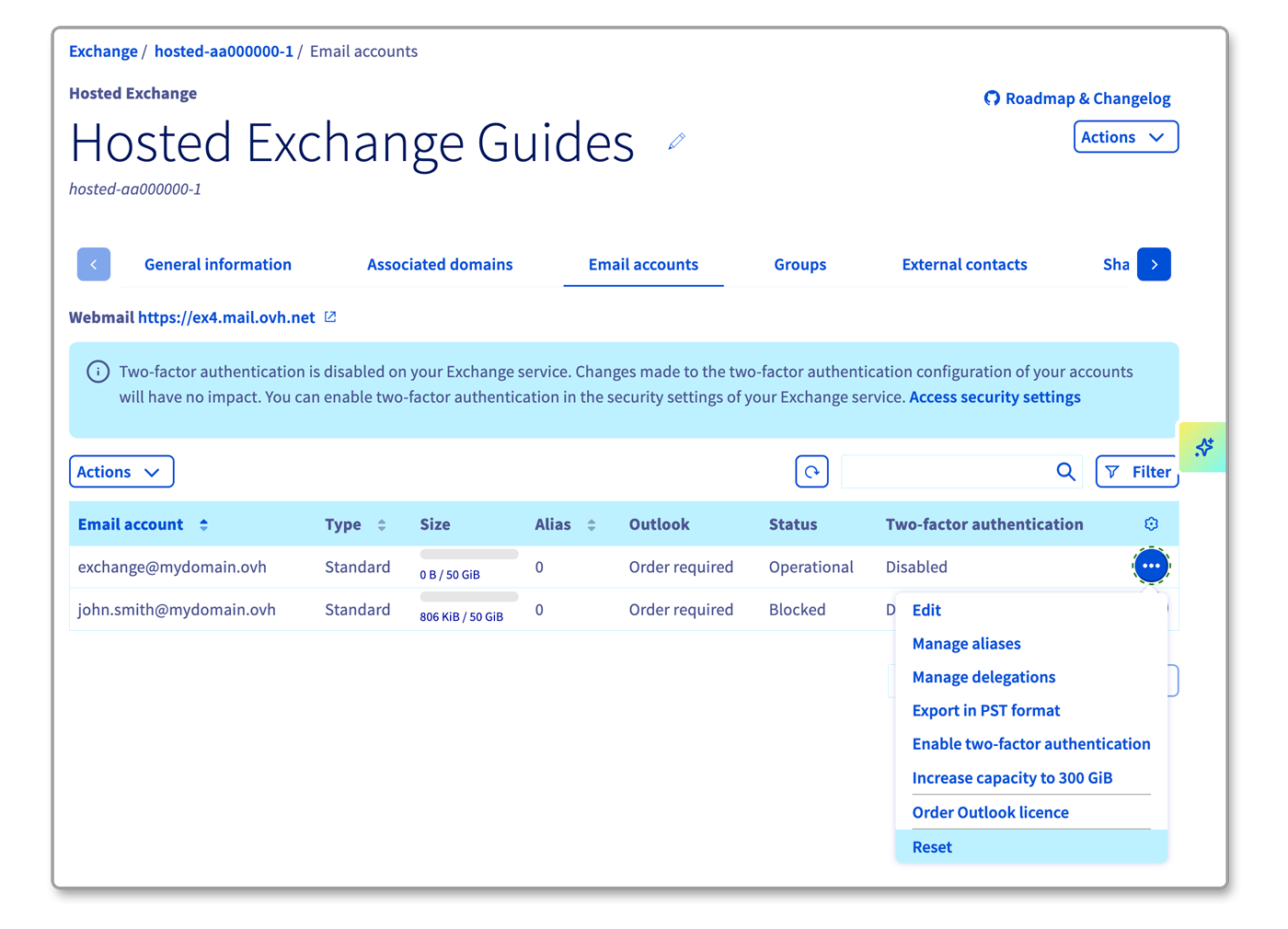
**Exchange**
1. Go to the Email accounts tab.
2. Click the ... button to the right of the account you want to modify, then click Reset.
After resetting your account, if you want to permanently delete it, you must cancel it. To do this, please refer to our guide "[Managing the billing for your Exchange accounts](/en/guides/web-cloud/email-and-collaborative-solutions/microsoft-exchange/manage-billing-exchange.md)".
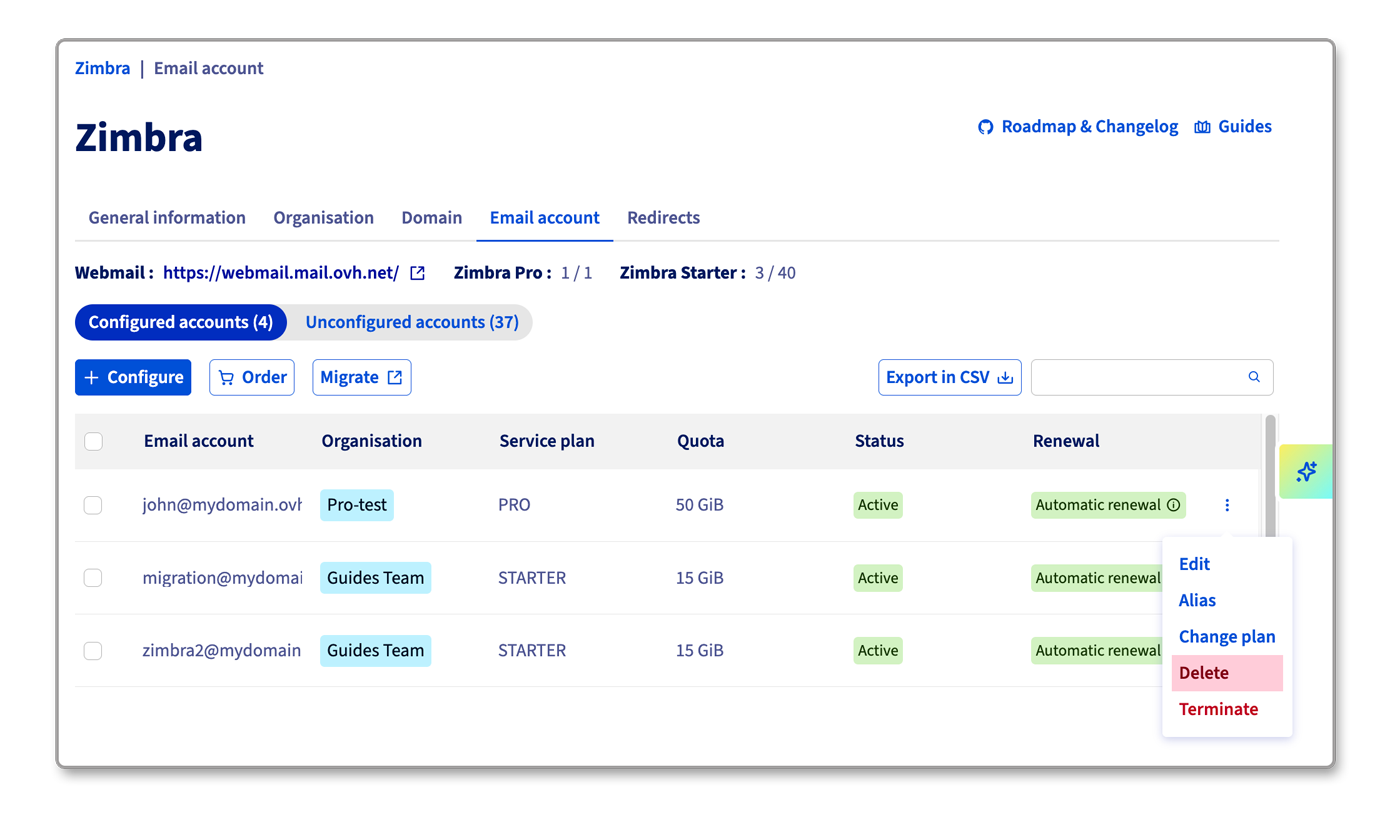
**Zimbra STARTER/PRO**
1. Go to the Email account tab. The window that appears will display the existing email accounts.
2. Click the ⋮ button to the right of the account you want to modify, then click Delete.
## Go further
[Getting started with MX Plan](/en/guides/web-cloud/email-and-collaborative-solutions/mx-plan/email-generalities.md)
[Getting started with Email Pro](/en/guides/web-cloud/email-and-collaborative-solutions/email-pro/first-config.md)
[Getting started with Hosted Exchange](/en/guides/web-cloud/email-and-collaborative-solutions/microsoft-exchange/exchange-starting-hosted.md)
[Getting started with Zimbra](/en/guides/web-cloud/email-and-collaborative-solutions/zimbra/getting-started-zimbra.md)
[Managing the billing of your Email Pro accounts](/en/guides/web-cloud/email-and-collaborative-solutions/email-pro/manage-billing-emailpro.md)
[Managing the billing of your Exchange accounts](/en/guides/web-cloud/email-and-collaborative-solutions/microsoft-exchange/manage-billing-exchange.md)
If you would like assistance using and configuring your OVHcloud solutions, please refer to our [support offers](https://www.ovhcloud.com/en-gb/support-levels/).
Join our [community of users](https://community.ovhcloud.com/community/en).