---
title: "Domain name - How do I change the holder?"
description: "Find out how to change a domain name holder, or update the information associated with it"
url: https://docs.ovhcloud.com/en/guides/web-cloud/domains/trade-domain
lang: en
lastUpdated: 2026-02-10
---
# Domain name - How do I change the holder?
## Objective
In addition to providing [contacts](/en/guides/account-and-service-management/account-information/managing-contacts.md), registering a domain name requires you to enter information on the domain name holder. In this context, **holder** pertains to either a natural person or a legal person (private or public organisation) holding the usage rights to this domain name. A **change of holder** (domain name trade) refers to the act of modifying this information in a legally binding way i.e. the transfer of usage rights to a new person or company. For example, this process is the mandatory procedure when a company changes its name.
:::info
This operation will not move your domain name to another OVHcloud customer account.
To do this you need to change the domain name's [contacts](/en/guides/account-and-service-management/account-information/managing-contacts.md).
If you need to make a change of holder and a change of contact for the same domain name, it is strongly recommended that you change the holder **first** to ensure an optimal transition. However, it is the administrator contact who is able to initiate these operations. These two changes are therefore made in the Control Panel of the domain name’s administrative contact.
The information related to the domain name holder has only of administrative value, and is independent of the information that can be associated with an OVHcloud NIC handle. As a result, an individual or organization (company, association, etc.) solely declared as a domain name holder does not have access to the OVHcloud Control Panel.
:::
**This guide explains how to change the holder of a domain name, or update the information associated with it.**
## Requirements
- A domain name registered with OVHcloud for which no operation (holder change, transfer, creation) is in progress. If an operation has recently been completed on this domain name, there is a mandatory waiting period of 60 calendar days before a new operation can be started.
- Your customer account is the [admin and billing contact](/en/guides/account-and-service-management/account-information/managing-contacts.md) for the domain name concerned.
- You have permission from the current domain name holder to change holders or edit the holder information.
***
### OVHcloud Control Panel Access
- **Direct link:** Domain names
- **Navigation path:** Web Cloud > Domain names > Select your domain name
***
## Instructions
:::warning
The following instructions describe the most common way to change a domain name holder. They are valid for most **T**op **L**evel **D**omains (**TLD**). The **TLD** is the domain name extension, i.e. the last part of a domain name, such as _.com_, _.net_, _.fr_, etc.
The specific rules for processes regarding **TLD**s are defined by the corresponding allocation authority i.e. the **registry**. Registrars such as OVHcloud must adhere to these rules and have no influence on registry decisions.
There are generally two types of **TLD**: **ccTLD** and **gTLD**. **ccTLD**s are **TLD**s for a region or country (_.fr_, _.be_, _.uk_, _.de_, _.paris_, etc.) and **gTLD**s are generic **TLD**s (_.net_, _.com_, _.info_, _.org_, etc.).
The exact procedure for domain trades may vary, particularly for some **ccTLDs**, such as _.lu_, _.hk_, _.ro_, _.be_, _.lt_, _.dk_, _.at_, _.fi_, etc. and a few special purpose **TLDs** (e.g. _.am_, _.fm._). Changing the holder might also be prohibited for various reasons, for example outstanding payments, abuse cases or registry locks.
We recommend to consult the following resources in case of any doubt:
- The website of the respective **TLD** registry
- The [list of **TLD**s available at OVHcloud](https://www.ovhcloud.com/en-gb/domains/tld/)
- The domain name status updates. To check this, go to the Ongoing operations page.
:::
### Initiating the holder change procedure or editing the holder information
Click on the tabs below to view each of the **6** steps.
**Step 1**
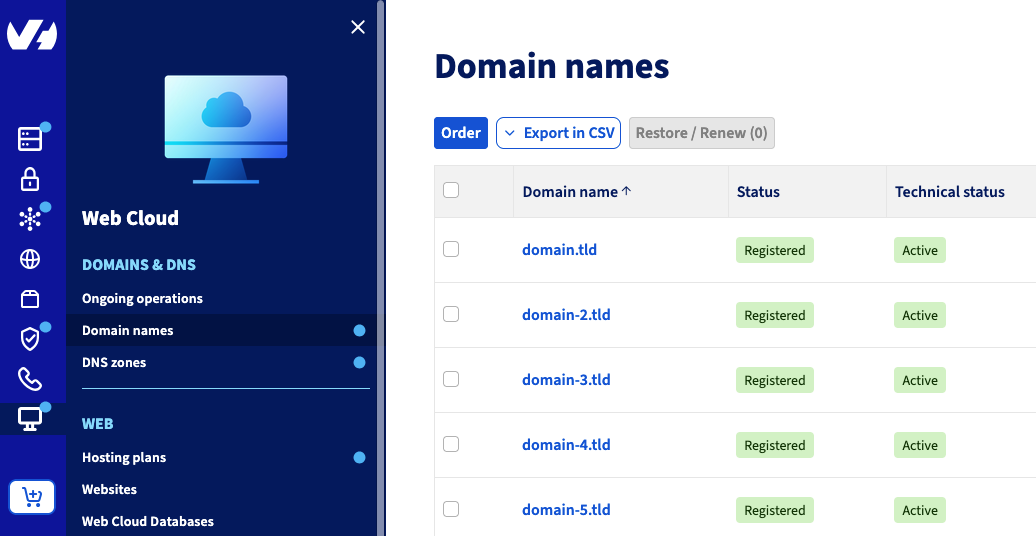
Go to the Domain names page, then choose the domain name concerned.
**Step 2**
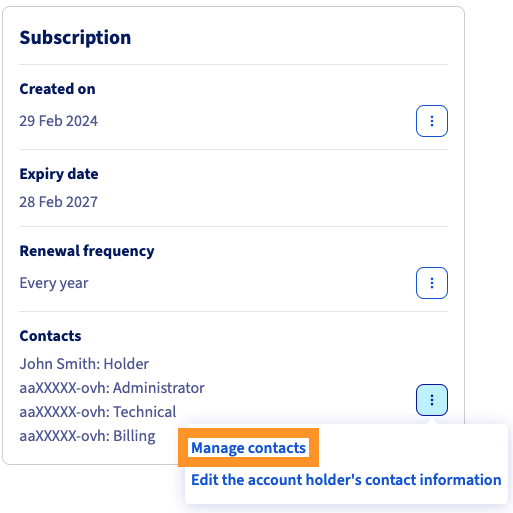
In the **Plan** box, you will see **Contacts**. Click ... on the right-hand side, then Manage contacts.
**Step 3**
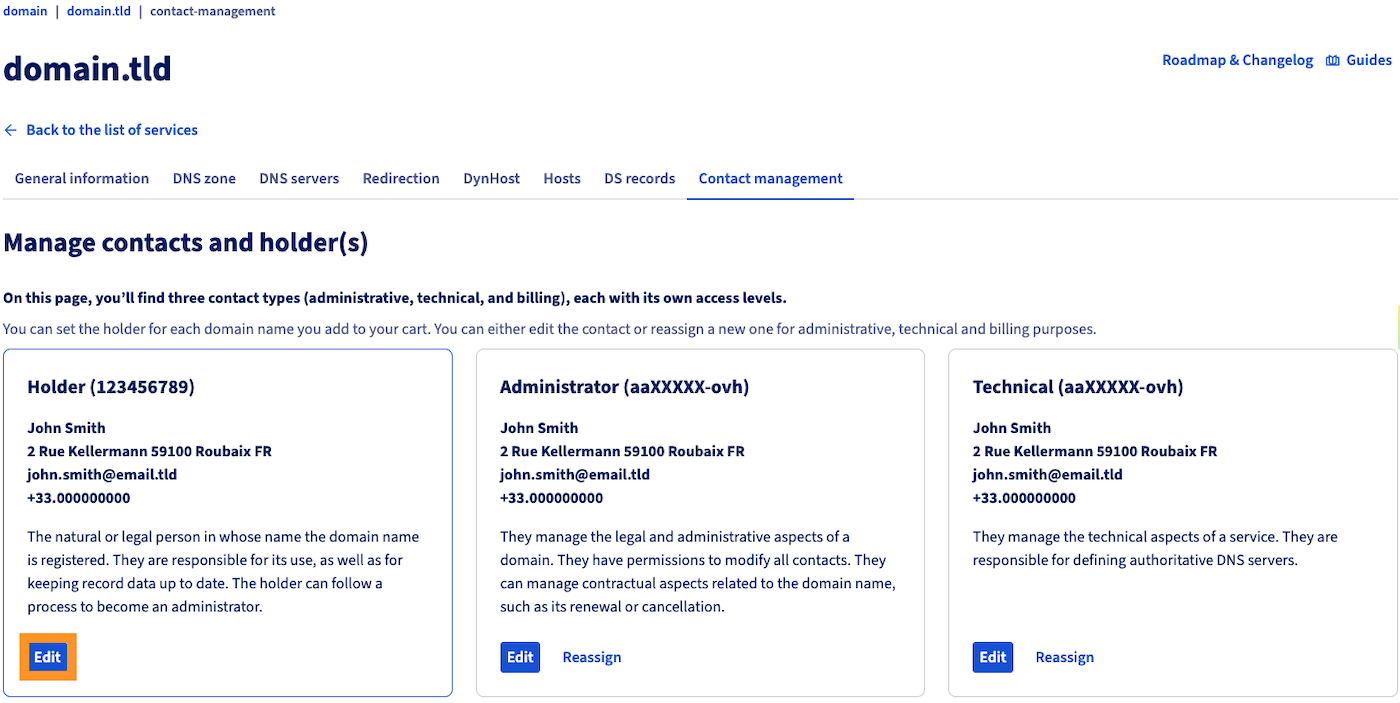
On the new page, go to the **Holder** box, then click the Edit button.
**Step 4**
:::warning
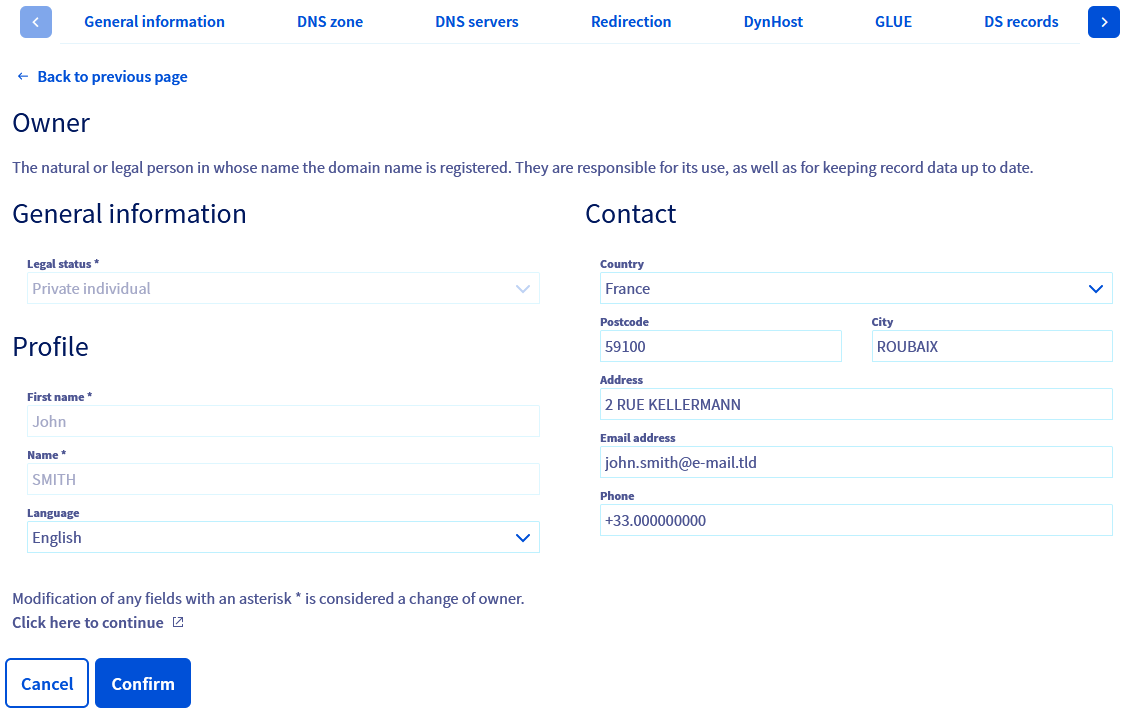
Any change to the holder's first name, surname, organization, legal status or email address is considered a **holder change**.
If you modify **only** the holder's contact details other than those mentioned above, edit the appropriate fields, then click Confirm. In this case it will not be necessary to initiate a request for a change of holder. For this operation, you do not need to confirm the changes by email.
If a change of holder is required, click on the link Click here to continue at the bottom of the page.
:::
**Step 5**
A new browser tab will open with all domains eligible for the holder change. Select a domain name from the list by using the checkbox to the left of it. This step can also be used to launch a bulk operation. It is thus possible to initiate a change of holder for several domain names at once, for example to change the holder of all _.ovh_ domains if their current holders are identical.
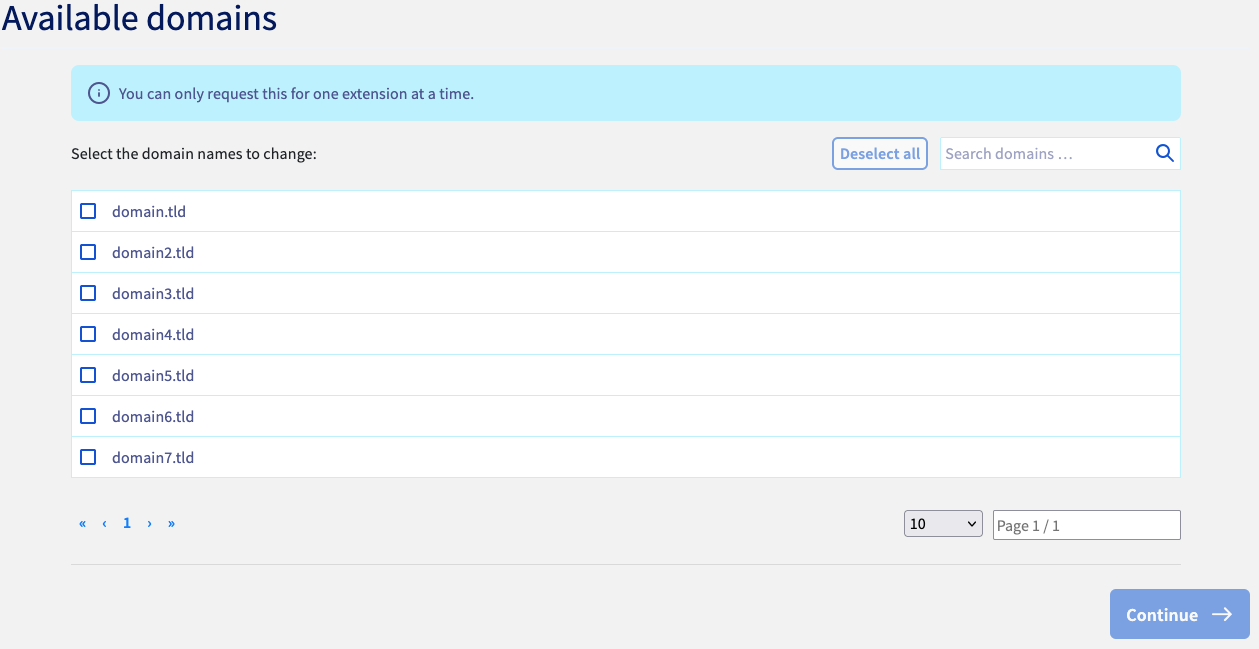Once you have made your choices, click Continue.
**Step 6**
In the holder details form, make sure to enter valid information into all the required fields. Avoid spelling mistakes and use [ASCII printable characters](http://facweb.cs.depaul.edu/sjost/it212/documents/ascii-pr.htm) whenever possible. Please note that any inaccurate or false information may cause a technical error and therefore a delay of the entire trading process.
Once you have confirmed your trade request, two emails will be sent to confirm or decline this change:
- One sent to the current registrant’s email address
- One sent to the future holder’s email address
If the email address is not modified as part of the holder change, the reference email address will receive both emails but each of them needs to be confirmed regardless.
Once both recipients have confirmed the request by email, the domain name holder change will take effect.
:::warning
- The procedure must be validated by both parties within a period of 14 days. **After this period, the procedure is cancelled**.
- If the change is declined by one of the two parties, the action will be cancelled.
- If the current holder’s email address is obsolete or inaccessible, you can **in this case** contact our support team by creating a ticket from your [OVHcloud Help Centre](https://help.ovhcloud.com/csm?id=csm_get_help).
- If the domain name holder has been successfully modified, the domain name will be blocked from being [transferred to another registrar](/en/guides/web-cloud/domains/transfer-outgoing-domain.md) for a period of 60 days.
:::
## Go further
[Managing contacts for your services](/en/guides/account-and-service-management/account-information/managing-contacts.md)
For specialised services (SEO, development, etc.), contact [OVHcloud partners](https://partner.ovhcloud.com/en-gb/directory/).
If you would like assistance using and configuring your OVHcloud solutions, please refer to our [support offers](https://www.ovhcloud.com/en-gb/support-levels/).
Join our [community of users](https://community.ovhcloud.com/).