---
title: "Troubleshooting a domain name error"
url: https://docs.ovhcloud.com/en/guides/web-cloud/domains/domain-errors
lang: en
lastUpdated: 2026-03-24
---
# Troubleshooting a domain name error
## Objective
Creating, transferring or changing the holder of a domain name can generate errors requiring intervention on your part.
**Find out what to do when an error occurs on a domain name.**
## Requirements
- Being the holder of one or more [domain names](https://www.ovhcloud.com/en-gb/domains/).
- Being up-to-date in the [payments](/en/guides/account-and-service-management/managing-billing-payments-and-services/invoice-management.md#pay-bills) and [renewals](/en/guides/account-and-service-management/managing-billing-payments-and-services/automatic-renewal.md#renewal-management) of your domain names.
***
### OVHcloud Control Panel Access
- **Direct link:** Ongoing operations
- **Navigation path:** Web Cloud > Ongoing operations > Select the Domain or DNS tab.
***
## Instructions
### Overview of the ongoing operations management interface
Click on the tabs below to view each of the **2** steps.
**Step 1**
Go to the Ongoing operations page.
**Step 2**
A table lists all operations related to the domain names in your Control Panel.
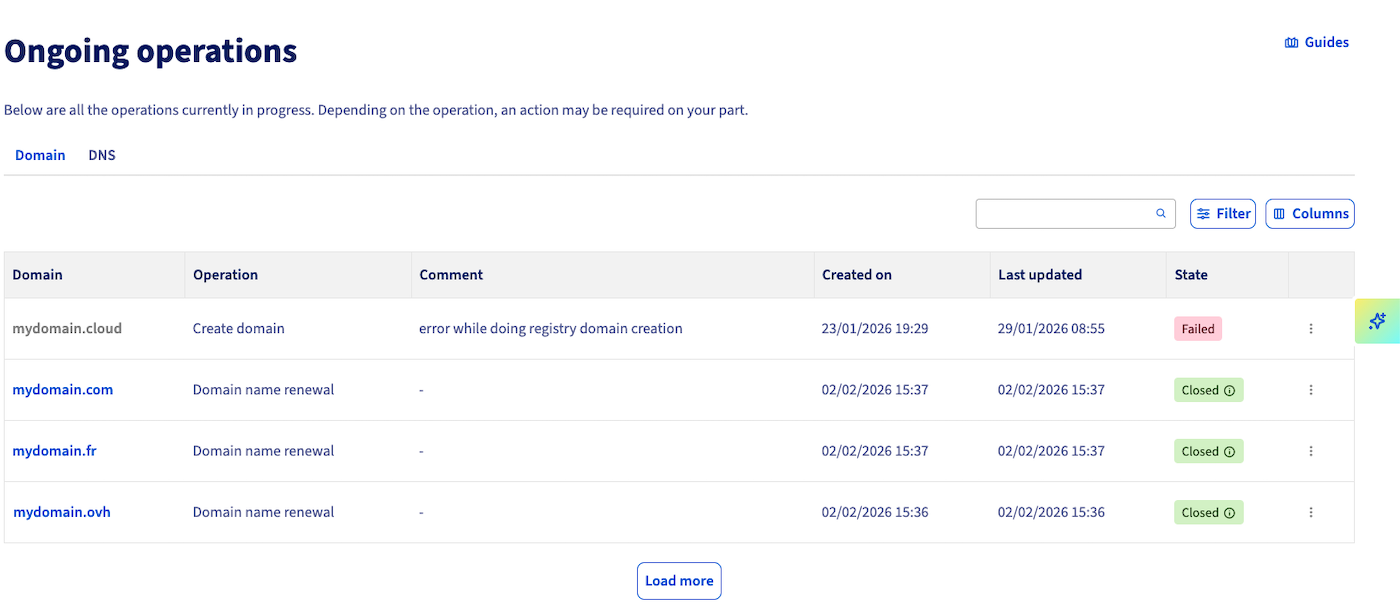- `Domain`: The domain name concerned by the operation.
- `Operation`: The domain name operation in progress.
- `Comment`: Details of the current operation. Instructions.
- `Processing date`: Date the operation was created.
- `Date of update`: Timestamp for updating the current operation.
- `End date`: The end date of the operation.
- `Status`: The current status of the operation.
Not all of the operations listed in this table require your intervention for them to proceed normally.
This guide covers **error** operations through recurring situations.
### Situations
:::info
The list of situations below is not exhaustive. If you encounter an error that is not detailed in this guide:
- Verify that you are up to date with [payments](/en/guides/account-and-service-management/managing-billing-payments-and-services/invoice-management.md#pay-bills) and domain name [renewals](/en/guides/account-and-service-management/managing-billing-payments-and-services/automatic-renewal.md#renewal-management).
- Check if an action is available by viewing the options to the right of the operation concerned.
- Read the descriptive message and check if it helps you resolve the error.
If, despite these checks, you cannot resolve the error, [open a support ticket](https://www.ovhcloud.com/en-gb/support-levels/) from your Control Panel.
:::
**Click on the situation of your choice to view the content.**
Document requests
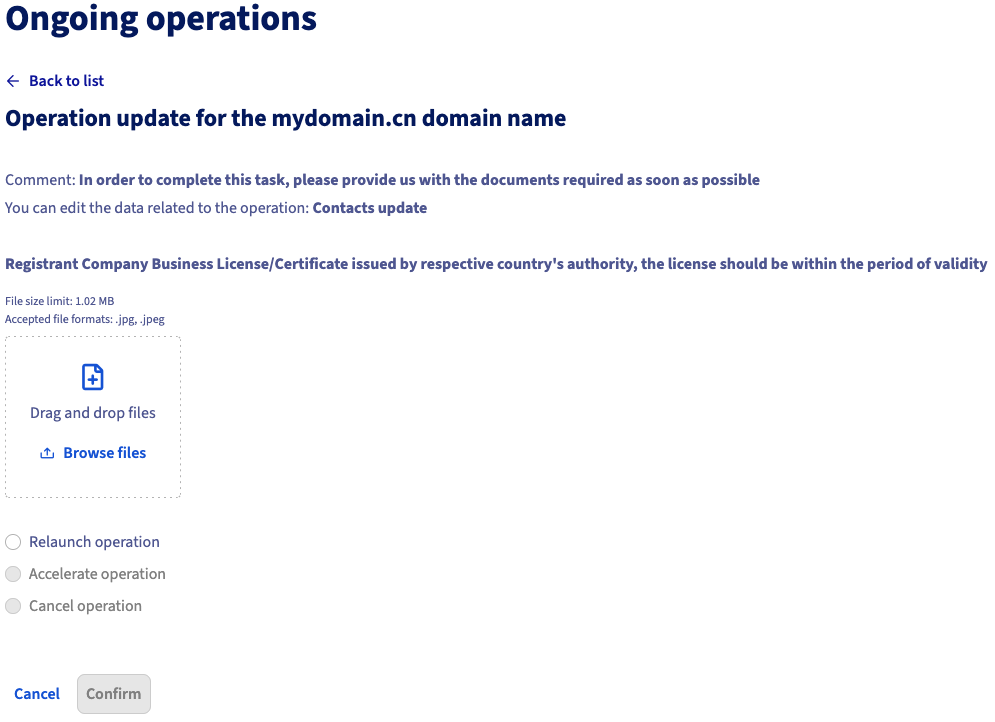
Some domain name extensions require you to justify their registration by providing documents. If this is the case, you must submit the documents from your OVHcloud Control Panel.
Click on the tabs below to view each of the **4** steps.
**Step 1**
Go to the Ongoing operations page.
**Step 2**
Locate the operation in error in the table.

**Step 3**
Click the ... button to the right of the operation concerned.
**Step 4**
The window below appears. The "Description" section provides details on the document to provide, as well as a button to upload your document.
Missing information
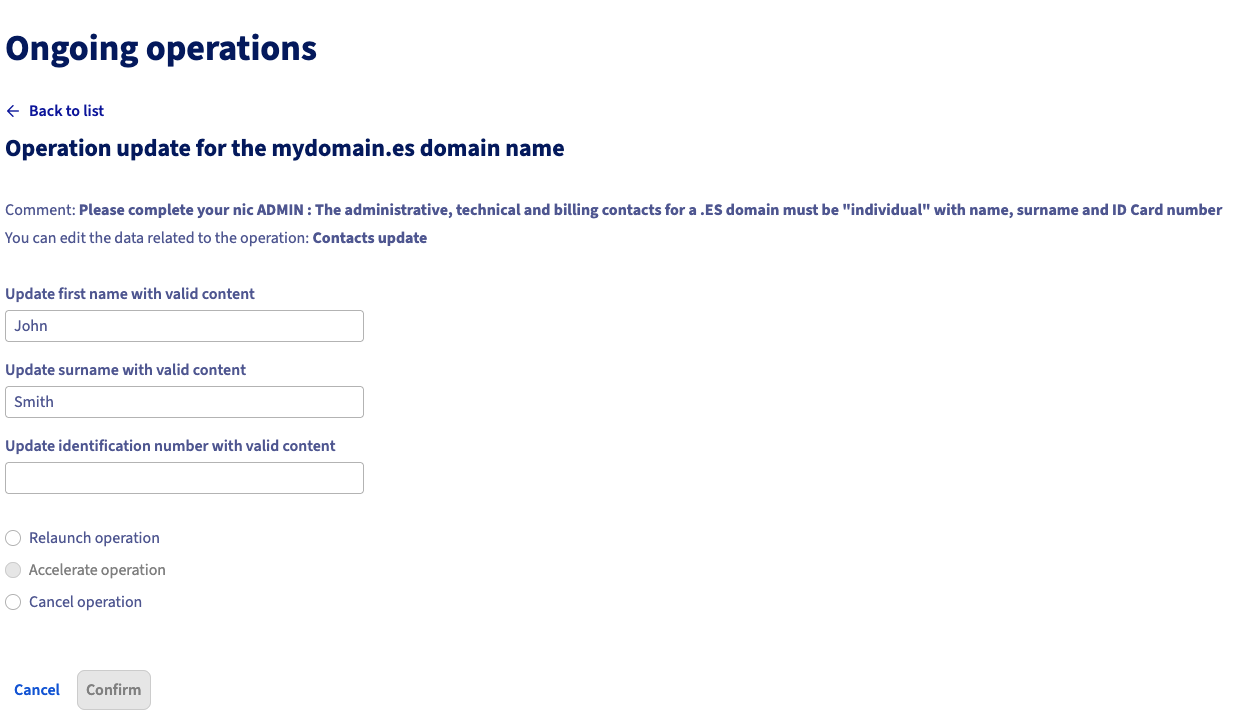
When you register your domain name, it is sometimes necessary to complete the contact data. If these details do not match the criteria for the domain name, you might get the error below.
Click on the tabs below to view each of the **4** steps.
**Step 1**
Go to the Ongoing operations page.
**Step 2**
Locate the operation in error in the table.

**Step 3**
Click the ... button to the right of the operation concerned.
**Step 4**
The window below appears. Fill in the fields with the contact information.
Wrong transfer code
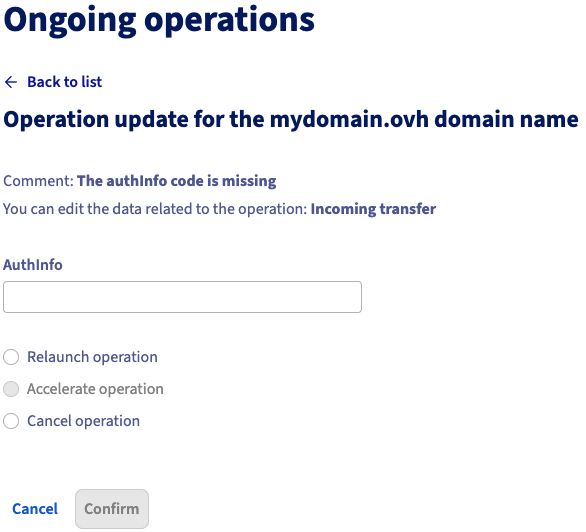
When you transfer your domain name to OVHcloud, you must enter a transfer code (**authInfo** / **AuthCode**) when placing your order. If this code is incorrect, the operation is suspended. You can restart it with the correct code.
Click on the tabs below to view each of the **4** steps.
**Step 1**
Go to the Ongoing operations page.
**Step 2**
Locate the operation in error in the table.

**Step 3**
Click the ... button to the right of the operation concerned.
**Step 4**
The window below appears. Enter the transfer code (**authInfo** / **AuthCode**) and restart the operation.
DNS server error
An error may occur if the DNS servers you attach to a domain name are not working.
In the situation below, the IP address of the DNS server is not responding.
Click on the tabs below to view each of the **4** steps.
**Step 1**
Go to the Ongoing operations page.
**Step 2**
Locate the operation in error in the table.

**Step 3**
In the Domain names section, select the domain name concerned, then click the DNS servers tab.
**Step 4**
From this tab, [edit your DNS servers](/en/guides/web-cloud/domains/dns-server-edit.md).
Error on a .ie, .de or .it domain name after a DNS update
When you modify your DNS servers, the registry may check the new DNS servers and the associated DNS zone, and block the domain name if the configuration is not compliant.
:::warning
This type of blocking is initiated by the registry and not by OVHcloud. So even if the domain name is blocked by the registry, its DNS servers will appear as `Active` in your OVHcloud Control Panel.
:::
To check if your domain name is blocked, click on the tabs below to view each of the **4** steps.
**Step 1**
Go to the Ongoing operations page.
**Step 2**
Locate the operation in error in the table.

**Step 3**
To check your domain name, we recommend using the verification tool provided by the registry:
- For a **.de** domain name: [https://nast.denic.de/](https://nast.denic.de/).
- For a **.it** domain name: [https://dns-check.nic.it/](https://dns-check.nic.it/).
:::info
If your registry does not provide a DNS server verification tool, you can query your new DNS servers via the `nslookup` command at a Windows command prompt, or via the `dig` command at a Linux or macOS terminal.
If your DNS servers are reachable, the tool will return an IP address.
In any case, check with the DNS server administrator that the DNS server is correctly configured to host your domain name's DNS zone.
:::
**Step 4**
Once you have identified the origin of the error and corrected it, click the ... button to the right of the operation concerned and restart the DNS verification operation.
OVHcloud internal error
You may encounter an error with the comment "internal error".
Click on the tabs below to view each of the **3** steps.
**Step 1**
Go to the Ongoing operations page.
**Step 2**
Locate the operation in error in the table.

**Step 3**
This error does not allow any action on your part from the OVHcloud Control Panel.
First, check that your domain name and its DNS servers are active.
If you notice an anomaly that is not related to the configuration of the DNS servers or the DNS zone, [contact OVHcloud support](https://www.ovhcloud.com/en-gb/support-levels/) to identify the cause of the malfunction.
## Go further
[Transferring a domain name to OVHcloud](/en/guides/web-cloud/domains/transfer-incoming-generic-domain.md)
[Transferring a domain name to another registrar](/en/guides/web-cloud/domains/transfer-outgoing-domain.md)
[Editing the DNS servers for an OVHcloud domain name](/en/guides/web-cloud/domains/dns-server-edit.md)
For specialised services (SEO, development, etc.), contact [OVHcloud partners](https://partner.ovhcloud.com/en-gb/directory/).
If you would like assistance using and configuring your OVHcloud solutions, please refer to our [support offers](https://www.ovhcloud.com/en-gb/support-levels/).
Join our [community of users](https://community.ovhcloud.com/).