---
title: "How to export the list of your domain names in CSV"
description: "Find out how to export the list of your domain names and their associated information in CSV format from the OVHcloud Control Panel"
url: https://docs.ovhcloud.com/en/guides/web-cloud/domains/domain-csv-list
lang: en
lastUpdated: 2025-07-03
---
# How to export the list of your domain names in CSV
## Objective
Want to retrieve a list of all the domain names on your OVHcloud customer account? Do you need to retrieve all information related to your domain names (associated contacts, holder, active options, creation and expiry dates, etc.) in one go?
**Find out how to export a list of your domain names and their associated information in CSV format from the OVHcloud Control Panel.**
## Requirements
- A [domain name](https://www.ovhcloud.com/en-gb/domains/) registered with OVHcloud
***
### OVHcloud Control Panel Access
- **Direct link:** Domain names
- **Navigation path:** Web Cloud > Domain names > Select your domain name
***
## Instructions
Click on the tabs below to view each of the **3** steps.
**Step 1**
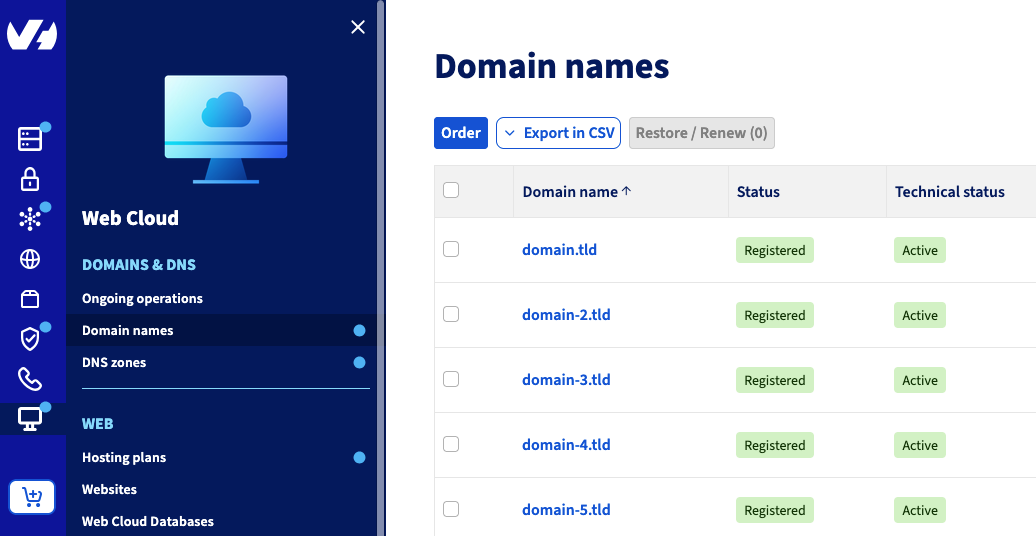
Go to the Domain names page. Above the table that appears, click Export in CSV format.
**Step 2**
In the window that opens, tick the information that you want to include in the CSV file for all of your domain names.
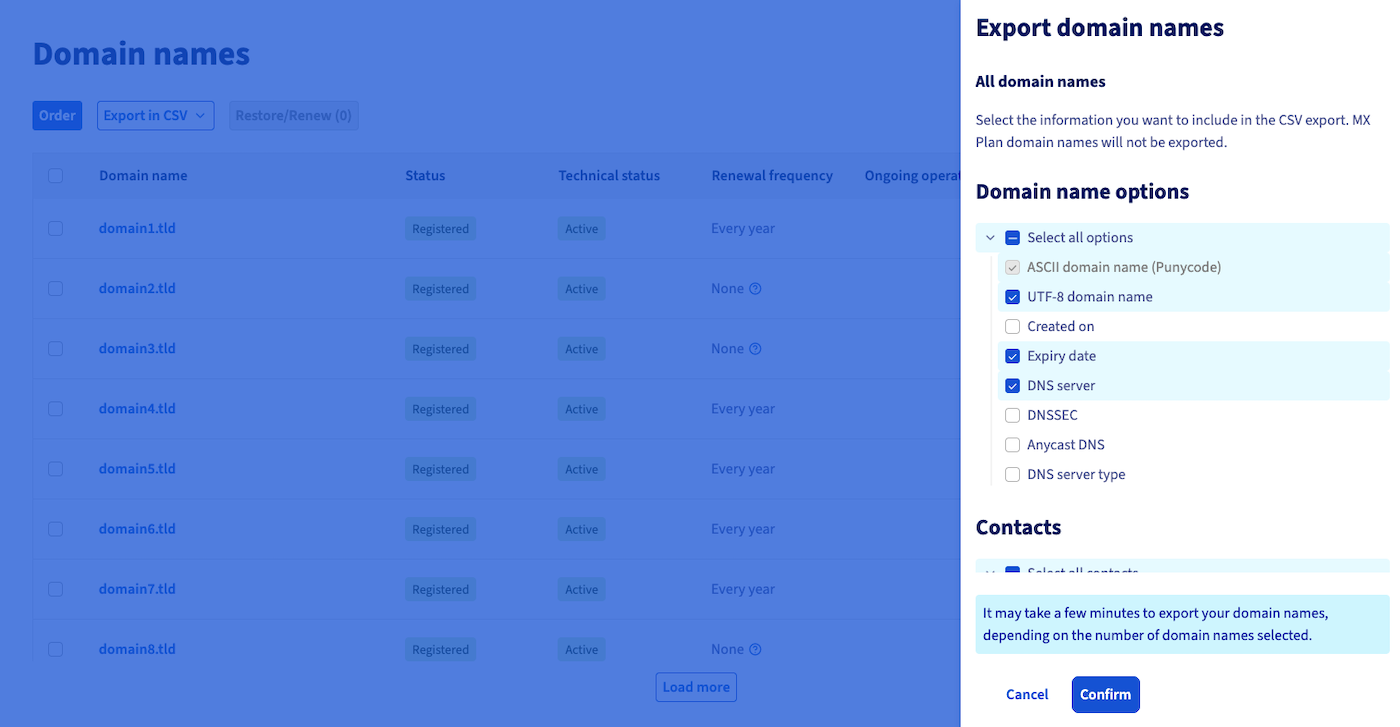Then click the Export button to start generating the file in CSV format.
**Step 3**
A load window will appear. Wait until the progress bar reaches 100%.
As soon as the CSV file is generated, the following message is displayed, and the file is automatically downloaded:
If the CSV file download did not start automatically, click the download it manually link to retrieve it.
## Go further
For specialised services (SEO, development, etc.), contact [OVHcloud partners](https://partner.ovhcloud.com/en-gb/directory/).
If you would like assistance using and configuring your OVHcloud solutions, please refer to our [support offers](https://www.ovhcloud.com/en-gb/support-levels/).
Join our [community of users](https://community.ovhcloud.com/).