---
title: "How to create a subdomain"
description: "Find out how to define a subdomain and how to create one at OVHcloud"
url: https://docs.ovhcloud.com/en/guides/web-cloud/domains/domain-create-subdomains
lang: en
lastUpdated: 2026-02-10
---
# How to create a subdomain
## Objective
As you use your domain name, you will need to create and configure **subdomains**. Subdomains are the third level (_Third Level Domain_) of a domain name. The most well-known subdomain of internet users is, to date, the subdomain **W**orld **W**ide **W**eb (**www**). Indeed, many websites still use this subdomain to be consulted on the Internet.
For example, _[www.ovhcloud.com](http://www.ovhcloud.com)_ is a subdomain of the domain name _ovhcloud.com_.
You can create an infinite number of subdomains from a single domain name.
**Find out more about subdomains and how to create one with OVHcloud.**
## Requirements
- You have at least one [domain name](https://www.ovhcloud.com/en-gb/domains/).
- You have an active DNS zone for your domain name. If you need further guidance, please refer to our guide on "[Creating an OVHcloud DNS zone](/en/guides/web-cloud/domains/dns-zone-create.md)".
- You have sufficient rights to all of the services concerned. You can find more information in our guide [Managing contacts for your services](/en/guides/account-and-service-management/account-information/managing-contacts.md).
***
### OVHcloud Control Panel Access
- **Direct link:** Domain names
- **Navigation path:** Web Cloud > Domain names > Select your domain name
***
## Instructions
**Content overview**
- [Introduction](#introduction)
- [How do I create a subdomain?](#subdomain-creation)
- [1 - Identify where your domain name’s active DNS zone is located](#identification)
- [2 - Create the DNS records for your subdomains](#dns-records-creation)
- [Associate, authorize and configure your subdomain with an OVHcloud service](#link-subdomain)
- [Case 1: Display a website on my OVHcloud web hosting plan with a subdomain](#link-subdomain-case-1)
* [Case 2 - Create Exchange email addresses with a subdomain](#link-subdomain-case-2)
- [Case 3 - Create Email Pro addresses with a subdomain](#link-subdomain-case-3)
### Introduction [](#)
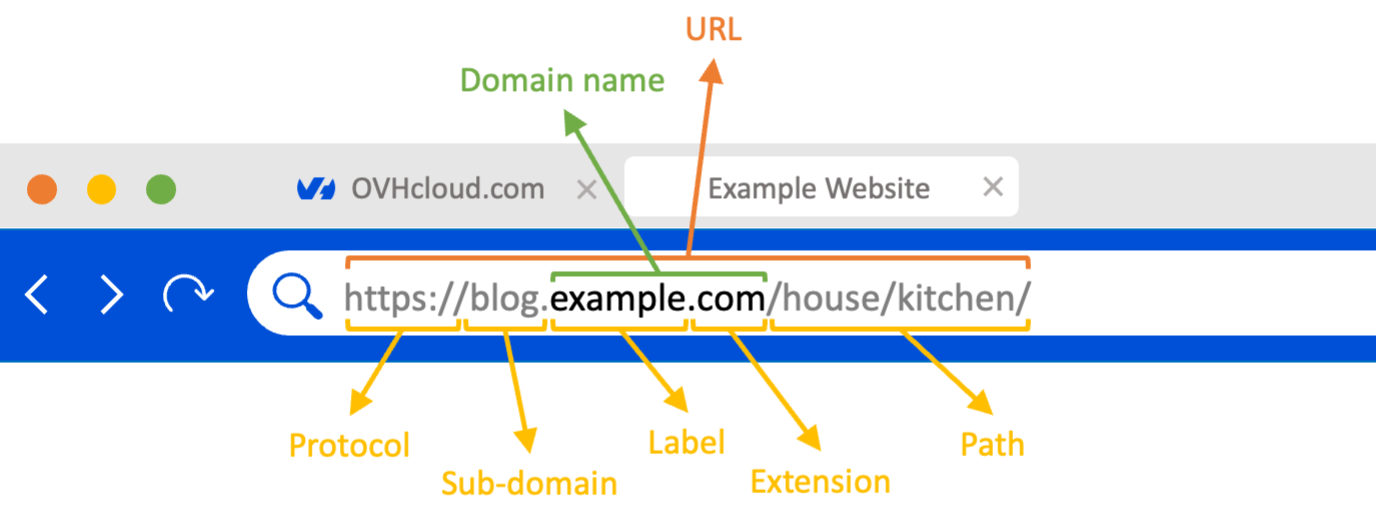
**Click on the two questions below to see the explanations.**
What is the composition of a domain name?
A **domain name** is made up of levels. These levels are usually separated by a `.` (with the exception of some **extensions** of the _first level_ such as the _.co.uk_, _.gouv.fr_ or _.notaires.fr_):
- **T**op **L**evel **D**omain (**TLD**): Represents the _top level_ domains. We call them **extensions**. There are currently 4 types of top level domains:
- The **c**ountry **c**ode **T**op **L**evel **D**omains (**ccTLDs**): Composed of two characters, they correspond to the different countries of the world. For example, the extensions _.ie_, _.es_, _.it_ or _.pl_ are ccTLDs.
- The **g**eneric **T**op **L**evel **D**omains (**gTLDs**): Consisting of at least three characters, they represent more general themes or business areas. For example, the extensions _.com_, _.net_, _.org_ or _.info_ are gTLDs.
- The **new** **g**eneric **T**op **L**evel **D**omains (**new gTLDs**): New extensions created in 2012 by the **I**nternet **C**orporation for **A**ssigned **N**ames and **N**umbers (**ICANN**) in order to meet the sharp increase in domain name applications. They can correspond to generic themes, brands, regions or cities. For example, the extensions _.love_, _.ovh_ or _.paris_ are new gTLDs.
- The **Corp**oration **T**op **L**evel **D**omains (**CorpTLDs**): This is actually a subcategory of the new gTLDs. Upon request to the **ICANN**, companies or organizations can request the creation of their own TLD. For example, the _.ovh_ extension is a CorpTLD created by OVHcloud a few years ago.
- **S**econd **L**evel **D**omain (**SLD**): Represents _second level_ domains. We call them **labels**. When you order a domain name, you can freely set the **label** (provided that it has not already been registered by another user on the same extension and within the limit of 63 characters). For example, _ovhcloud_ corresponds to the domain name label _ovhcloud.com_.
- Third Level Domain (**subdomain**): Labels from this third level on are called **subdomain**. In this guide, we will describe its definition, and explain how you can implement it with your various services.
What is a subdomain?
A [domain name](https://www.ovhcloud.com/en-gb/domains/) can be associated with several types of services (email, website, etc.).
A domain name can only be associated with one website at a time.
However, some users or organizations need to segment their websites or email services while keeping the same domain name.
Subdomains (sometimes called **prefixes**) meet the need to segment a domain name. They offer the holder the ability to choose from several subcategories of web services associated with their domain name, without having to sign up to a new domain name.
In other words, subdomains make it easy to structure all of the web services (DNS servers, website, intranet, email, etc.) associated with the same domain name.
As mentioned above, subdomains are the third level (_Third Level Domain_) of a domain name. The most well-known subdomain of the internet is **W**orld **W**ide **W**eb (**www**). Indeed, many websites still use this subdomain on the Internet.
For example, _[www.ovhcloud.com](http://www.ovhcloud.com)_ is a subdomain of the _ovhcloud.com_ domain name.
For example, if you have the domain name _example.com_, you can create the following subdomains:
- _dns1.example.com_ and _dns2.example.com_ to customize your DNS servers using [GLUE records](/en/guides/web-cloud/domains/glue-registry.md)
- _[www.example.com](http://www.example.com)_ to display your website
- _preprod.example.com_ to test your website in new versions. This will not affect your users' access to your current website
- _intranet.example.com_ so that your employees can talk to each other on your internal website
- _forum.example.com_ or _community.example.com_ so that your community of users can exchange and share their experience
- _app.example.com_ to access your online application or download it directly
- _recruitment.example.com_ to allow job seekers to apply on your own recruitment interface
- _sav.example.com_, _sales.example.com_, _legal.example.com_ to enable your customers to contact different internal structures within your company or to prioritize your employees according to the internal services to which they belong
- etc.
Beyond the third level of domain, these are also considered **subdomains**. To use one of the examples above, you can create the subdomain _preprod.app.example.com_ to test the new version of your web application. This will not interrupt access to the current version of your application on _app.example.com_.
### How do I create a subdomain? [](#)
[Domain names](https://www.ovhcloud.com/en-gb/domains/) all need a **DNS zone** to work which is a domain name’s configuration file. It consists of DNS **records** that map the domain name to various services and functions.
For more details on DNS zones, please read our guides “[Creating an OVHcloud DNS zone](/en/guides/web-cloud/domains/dns-zone-create.md)” and “[Editing an OVHcloud DNS zone](/en/guides/web-cloud/domains/dns-zone-edit.md)”.
**All subdomains are configured in the domain name’s active DNS zone. You can do this by adding DNS records.**
#### 1 - Identify where your domain name’s active DNS zone is located [](#)
There are two possible scenarios:
- Your domain name’s active DNS zone is managed at OVHcloud.
- Your domain name’s active DNS zone is hosted elsewhere.
:::warning
The active DNS zone for your domain name is not necessarily managed by the same provider as your domain name.
1: To identify the location of the active DNS zone for a domain name registered with OVHcloud, you can use our guide “[Modifying the DNS servers for an OVHcloud domain name](/en/guides/web-cloud/domains/dns-server-edit.md)”.
2: If your domain name is not registered with OVHcloud, contact your domain name’s current _registrar_ to find out where the active DNS zone is hosted. Please note that you can use our guide on [Transferring a domain name to OVHcloud](/en/guides/web-cloud/domains/transfer-incoming-generic-domain.md) if you would like to perform this action.
:::
If the DNS servers declared for your domain name have one of the following two forms:
- `dnsXX.ovh.net` and `nsXX.ovh.net` (where each of the "X" represents a number)
- `dnsXX.ovh.ca` and `nsXX.ovh.ca` (where each of the "X" represents a number)
- `dns200.anycast.me` and `ns200.anycast.me`
This means that your domain name’s active DNS zone is active with OVHcloud.
Otherwise contact your DNS provider to create subdomains with your domain name.
#### 2 - Create the DNS records for your subdomains [](#)
To add your subdomains to your domain name’s active DNS zone, please read our guide on "[Editing an OVHcloud DNS zone](/en/guides/web-cloud/domains/dns-zone-edit.md)".
For example, you can add:
- The IP address (DNS records of type _A_ and _AAAA_) of your web hosting plan to display one of your websites with a subdomain.
- The email servers (DNS records of type _MX_) to which your subdomain must redirect the emails it receives. This allows you to view them on your custom email address(es) with your subdomain.
- Information related to the security/authentication of your services (web hosting, web server, email, etc.) associated with one of your subdomains (DNS records of type _SPF_, _DKIM_, _DMARC_, etc.).
:::info
Modifying a DNS zone associated with a domain name will take between **4** and **24** hours to propagate fully.
In addition, creating a DNS record for a subdomain (or domain name) is generally not enough to make it work with the _target_ service you have defined for it in the DNS record.
For security reasons, you will also need to authorize the subdomain to access the _target_ service (web hosting plan, email address, etc.).
:::
In the next part, find out how to authorize a subdomain to access the various services in the Web Cloud universe (Web Hosting, Exchange server, etc.) offered by OVHcloud.
:::warning
If you would like to configure a subdomain for a service hosted elsewhere than with OVHcloud, we will not be able to provide you with assistance on this subject. Please contact your external service provider to continue configuring your service.
:::
### Associate, authorize and configure your subdomain with an OVHcloud service [](#)
Several services from the Web Cloud universe can be used with a subdomain. The association procedures are similar to those you would need to perform with a domain name. We will only cover the most common cases.
For services that are not mentioned, please refer to the documentation for the service concerned. This is to identify if the domain can be used with a subdomain.
#### Case 1: Display a website on my OVHcloud web hosting plan with a subdomain [](#)
As with a domain name, and to authorize a subdomain to display the contents of a _target_
folder on a web hosting plan, log in to your OVHcloud Control Panel
and select `Web Cloud
`. Click on `Hosting plans
` in the left-hand column, select the plan concerned where your website is located, then select the `Multisite
` tab.
This is where you authorize your subdomain to access your web hosting plan, where your website is located.
For more details on setting up a domain or subdomain on a web hosting plan, please read our guide on [Hosting multiple websites on your web hosting plan](/en/guides/web-cloud/web-hosting/multisites-configure-multisite.md). The procedure is the same whether you are using a domain name or a subdomain.
:::warning
Adding a domain name or subdomain to one of the websites on your web hosting may require setting up a **validation token**.
For a subdomain, the same token is not taken into account and must be added not for the subdomain but for the domain name. In this case, you can add the token as a TXT record for the domain name in your domain name’s active DNS zone.
:::
#### Case 2 - Create Exchange email addresses with a subdomain
To enable the creation of custom Exchange email addresses with a subdomain, log in to your OVHcloud Control Panel and select Web Cloud. Click Microsoft in the left-hand column, then Exchange. Then select the Exchange platform you want to use with your subdomain. On the page that pops up, go to the Associated domains tab, then click the Add a domain button on the right.
You can then declare your subdomain on your Exchange platform.
For more details on configuring an Exchange platform, please refer to the following guides:
- [Getting started with the Hosted Exchange service](/en/guides/web-cloud/email-and-collaborative-solutions/microsoft-exchange/exchange-starting-hosted.md)
- [Adding a domain name on an email platform](/en/guides/web-cloud/email-and-collaborative-solutions/microsoft-exchange/exchange-adding-domain.md)
- [Adding a CNAME record to validate your domain on your email solution](/en/guides/web-cloud/email-and-collaborative-solutions/microsoft-exchange/exchange-dns-cname.md)
#### Case 3 - Create Email Pro addresses with a subdomain
To enable the creation of custom Email Pro addresses with a subdomain, log in to your OVHcloud Control Panel and select Web Cloud. Click Professional emails, then select the Email Pro platform you want to use with your subdomain. On the page that pops up, go to the Associated domains tab, then click the Add a domain button on the right.
You can then declare your subdomain on your Email Pro platform.
For more details on configuring an Email Pro platform, please refer to the following guides:
- [Getting started with the Email Pro solution](/en/guides/web-cloud/email-and-collaborative-solutions/email-pro/first-config.md)
- [Adding a domain name on an email platform](/en/guides/web-cloud/email-and-collaborative-solutions/microsoft-exchange/exchange-adding-domain.md)
- [Adding a CNAME record to validate your domain on your email solution](/en/guides/web-cloud/email-and-collaborative-solutions/microsoft-exchange/exchange-dns-cname.md)
## Go further [](#)
[Creating an OVHcloud DNS zone](/en/guides/web-cloud/domains/dns-zone-create.md)
[Editing an OVHcloud DNS zone](/en/guides/web-cloud/domains/dns-zone-edit.md)
[Modifying the DNS servers of an OVHcloud domain name](/en/guides/web-cloud/domains/dns-server-edit.md)
[Hosting multiple websites on your web hosting plan](/en/guides/web-cloud/web-hosting/multisites-configure-multisite.md)
[Getting started with the Hosted Exchange service](/en/guides/web-cloud/email-and-collaborative-solutions/microsoft-exchange/exchange-starting-hosted.md)
[Getting started with the Email Pro solution](/en/guides/web-cloud/email-and-collaborative-solutions/email-pro/first-config.md)
[Adding a domain name on an email platform](/en/guides/web-cloud/email-and-collaborative-solutions/microsoft-exchange/exchange-adding-domain.md)
[Adding a CNAME record to validate your domain name on your email solution](/en/guides/web-cloud/email-and-collaborative-solutions/microsoft-exchange/exchange-dns-cname.md)
For specialised services (SEO, development, etc.), contact [OVHcloud partners](https://partner.ovhcloud.com/en-gb/directory/).
If you would like assistance using and configuring your OVHcloud solutions, please refer to our [support offers](https://www.ovhcloud.com/en-gb/support-levels/).
Join our [community of users](https://community.ovhcloud.com/).