---
title: "How to delete an OVHcloud DNS zone?"
description: "Find out how to delete a DNS zone for your domain name via the OVHcloud Control Panel"
url: https://docs.ovhcloud.com/en/guides/web-cloud/domains/dns-zone-deletion
lang: en
lastUpdated: 2026-03-11
---
# How to delete an OVHcloud DNS zone?
## Objective
The **DNS** (**D**omain **N**ame **S**ystem) zone is a domain name’s configuration file. It consists of DNS **records** that map the domain name to various services and functions.
For more information on DNS zones and servers, see the following guides:
- [Everything you need to know about DNS servers](/en/guides/web-cloud/domains/dns-server-general-information.md)
- [Everything you need to know about DNS zone](/en/guides/web-cloud/domains/dns-zone-general-information.md)
- [Everything you need to know about DNS records](/en/guides/web-cloud/domains/dns-zone-records.md)
For example, you may need to delete a DNS zone for your domain name at OVHcloud in the following cases (non-exhaustive list):
- You are using an active DNS zone for your domain name with a provider other than OVHcloud.
- You no longer use the domain name associated with the DNS zone at OVHcloud.
- You have migrated your services to another provider and you want to cancel your OVHcloud services.
:::info
The creation/modification/deletion of a DNS zone in your OVHcloud Control Panel
is free of charge.
:::
**This guide explains how to delete an OVHcloud DNS zone for your domain name via the OVHcloud Control Panel.**
## Requirements
- You have a DNS zone in your OVHcloud Control Panel.
- You have sufficient rights on the DNS zone to be deleted. You can find more information in our guide “[Managing contacts for your services](/en/guides/account-and-service-management/account-information/managing-contacts.md)”.
***
### OVHcloud Control Panel Access
- **Direct link:** My offers and services
- **Navigation path:** Click your name in the top right > My offers and services
***
:::info
Deleting a DNS zone will not delete the domain name associated with it. You will not lose your domain name by deleting a DNS zone associated with it.
:::
## Instructions
:::warning
Before you proceed, check that the DNS zone you want to delete is no longer used by your domain name.
If you delete the active DNS zone for your domain name, your online services (website, email addresses, etc.) will be interrupted.
Perform a [WHOIS](https://www.ovhcloud.com/en-gb/domains/whois/) query to find out whether your domain name’s active DNS zone is the one hosted at OVHcloud.
If the active DNS zone for your domain name is the one at OVHcloud, and you would like to replace it with a DNS zone hosted elsewhere, please read our guide on [Modifying the DNS servers for an OVHcloud domain name](/en/guides/web-cloud/domains/dns-server-edit.md) before deleting any DNS zones.
:::
Click on the tabs below to view each of the **3** steps.
**Step 1**
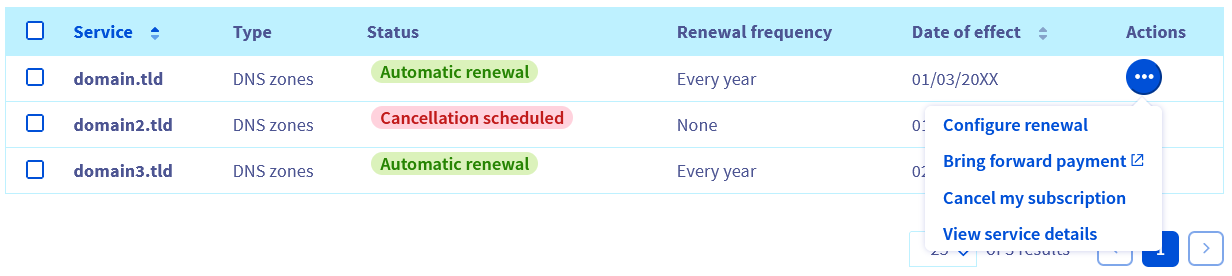
Go to the My offers and services page, then click on the ... button to the right of the DNS zone you want to cancel, then click on Cancel my subscription.
**Step 2**
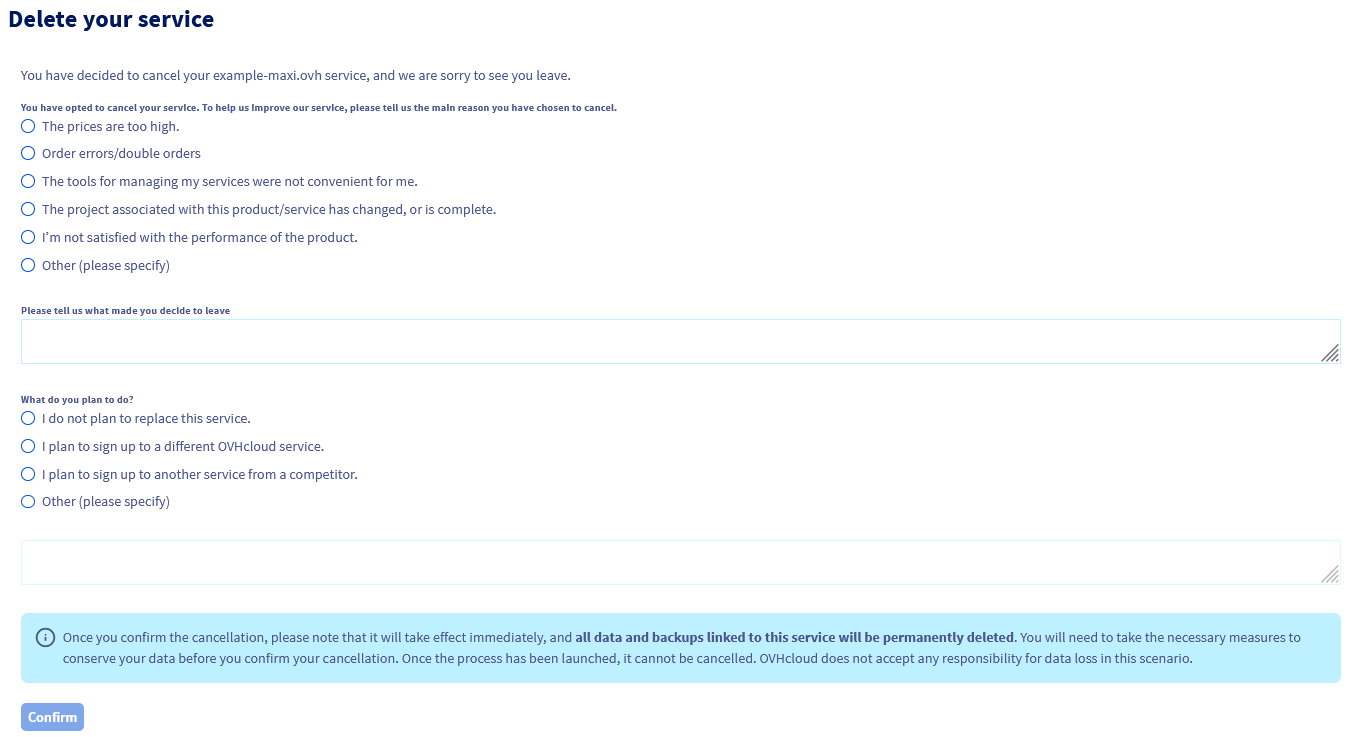
On the new page that appears, specify the reason for your cancellation request and your project, then click on Confirm.
**Step 3**
The cancellation of your service will take place on the **Date of effect** indicated in the "My offers and services" table. If you do not see the "Cancellation scheduled" status appear, refresh the page.
:::info
If you want to immediately delete a DNS zone from your OVHcloud Control Panel, complete the 3 steps to request cancellation on the date of effect, then contact OVHcloud support by creating a support ticket from the [help center](https://help.ovhcloud.com/csm?id=csm_get_help).
In the ticket, specify the concerned DNS zone and clearly state your wish to delete it immediately without waiting for the date of effect.
:::
## Go further
[Managing contacts for your services](/en/guides/account-and-service-management/account-information/managing-contacts.md)
[Editing an OVHcloud DNS zone](/en/guides/web-cloud/domains/dns-zone-edit.md)
[Modifying the DNS servers of an OVHcloud domain name](/en/guides/web-cloud/domains/dns-server-edit.md)
[Creating an OVHcloud DNS zone](/en/guides/web-cloud/domains/dns-zone-create.md)
For specialised services (SEO, development, etc.), contact [OVHcloud partners](https://partner.ovhcloud.com/en-gb/directory/).
If you would like assistance using and configuring your OVHcloud solutions, please refer to our [support offers](https://www.ovhcloud.com/en-gb/support-levels/).
Join our [community of users](https://community.ovhcloud.com/).