---
title: "How to add a CNAME record for a subdomain"
description: "Find out how to add a CNAME DNS record to an OVHcloud DNS zone for a domain name subdomain"
url: https://docs.ovhcloud.com/en/guides/web-cloud/domains/dns-zone-cname-record-creation
lang: en
lastUpdated: 2026-03-24
---
# How to add a CNAME record for a subdomain
## Objective
A CNAME record is used to associate a subdomain with a domain name or subdomain, without having to specify an IP address. This means that the subdomain will be redirected to the target domain name or subdomain’s IP address, without requiring any additional configuration.
For example, if you create a CNAME record for _[www.domain.tld](http://www.domain.tld)_ that points to _domain.tld_, then _[www.domain.tld](http://www.domain.tld)_ will use the same IP address as _domain.tld_.
CNAME records are useful for avoiding changing IP addresses for your subdomains. They can also be used to configure services such as email servers.
**Find out how to add a CNAME record to your OVHcloud DNS zone.**
> **Do you already have a CNAME record in your DNS zone?** Follow our guide on [Editing an OVHcloud DNS zone](/en/guides/web-cloud/domains/dns-zone-edit.md).
## Requirements
- A [domain name](https://www.ovhcloud.com/en-gb/domains/)
- A DNS zone associated with this domain name at OVHcloud
***
### OVHcloud Control Panel Access
- **Direct link:** DNS zones
- **Navigation path:** Web Cloud > DNS zones > Select your domain name
***
:::warning
**Adding, modifying or deleting DNS records in an active DNS zone is a tricky task.**
If in doubt, contact a [specialist provider](https://partner.ovhcloud.com/en-gb/directory/).
:::
## Instructions
### Add a DNS record of type CNAME for a domain name subdomain
Click on the tabs below to view each of the **5** steps.
**Step 1**
Go to the DNS zones page, then choose the domain name concerned.
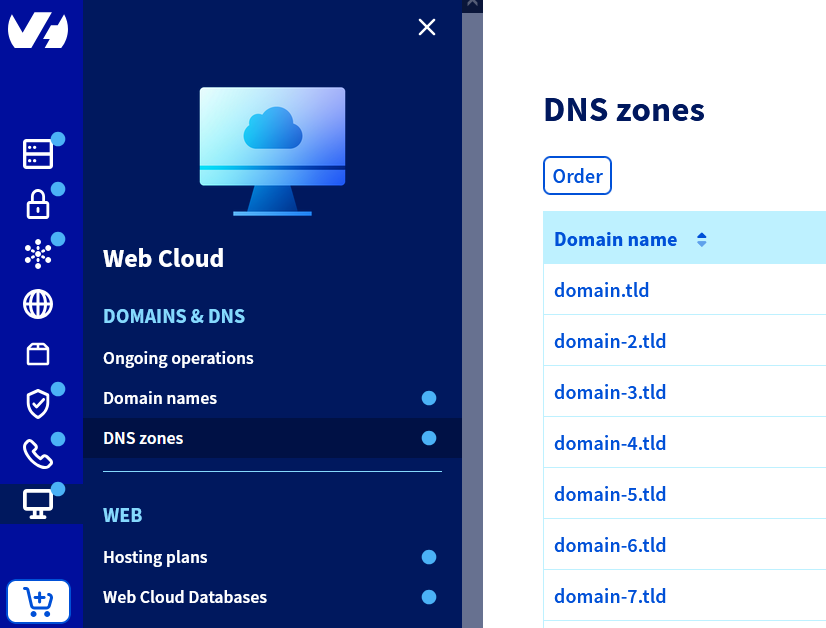
**Step 2**
Click the Add an entry button.
**Step 3**
In the window that opens, select the CNAME record type.
**Step 4**
Enter the subdomain in the `Sub-domain` field (e.g.: `www` for the subdomain `www.domain.tld`), and the domain name or subdomain (e.g.: `domain.tld`) you want to target in the `Target *` field. Click Next.
**Step 5**
Check the summary, then click Confirm. It takes up to **24** hours for the change to propagate fully over the DNS network.
See our detailed guides:
- [Everything you need to know about DNS zones](/en/guides/web-cloud/domains/dns-zone-general-information.md)
- [Everything you need to know about DNS records](/en/guides/web-cloud/domains/dns-zone-records.md)
- [How to create a subdomain](/en/guides/web-cloud/domains/domain-create-subdomains.md)
- [Editing an OVHcloud DNS zone](/en/guides/web-cloud/domains/dns-zone-edit.md)
- [Hosting multiple websites on your web hosting plan](/en/guides/web-cloud/web-hosting/multisites-configure-multisite.md)
- [Web Hosting - How to modify a domain name already associated to a web hosting plan](/en/guides/web-cloud/web-hosting/multisites-modify-domain.md)
### Special cases
Click on the links below for more information:
CNAME and TXT records for the same subdomain
Do not configure both a CNAME record and a TXT record for the same subdomain. This can cause random results during DNS resolution, as only one response can be returned per DNS query.
For example, if you have the following records for _[www.domain.tld](http://www.domain.tld)_:
- A CNAME record pointing to _domain.tld_
- A TXT record with a specific value
A DNS query for _[www.domain.tld](http://www.domain.tld)_ will return either the target of the CNAME record or the value of the TXT record, at random.
CNAME on a domain name in its own DNS zone
By convention, **CNAME records cannot be used on a domain name in its own DNS zone**. The domain name must point directly to an IP address with a record of type [A](/en/guides/web-cloud/domains/dns-zone-a-record-creation.md) for an IPv4, or [AAAA](/en/guides/web-cloud/domains/dns-zone-aaaa-record-creation.md) for an IPv6.
As an example, you will not be able to create a CNAME record for the domain name _domain.tld_ in the DNS zone you have created for it.\
However, you can create CNAME records for all subdomains (e.g. _subdomain.domain.tld_ or _[www.domain.tld](http://www.domain.tld)_) of the _domain.tld_ domain name in the DNS zone created for _domain.tld_.
## Go further
For specialised services (SEO, development, etc.), contact [OVHcloud partners](https://partner.ovhcloud.com/en-gb/directory/).
If you would like assistance using and configuring your OVHcloud solutions, please refer to our [support offers](https://www.ovhcloud.com/en-gb/support-levels/).
Join our [community of users](https://community.ovhcloud.com/).