---
title: "How to disable Anycast DNS for your domain name"
description: "Find out how to cancel the Anycast DNS option subscribed for your domain name from your OVHcloud Control Panel"
url: https://docs.ovhcloud.com/en/guides/web-cloud/domains/dns-anycast-disable
lang: en
lastUpdated: 2026-08-25
---
> For AI agents: the complete documentation index is available at https://docs.ovhcloud.com/en/llms.txt, the full documentation bundle is available at https://docs.ovhcloud.com/en/llms-full.txt.
# How to disable Anycast DNS for your domain name
## Objective
The [Anycast DNS](https://www.ovhcloud.com/en-gb/domains/options/dns-anycast/) option speeds up your domain name's DNS resolution across the globe. Do you no longer need this acceleration, or no longer wish to renew it when it expires?
**Find out how to cancel the Anycast DNS option for your domain name from your OVHcloud Control Panel.**
## Requirements
- An OVHcloud [domain name](https://www.ovhcloud.com/en-gb/domains/).
- The Anycast DNS option must be active on the domain name concerned. To check this, see our guide "[How to enable Anycast DNS for your domain name](https://docs.ovhcloud.com/en/guides/web-cloud/domains/dns-anycast-enable.md)".
- Access to your OVHcloud Control Panel.
***
### OVHcloud Control Panel Access
- **Direct link:** Domain names
- **Navigation path:** Web Cloud > Domain names > Select your domain name
***
## Instructions
:::info
The cancellation does not take effect immediately: the Anycast DNS option remains active and operational until its expiry date. It is not renewed and is removed on that date.
:::
Click on the tabs below to view each of the **4** steps.
**Step 1**
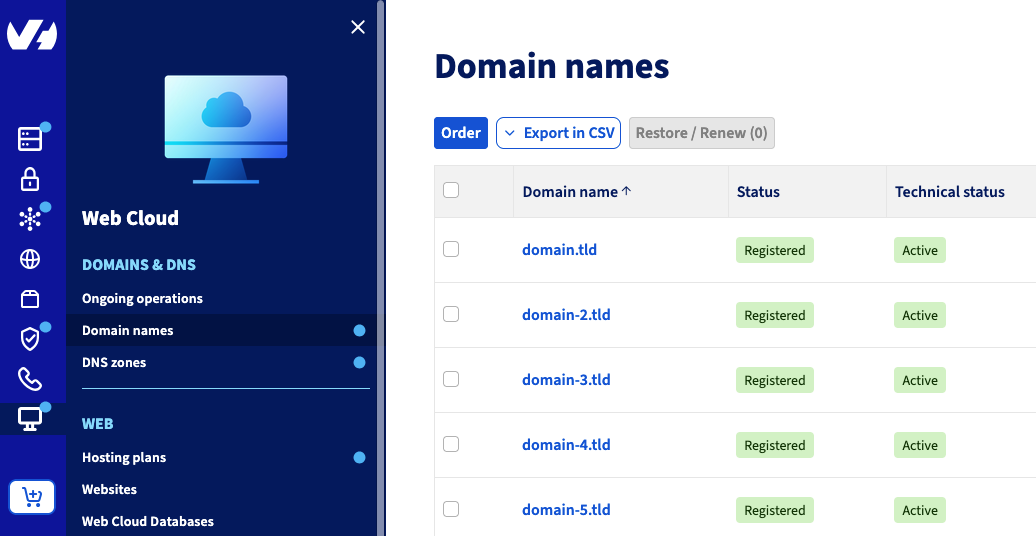
Go to the Domain names page, then select the domain name concerned.
**Step 2**
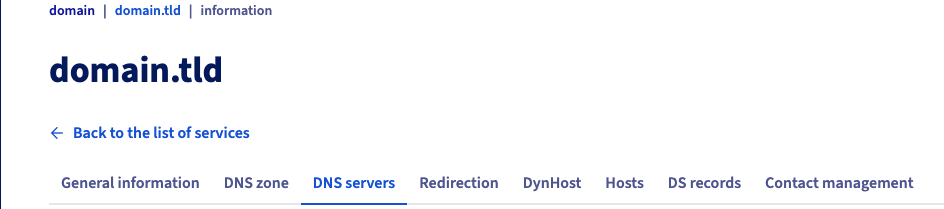
Once on the domain name concerned, select the DNS servers tab.
**Step 3**
In the right-hand column of the page that appears, click the Cancel Anycast DNS button.

**Step 4**
The page that appears sets out the purpose of the option, along with its automatic renewal date. Click the Cancel Anycast DNS button.
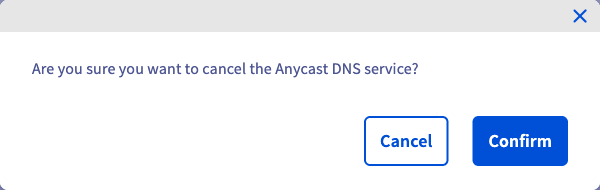
In the confirmation window that appears, click Confirm to cancel the Anycast DNS service.
Once the cancellation has been recorded, check it from your domain name's `General information
` tab: the **Configuration**
section shows the status of the Anycast DNS option, along with its effective date.
:::info
After the cancellation's effective date, your domain name no longer uses the Anycast DNS servers. Bear in mind the natural DNS propagation time, which can take up to 48 hours.
:::
## Go further
For specialised services (SEO, development, etc.), contact [OVHcloud partners](https://partner.ovhcloud.com/en-gb/directory/).
If you would like assistance using and configuring your OVHcloud solutions, please refer to our [support offers](https://www.ovhcloud.com/en-gb/support-levels/).
Join our [community of users](https://community.ovhcloud.com/).