---
title: "Web Cloud Databases - Modifying a user's rights"
description: "Find out how to modify a user's rights on your Web Cloud Databases solution"
url: https://docs.ovhcloud.com/en/guides/web-cloud/databases/db-modify-users-rights
lang: en
lastUpdated: 2026-03-24
---
# Web Cloud Databases - Modifying a user's rights
## Objective
The [Web Cloud Databases](https://www.ovhcloud.com/en-gb/web-cloud/databases/) solution can contain several databases. You can define one or more users for managing and using your databases. These users may have higher or lower rights depending on their roles in your databases.
While using the product, you may need to modify a user's rights on your [Web Cloud Databases](https://www.ovhcloud.com/en-gb/web-cloud/databases/).
**Find out how to modify a user's rights on your Web Cloud Databases solution.**
## Requirements
- A [Web Cloud Databases](https://www.ovhcloud.com/en-gb/web-cloud/databases/) solution and one or more users.
***
### OVHcloud Control Panel Access
- **Direct link:** Web Cloud Databases
- **Navigation path:** Web Cloud > Web Cloud Databases > Select your database service
***
## Instructions
:::info
To create a new user on your Web Cloud Databases solution, refer to the **Create a user** section of our guide "[Creating databases and users on your database server](/en/guides/web-cloud/databases/db-create-databases-users.md)".
:::
Click on the tabs below to view each of the **4** steps.
**Step 1**
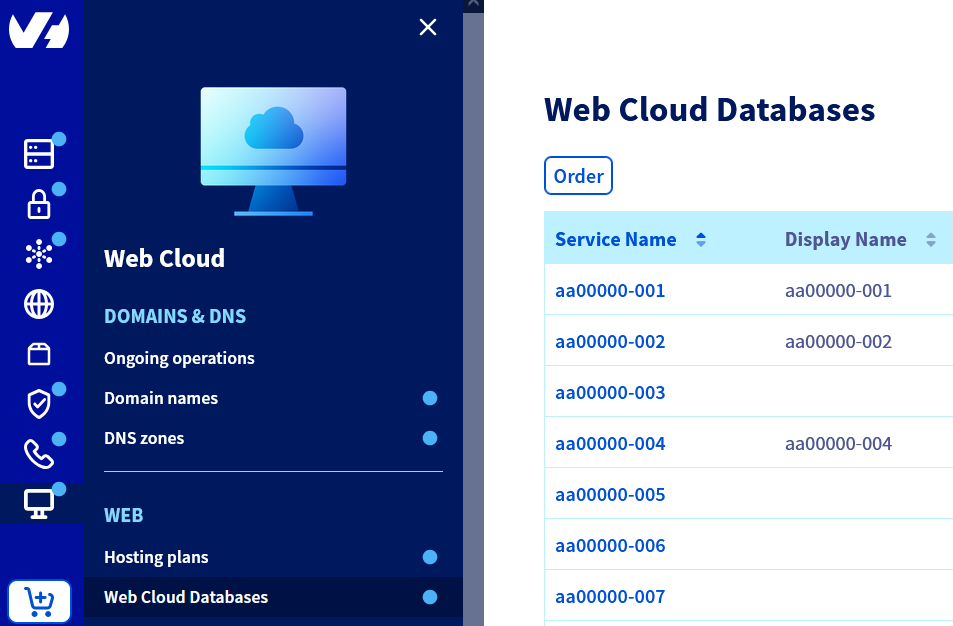
Go to the Web Cloud Databases page, then select the solution concerned.
**Step 2**
On the page that appears, click on the Users and rights tab.

**Step 3**
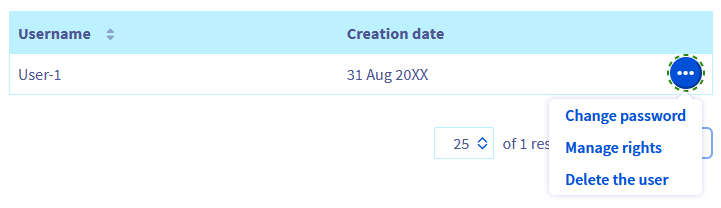
Click the ... button to the right of the user concerned, then click Manage rights.
**Step 4**
On the new page that appears, you will find a table listing all the databases on your Web Cloud Databases solution. This table shows all the rights your user has for each database on your Web Cloud Databases solution.
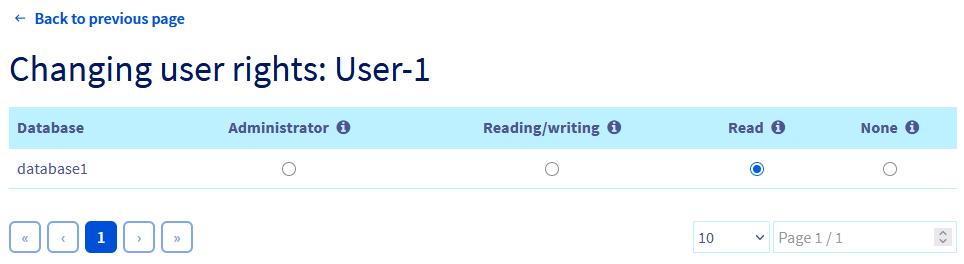This is where you can modify your user's rights for each of your databases. To do this, for each database concerned, simply click on the empty circles corresponding to the rights you want to redefine for your user. The change takes effect within moments.
Below is a summary table of the types of queries that can be performed on a database, depending on the rights assigned to the user:
| Rights | Administrator | Read / Write | Read | None |
| --- | --- | --- | --- | --- |
| Select | ✔ | ✔ | ✔ | |
| Insert | ✔ | ✔ | | |
| Update | ✔ | ✔ | | |
| Delete | ✔ | ✔ | | |
| Create | ✔ | | | |
| Alter | ✔ | | | |
| Drop | ✔ | | | |
## Go further
For specialised services (SEO, development, etc.), contact [OVHcloud partners](https://partner.ovhcloud.com/en-gb/directory/).
If you would like assistance using and configuring your OVHcloud solutions, please refer to our [support offers](https://www.ovhcloud.com/en-gb/support-levels/).
Join our [community of users](https://community.ovhcloud.com/).