---
title: "Getting started with MySQL and MariaDB"
description: "Using Your Databases"
url: https://docs.ovhcloud.com/en/guides/web-cloud/databases/db-getting-started-mysql-mariadb
lang: en
lastUpdated: 2026-06-08
---
# Getting started with MySQL and MariaDB
## Objective
Do you want to use MySQL or MariaDB for your databases?
### What is a MySQL database?
MySQL is a relational database management system developed for increased read performance, unlike other systems.
This is an open-source engine, whose parent company is Oracle.
### What is a MariaDB database?
MariaDB is a derivative (fork) of MySQL.
This engine is 100% compatible, and is "freer" than its sibling MySQL. All the bugs and roadmaps are freely accessible, unlike the Oracle version.
**Find out how to create and manage your MySQL or MariaDB databases**
## Requirements
- A [Web Cloud Databases instance](https://www.ovhcloud.com/en-gb/web-cloud/databases/) (included in a [Web Hosting](https://www.ovhcloud.com/en-gb/web-hosting/) Performance, Agency, Agency Plus or Agency Max plan).
- Access to the OVHcloud Control Panel.
- You need to have read the [Web Cloud Databases startup guide](/en/guides/web-cloud/databases/db-getting-started.md).
## Instructions
### Logging in to the database
:::info
Please note that this service does not give you access to the Host but to the databases hosted on the Host. Generic SQL commands work with no issues, and HeidiSQL or SQuirreL SQL software is fully compatible.
:::
:::info
As MariaDB is a fork of MySQL, the different commands are the same for the 2 types of database.
:::
To log in to your database, make sure that you have:
- The address of your Web Cloud Databases instance
- The port of your Web Cloud Databases instance
- The username of your Web Cloud Databases instance
- The password associated with the user
- The database name
All this information is available in the OVHcloud Control Panel
.
Please also read our guide on [getting started with the Web Cloud Databases service](/en/guides/web-cloud/databases/db-getting-started.md).
#### Connect via the command line
```bash
mysql --host=server --user=user --port=port --password=password database_name
```
#### Connect from a PHP script
```php
1.
```
#### Connect from software (SQuirreL SQL)
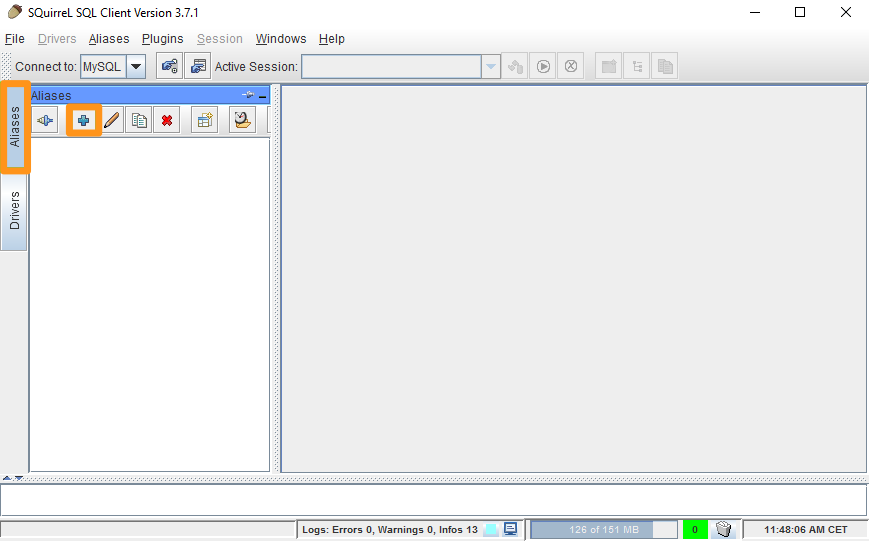
- Launch SQuirreL SQL and click on Aliases, then on +.
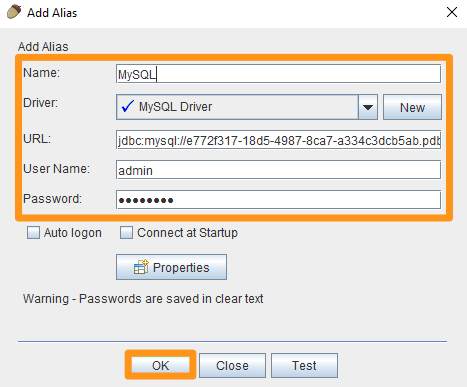
- Fill in the fields below and then confirm by clicking OK :
- **Name**: Choose a name
- **Driver**: Choose `PostgreSQL`
- **URL**: Enter the server address and port in the following form `jdbc:postgresql://server:port/database`
- **User Name**: Enter the username
- **Password**: Enter the password
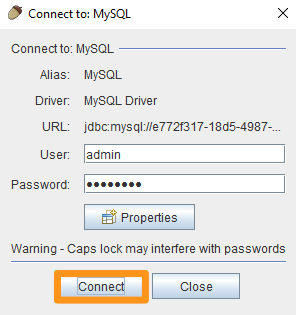
- Confirm again by clicking the button Connect.
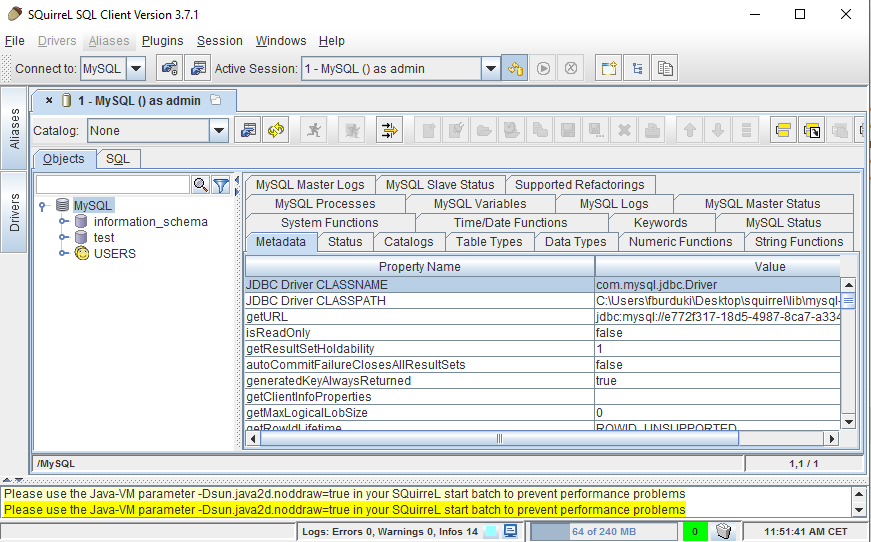
You will now be connected to your database:
#### Connecting via phpMyAdmin
You can use phpMyAdmin to explore the contents of your database. To do this, install phpMyAdmin on your own server or web hosting plan. During this installation, make sure that the information on your Web Cloud Databases server and the database you want are correctly configured so that phpMyAdmin can connect to it.
### Export and import a MySQL or MariaDB database
- **Export your database via the command line**
```bash
mysqldump --host=server --user=user --port=port --password=password database_name > database_name.sql
```
- **Import your database via the command line**
```bash
cat database_name.sql | mysql --host=server --user=user --port=port --password=password database_name
```
:::info
In some cases, the RAM available in your Web Cloud Databases instance may not be sufficient to perform the desired export or import. If this is the case, we recommend using the OVHcloud tool in the OVHcloud Control Panel. See the [Getting started with Web Cloud Databases service](/en/guides/web-cloud/databases/db-getting-started.md) documentation if necessary.
:::
## Go further
For specialised services (SEO, development, etc.), contact [OVHcloud partners](https://partner.ovhcloud.com/en-gb/directory/).
If you would like assistance using and configuring your OVHcloud solutions, please refer to our [support offers](https://www.ovhcloud.com/en-gb/support-levels/).
Join our [community of users](https://community.ovhcloud.com/).