---
title: "Getting started with a HA-NAS solution"
description: "Find out how to manage a HA-NAS via the OVHcloud Control Panel"
url: https://docs.ovhcloud.com/en/guides/storage-and-backup/file-storage/ha-nas/nas-get-started
lang: en
lastUpdated: 2021-09-16
---
# Getting started with a HA-NAS solution
## Objective
Network Attached Storage (NAS) is a file server connected to a network whose main function is the storing of data in a centralised volume for heterogeneous network clients.
## Requirements
- An IP address attached to an OVHcloud service (Hosted Private Cloud, Dedicated Server, VPS, Public Cloud instance, etc.)
- A [HA-NAS solution](https://www.ovhcloud.com/en-gb/storage-solutions/nas-ha/)
***
### OVHcloud Control Panel Access
- **Direct link:** NAS-HA
- **Navigation path:** Bare Metal Cloud > HA-NAS > Select your NAS-HA
***
## Instructions
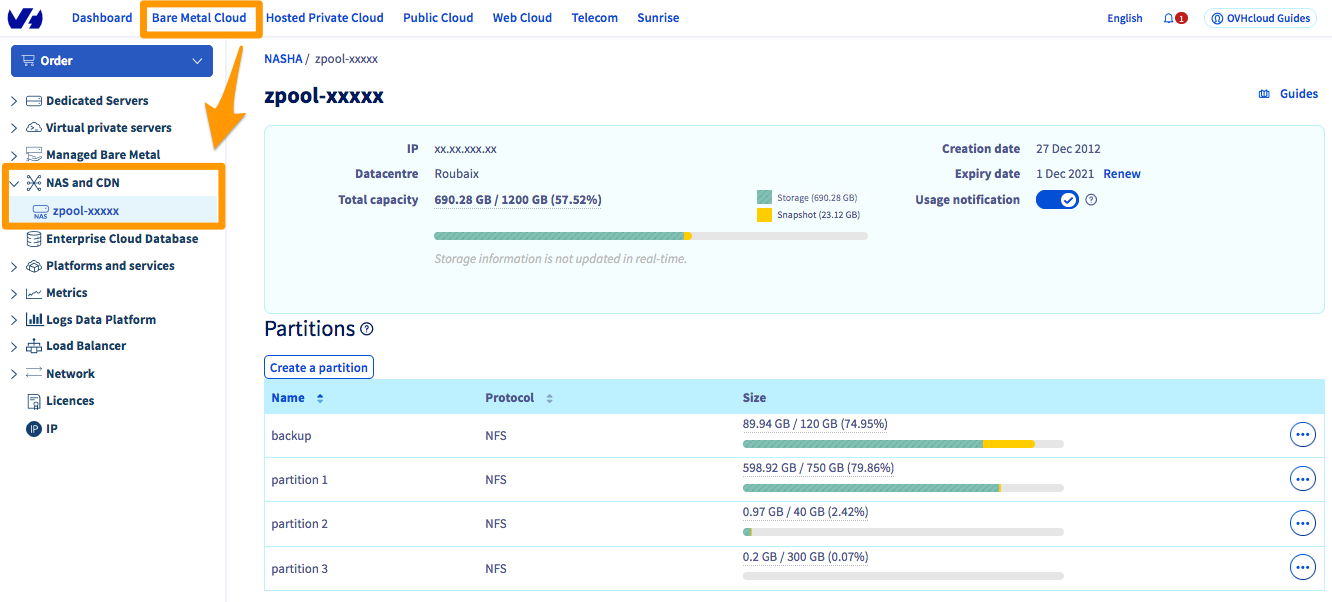
Click on your service to access the administration menu.
### Creating a partition [](#)
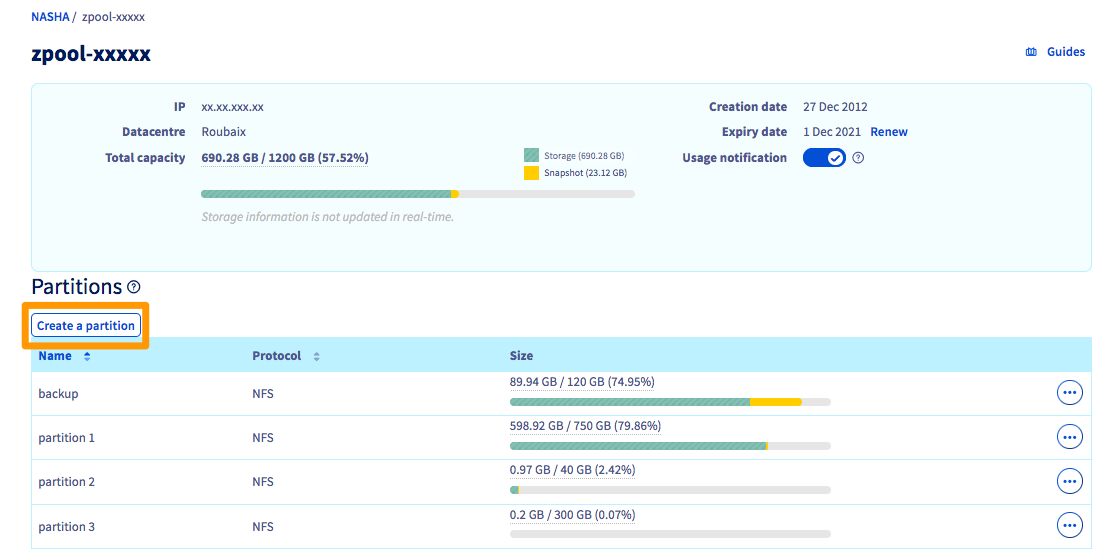
To add a new partition, click `Create a partition
`.
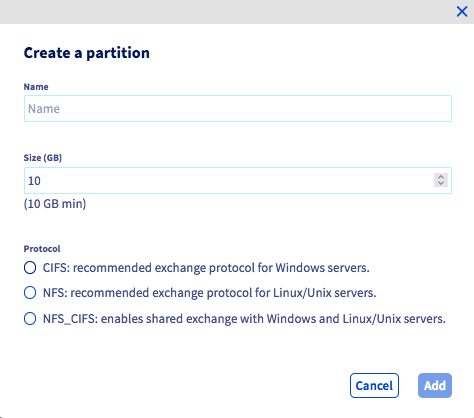
Simply enter your partition **name**, partition **size**, and authorised **protocol** (NFS or CIFS).
### Modifying the size of a partition
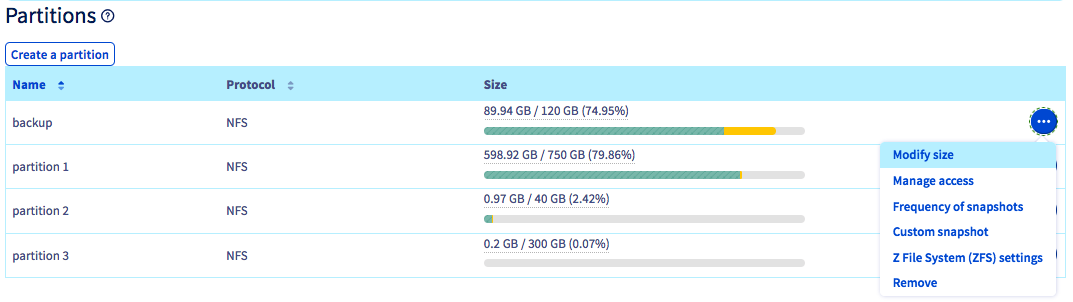
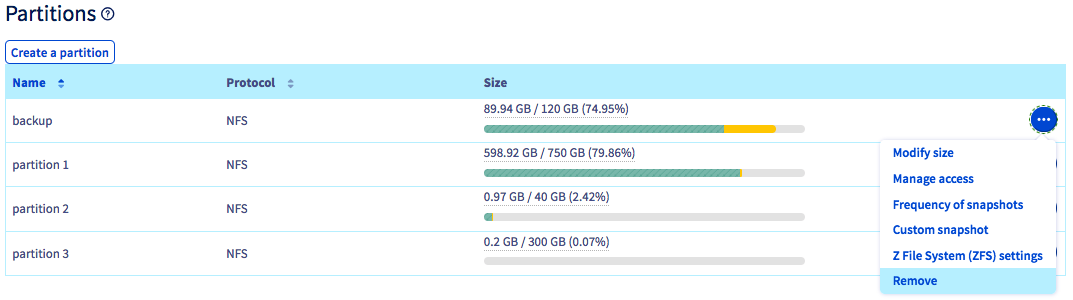
To change the size of a partition, click on the `...
` button to the right of the partition concerned, then `Modify size
`.
Enter the new size, then confirm.
### Change the frequency of snapshots
By default, a snapshot of your NAS content takes place every hour, and is saved on your NAS.
However, you can create up to 3 additional snapshots at different frequencies if you wish, which will also be saved on your NAS.
To do this, click the `...
` button to the right of the partition concerned, then click `Frequency of snapshots
`.
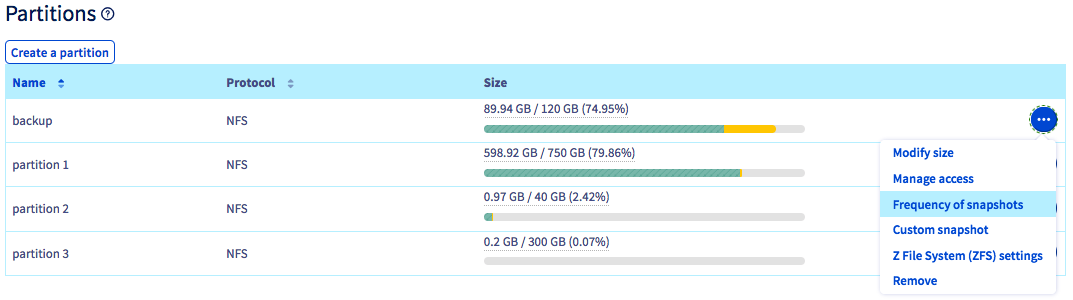
Select the new frequency, then confirm.
### Creating an instant snapshot
Apart from the snapshots taken automatically, you can create an instant snapshot of a partition at any time by clicking on the `...
` button to the right of the partition, then on `Custom snapshot
`.
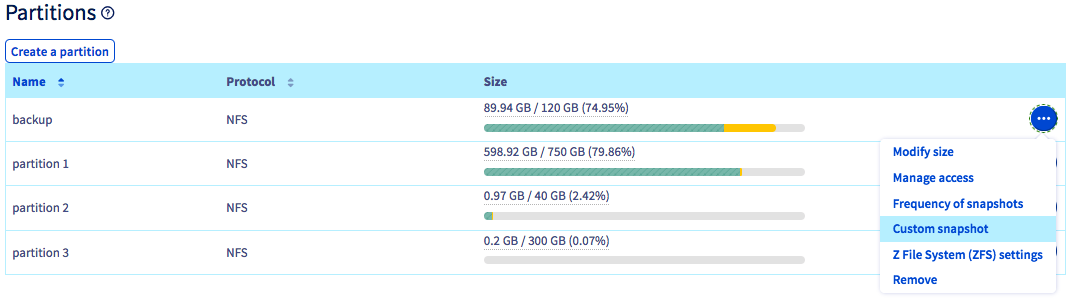
Name the snapshot and click `Add
`.
### Adding an access [](#)
In order to access the partition you created earlier, you will need to configure access.
:::info
Only OVHcloud service IP addresses can access your NAS (e.g. a dedicated server, a VPS, a Public Cloud instance, etc.).
:::
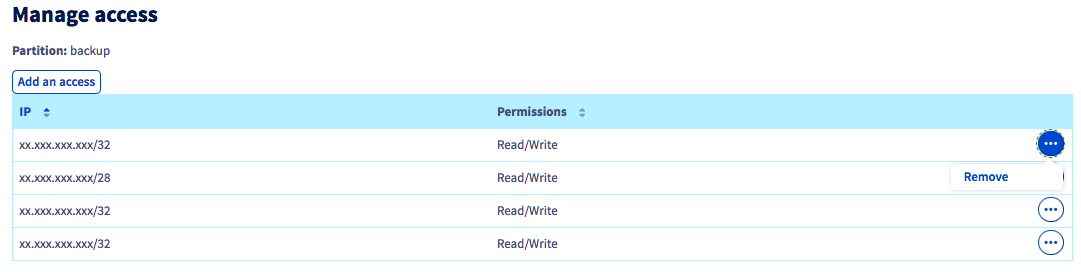
To authorise an IP to access the NAS, click on the `...
` button to the right of the existing partition, then on `Manage access
`.
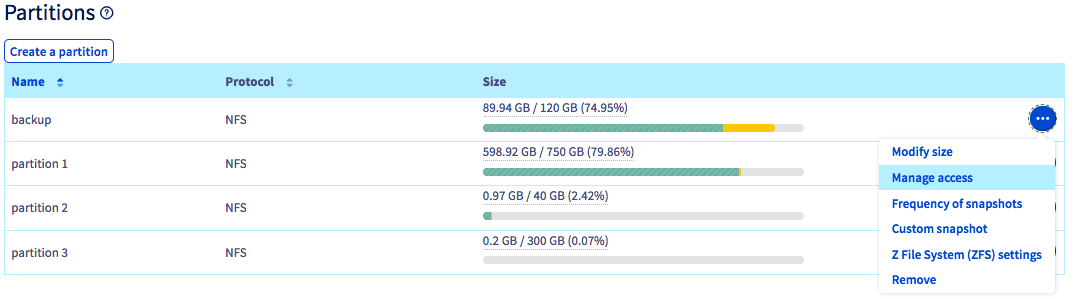
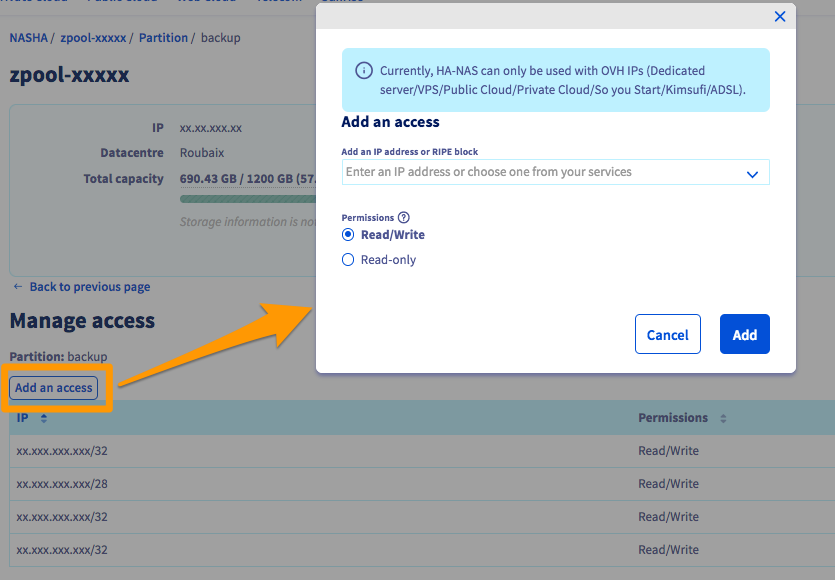
Then click `Add an access
`, and select the IP address of your OVHcloud product.
You must also define whether the authorised access for this IP address is read-only or read/write.
#### Deleting an access
To remove access to a partition, click on the `...
` button to the right of the IP address concerned, then `Delete
`.
### ZFS settings
:::warning
All the default Z File System settings are optimised. Though we do not recommend changing those settings, this menu does allow you to adjust the ZFS that the HA-NAS is using.
:::
To change the ZFS settings of a partition, click on the `...
` button to the right of the partition concerned, then `Z File System (ZFS) settings
`.
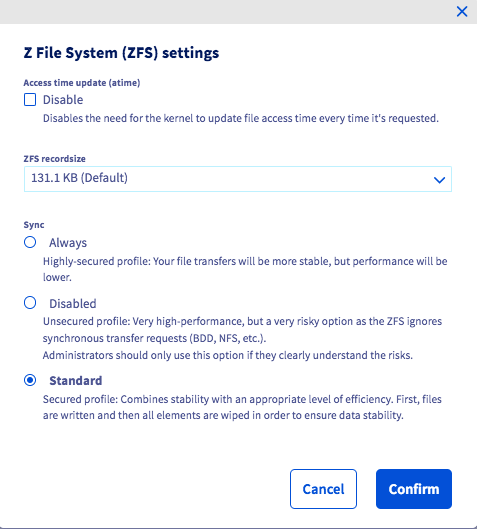
- **Disabling access time update (atime)**: Disabling _atime_ means the kernel will no longer update the file system timestamp each time a file is accessed. This can be useful to speed up frequent read operations, for example on static web pages. However, it should not be enabled for consistency-critical applications such as databases.
- **ZFS recordsize**: This property changes the maximum block size on the ZFS filesystem. Please note that ZFS will still use a smaller block size if the file is smaller than the maximum. For example, a 16 KB file will use a 16 KB block (plus metadata) to not waste storage space. We generally advise against changing ZFS _recordsize_ for this reason.
- **Sync**: This changes the behaviour of ZFS filesystem transactions with regard to RAM data buffering and writing data to disk. We do not recommend changing this property without an appropriate reason.
### Deleting a partition
:::danger
Deleting a partition deletes all of the data stored on it permanently.
:::
To delete a partition, click on the `...
` button to the right of the existing partition, then `Delete
`.
## Go further
If you need training or technical assistance to implement our solutions, contact your sales representative or click on [this link](https://www.ovhcloud.com/en-gb/professional-services/) to get a quote and ask our Professional Services experts for assisting you on your specific use case of your project.
Join our [community of users](https://community.ovhcloud.com/).