---
title: "Backup Agent - Linux CLI Assistant"
description: "Find out how to use the ovh-ba-install.sh script provided by OVHcloud to install and manage the Veeam backup agent on your Linux server"
url: https://docs.ovhcloud.com/en/guides/storage-and-backup/backup-agent/linux-cli-assistant
lang: en
lastUpdated: 2026-04-21
---
# Backup Agent - Linux CLI Assistant
## Objective
**This guide explains how to use the `ovh-ba-install.sh` script provided by OVHcloud to install and manage the Veeam backup agent on your Linux server.**
You will learn how to retrieve the installation URLs, run the installation in a single command, navigate the CLI assistant menu, and use the diagnostic tools.
## Requirements
- An active Backup Agent service.
***
### OVHcloud Control Panel Access
- **Direct link:** Backup Agent
- **Navigation path:** Bare Metal Cloud > Backup Agent
***
### On the server
| Item | Detail |
| -------------- | ----------------------------------------------------------------------------------------------------------------------------------------------------------------------------------------------------------------------------------------------------------------------------- |
| **OS** | Linux **compatible** with Veeam Agent for Linux (see the [Veeam system requirements](https://helpcenter.veeam.com/docs/agentforlinux/userguide/system_requirements.html?ver=13) and [Backup Agent restrictions](/en/guides/storage-and-backup/backup-agent/restrictions.md)). |
| **Privileges** | **Administrator** access: installation commands generally use **`sudo`**. |
| **Network** | The server must be able to **download** the script and agent package (HTTPS) and **reach** the backup gateway VSPC (Veeam Service Provider Console) according to your offer's rules. |
| **Terminal** | An **SSH** session or server console, interactive for the menu. |
### Minimal vocabulary
| Command | Role |
| ---------- | ------------------------------------------------------------------- |
| **`curl`** | Program that **downloads** a file from a web address (`https://…`). |
| **`sudo`** | "As administrator" — required to install system software. |
| **`bash`** | Shell that **runs** the script you give it. |
## Instructions
### Overview of the ovh-ba-install.sh script
The **`ovh-ba-install.sh`** script is a **command-line assistant** that lets you:
- **Install** the Veeam **Management Agent** using the package URL from your Control Panel;
- **Install** the global **`ovhbackupagent`** command on the server so you can open the same menu at any time (`sudo ovhbackupagent`);
- **Show** a text menu: agent status, Veeam interface, diagnostics, help;
- **Diagnose** issues (connection to the infrastructure, logs, archive for support);
- **Uninstall** Veeam packages and, if you wish, the **`ovhbackupagent`** shortcut (**Uninstall Wizard**).
:::warning
The script **simplifies installation and day-to-day monitoring** on the machine; it does not replace configuring your backups in the Veeam Agent interface. **Cancelling the service** is done in the **OVHcloud Control Panel**, not through this script.
:::
### Installation
#### Step 1 — Retrieve the installation URLs
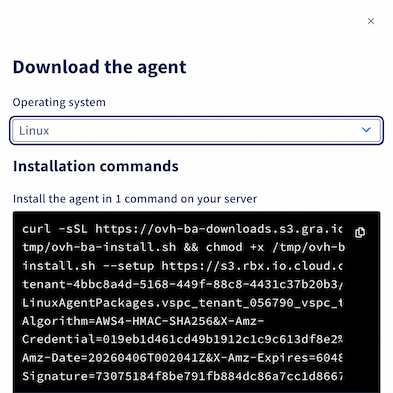
In the OVHcloud Control Panel, open your Backup Agent
, go to the `Agents
` tab, then click the `Download
` button. In the window that opens, select **Linux**
to display the command containing both URLs (script and Linux package).
:::info
Copy and paste each URL separately into a text file before connecting over SSH.
:::
#### Step 2 — Connect to the server
Connect to the server over SSH with a user allowed to use `sudo`.
```bash
ssh @
```
#### Step 3 — Run the installation
Replace `SCRIPT_URL` (in 2 places) and `AGENT_PACKAGE_URL` in the command below with your URLs, then run it.
```bash
curl -sSL "SCRIPT_URL" | sudo bash -s -- --setup "AGENT_PACKAGE_URL" --script-url "SCRIPT_URL"
```
Example:
```bash
curl -sSL "https://ovh-ba-downloads.s3.xxx.xxx/tmp/ovh-ba-install.sh" | sudo bash -s -- --setup "https://s3.xxx.xxx.cloud.ovh.net/xxxx/LinuxAgentPackages.vspc_tenant_xxxx.sh?X-Amz-Algorithm=xxx&X-Amz-Credential=xxx&X-Amz-Date=2xxx&X-Amz-Expires=xxx&X-Amz-SignedHeaders=xxx&X-Amz-Signature=xxx" --script-url "https://ovh-ba-downloads.s3.xxx.xxx/tmp/ovh-ba-install.sh"
```
#### Step 4 — Welcome screen
Read the introduction, then press **Enter** to start the installation.
```console
▗▄▖ ▗▖ ▗▖▗▖ ▗▖ ▗▄▄▖▗▖ ▗▄▖ ▗▖ ▗▖▗▄▄▄ ▗▖ ▗▖ ▗▖ ▗▖▗▄▄▄▖▗▄▄▄▖ ▗▄▖ ▗▖ ▗▖
▐▌ ▐▌▐▌ ▐▌▐▌ ▐▌▐▌ ▐▌ ▐▌ ▐▌▐▌ ▐▌▐▌ █ ▝▚▞▘ ▐▌ ▐▌▐▌ ▐▌ ▐▌ ▐▌▐▛▚▞▜▌
▐▌ ▐▌▐▌ ▐▌▐▛▀▜▌▐▌ ▐▌ ▐▌ ▐▌▐▌ ▐▌▐▌ █ ▐▌ ▐▌ ▐▌▐▛▀▀▘▐▛▀▀▘▐▛▀▜▌▐▌ ▐▌
▝▚▄▞▘ ▝▚▞▘ ▐▌ ▐▌▝▚▄▄▖▐▙▄▄▖▝▚▄▞▘▝▚▄▞▘▐▙▄▄▀ ▗▞▘▝▚▖ ▝▚▞▘ ▐▙▄▄▖▐▙▄▄▖▐▌ ▐▌▐▌ ▐▌
Backup Agent — CLI Assistant
─────────────────────────────────────
Backup Agent — guided first-time setup
This setup will, in order:
1) Install the **Veeam Management Agent** from the link you were given.
2) Install the **ovhbackupagent** command on this server (under /usr/local/bin).
That command is your permanent shortcut to this menu — you will not need
to download this script again for everyday use.
3) Show an installation summary, wait 15 seconds, then open **Agent status** to follow Backup Agent deployment.
The Veeam Backup Agent itself is deployed by our infrastructure after the
Management Agent connects; that step can take a few minutes.
Press Enter to start the installation, or Ctrl+C to cancel...
```
#### Step 5 — Installation in progress
Wait for the Veeam steps to finish; the script then installs the **`ovhbackupagent`** command.
#### Step 6 — Summary and agent status
Review the **summary** displayed for **15 seconds**, then watch the **Agent status** screen. The **Backup Agent** may appear after a few minutes (infrastructure-side deployment).
```console
Installation summary
[OK] The Management Agent was installed successfully.
[OK] The **ovhbackupagent** command is now available (example: sudo ovhbackupagent).
[Info] The **Backup Agent** will be deployed shortly by our infrastructure (often within a few minutes).
Next, the **Agent status** screen opens so you can follow **`veeamconsoleconfig -s`** until the Backup Agent appears.
Main menu - reminder (available again after Agent status)
**A** - Agent status: Management / Backup Agent state (this screen refreshes every few seconds).
**V** - Open the Veeam UI on the server (once the Backup Agent is installed).
**D** - Diagnostics: VSPC connectivity test, support bundle, log issue analyzer, force-stop stuck jobs.
**I** - Install or reinstall a Management Agent package from a file or URL (advanced).
**U** - Uninstall Veeam agent packages from this server (with confirmations).
**H** - Help and README.
**Q** - Exit the assistant.
[Info] Waiting 15 seconds, then opening Agent status...
```
After 15 seconds, the **Agent status** screen opens automatically:
```console
Agent status (veeamconsoleconfig -s)
[Info] Retrieving Veeam status (up to 45s right after install)...
Management agent
Connection state : Connected
Cloud gateway : vspc-cgw1.prod01.eu-west-rbx.backup.ovhcloud.com:6180
Connection account : vspc-tenant-604276/vspc-tenant-cc1-604276
Backup agent
Version : 13.0.1.404
Driver version : 13.0.1.404
Status : Running
Your agents are running well.
Auto-refresh in 5s... Press Enter to return to menu.
```
Press **Enter** to access the **main menu**.
### Reopening the assistant
To open the assistant again later:
```bash
sudo ovhbackupagent
```
If the command is not found, try `sudo /usr/local/bin/ovhbackupagent` or check that `/usr/local/bin` is in your `PATH`.
### Main menu
```console
▗▄▖ ▗▖ ▗▖▗▖ ▗▖ ▗▄▄▖▗▖ ▗▄▖ ▗▖ ▗▖▗▄▄▄ ▗▖ ▗▖ ▗▖ ▗▖▗▄▄▄▖▗▄▄▄▖ ▗▄▖ ▗▖ ▗▖
▐▌ ▐▌▐▌ ▐▌▐▌ ▐▌▐▌ ▐▌ ▐▌ ▐▌▐▌ ▐▌▐▌ █ ▝▚▞▘ ▐▌ ▐▌▐▌ ▐▌ ▐▌ ▐▌▐▛▚▞▜▌
▐▌ ▐▌▐▌ ▐▌▐▛▀▜▌▐▌ ▐▌ ▐▌ ▐▌▐▌ ▐▌▐▌ █ ▐▌ ▐▌ ▐▌▐▛▀▀▘▐▛▀▀▘▐▛▀▜▌▐▌ ▐▌
▝▚▄▞▘ ▝▚▞▘ ▐▌ ▐▌▝▚▄▄▖▐▙▄▄▖▝▚▄▞▘▝▚▄▞▘▐▙▄▄▀ ▗▞▘▝▚▖ ▝▚▞▘ ▐▙▄▄▖▐▙▄▄▖▐▌ ▐▌▐▌ ▐▌
Backup Agent — CLI Assistant
─────────────────────────────────────
┌──────────────────────────────────────────────────────────────────────────┐
Management Agent: OK Backup Agent: OK Last backup: N/A
└──────────────────────────────────────────────────────────────────────────┘
A Agent status (veeamconsoleconfig -s)
V Open Veeam interface (veeam command)
D Diagnostic (test connection, support bundle, issue analyzer, job force stop)
I Install Management Agent (only if you want to reinstall it)
U Uninstall Wizard
H Help / README
Q Quit
Your choice (A/V/D/I/U/H/Q):
```
The status line at the top of the menu shows **OK/KO** for **Management** (`veeamma`) and **Backup** (`veeam`, `veeam-libs`) packages, plus an indicator related to the last backup job.
| Key | Action |
| ----- | ------------------------------------------------------------------------------------------------------------ |
| **A** | Agent status (automatic refresh). |
| **V** | Open the Veeam interface on the server to manage your backups and restores (once the Backup Agent is ready). |
| **D** | **Diagnostic** submenu: VSPC test, support archive, log analysis, force-stop of a stuck backup. |
| **I** | Reinstall the Management Agent from a file or URL (advanced). |
| **U** | **Uninstall Wizard**: uninstall Veeam packages + optional removal of **`ovhbackupagent`**. |
| **H** | Built-in help / README. |
| **Q** | Quit. |
### Troubleshooting and diagnostics
| Keys | Action |
| -------------------- | ------------------------------------------------------------------------------------- |
| **`D`** then **`T`** | Connectivity test to the VSPC gateway. |
| **`D`** then **`B`** | Generate an **archive** (logs + system information) to send to support. |
| **`D`** then **`I`** | **Analysis** of known messages in the logs (`agent.log`, `veeaminstaller.log`, etc.). |
| **`D`** then **`J`** | **Force-stop** tool for a backup session (use with care). |
For advanced diagnostics, see our [Backup Agent troubleshooting guide](/en/guides/storage-and-backup/backup-agent/troubleshooting.md).
### Uninstall Wizard (key **U**)
- Removes your agent according to your OS family (**yum/dnf**, **zypper**, **apt-get**).
- Optional prompt to remove **`/usr/local/bin/ovhbackupagent`** and the associated README.
:::warning
Uninstalling the agents **does not cancel** your Backup Agent subscription. The service remains active with OVHcloud until you cancel it in the **Control Panel**. You can **reinstall** the agents later from your backup interface.
:::
## FAQ
**Can I run the script without `sudo`?**\
No: system-level actions are required and need administrator privileges (`sudo`).
**The menu exits immediately after a piped install — what to do?**\
Reopen it with `sudo ovhbackupagent`.
**Where is the script once installed as a command?**\
Usually **`/usr/local/bin/ovhbackupagent`**.
**The agents are already installed, how do I install only the assistant?**\
Use `sudo bash ovh-ba-install.sh --setup-local`.
**I downloaded the script again, what happens if I run it with no arguments?**\
A short welcome screen checks whether **`ovhbackupagent`** is still present and whether the Backup Agent is detected, then can offer to reinstall only the shortcut.
**How do I display the built-in help?**\
Use `sudo bash ovh-ba-install.sh --readme`.
## Go further
Once your agents are up and running, configure your backups through the Veeam Agent interface on the server (key **`V`** in the assistant).
- [Configure your first backup](/en/guides/storage-and-backup/backup-agent/first-configuration.md)
- [Manage your backups and restores](/en/guides/storage-and-backup/backup-agent/backup-restore.md)
- [Troubleshooting guide](/en/guides/storage-and-backup/backup-agent/troubleshooting.md)
Join our [community of users](https://community.ovhcloud.com/).