---
title: "Configuring vRack for Public Cloud"
description: "Learn how to activate a vRack, create a private network, and add Public Cloud instances to your private network using the OVHcloud Control Panel, API, or CLI."
url: https://docs.ovhcloud.com/en/guides/public-cloud/network-services/vrack
lang: en
lastUpdated: 2026-06-10
---
# Configuring vRack for Public Cloud
## Objective
The OVHcloud [vRack](https://www.ovhcloud.com/en-gb/network/vrack/) is a private network solution that enables our customers to route traffic between OVHcloud dedicated servers as well as other OVHcloud services. At the same time, it allows you to add [Public Cloud instances](https://www.ovhcloud.com/en-gb/public-cloud/compute/) to your private network to create an infrastructure of physical and virtual resources.
**This guide explains how to configure Public Cloud instances within your vRack.**
## Requirements
- A [Public Cloud project](/en/guides/public-cloud/cross-functional/create-a-public-cloud-project.md) in your OVHcloud account
- An [OpenStack user](/en/guides/public-cloud/cross-functional/create-and-delete-a-user.md) (optional)
- Basic networking knowledge
***
### OVHcloud Control Panel Access
- **Direct link:** Public Cloud Projects
- **Navigation path:** Public Cloud > Select your project
***
## Interfaces
Creating a vRack or adding an instance into the network can be done using the OVHcloud Control Panel, the OVHcloud APIv6, the OpenStack API, the Horizon interface, the OVHcloud CLI or Terraform.
Choose the interface or method that best suits your technical profile and needs. For each option, the guide instructions below describe the necessary steps.
**The sections below describe the available actions for each interface/method.**
[](#)
OVHcloud Control Panel
The OVHcloud Control Panel is a fully visual interface, ideally suited for managing multiple VLANs. You can also customise the private IP range, which by default is in 10.1.0.0/16.
The VLAN is deployed to the selected Region. You can also activate or deactivate gateways, enable DHCP distributions, etc.
You can also manage billing for your services in the OVHcloud Control Panel.
Horizon
The [Horizon](https://horizon.cloud.ovh.net/auth/login/) interface (independent from OVHcloud) is the original implementation of the OpenStack dashboard, which provides a web user interface to OpenStack services, including Nova, Swift, Keystone, etc.
This interface lets you manage almost all OpenStack actions. Use it if you need to manage more than 2 VLANs, add private network interfaces to your instances, manage custom images, etc.
See the [Introducing Horizon](/en/guides/public-cloud/cross-functional/introducing-horizon.md) guide to familiarise yourself with Horizon.
:::info
Horizon functions zone-specific, therefore you need to remember to choose your logical (geographic) work zone at the top left of your interface (GRA5, SBG3, BHS1, etc.).
:::
OVHcloud APIv6
Every action available in your OVHcloud Control Panel can also be performed via the [OVHcloud APIv6](https://eu.api.ovh.com/).
It even offers more possibilities than the graphical interface.
The API interface is less visual than the OVHcloud Control Panel but will allow you to perform a large number of actions. You can manage and customise your VLAN, add interfaces to your instances, or create highly customised servers.
You can access it from [our web page](https://eu.api.ovh.com/) but also use it to create your PHP or Python scripts.
This way, you can freely automate basic tasks with scripts, optimise your own functions and much more.
Some API calls require specific input — retrieve the necessary information beforehand.
See the [First steps with the OVHcloud API](/en/guides/manage-and-operate/api/first-steps.md) guide to get started with the OVHcloud APIv6.
OpenStack API
Public Cloud services can be administrated using Linux or Windows command lines after downloading and installing OpenStack tools.
This method requires a good knowledge of Linux or Windows to take advantage of it, but it allows you to leverage all the power of OpenStack.
Depending on the layer you want to manage, you will need to use the Nova (compute), Neutron (network), Glance (image) or Swift (Object Storage) client. The OpenStack client, the latest addition, lets you manage almost all OpenStack layers directly.
With the OpenStack API, you can also easily automate this management through your scripts.
For more information about the OpenStack API, see:
- [Preparing an environment for using the OpenStack API](/en/guides/public-cloud/cross-functional/compute-prepare-openstack-api-environment.md)
- [Setting OpenStack environment variables](/en/guides/public-cloud/cross-functional/compute-set-openstack-environment-variables.md)
You can then use the OpenStack APIs as needed:
- Nova (compute)
- Glance (image)
- Cinder (image)
- Neutron (network)
:::info
In some cases, the OpenStack APIs are easier; in others, use Nova, Neutron, etc. directly.
Moreover, some features may be missing from the OpenStack API depending on the version of your client and operating system.
This guide presents the simplest and most intuitive options.
See the [official OpenStack documentation](https://docs.openstack.org/) to learn more.
:::
OpenStack CLI
You can manage your OVHcloud Public Cloud services and vRacks directly from your Linux or Windows terminal using the OpenStack CLI.
This interface allows you to manage all OpenStack layers:
- Nova: instances (compute)
- Neutron: networks
- Glance: images
- Cinder: volumes
The CLI centralizes these features and can be integrated into your scripts to automate your tasks.
Before you begin, see:
- [Prepare the environment for using the OpenStack API](/en/guides/public-cloud/cross-functional/compute-prepare-openstack-api-environment.md)
- [Load OpenStack environment variables](/en/guides/public-cloud/cross-functional/compute-set-openstack-environment-variables.md)
:::info
The OpenStack CLI is useful for managing your vRack, but some functions may vary depending on the version of the client or operating system. Please refer to the [official OpenStack documentation](https://docs.openstack.org/).
:::
Terraform
Terraform can also be used to manage OVHcloud infrastructures.
You need to select the correct Terraform provider and resource. Find more information in our guide on [using Terraform with OVHcloud](/en/guides/manage-and-operate/terraform/at-ovhcloud.md).
## Instructions
### Step 1: Activating and managing a vRack [](#)
:::warning
The vRack is managed at the OVHcloud infrastructure level, which means that you can only administer it in your OVHcloud Control Panel and the OVHcloud APIv6.
:::
**Via the OVHcloud Control Panel**
:::info
This does not apply to newly created projects which are now automatically delivered with a vRack. To view the vRack once the project has been created, go to the Network section and click on vRack private network to view the vRack(s).
:::
If you have an older project without a vRack, you need to order one. The vRack itself is free and delivered within a few minutes.
In the left-hand menu, click Add a service (shopping cart icon). Use the filter at the top of the page or scroll down to find the service vRack.
You will be redirected to another page to validate the order, it will take a few minutes for the vRack to be setup in your account.
Once active, find it in your Control Panel under the Network section > vRack private network, labelled "pn-xxxxxx".
Click on your vRack, then select the project you want to add to the vRack from the list of eligible services and click the Add button.
To continue configuring your vRack from the OVHcloud Control Panel, go to [Step 2: Create a private network in the vRack](#create-pn-in-vrack), under the **Via the OVHcloud Control Panel** tab.
**Via the OVHcloud APIv6**
**Step 1: Activating and managing a vRack**
Log in to the OVHcloud APIv6 interface according to the relevant guide ([First steps with the OVHcloud API](/en/guides/manage-and-operate/api/first-steps.md)) and follow these steps:
**Creating the cart**
🇪🇺EU▾
[POST/order/cart](https://eu.api.ovh.com/console/?section=/order&branch=v1#post-/order/cart)
:::info
This call creates an ID for your shopping cart. You can add as many articles as you want before you validate it.
In this case, the order of a vRack alone is free. Remember your cart number (cartId), it will be required for the rest.
:::
**Retrieving the necessary information for the vRack order**
🇪🇺EU▾
[GET/order/cart/{cartId}/vrack](https://eu.api.ovh.com/console/?section=/order&branch=v1#get-/order/cart/-cartId-/vrack)
:::info
This call will allow you to retrieve all the information needed to order the vRack. Copy the following:
_cartId_, _duration_, _planCode_, and _pricingMode_.
:::
**Adding the vRack to the cart**
🇪🇺EU▾
[POST/order/cart/{cartId}/vrack](https://eu.api.ovh.com/console/?section=/order&branch=v1#post-/order/cart/-cartId-/vrack)
:::info
This call adds the vRack to the cart with the required information.
For a vRack, this would be, for example:
cartId: \[your cart identifier]
duration: "P1M"
planCode: "vrack"
pricingMode: "default"
quantity: 1
:::
Once the order is validated, you receive an item number ("itemId"). Keep it in case you need to make changes before validating the cart.
**Validating the cart**
Once all items are in your cart, validate it:
🇪🇺EU▾
[POST/order/cart/{cartId}/checkout](https://eu.api.ovh.com/console/?section=/order&branch=v1#post-/order/cart/-cartId-/checkout)
:::info
This call will validate the cart and create a purchase order ("orderId"). Keep this information, it will be necessary to validate the order.
:::
**Validating the final order**
To validate the order, choose from 2 options:
- Pass through the visible URL when the cart is validated.
URL example: [https://www.ovh.com/cgi-bin/order/displayOrder.cgi?orderId=12345678\&orderPassword=xxxxxxxxxx](https://www.ovh.com/cgi-bin/order/displayOrder.cgi?orderId=12345678\&orderPassword=xxxxxxxxxx)
- Validate using this call:
🇪🇺EU▾
[POST/me/order/{orderId}/payWithRegisteredPaymentMean](https://eu.api.ovh.com/console/?section=/me&branch=v1#post-/me/order/-orderId-/payWithRegisteredPaymentMean)
:::info
Even for a €0 purchase order, you must simulate payment (orderId). Your order is then validated and processing begins.
:::
Once the free order has been validated, it may take a few minutes for the vRack to be activated.
**Step 2: Adding your Public Cloud project to the vRack**
Once the vRack is active, integrate your Public Cloud project(s) into it.
Log in to the OVHcloud APIv6 interface according to the relevant guide: [First steps with the OVHcloud API](/en/guides/manage-and-operate/api/first-steps.md).
In case the project ID is unknown, the calls below allow you to retrieve it.
**Identifying the project**
🇪🇺EU▾
[GET/cloud/project](https://eu.api.ovh.com/console/?section=/cloud&branch=v1#get-/cloud/project)
:::info
This call retrieves the list of projects.
:::
🇪🇺EU▾
[GET/cloud/project/{serviceName}](https://eu.api.ovh.com/console/?section=/cloud&branch=v1#get-/cloud/project/-serviceName-)
:::info
This call identifies the project via the "description" field.
:::
**Adding the project to the vRack**
Once the project ID and the vRack name are known, their association is made through the following call:
🇪🇺EU▾
[POST/vrack/{serviceName}/cloudProject](https://eu.api.ovh.com/console/?section=/vrack&branch=v1#post-/vrack/-serviceName-/cloudProject)
Fill in the fields with the information previously retrieved:
- **serviceName**: vRack name in the form "pn-xxxxxx".
- **project**: The Public Cloud project ID in the form of a 32-character string.
:::info
This call initializes the association of the project and the vRack. The task ID must then be retrieved to check the progress.
:::
**Checking the progress of the task**
You can view the progress of the task with this call:
🇪🇺EU▾
[GET/vrack/{serviceName}/cloudProject/{project}](https://eu.api.ovh.com/console/?section=/vrack&branch=v1#get-/vrack/-serviceName-/cloudProject/-project-)
:::info
This call is optional and only allows you to check the status of the task. Once it is complete, you can proceed to the next step.
:::
### Step 2: Creating a private network in the vRack [](#)
Create a private network with a VLAN (virtual local area network) so that connected instances can communicate with each other.
With the Public Cloud service, you can create up to 4 000 VLANs within one vRack. This means that you can use each private IP address up to 4 000 times.
Thus, for example, 192.168.0.10 of VLAN 2 is different from IP 192.168.0.10 of VLAN 42.
This is useful to segment your vRack across multiple virtual networks.
From the OVHcloud Control Panel and OVHcloud APIv6, you can customise all settings: deployment mode and region, VLAN name and ID, private IP address range (e.g. 10.0.0.0/16), DHCP, and gateway.
:::info
On dedicated servers, you are using VLAN 0 by default. The OpenStack infrastructure requires to specify your VLAN ID directly at the infrastructure level.
Unlike dedicated servers, there is no need to tag a VLAN directly on a Public Cloud instance.
To learn more about this topic, please refer to the guide "[Creating multiple vLANs in a vRack](/en/guides/bare-metal-cloud/dedicated-servers/creating-multiple-vlans-in-a-vrack.md)".
:::
:::warning
vRack is managed at the OVHcloud infrastructure level, meaning you can only administrate it in the OVHcloud Control Panel and the OVHcloud APIv6.
Because OpenStack is not located at the same level, you will not be able to customise VLANs through the Horizon interface or OpenStack APIs.
:::
**Via the OVHcloud Control Panel**
Once your vRack is set up, create a private network.
In the Public Cloud tab, click on Private Network in the left-hand menu under **Network**.
Click on the button Add Private Network. The following page allows you to customise multiple settings.
Select a deployment mode and the region where you want to create the private network.
The next step presents several options:
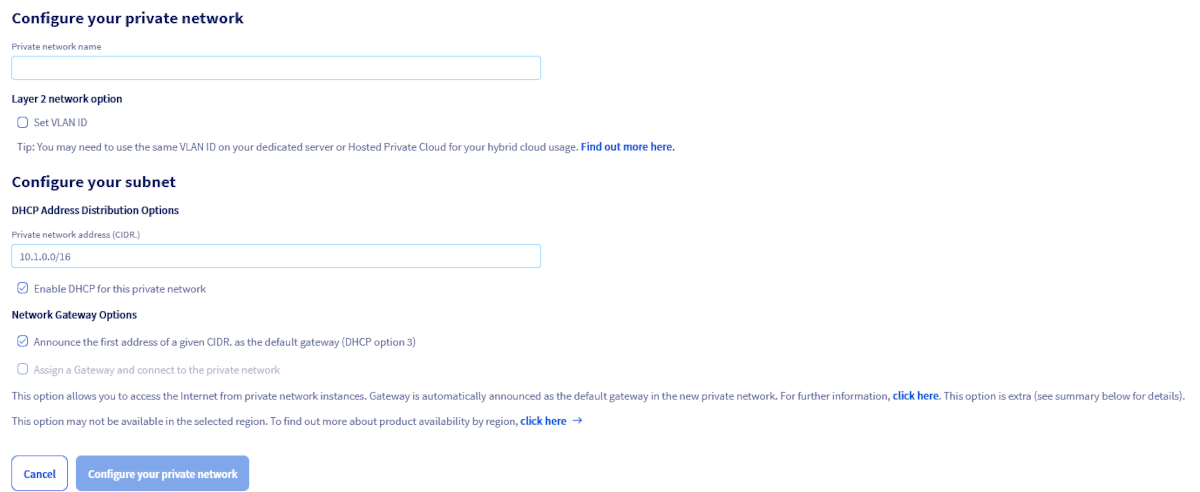In the **Private Network Name** field, set a name for your private network.
**Layer 2 network option**
If you tick the Set VLAN ID box, you will be able to manually choose a VLAN ID number between 0 and 4 000.
If you do not tick the box, the system will assign a random VLAN ID number to your private network.
If you want to be able to communicate with dedicated servers in this VLAN, please consult the guide: [Creating multiple vLANs in a vRack](/en/guides/bare-metal-cloud/dedicated-servers/creating-multiple-vlans-in-a-vrack.md).
**DHCP address distribution options**
The default DHCP range is 10.1.0.0/16. You can use a different private range of your choice, or disable DHCP for this private network.
**Network Gateway Options**
- **Announce the first address of a given CIDR as the default gateway (DHCP option 3)**: When this option is enabled, the DHCP server advertises the first address in the CIDR as the default gateway to machines connected to the network.
- **Assign a Gateway and connect to the private network**: Select this option if you intend to create instances with a private network only. For more information, please consult the following guides: [Creating a private network with Gateway](/en/guides/public-cloud/network-services/create-private-network-gateway.md) and [Creating and connecting to your first Public Cloud instance](/en/guides/public-cloud/compute/first-steps-with-public-cloud-instance.md).
:::warning
If the second option is greyed out, it means the region selected does not support it. For more information, please refer to our [regions availability](https://www.ovhcloud.com/en-gb/public-cloud/regions-availability/) page.
:::
Once done, click on Configure your private network to start the process.
:::info
Creating the private network may take several minutes.
:::
**Via the OVHcloud APIv6**
Once logged in to the [OVHcloud APIv6 interface](https://eu.api.ovh.com/), follow these steps:
**Step 1: Retrieving the required information**
**Public Cloud project**
🇪🇺EU▾
[GET/cloud/project](https://eu.api.ovh.com/console/?section=/cloud&branch=v1#get-/cloud/project)
:::info
This call retrieves the list of projects.
:::
🇪🇺EU▾
[GET/cloud/project/{serviceName}](https://eu.api.ovh.com/console/?section=/cloud&branch=v1#get-/cloud/project/-serviceName-)
:::info
This call identifies the project via the "description" field.
:::
**vRack**
🇪🇺EU▾
[GET/cloud/project/{serviceName}/vrack](https://eu.api.ovh.com/console/?section=/cloud&branch=v1#get-/cloud/project/-serviceName-/vrack)
:::info
In the field "serviceName", specify the ID of your project. Save the vRack ID information in the form "pn-xxxxx".
:::
**Step 2: Creating the private network**
🇪🇺EU▾
[POST/cloud/project/{serviceName}/network/private](https://eu.api.ovh.com/console/?section=/cloud&branch=v1#post-/cloud/project/-serviceName-/network/private)
:::info
Fill in the fields with the information previously obtained:
- **serviceName**: project ID.
- **name**: name of your VLAN.
You can leave the "Region" field blank to enable it for all regions.
The VLAN identifier (vlanId) is required if you want to create a specific VLAN.
:::
The creation will take a few moments.
You can check your VLAN information with the following call:
🇪🇺EU▾
[GET/cloud/project/{serviceName}/network/private](https://eu.api.ovh.com/console/?section=/cloud&branch=v1#get-/cloud/project/-serviceName-/network/private)
:::info
This call retrieves the "networkId" in this form: name-vrack\_vlanId.
For example, VLAN 42: pn-xxxxxx\_42.
:::
**Step 3: Creating a subnet**
By default, if you do not add a subnet, the IP range used is:
```
10.1.0.0/16
```
To manage IP assignments yourself, create a subnet for each affected area using the following call:
🇪🇺EU▾
[POST/cloud/project/{serviceName}/network/private/{networkId}/subnet](https://eu.api.ovh.com/console/?section=/cloud&branch=v1#post-/cloud/project/-serviceName-/network/private/-networkId-/subnet)
Fill in the fields according the following table.
| Field | Description |
| ----------- | ----------------------------------------------------------------------------------- |
| serviceName | ID of the project. |
| networkId | Your network ID, retrieved with previous steps. Example: pn-xxxxxx\_42 for VLAN 42. |
| dhcp | Check box for enabling / uncheck for disabling DHCP in the VLAN. |
| end | Last address of the subnet in this region. Example: 192.168.1.50. |
| network | Subnet IP block. Example: 192.168.1.0/24. |
| region | Example: SBG3. |
| start | First address of the subnet in this region. Example: 192.168.1.15. |
:::info
This is the stage of creating the subnet by region. You can enable or disable private IP address assignment dynamically through DHCP.
You will need to do the same for each region where your instances are present.
:::
:::warning
Be careful to separate your IP address pools for different regions. For example:
- From 192.168.0.2 to 192.168.0.254 for SBG1.
- From 192.168.1.2 to 192.168.1.254 for GRA1.
:::
**Via Terraform**
To use Terraform, use the OpenStack provider. Download a complete example Terraform script from [this GitHub repository](https://github.com/yomovh/tf-at-ovhcloud/tree/main/private_network).
The OVHcloud specific part for vRack integration is the `value_specs` parameter.
```hcl
resource "openstack_networking_network_v2" "tf_network" {
name = "tf_network"
admin_state_up = "true"
value_specs = {
"provider:network_type" = "vrack"
"provider:segmentation_id" = var.vlan_id
}
}
resource "openstack_networking_subnet_v2" "tf_subnet"{
name = "tf_subnet"
network_id = openstack_networking_network_v2.tf_network.id
cidr = "10.1.0.0/16"
enable_dhcp = true
}
```
**Via the OpenStack CLI**
The following example sets the `VLAN_ID` for the network using `--provider-network-type` and `--provider-segment`.
You can remove those parameters. In that case, an available `VLAN_ID` will be used.
```bash
openstack network create --provider-network-type vrack --provider-segment 42 OS_CLI_private_network
openstack subnet create --dhcp --network OS_CLI_private_network OS_CLI_subnet --subnet-range 10.1.0.0/16
```
**Via the ovhcloud CLI**
Use the [ovhcloud CLI](https://github.com/ovh/ovhcloud-cli) to create your private network. Set your cloud project with `--cloud-project ` or configure it in your profile.
**Create the private network**
```bash
ovhcloud cloud network private create \
--name my-vrack-network \
--vlan-id 42
```
:::tip
The `--vlan-id` flag is optional. If omitted, an available VLAN ID is assigned automatically.
:::
**Create a subnet**
```bash
ovhcloud cloud network private subnet create \
--region \
--name my-subnet \
--cidr 10.1.0.0/16 \
--ip-version 4 \
--enable-dhcp
```
### Step 3: Integrating an instance into vRack [](#)
There are two possible scenarios:
- The instance to be integrated does not exist yet.
- An existing instance needs to be added to the vRack.
**In case of a new instance**
**Via the OVHcloud Control Panel**
For help, see [Creating an instance in the OVHcloud Control Panel](/en/guides/public-cloud/compute/first-steps-with-public-cloud-instance.md). When creating an instance, choose a network mode in Step 5, then a private network.
:::warning
You will be able to connect your instance to **only one** vRack from the OVHcloud Control Panel.
To add multiple interfaces, you will need to go through the OpenStack or Horizon APIs.
:::
**Via the OVHcloud APIv6**
Once logged in to the [OVHcloud APIv6 interface](https://eu.api.ovh.com/), follow these steps:
**Step 1: Retrieving the required information**
**Retrieving the project ID**
🇪🇺EU▾
[GET/cloud/project](https://eu.api.ovh.com/console/?section=/cloud&branch=v1#get-/cloud/project)
**Retrieving the networkID of the public network (Ext-Net)**
🇪🇺EU▾
[GET/cloud/project/{serviceName}/network/public](https://eu.api.ovh.com/console/?section=/cloud&branch=v1#get-/cloud/project/-serviceName-/network/public)
**Retrieving the networkID of the private network (vRack interface previously created)**
🇪🇺EU▾
[GET/cloud/project/{serviceName}/network/private](https://eu.api.ovh.com/console/?section=/cloud&branch=v1#get-/cloud/project/-serviceName-/network/private)
:::info
The identifier will have the form: "pn-xxxxx\_yy" in which yy is the VLAN number.
:::
**Retrieving the ID of the chosen instance type (flavorId)**
🇪🇺EU▾
[GET/cloud/project/{serviceName}/flavor](https://eu.api.ovh.com/console/?section=/cloud&branch=v1#get-/cloud/project/-serviceName-/flavor)
:::info
You can limit the list by specifying the creation region of your instance.
:::
**Retrieving the ID of the chosen image (imageId)**
🇪🇺EU▾
[GET/cloud/project/{serviceName}/image](https://eu.api.ovh.com/console/?section=/cloud&branch=v1#get-/cloud/project/-serviceName-/image)
:::info
You can limit the list by specifying the creation region of your instance.
:::
**Retrieving your OpenStack SSH key ID (sshKeyId)**
🇪🇺EU▾
[GET/cloud/project/{serviceName}/sshkey](https://eu.api.ovh.com/console/?section=/cloud&branch=v1#get-/cloud/project/-serviceName-/sshkey)
If you have not added an SSH key to your OVHcloud Control Panel yet, you can do so using the following call:
🇪🇺EU▾
[POST/cloud/project/{serviceName}/sshkey](https://eu.api.ovh.com/console/?section=/cloud&branch=v1#post-/cloud/project/-serviceName-/sshkey)
**Deploying the instance**
Once you have gathered all the required information, use the following call:
🇪🇺EU▾
[POST/cloud/project/{serviceName}/instance](https://eu.api.ovh.com/console/?section=/cloud&branch=v1#post-/cloud/project/-serviceName-/instance)
Fill in at least the following fields:
| Field | Description |
| ----------- | ------------------------------------------------------------------------------------------------------------------------------------------------------------- |
| serviceName | ID of the Public Cloud project. |
| flavorId | ID of the instance type (example: D2-2, B2-7, WIN-R2-15, etc.). |
| imageId | ID of the image for the deployment (example: Debian 9, Centos 7, etc.). |
| name | Name for your instance. |
| networks | In the "networkId" section, indicate the public network identifier (Ext-Net) or your VLAN (pn-xxxxxx\_yy). You can click the "+" button to add more networks. |
| region | Region for your instance deployment (example: GRA5). |
| sshKeyId | ID of your OpenStack SSH key. |
If all information is correct, the instance is created with one or more network interfaces.
:::warning
Depending on operating systems, you will need to manually configure your private network interfaces to be considered.
Because OpenStack is unable to prioritise the public interface of the vRack interface, the vRack interface may sometimes pass as the default route.
The direct consequence is that the instance is unreachable from a public IP.
One or more reboots of the instance from the Control Panel can resolve this situation.
The other solution is to connect to the instance via another server in the same private network. You can also correct the network configuration of the instance through Rescue mode.
:::
**Via the OpenStack CLI**
The following steps are necessary to create an instance directly in the vRack.
**Retrieving the required information**
Public and private networks:
```bash
openstack network list
+--------------------------------------+------------+-------------------------------------+
| ID | Name | Subnets |
+--------------------------------------+------------+-------------------------------------+
| 12345678-90ab-cdef-xxxx-xxxxxxxxxxxx | MyVLAN-42 | xxxxxxxx-yyyy-xxxx-yyyy-xxxxxxxxxxxx|
| 34567890-12ab-cdef-xxxx-xxxxxxxxxxxx | Ext-Net | zzzzzzzz-yyyy-xxxx-yyyy-xxxxxxxxxxxx|
| 67890123-4abc-ef12-xxxx-xxxxxxxxxxxx | MyVLAN_0 | yyyyyyyy-xxxx-xxxx-yyyy-xxxxxxxxxxxx|
+--------------------------------------+------------+-------------------------------------+
```
or
```bash
nova net-list
+--------------------------------------+------------+------+
| ID | Label | CIDR |
+--------------------------------------+------------+------+
| 12345678-90ab-cdef-xxxx-xxxxxxxxxxxx | MyVLAN-42 | None |
| 34567890-12ab-cdef-xxxx-xxxxxxxxxxxx | Ext-Net | None |
| 67890123-4abc-ef12-xxxx-xxxxxxxxxxxx | MyVLAN_0 | None |
+--------------------------------------+------------+------+
```
:::info
You will need to note the network IDs of interest:
- Ext-Net for a public IP address.
- The VLAN(s) required for your configuration.
:::
Also note the information detailed in the [Nova API user guide](/en/guides/public-cloud/compute/starting-with-nova.md):
- ID or name of the OpenStack SSH key.
- ID of the instance type (flavor).
- ID of the desired image (operating system, snapshot, etc.).
**Deploying the instance**
Using the previously retrieved information, create an instance directly in the vRack:
```bash
nova boot --key-name SSHKEY --flavor [ID-flavor] --image [ID-Image] --nic net-id=[ID-Network 1] --nic net-id=[ID-Network 2] [instance name]
```
Example:
```bash
nova boot --key-name my-ssh-key --flavor xxxxxx-xxxx-xxxx-xxxx-xxxxxxxxxxxx --image yyyy-yyyy-yyyy-yyyy-yyyyyyyyyyyy --nic net-id=[id_Ext-Net] --nic net-id=[id_VLAN] NameOfInstance
+--------------------------------------+------------------------------------------------------+
| Property | Value |
+--------------------------------------+------------------------------------------------------+
| OS-DCF:diskConfig | MANUAL |
| OS-EXT-AZ:availability_zone | |
| OS-EXT-STS:power_state | 0 |
| OS-EXT-STS:task_state | scheduling |
| OS-EXT-STS:vm_state | building |
| OS-SRV-USG:launched_at | - |
| OS-SRV-USG:terminated_at | - |
| accessIPv4 | |
| accessIPv6 | |
| adminPass | xxxxxxxxxxxx |
| config_drive | |
| created | YYYY-MM-DDTHH:MM:SSZ |
| flavor | [Flavor type] (xxxxxx-xxxx-xxxx-xxxx-xxxxxxxxxxxx) |
| hostId | |
| id | xxxxxx-xxxx-xxxx-xxxx-xxxxxxxxxxxx |
| image | [Image type] (xxxxxx-xxxx-xxxx-xxxx-xxxxxxxxxxxx) |
| key_name | [Name of key] |
| metadata | {} |
| name | [Name of instance] |
| os-extended-volumes:volumes_attached | [] |
| progress | 0 |
| security_groups | default |
| status | BUILD |
| tenant_id | zzzzzzzzzzzzzzzzzzzzzzzzzzzzzzzz |
| updated | YYYY-MM-DDTHH:MM:SSZ |
| user_id | zzzzzzzzzzzzzzzzzzzzzzzzzzzzzzzz |
+--------------------------------------+------------------------------------------------------+
```
or
```bash
openstack server create --key-name SSHKEY --flavor [ID-flavor] --image [ID-Image] --nic net-id=[ID-Network 1] --nic net-id=[ID-Network 2] [instance name]
```
Example:
```bash
openstack server create --key-name my-ssh-key --flavor xxxxxx-xxxx-xxxx-xxxx-xxxxxxxxxxxx --image yyyy-yyyy-yyyy-yyyy-yyyyyyyyyyyy --nic net-id=[id_Ext-Net] --nic net-id=[id_VLAN] NameOfInstance
+--------------------------------------+------------------------------------------------------+
| Property | Value |
+--------------------------------------+------------------------------------------------------+
| OS-DCF:diskConfig | MANUAL |
| OS-EXT-AZ:availability_zone | |
| OS-EXT-STS:power_state | 0 |
| OS-EXT-STS:task_state | scheduling |
| OS-EXT-STS:vm_state | building |
| OS-SRV-USG:launched_at | - |
| OS-SRV-USG:terminated_at | - |
| accessIPv4 | |
| accessIPv6 | |
| adminPass | xxxxxxxxxxxx |
| config_drive | |
| created | YYYY-MM-DDTHH:MM:SSZ |
| flavor | [Flavor type] (xxxxxx-xxxx-xxxx-xxxx-xxxxxxxxxxxx) |
| hostId | |
| id | xxxxxx-xxxx-xxxx-xxxx-xxxxxxxxxxxx |
| image | [Image type] (xxxxxx-xxxx-xxxx-xxxx-xxxxxxxxxxxx) |
| key_name | [Name of key] |
| metadata | {} |
| name | [Name of instance] |
| os-extended-volumes:volumes_attached | [] |
| progress | 0 |
| security_groups | default |
| status | BUILD |
| tenant_id | zzzzzzzzzzzzzzzzzzzzzzzzzzzzzzzz |
| updated | YYYY-MM-DDTHH:MM:SSZ |
| user_id | zzzzzzzzzzzzzzzzzzzzzzzzzzzzzzzz |
+--------------------------------------+------------------------------------------------------+
```
You can set the IP address of the instance of your vRack interface at the OpenStack level.
To do this, add a single argument to `--nic`:
`--nic net-id=[ID-Network],v4-fixed-ip=[IP_static_vRack]`
Example:
`--nic net-id=[ID-vRack],v4-fixed-ip=192.168.0.42`
**Verifying the instance**
After a few moments you can check the list of existing instances to find the server you created:
```bash
openstack server list
+--------------------------------------+---------------------+--------+--------------------------------------------------+--------------------+
| ID | Name | Status | Networks | Image Name |
+--------------------------------------+---------------------+--------+--------------------------------------------------+--------------------+
| xxxxxx-xxxx-xxxx-xxxx-xxxxxxxxxxxxxx | [Name of instance] | ACTIVE | Ext-Net=[IP_V4], [IP_V6]; MyVrack=[IP_V4_vRack] | [Name-of-instance] |
+--------------------------------------+---------------------+--------+--------------------------------------------------+--------------------+
```
```bash
nova list
+--------------------------------------+--------------------+--------+------------+-------------+--------------------------------------------------+
| ID | Name | Status | Task State | Power State | Networks |
+--------------------------------------+--------------------+--------+------------+-------------+--------------------------------------------------+
| xxxxxx-xxxx-xxxx-xxxx-xxxxxxxxxxxx | [Name of instance] | ACTIVE | - | Running | Ext-Net=[IP_V4], [IP_V6]; MyVrack=[IP_V4_vRack] |
+--------------------------------------+--------------------+--------+------------+-------------+--------------------------------------------------+
```
**Via the ovhcloud CLI**
Use the [ovhcloud CLI](https://github.com/ovh/ovhcloud-cli) to create an instance in your vRack. Set your cloud project with `--cloud-project ` or configure it in your profile.
**Retrieve available networks**
```bash
ovhcloud cloud network private list --region
```
**Create the instance**
```bash
ovhcloud cloud instance create \
--name my-instance \
--flavor \
--boot-from.image \
--ssh-key.name \
--network.private.id \
--network.public
```
Remove `--network.public` if you want a private-only instance.
**Via Terraform**
Use the [OpenStack Terraform provider](https://registry.terraform.io/providers/terraform-provider-openstack/openstack/latest/docs/resources/compute_instance_v2) to create an instance with vRack connectivity. This is consistent with the private network created in Step 2.
```hcl
resource "openstack_compute_instance_v2" "instance" {
name = "my-instance"
flavor_id = var.flavor_id
image_id = var.image_id
key_pair = var.key_pair
network {
uuid = var.ext_net_id
}
network {
uuid = openstack_networking_network_v2.tf_network.id
}
}
```
Remove the public `network` block if you want a private-only instance.
:::tip
`openstack_networking_network_v2.tf_network` refers to the private network resource created in Step 2. If managing separately, replace with the network ID directly.
:::
**In case of an existing instance**
The OVHcloud Control Panel lets you attach an instance to one or more private networks but does not offer advanced network interface configuration. To customise further, use the OVHcloud APIv6, the OpenStack APIs, or Horizon.
Add a new network interface to your server alongside the existing one.
For example, if you have a public interface _eth0_, you will add the interface _eth1_.
:::warning
The configuration of this new interface is rarely automatic.
You will therefore need to set a static IP or configure DHCP, depending on your infrastructure.
:::
**Via the OVHcloud Control Panel**
In your Public Cloud project, click on Instances in the left-hand navigation bar and then on ⁝ to the right of the instance. Select Instance details.
This will open the instance dashboard. Click on the ⁝ button in the box "Networks", next to "Private networks", and select Attach a network.
In the popup window that appears, select the private network(s) to attach to your instance and click Confirm.
**Via the OVHcloud APIv6**
You cannot integrate an existing instance into the vRack from the OVHcloud Control Panel. You will need to use Horizon, the OpenStack API or the OVHcloud APIv6.
The required action is simply to add a new network interface to your server, in addition to the existing one.
For example, if you have a public interface _eth0_, you will add the interface _eth1_.
:::warning
The configuration of this new interface is rarely automatic.
You will therefore need to set a static IP or configure DHCP, depending on your infrastructure.
:::
**The steps below explain how to manage your instance network interfaces.**
**Step 1: Retrieving the required information**
**Retrieving the project ID**
🇪🇺EU▾
[GET/cloud/project](https://eu.api.ovh.com/console/?section=/cloud&branch=v1#get-/cloud/project)
**Retrieving the instance ID**
🇪🇺EU▾
[GET/cloud/project/{serviceName}/instance](https://eu.api.ovh.com/console/?section=/cloud&branch=v1#get-/cloud/project/-serviceName-/instance)
**Retrieving the networkID of the public network (Ext-Net)**
🇪🇺EU▾
[GET/cloud/project/{serviceName}/network/public](https://eu.api.ovh.com/console/?section=/cloud&branch=v1#get-/cloud/project/-serviceName-/network/public)
**Retrieving the networkID of the private network (vRack interface previously created)**
🇪🇺EU▾
[GET/cloud/project/{serviceName}/network/private](https://eu.api.ovh.com/console/?section=/cloud&branch=v1#get-/cloud/project/-serviceName-/network/private)
:::info
The identifier will have the form: "pn-xxxxx\_yy" in which yy is the VLAN number.
:::
**Step 2: Adding an interface to your instance**
Once you have gathered all the required information, use the following call:
🇪🇺EU▾
[POST/cloud/project/{serviceName}/instance/{instanceId}/interface](https://eu.api.ovh.com/console/?section=/cloud&branch=v1#post-/cloud/project/-serviceName-/instance/-instanceId-/interface)
Fill in at least the following fields:
| Field | Description |
| ----------- | --------------------------------------------------------------------------- |
| serviceName | ID of the Public Cloud project. |
| instanceId | ID of the instance. |
| networkId | Enter the public network identifier (Ext-Net) or your VLAN (pn-xxxxxx\_yy). |
| ip | Define a specific IP (only works for private interfaces). |
If all information is correct, a new interface is added to your instance.
:::info
Your OVHcloud instance will have a new network interface in addition to the public interface (Ext-Net).
In the instance summary, you can see the private IP address that is automatically assigned to your interface.
It is your responsibility to correctly configure the interface through DHCP or by using the proper IP addresses through a static IP configuration.
:::
**Step 3: Removing an interface from your instance**
:::warning
Detaching a network interface is permanent.
However, if you detach the "Ext-Net" interface (public IP), this address is released and put back into circulation — it cannot be reassigned.
This action is only required if you wish to isolate your server in the vRack (private network), or if you wish to remove it from one or more VLANs.
:::
Once you have all the necessary information, use the following call to remove an interface:
🇪🇺EU▾
[DELETE/cloud/project/{serviceName}/instance/{instanceId}/interface/{interfaceId}](https://eu.api.ovh.com/console/?section=/cloud&branch=v1#delete-/cloud/project/-serviceName-/instance/-instanceId-/interface/-interfaceId-)
Fill in at least the following fields:
| Field | Description |
| ----------- | --------------------------------------------------------------------------- |
| serviceName | ID of the Public Cloud project. |
| instanceId | ID of the instance. |
| networkId | Enter the public network identifier (Ext-Net) or your VLAN (pn-xxxxxx\_yy). |
**Via Horizon**
Log in to the [Horizon interface](https://horizon.cloud.ovh.net/auth/login/) as mentioned [above](#horizon).
Choose the proper work zone.
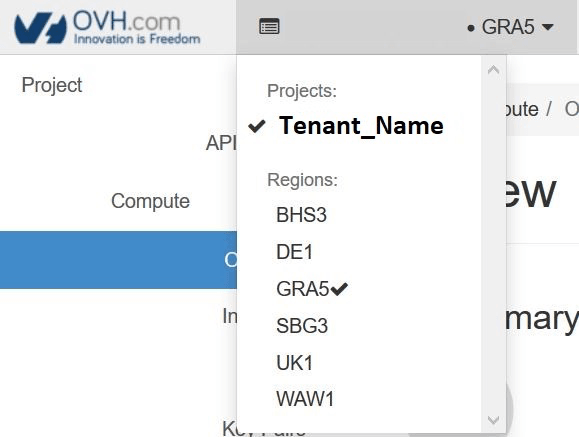Select `Compute` and then `Instances` from the menu.
**Adding a private interface**
To add an interface, click on the arrow in the `Actions` column to access the possible actions on the instance. Select Attach Interface.
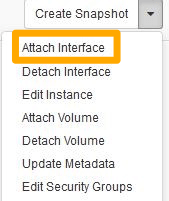Select your interface and confirm.
:::info
Your OVHcloud instance will have a new network interface in addition to the public interface (Ext-Net).
In the instance summary, you can see the private IP address that is automatically assigned to your interface.
It is your responsibility to correctly configure the interface through DHCP or by using the proper IP addresses through a static IP configuration.
:::
**Detaching a network private interface**
:::warning
Detaching a network interface is permanent.
However, it is important to note that if you detach the "Ext-Net" interface (public IP), this address will be released and put back into circulation. It is not possible to just reassign it.
This action is only required if you wish to isolate your server in the vRack (private network), or if you wish to remove it from one or more VLANs.
:::
To detach a private interface, click on the arrow in the `Actions` column to access the possible actions on the instance. Select Detach Interface.
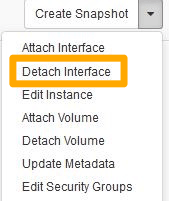Select your interface and confirm.
**Via the OpenStack CLI**
The following steps are necessary to integrate an existing instance into the vRack.
**Retrieving the required information**
Identify your instances:
```bash
openstack server list
+--------------------------------------+--------------+--------+------------------------------------------------------------------------+------------+
| ID | Name | Status | Networks | Image Name |
+--------------------------------------+--------------+--------+------------------------------------------------------------------------+------------+
| 12345678-90ab-cdef-xxxx-xxxxxxxxxxxx | My-Instance | ACTIVE | Ext-Net=xx.xx.xx.xx, 2001:41d0:yyyy:yyyy::yyyy; MyVrack=192.168.0.124 | Debian 9 |
+--------------------------------------+--------------+--------+------------------------------------------------------------------------+------------+
```
or
```bash
nova list
+--------------------------------------+--------------+--------+------------+-------------+----------------------------------------------------------------------+
| ID | Name | Status | Task State | Power State | Networks |
+--------------------------------------+--------------+--------+------------+-------------+----------------------------------------------------------------------+
| 12345678-90ab-cdef-xxxx-xxxxxxxxxxxx | My-Instance | ACTIVE | - | Running | Ext-Net=xx.xx.xx.xx,2001:41d0:yyyy:yyyy::yyyy;MyVrack=192.168.0.124 |
+--------------------------------------+--------------+--------+------------+-------------+----------------------------------------------------------------------+
```
Public and private networks:
```bash
openstack network list
+--------------------------------------+------------+-------------------------------------+
| ID | Name | Subnets |
+--------------------------------------+------------+-------------------------------------+
| 12345678-90ab-cdef-xxxx-xxxxxxxxxxxx | MyVLAN-42 | xxxxxxxx-yyyy-xxxx-yyyy-xxxxxxxxxxxx|
| 34567890-12ab-cdef-xxxx-xxxxxxxxxxxx | Ext-Net | zzzzzzzz-yyyy-xxxx-yyyy-xxxxxxxxxxxx|
| 67890123-4abc-ef12-xxxx-xxxxxxxxxxxx | MyVLAN-0 | yyyyyyyy-xxxx-xxxx-yyyy-xxxxxxxxxxxx|
+--------------------------------------+------------+-------------------------------------+
```
or
```bash
nova net-list
+--------------------------------------+------------+------+
| ID | Label | CIDR |
+--------------------------------------+------------+------+
| 12345678-90ab-cdef-xxxx-xxxxxxxxxxxx | MyVLAN-42 | None |
| 34567890-12ab-cdef-xxxx-xxxxxxxxxxxx | Ext-Net | None |
| 67890123-4abc-ef12-xxxx-xxxxxxxxxxxx | MyVLAN-0 | None |
+--------------------------------------+------------+------+
```
:::info
You will need to note the network IDs of interest:
- Ext-Net for a public IP address
- The VLAN(s) required for your configuration
:::
**Adding a private network interface**
To attach a new interface, run:
```bash
nova interface-attach --net-id
```
Example:
```bash
nova interface-attach --net-id 12345678-90ab-cdef-xxxx-xxxxxxxxxxxx 12345678-90ab-cdef-xxxx-xxxxxxxxxxxx
```
You can verify that the action has been performed:
```bash
nova show
+--------------------------------------+----------------------------------------------------------+
| Property | Value |
+--------------------------------------+----------------------------------------------------------+
| Ext-Net network | xx.xx.xx.xx, 2001:41d0:xxx:xxxx::xxxx | => your public IP
| MyVLAN-42 network | 192.168.0.x | => your private IP
[...]
```
or
```bash
openstack server show
+--------------------------------------+-------------------------------------------------------------------------+
| Field | Value |
+--------------------------------------+-------------------------------------------------------------------------+
[...]
| addresses | Ext-Net=xx.xx.xx.xx, 2001:41d0:xxx:xxxx::xxxx ; MyVLAN-42=192.168.0.x | => your public IP ; your private IP
[...]
```
### Removing a network interface
:::warning
Detaching a network interface is permanent.
However, it is important to note that if you detach the "Ext-Net" interface (public IP), this address will be released and put back into circulation. It is not possible to just reassign it.
This action is only required if you wish to isolate your server in the vRack (private network), or if you wish to remove it from one or more VLANs.
:::
To detach an interface, first identify the Neutron port.
Use the following commands:
```bash
neutron port-list
+--------------------------------------+------+-------------------+---------------------------------------------------------------------------------------------------+
| id | name | mac_address | fixed_ips |
+--------------------------------------+------+-------------------+---------------------------------------------------------------------------------------------------+
| 12345678-abcd-ef01-2345-678910abcdef | | fa:xx:xx:xx:xx:xx | {"subnet_id": "01234567-8901-abscdef12345678910abcd", "ip_address": "192.168.0.x"} |
| 09876543-210a-bcde-f098-76543210abcd | | fa:yy:yy:yy:yy:yy | {"subnet_id": "65432109-abcd-ef09-8765-43210abcdef1", "ip_address": "2001:41d0:xxx:xxxx::xxxx"} |
| | | | {"subnet_id": "abcdef12-3456-7890-abcd-ef1234567890", "ip_address": "YY.YY.YY.YY"} |
+--------------------------------------+------+-------------------+---------------------------------------------------------------------------------------------------+
```
or
```bash
openstack port list
+--------------------------------------+------+-------------------+-------------------------------------------------------------------------------------------+
| ID | Name | MAC Address | Fixed IP Addresses |
+--------------------------------------+------+-------------------+-------------------------------------------------------------------------------------------+
| 12345678-abcd-ef01-2345-678910abcdef | | fa:xx:xx:xx:xx:xx | ip_address='192.168.0.xx', subnet_id='301234567-8901-abscdef12345678910abcd' |
| 09876543-210a-bcde-f098-76543210abcd | | fa:yy:yy:yy:yy:yy | ip_address='2001:41d0:xxx:xxxx::xxxx', subnet_id='65432109-abcd-ef09-8765-43210abcdef1' |
| | | | ip_address='YY.YY.YY.YY', subnet_id='abcdef12-3456-7890-abcd-ef1234567890' |
+--------------------------------------+------+-------------------+-------------------------------------------------------------------------------------------+
```
Once you have identified the port, run:
```bash
nova interface-detach
```
Example:
```bash
nova interface-detach 12345678-90ab-cdef-xxxx-xxxxxxxxxxxx 12345678-abcd-ef01-2345-678910abcdef
```
## Go further
[Creating multiple vLANs in a vRack](/en/guides/bare-metal-cloud/dedicated-servers/creating-multiple-vlans-in-a-vrack.md)
For training or technical assistance, contact your sales representative or [request a quote from our Professional Services team](https://www.ovhcloud.com/en-gb/professional-services/).
Join our [community of users](https://community.ovhcloud.com/).