---
title: "Configuring an Additional IP"
description: "Find out how to add Additional IP addresses to your instance's configuration"
url: https://docs.ovhcloud.com/en/guides/public-cloud/network-services/configure-additional-ip
lang: en
lastUpdated: 2025-12-17
---
# Configuring an Additional IP
## Objective
:::info
This article is about Additional IPv4 configuration on a public interface. You can also configure IPv6 addresses on your Public Cloud instances using [this guide](/en/guides/public-cloud/network-services/ipv6-configuration.md).
Additional IP addresses can also be configured in a vRack (private network), which allows interconnection over a wide range of OVHcloud services, offering more flexibility.
You can find more information about configuring Additional IP addresses in a vRack for usage with Public Cloud instances in the following guides:
- [Configuring a public IP block in a vRack on a Public Cloud instance](/en/guides/public-cloud/network-services/configure-ip-block-vrack-instance.md).
- [Configuring an IPv6 block in a vRack](/en/guides/bare-metal-cloud/dedicated-servers/configure-ipv6-in-vrack.md).
:::
You may need to configure Additional IP addresses on your instances, for example if you are hosting multiple websites or international services. OVHcloud Additional IPs allow you to associate multiple IP addresses with a single network interface.
**This guide explains how to add Additional IP addresses to your network configuration.**
:::warning
OVHcloud is providing you with services for which you are responsible, with regard to their configuration and management. You are therefore responsible for ensuring they function correctly.
This guide is designed to assist you in common tasks as much as possible. Nevertheless, we recommend that you contact a [specialist service provider](https://partner.ovhcloud.com/en-gb/directory/) if you have difficulties or doubts concerning the administration, usage or implementation of services on a server.
:::
## Requirements
- A [Public Cloud instance](https://www.ovhcloud.com/en-gb/public-cloud/) in your OVHcloud account
- An [Additional IP address](https://www.ovhcloud.com/en-gb/bare-metal/ip/) or an Additional IP block
- Administrative access (sudo) via SSH or GUI to your instance
- Basic networking and administration knowledge
## Instructions
***
### OVHcloud Control Panel Access
- **Direct link:** Public Cloud Projects
- **Navigation path:** Public Cloud > Select your project
***
The following sections contain the configurations for the most commonly used distributions/operating systems. The first step is always to log in to your instance via SSH or a GUI login session (VNC for a Windows instance). The examples below presume you are logged in as a user with elevated permissions (Administrator/sudo).
:::info
Concerning different distribution releases, the procedure to configure your network interface and the file names may have changed. We recommend consulting the manuals and knowledge resources of the respective OS versions if you experience any issues.
:::
**The following terminology is used in code examples and instructions below:**
| Term | Description | Examples |
| ------------------ | -------------------------------------------------------------------------------------------------------- | -------------- |
| ADDITIONAL\_IP | An Additional IP address assigned to your service | 169.254.10.254 |
| NETWORK\_INTERFACE | The name of the network interface | _eth0_, _ens3_ |
| ID | ID of the IP alias, starting with _0_ (depending on the number of additional IPs there are to configure) | _0_, _1_ |
:::info
When configuring an Additional IP on a Public Cloud instance, you do not need a gateway and subnet mask.
:::
:::tip
Select the tab corresponding to your operating system.
:::
**Debian 11**
Debian 11
**Step 1: Disable automatic network configuration**
Open the following file path with a text editor:
```bash
sudo nano /etc/cloud/cloud.cfg.d/99-disable-network-config.cfg
```
Enter the following line, then save and exit the editor.
```bash
network: {config: disabled}
```
Creating this configuration file will prevent changes to your network configuration from being made automatically.
**Step 2: Edit the network configuration file**
You can verify your network interface name with this command:
```bash
ip a
```
Open the network configuration file for editing with the following command:
```bash
sudo nano /etc/network/interfaces.d/50-cloud-init
```
Then add the following lines:
```bash
auto NETWORK_INTERFACE:ID
iface NETWORK_INTERFACE:ID inet static
address ADDITIONAL_IP
netmask 255.255.255.255
```
**Step 3: Restart the interface**
Apply the changes with the following command:
```bash
sudo systemctl restart networking
```
**Debian 12+, Ubuntu 22.04+**
Debian 12, Ubuntu 22.04 and following
The configuration file for your Additional IP addresses is located in `/etc/netplan/`. In this example it is called "50-cloud-init.yaml". Before making changes, verify the actual file name in this folder. Each Additional IP address will need its own line within the file.
**Step 1: Disable automatic network configuration**
Open the following file path with a text editor:
```bash
sudo nano /etc/cloud/cloud.cfg.d/99-disable-network-config.cfg
```
Enter the following line, then save and exit the editor.
```bash
network: {config: disabled}
```
Creating this configuration file will prevent changes to your network configuration from being made automatically.
**Step 2: Edit the configuration file**
You can verify your network interface name with this command:
```bash
ip a
```
Open the network configuration file for editing with the following command:
```bash
sudo nano /etc/netplan/50-cloud-init.yaml
```
Do not change the existing lines in the file; add your Additional IP address according to the example below:
```yaml
network:
version: 2
ethernets:
NETWORK_INTERFACE:
dhcp4: true
match:
macaddress: fa:xx:xx:xx:xx:63
set-name: NETWORK_INTERFACE
addresses:
- ADDITIONAL_IP/32
```
:::warning
It is important to respect the alignment of each element in this file as represented in the example above. Do not use the tab key to create your spacing.
:::
Save and close the file.
**Step 3: Apply the new network configuration**
You can test your configuration using this command:
```bash
sudo netplan try
```
If it is correct, apply it using the following command:
```bash
sudo netplan apply
```
Repeat this procedure for each Additional IP address.
**AlmaLinux (8/9) / Rocky Linux (8/9) / CloudLinux (8/9)**
AlmaLinux (8/9) / Rocky Linux (8/9) / CloudLinux (8/9)
**Step 1: Edit the network configuration file**
You can verify your network interface name with this command:
```bash
ip a
```
Open the network configuration file for editing:
```bash
sudo nano /etc/sysconfig/network-scripts/ifcfg-NETWORK_INTERFACE:ID
```
Then add these lines:
```bash
DEVICE=NETWORK_INTERFACE:ID
BOOTPROTO=static
IPADDR=ADDITIONAL_IP
NETMASK=255.255.255.255
BROADCAST=ADDITIONAL_IP
ONBOOT=yes
```
**Step 2: Restart the interface**
Apply the changes with the following command:
```bash
sudo systemctl restart networking
```
**Fedora / AlmaLinux (10) / Rocky Linux (10)**
Fedora, AlmaLinux 10 & Rocky Linux 10
These systems use keyfiles. NetworkManager previously stored network profiles in ifcfg format in this directory: `/etc/sysconfig/network-scripts/`. However, the ifcfg format is now deprecated. By default, NetworkManager no longer creates new profiles in this format. The configuration file is now found in `/etc/NetworkManager/system-connections/`.
**Step 1: Edit the config file**
:::info
Please note that the name of the network file in our example may differ from yours. Please adapt the commands to your file name.
:::
```bash
sudo nano /etc/NetworkManager/system-connections/cloud-init-eno1.nmconnection
```
Do not modify the existing lines in the configuration file, add your Additional IP to the file as follows, replacing `ADDITIONAL_IP/32` with your own values:
```console
[ipv4]
method=auto
may-fail=false
address1=ADDITIONAL_IP/32
```
If you have two Additional IPs to configure, the configuration should look like this:
```console
[ipv4]
method=auto
may-fail=false
address1=ADDITIONAL_IP1/32
address2=ADDITIONAL_IP2/32
```
**Step 2: Restart the interface**
Restart your interface:
```bash
sudo systemctl restart NetworkManager
```
**Plesk**
Plesk
**Step 1: Access the Plesk IP management section**
In the Plesk control panel, choose Tools & Settings from the left-hand sidebar.
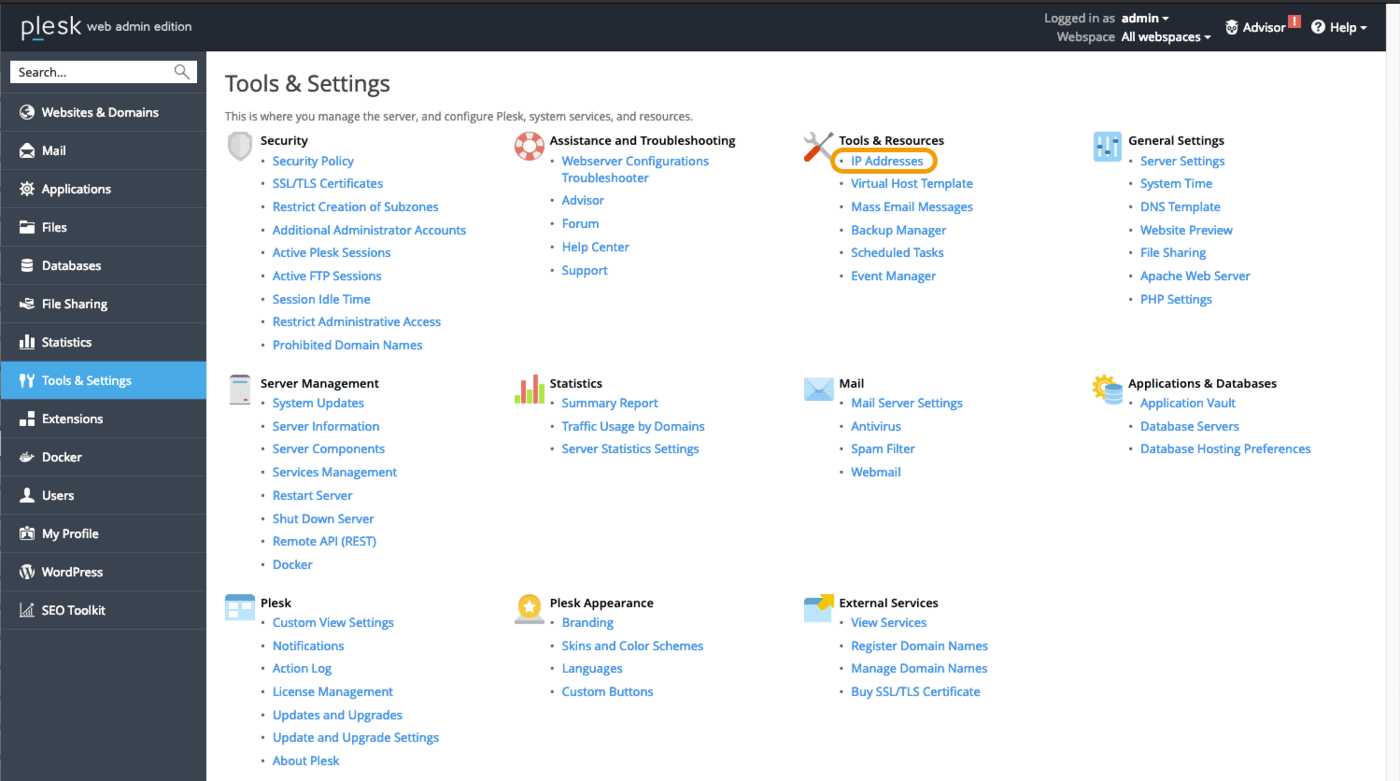Click on IP Addresses under **Tools & Resources**.
**Step 2: Add the additional IP information**
In this section, click on the button Add IP Address.
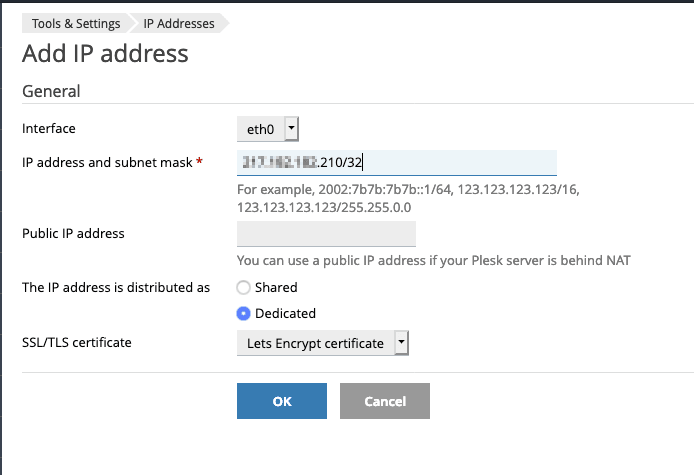
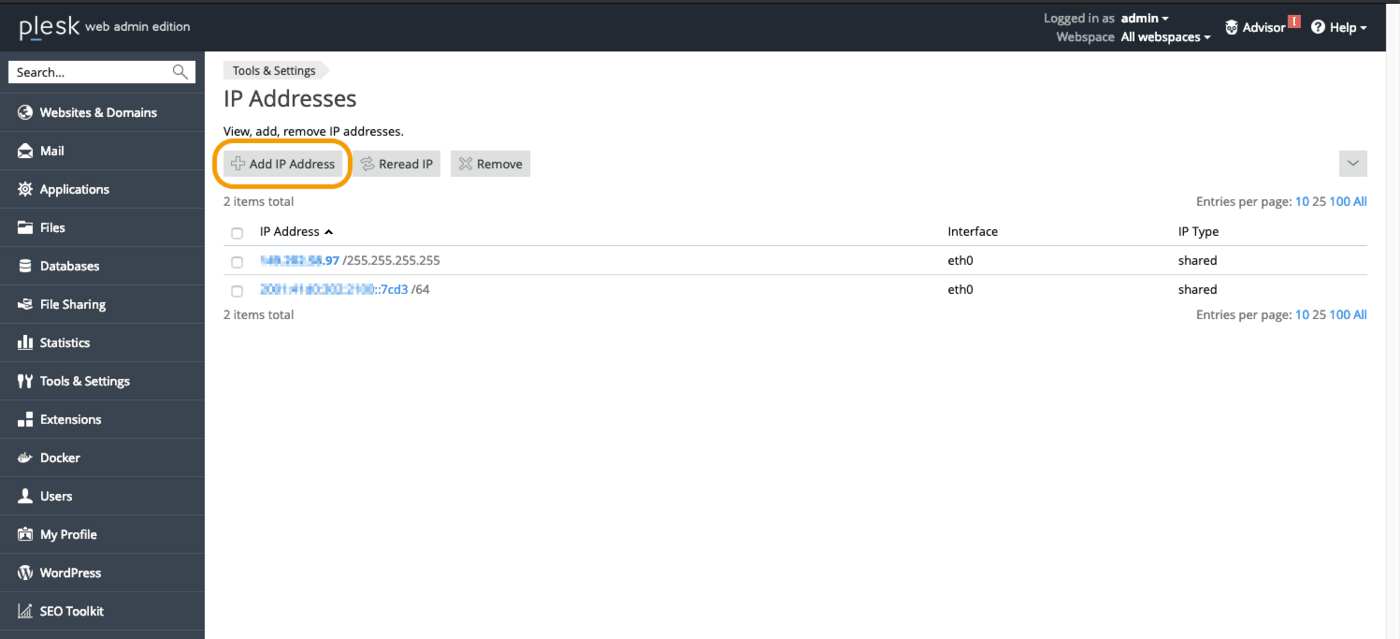Enter your Additional IP in the form `xxx.xxx.xxx.xxx/32` into the field "IP address and subnet mask", then click on OK.
**Step 3: Check the current IP configuration**
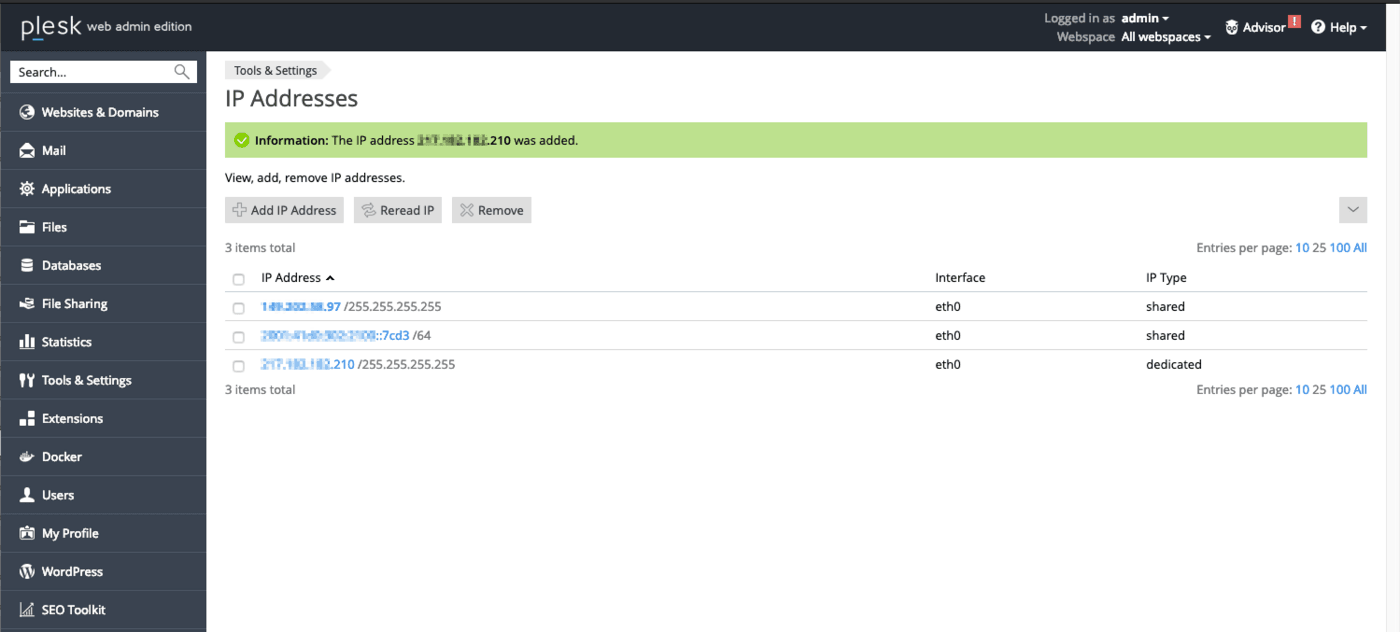
Back in the section "IP Addresses", verify that the Additional IP address was added correctly.
**Windows Server**
Windows Server
In your Public Cloud project, open Instances in the left-hand menu and click on the name of your instance. Navigate to the VNC Console tab.
**Step 1: Verify the network configuration**
Right-click on the Start Menu button and open Run.
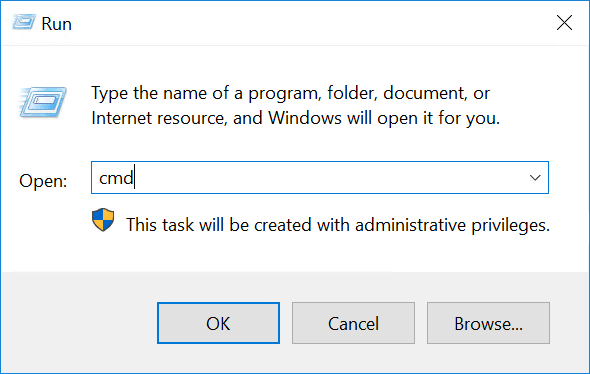
Type `cmd` and click OK to open the command line application.
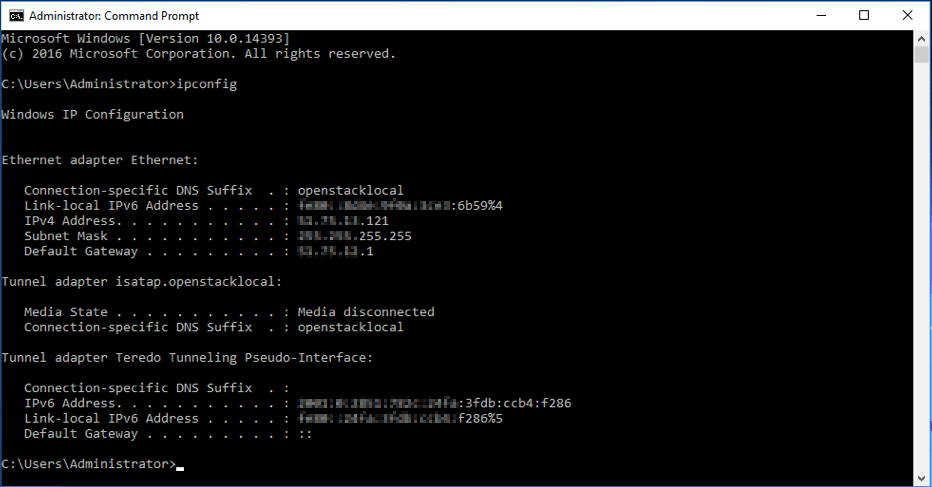
To retrieve the current IP configuration, enter `ipconfig` at the command prompt.
**Step 2: Change the IPv4 Properties**
Change the IP properties to a static configuration.
Open the adapter settings in the Windows control panel and then open the Properties of Internet Protocol Version 4 (TCP/IPv4).
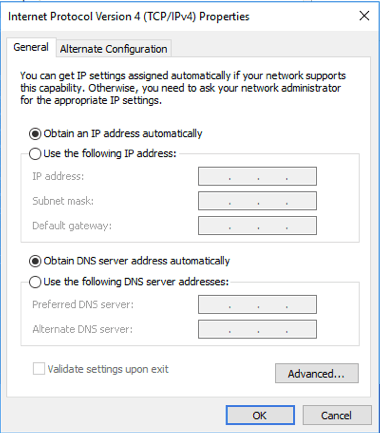In the IPv4 Properties window, select Use the following IP address. Enter the IP address which you have retrieved in the first step, then click on Advanced.
**Step 3: Add the Additional IP in the "Advanced TCP/IP Settings"**
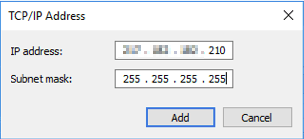
In the new window, click on Add... under "IP addresses". Enter your Additional IP address and the subnet mask (255.255.255.255).
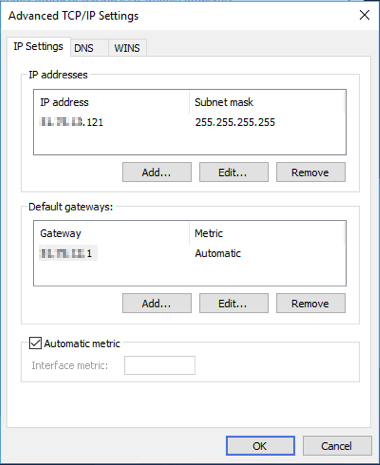Confirm by clicking on Add.
**Step 4: Restart the network interface**
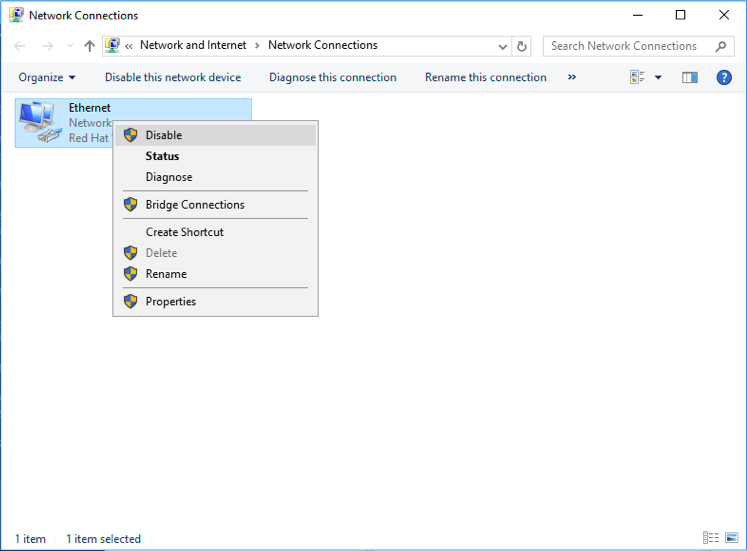
Back in the control panel (Network Connections), right-click on your network interface and then select Disable.
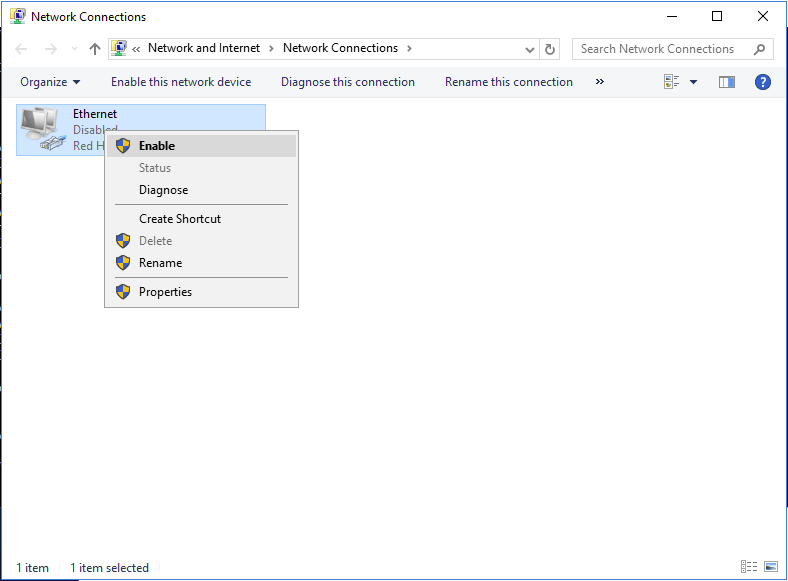
To restart it, right-click on it again and then select Enable.
**Step 5: Check the new network configuration**
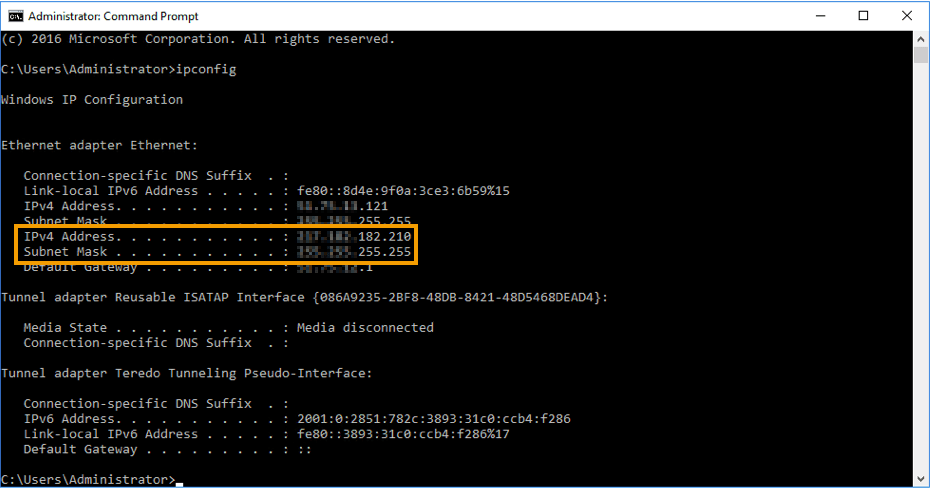
Open the command prompt (cmd) and enter `ipconfig`. The configuration should now include the new Additional IP address.
### Troubleshooting
First, soft-reboot your instance via the instance's OS or from the OVHcloud Control Panel
. If you are still unable to connect to your Additional IP from the public network and suspect a network problem, reboot the instance in [rescue mode](/en/guides/public-cloud/compute/put-an-instance-in-rescue-mode.md)
. Then you can set up the Additional IP address directly on the instance.
Once you are connected in rescue mode via SSH, enter the following command:
```bash
ifconfig ens3:0 ADDITIONAL_IP netmask 255.255.255.255 broadcast ADDITIONAL_IP up
```
To test the connection, simply ping your Additional IP from the outside. If it responds in rescue mode, that probably means that there is a configuration error. If, however, the IP is still not working, please inform our support teams by creating a support request in your OVHcloud Control Panel
for further investigations.
## Go further
[Importing an Additional IP](/en/guides/public-cloud/network-services/import-additional-ip.md)
[Migrating an Additional IP](/en/guides/public-cloud/network-services/migrate-additional-ip.md)
If you need training or technical assistance to implement our solutions, contact your sales representative or click on [this link](https://www.ovhcloud.com/en-gb/professional-services/) to get a quote and ask our Professional Services experts for assistance with your project.
Join our [community of users](https://community.ovhcloud.com/).