---
title: "Buying an Additional IP"
description: "Find out how to order Additional IP addresses for your instances"
url: https://docs.ovhcloud.com/en/guides/public-cloud/network-services/buy-additional-ip
lang: en
lastUpdated: 2025-04-28
---
# Buying an Additional IP
:::info
Since October 6th, 2022 our service "Failover IP" is named [Additional IP](https://www.ovhcloud.com/en-gb/network/additional-ip/). This renaming has no effect on its technical features.
:::
## Objective
You may need to configure an Additional IP address on your instances for different reasons. For example, you may be:
- Hosting several websites on your instance.
- Hosting international projects.
To meet these needs, you can order an Additional IP address for your Public Cloud instances.
These Additional IP addresses can only be migrated to instances in the same project.
**This guide explains how to obtain an Additional IP for an OVHcloud Public Cloud project.**
## Requirements
- A [Public Cloud instance](/en/guides/public-cloud/compute/first-steps-with-public-cloud-instance.md) in your Public Cloud project
***
### OVHcloud Control Panel Access
- **Direct link:** Public Cloud Projects
- **Navigation path:** Public Cloud > Select your project
***
## Instructions
In the left-hand menu, open `Public IPs
` under **Network**
.
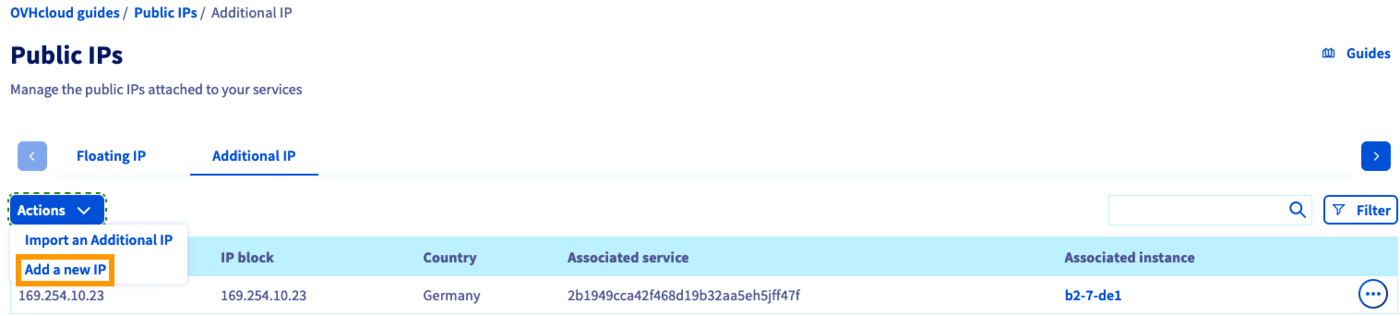
Open the `Additional IP
` tab and click on the `Actions
` button. Select `Add a new IP
`.
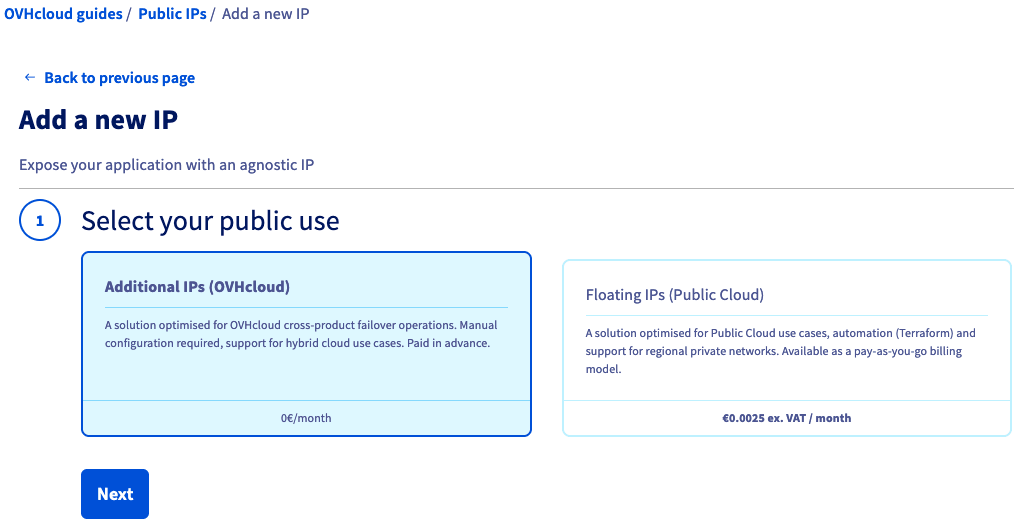
In step 1 of the order process, click on `Next
`.
Step 2 allows you to select a country for the new IP address.
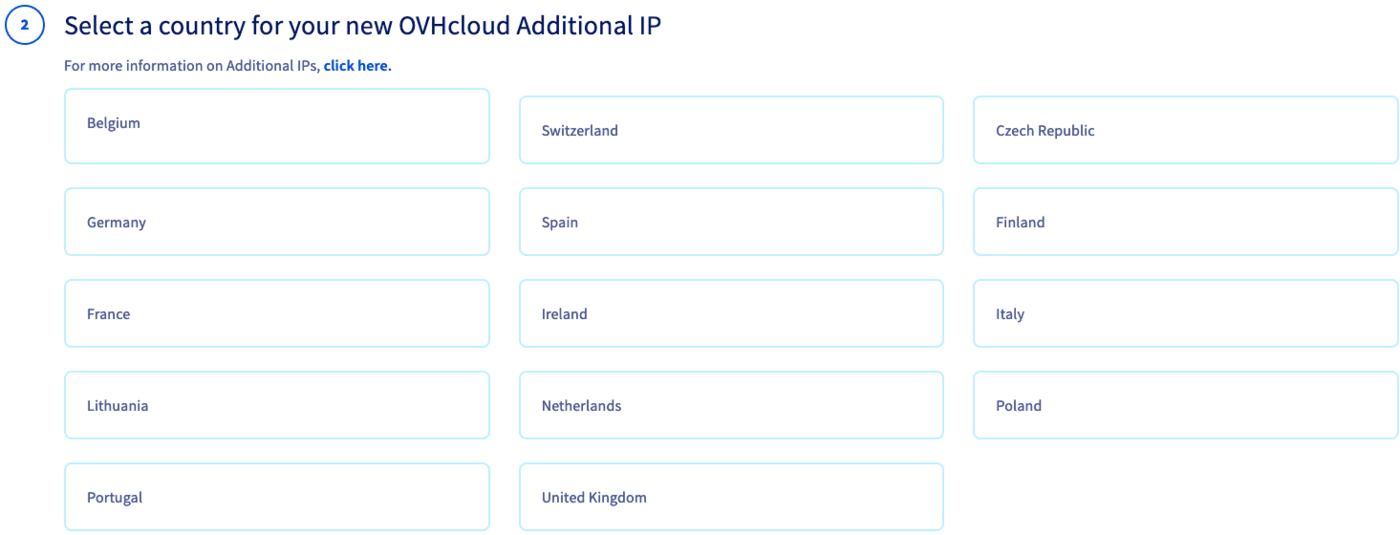
The following countries are available for IP geolocation:
| | | | | |
| :------: | :-----: | :-------: | :---------: | :------------: |
| Belgium | Finland | France | Germany | Czech Republic |
| Ireland | Italy | Lithuania | Netherlands | United Kingdom |
| Portugal | Spain | Poland | Switzerland | |
:::info
**Availability**
Some of these countries may not be listed, depending on the current availability of IPv4 addresses.
:::
:::info
**Location**
IP geolocation is solely based on benchmark organisations.
For example, [RIPE NCC](https://www.ripe.net/) is serving Europe as the Regional Internet Registry.
If you need to verify geolocation otherwise, contact the concerned organisations directly. OVHcloud cannot be involved in this regard.
:::
Once you have selected a country, click on `Next
`.
In the final step, select your instance from the drop-down menu. Then click on `Generate purchase order
`.

The purchase order will open automatically for you to complete your purchase.
See our guide on [managing OVHcloud orders](/en/guides/account-and-service-management/managing-billing-payments-and-services/ovh-orders.md) for more details.
You can also find the purchase order in your Control Panel, by going to the `Dashboard
` section and clicking on `View my orders
`.
The next step will be the IP configuration in your OS; please refer to our [guide](/en/guides/public-cloud/network-services/configure-additional-ip.md).
## Go further
[Configuring an Additional IP](/en/guides/public-cloud/network-services/configure-additional-ip.md)
If you need training or technical assistance to implement our solutions, contact your sales representative or click on [this link](https://www.ovhcloud.com/en-gb/professional-services/) to get a quote and ask our Professional Services experts for assisting you on your specific use case of your project.
Join our [community of users](https://community.ovhcloud.com/).