---
title: "Configure the advanced parameters for Public Cloud Databases"
description: "Advanced configuration for Public Cloud Databases engines"
url: https://docs.ovhcloud.com/en/guides/public-cloud/databases/advanced-configuration
lang: en
lastUpdated: 2025-02-03
---
# Configure the advanced parameters for Public Cloud Databases
## Objective
Public cloud database engines are managed services, which means that they are not fully configurable. For example, it is not possible to modify _pg\_hba.conf_.
:::info
Advanced configuration is available for the following Public Cloud Databases engines :
- MySQL
- PostgreSQL
- Valkey
:::
## Requirements
- A [Public Cloud project](https://www.ovhcloud.com/en-gb/public-cloud/) in your OVHcloud account
- A database running on your OVHcloud Public Cloud Databases ([this guide](/en/guides/public-cloud/databases/getting-started.md) can help you to meet this requirement)
- Access to the [OVHcloud API](https://eu.api.ovh.com/) (optional)
***
### OVHcloud Control Panel Access
- **Direct link:** Public Cloud Projects
- **Navigation path:** Public Cloud > Select your project
***
## Instructions
:::warning
Please note that changes to the advanced settings apply at the cluster level and therefore to all the databases in the cluster.
:::
:::info
Depending on the engine, some settings may already be defined.
:::
:::info
Once the advanced configuration has been submitted, it is not possible to reset it to initial values. It is only possible to update the values, so we recommend that you take note of the initial values before changing them.
See the [Checking](#checking) section below
:::
### Using the OVHcloud Control Panel
Click on `Databases
` in the left-hand navigation bar, select your engine instance then the `Advanced configuration
` tab.
Select the key of the advanced setting you want to define, then set its value.
When ready, click on `Update advanced configuration
`.
:::info
On the top-right of the advanced configuration tab, you can see the settings which are already defined.
:::
### Using API
:::info
If you are not familiar with using the OVHcloud API, please refer to our guide on [First Steps with the OVHcloud APIs](/en/guides/manage-and-operate/api/first-steps.md).
:::
#### Get your service and cluster IDs
You first need to identify the service and the cluster you want to apply the changes to.
##### **Get the desired service ID**
Execute the following API call:
🇪🇺EU▾
[GET/cloud/project](https://eu.api.ovh.com/console/?section=/cloud&branch=v1#get-/cloud/project)
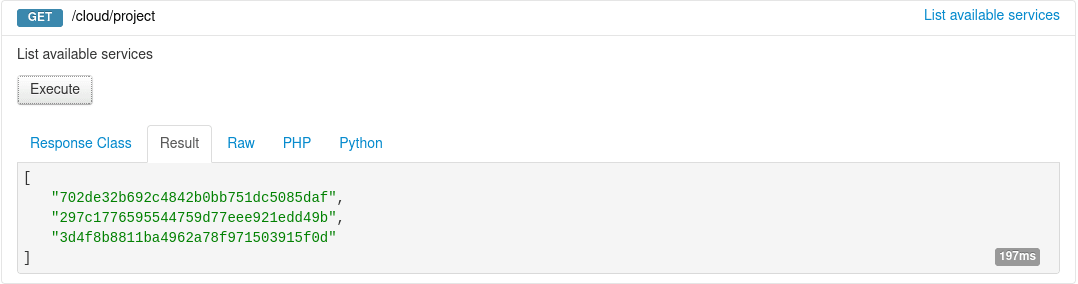
From the resulting list, select and copy the service identifier corresponding to the desired service, also known as serviceName.
##### **Get the desired cluster ID**
Open the following API call, paste your service ID into the `serviceName`
input field and click `Execute
`:
**MySQL**
🇪🇺EU▾
[GET/cloud/project/{serviceName}/database/mysql](https://eu.api.ovh.com/console/?section=/cloud&branch=v1#get-/cloud/project/-serviceName-/database/mysql)
**PostgreSQL**
🇪🇺EU▾
[GET/cloud/project/{serviceName}/database/postgresql](https://eu.api.ovh.com/console/?section=/cloud&branch=v1#get-/cloud/project/-serviceName-/database/postgresql)
**Valkey**
🇪🇺EU▾
[GET/cloud/project/{serviceName}/database/redis](https://eu.api.ovh.com/console/?section=/cloud&branch=v1#get-/cloud/project/-serviceName-/database/redis)
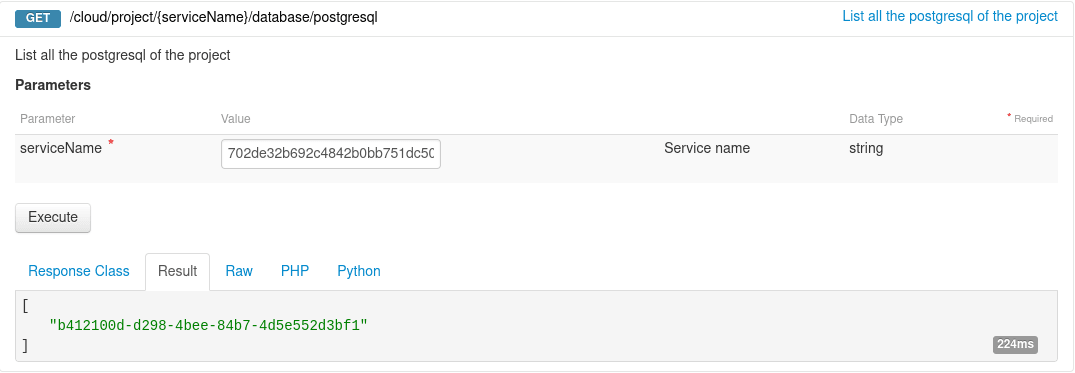
From the resulting list, select and copy the cluster ID, also known as clusterId.
#### Get the existing advanced configuration
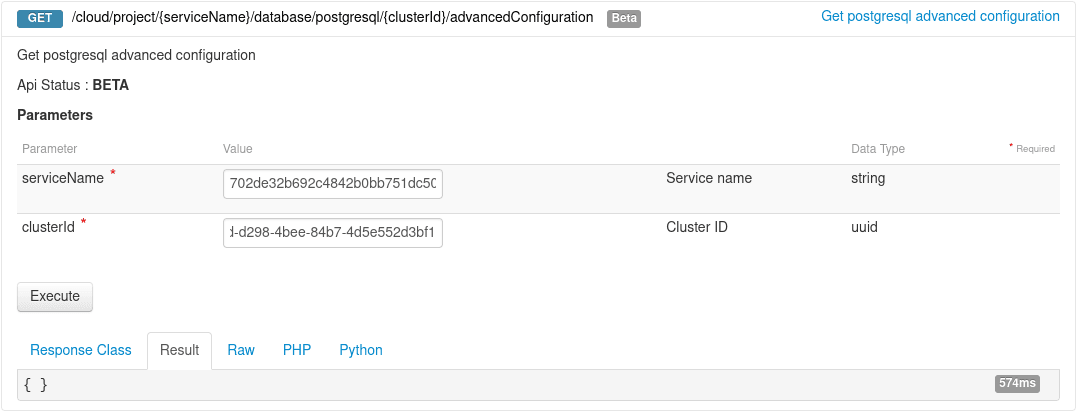
Open the following API call and paste the corresponding inputs (serviceName, clusterId) and click `Execute
`:
**MySQL**
🇪🇺EU▾
[GET/cloud/project/{serviceName}/database/mysql/{clusterId}/advancedConfiguration](https://eu.api.ovh.com/console/?section=/cloud&branch=v1#get-/cloud/project/-serviceName-/database/mysql/-clusterId-/advancedConfiguration)
**PostgreSQL**
🇪🇺EU▾
[GET/cloud/project/{serviceName}/database/postgresql/{clusterId}/advancedConfiguration](https://eu.api.ovh.com/console/?section=/cloud&branch=v1#get-/cloud/project/-serviceName-/database/postgresql/-clusterId-/advancedConfiguration)
**Valkey**
🇪🇺EU▾
[GET/cloud/project/{serviceName}/database/redis/{clusterId}/advancedConfiguration](https://eu.api.ovh.com/console/?section=/cloud&branch=v1#get-/cloud/project/-serviceName-/database/redis/-clusterId-/advancedConfiguration)
#### Advanced configuration settings list
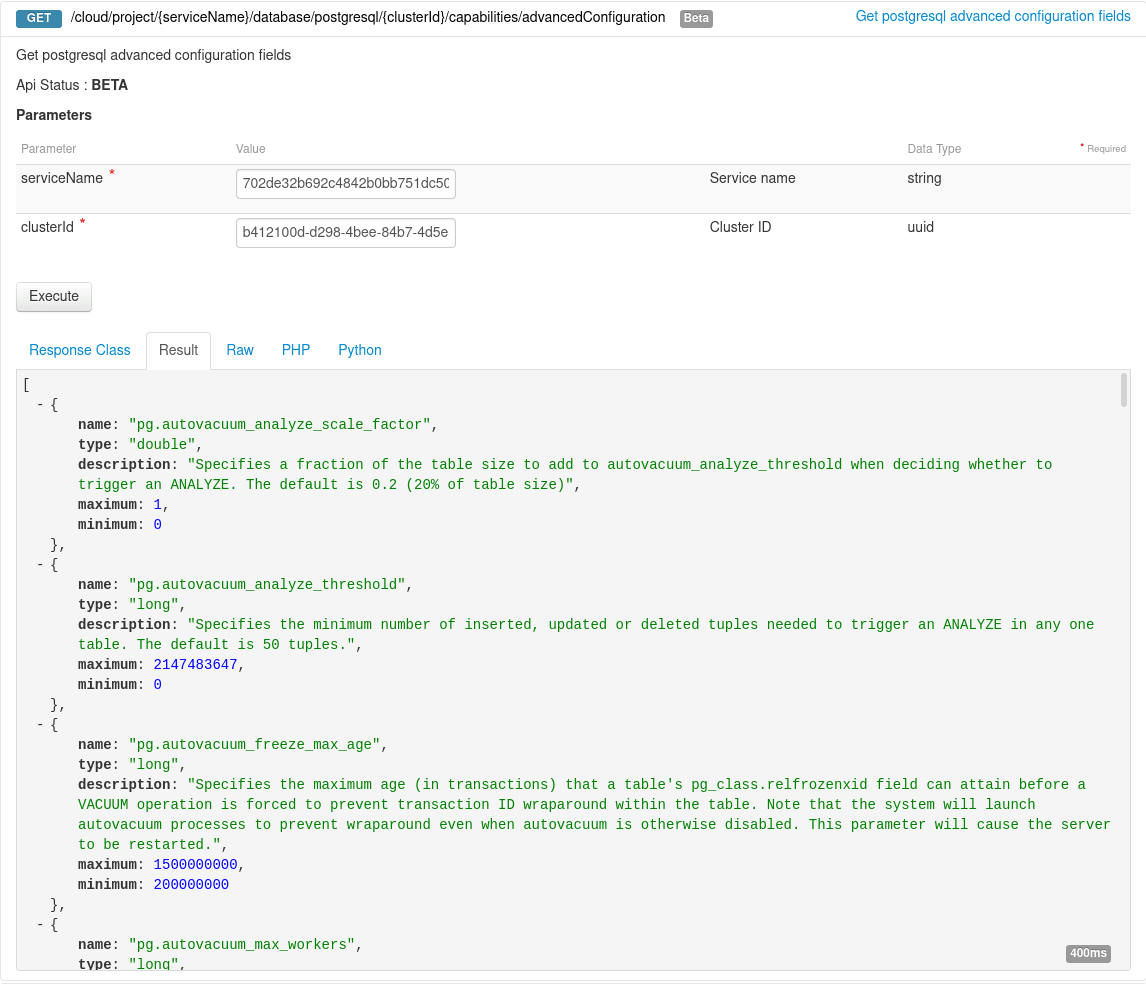
Open the following API call and paste the corresponding inputs (serviceName, clusterId) and click `Execute
`:
**MySQL**
🇪🇺EU▾
[GET/cloud/project/{serviceName}/database/mysql/{clusterId}/capabilities/advancedConfiguration](https://eu.api.ovh.com/console/?section=/cloud&branch=v1#get-/cloud/project/-serviceName-/database/mysql/-clusterId-/capabilities/advancedConfiguration)
**PostgreSQL**
🇪🇺EU▾
[GET/cloud/project/{serviceName}/database/postgresql/{clusterId}/capabilities/advancedConfiguration](https://eu.api.ovh.com/console/?section=/cloud&branch=v1#get-/cloud/project/-serviceName-/database/postgresql/-clusterId-/capabilities/advancedConfiguration)
**Valkey**
🇪🇺EU▾
[GET/cloud/project/{serviceName}/database/redis/{clusterId}/capabilities/advancedConfiguration](https://eu.api.ovh.com/console/?section=/cloud&branch=v1#get-/cloud/project/-serviceName-/database/redis/-clusterId-/capabilities/advancedConfiguration)
#### Change advanced configuration
Open the following API call and paste the corresponding inputs (serviceName, clusterId)
**MySQL**
🇪🇺EU▾
[PUT/cloud/project/{serviceName}/database/mysql/{clusterId}/advancedConfiguration](https://eu.api.ovh.com/console/?section=/cloud&branch=v1#put-/cloud/project/-serviceName-/database/mysql/-clusterId-/advancedConfiguration)
**PostgreSQL**
🇪🇺EU▾
[PUT/cloud/project/{serviceName}/database/postgresql/{clusterId}/advancedConfiguration](https://eu.api.ovh.com/console/?section=/cloud&branch=v1#put-/cloud/project/-serviceName-/database/postgresql/-clusterId-/advancedConfiguration)
**Valkey**
🇪🇺EU▾
[PUT/cloud/project/{serviceName}/database/redis/{clusterId}/advancedConfiguration](https://eu.api.ovh.com/console/?section=/cloud&branch=v1#put-/cloud/project/-serviceName-/database/redis/-clusterId-/advancedConfiguration)
Now, according to the settings you chose, set the different values into the string arrays, such as in the example below:
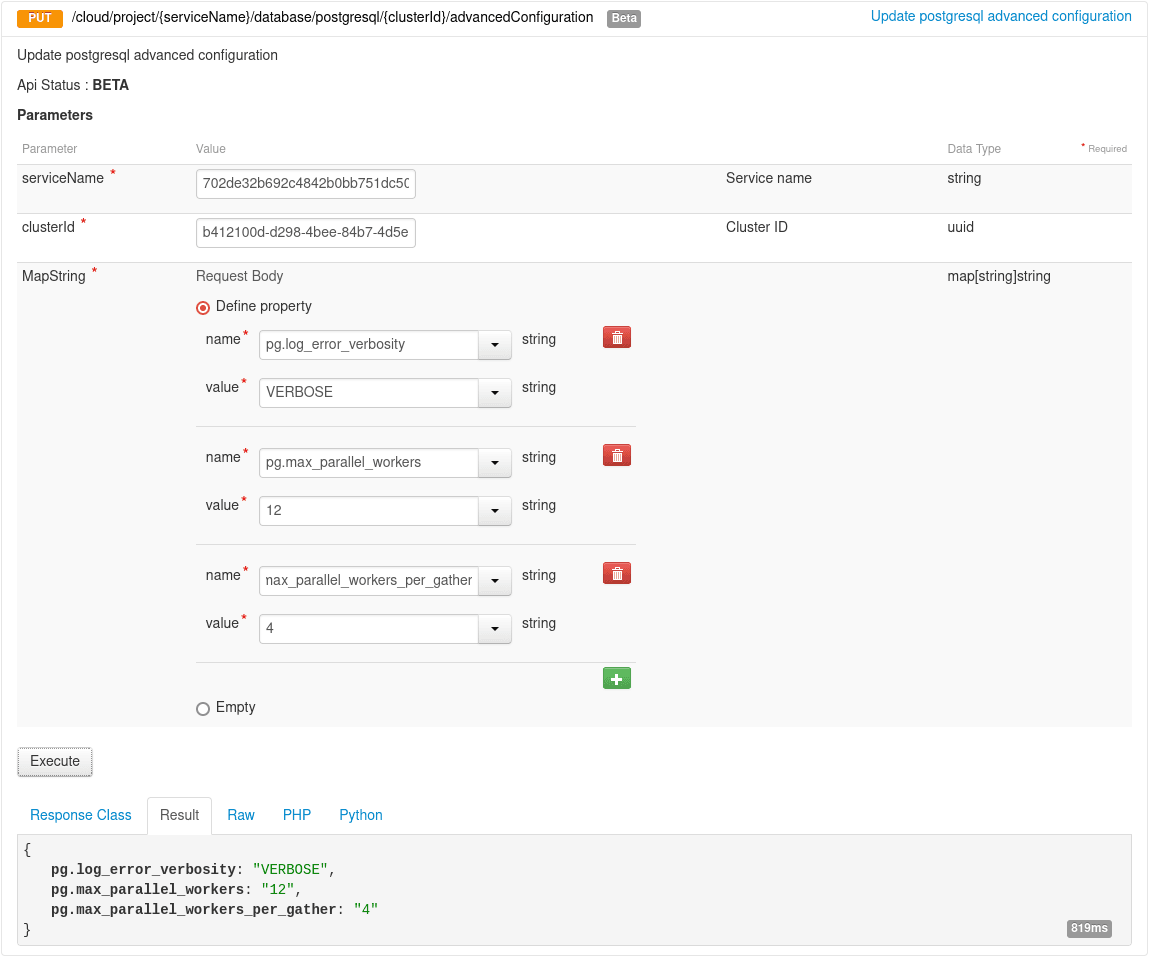
When ready, click on `Execute
` to update the advanced configuration.
### Checking
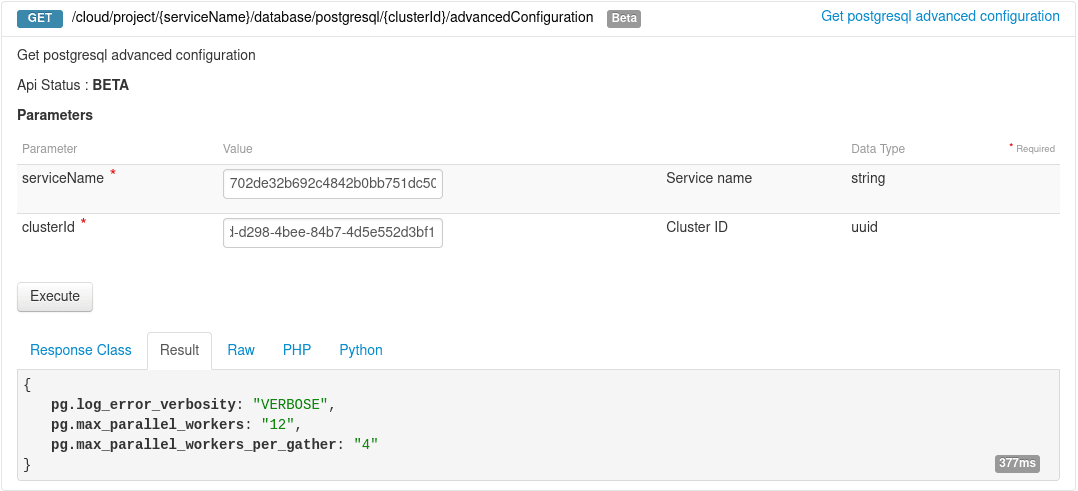
You can check the changes in different ways such as:
**Using API**
**Using pgAdmin**
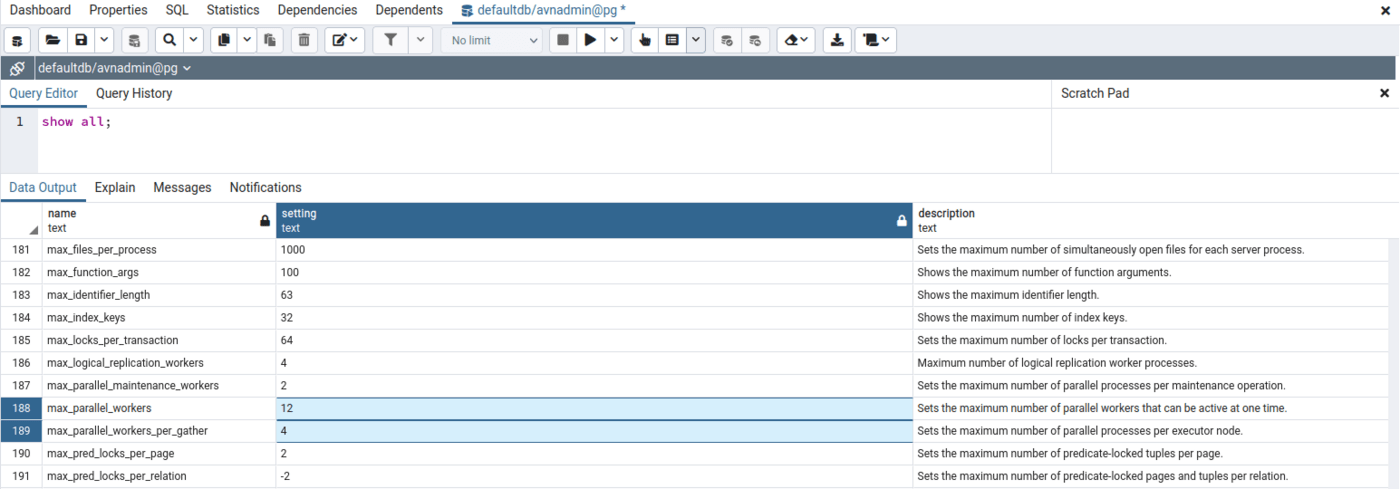
_Follow this [guide](/en/guides/public-cloud/databases/postgresql-connect-pgadmin.md) to learn more about pgAdmin_
## We want your feedback!
We would love to help answer questions and appreciate any feedback you may have.
If you need training or technical assistance to implement our solutions, contact your sales representative or click on [this link](https://www.ovhcloud.com/en-gb/professional-services/) to get a quote and ask our Professional Services experts for a custom analysis of your project.
Are you on Discord? Connect to our channel at [https://discord.gg/ovhcloud](https://discord.gg/ovhcloud) and interact directly with the team that builds our databases service!