---
title: "Introducing Horizon"
description: "Discover the main sections of the Horizon interface"
url: https://docs.ovhcloud.com/en/guides/public-cloud/cross-functional/introducing-horizon
lang: en
lastUpdated: 2024-02-09
---
# Introducing Horizon
## Objective
The Horizon interface, natively offered with OpenStack, has been adapted by OVHcloud to offer additional features than those available in the OVHcloud Control Panel.
**Discover the main sections of the Horizon interface.**
## Requirements
- A [Public Cloud project](/en/guides/public-cloud/cross-functional/create-a-public-cloud-project.md) in your OVHcloud account
- **\[Optional since September 2023]** An [OpenStack user](/en/guides/public-cloud/cross-functional/create-and-delete-a-user.md) created in your project. This step is optional because we have deployed Single Sign-On (SSO) authentication between the OVHcloud Control Panel and Horizon.
## Instructions
***
### OVHcloud Control Panel Access
- **Direct link:** Public Cloud Projects
- **Navigation path:** Public Cloud > Select your project
***
### Logging in to OpenStack Horizon
- To log in with a specific OpenStack user: open the [Horizon login page](https://horizon.cloud.ovh.net/auth/login/) and enter the [OpenStack user credentials](/en/guides/public-cloud/cross-functional/create-and-delete-a-user.md) previously created, then click on Connect.
### Data centre region selection
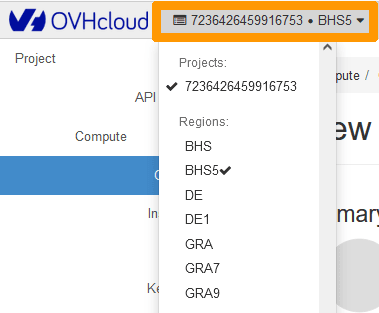
Unlike the OVHcloud Control Panel, Horizon separates your services according to their region. You can choose the region from the menu in the top left-hand corner:
### Left side menu
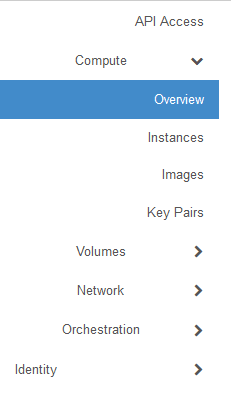
This menu allows you to quickly navigate through the project and its various features.
#### Compute
##### **Overview**
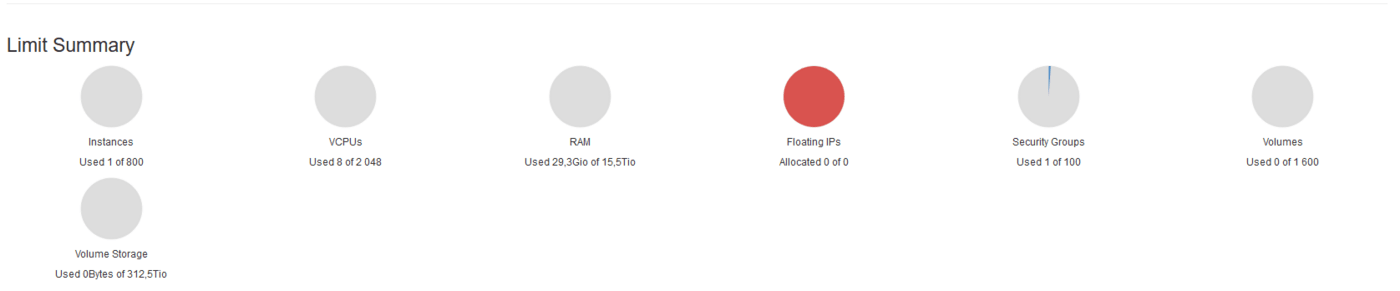
- **Quota Summary**
Horizon provides a summary of quotas, which allows you to see the used and available resources for your projects:
- **Usage Summary**
Next is a summary of the use of your project instances. The search period can be customized to restrict this summary to a desired period.

- **Usage**
A summary of your usage is also available. This is a summary of the various services associated with the project, such as the list of instances.

The summary is downloadable in CSV format, which allows you to extract the information so that you can analyse it via other tools. Simply click on `Download CSV Summary
`.

- **Instances**
Use this page to list and manage instances. Here, for example, you can create new instances, pause them, access the instance console, and much more.
- **Images**
Use this menu to list and manage images, i.e. templates and snapshots associated with your project.
- **Key Pairs**
Here you can list and create your SSH keys for connecting to your instances.
##### **Volumes**
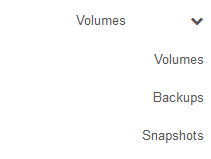
Use this menu to list and manage volumes, as well as volume backups and snapshots.
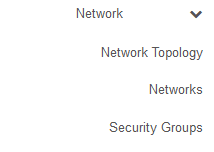
##### **Network**
List and manage your networks and security groups here.
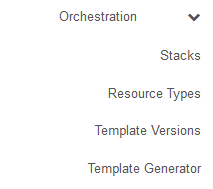
##### **Orchestration**
This menu allows you to orchestrate multiple composite cloud applications.
For more information, please refer to the [OpenStack documentation](https://docs.openstack.org/horizon/pike/user/stacks.html)
.
#### Identity
Use this menu to list information about your projects.
### User menu
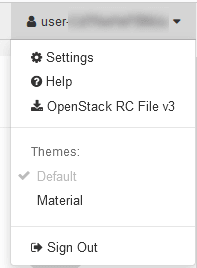
In the top right-hand corner of the Horizon interface, a user menu allows you to:
- Change interface display settings.
- Download an OpenRC file containing your user IDs.
- Log out of the Horizon interface.
## Go further
[How to use the Public Cloud interface](/en/guides/public-cloud/cross-functional/public-cloud-interface-walk-me.md)
Join our [community of users](https://community.ovhcloud.com/).