---
title: "How to increase Public Cloud quotas"
description: "Find out how to apply for a Public Cloud quota extension"
url: https://docs.ovhcloud.com/en/guides/public-cloud/cross-functional/increasing-public-cloud-quota
lang: en
lastUpdated: 2026-05-28
---
# How to increase Public Cloud quotas
## Objective
By default, the Public Cloud projects as well as the resources total (RAM, CPU, disk space, number of instances, etc.) you can use are limited for security reasons.
To be able to use additional resources and projects, the quotas need to be increased.
**This guide explains how to request and increase a Public Cloud quota in the OVHcloud Control Panel.**
## Requirements
- A [valid payment method](/en/guides/account-and-service-management/managing-billing-payments-and-services/manage-payment-methods.md) registered in your OVHcloud account
## Instructions
***
### OVHcloud Control Panel Access
- **Direct link:** Public Cloud Projects
- **Navigation path:** Public Cloud > Select your project
***
### Increasing your resources quota
In compliance with internal criteria (seniority, existence of paid invoices, etc.), you are now free to request quota increases for your Public Cloud projects resources directly from your OVHcloud Control Panel.
:::info
First-time Public Cloud users get [£175 of free credit](https://www.ovhcloud.com/en-gb/public-cloud/free-trial/) automatically activated upon project creation, valid for one month. Because quota increase eligibility depends on criteria such as account seniority and paid invoices, free trial users may have limited quota increase options until their first invoice has been settled.
:::
You can increase your resources quota manually or automatically.
#### Increasing your resources quota automatically with the "Auto-scaling quota" feature
This option allows you to request an automatic and gradual increase in your resource quota. The quota will be adjusted based on your actual usage **if you exceed 60% of your current quota for 30 consecutive days**, as well as a set of internal and financial criteria.
:::info
**Note**: This process is not suitable for rapid quota increases.
:::
In the left-hand menu, click on `Quota & Regions
` under **Settings**
.
At the top right of the page that appears, you will find the **Auto-scaling quota** option:
- To learn more about this feature, click on the ? next to this option.
- Enable the option by clicking on the button to the right of this option. The status will change from _Disabled_ to _Enabled_.
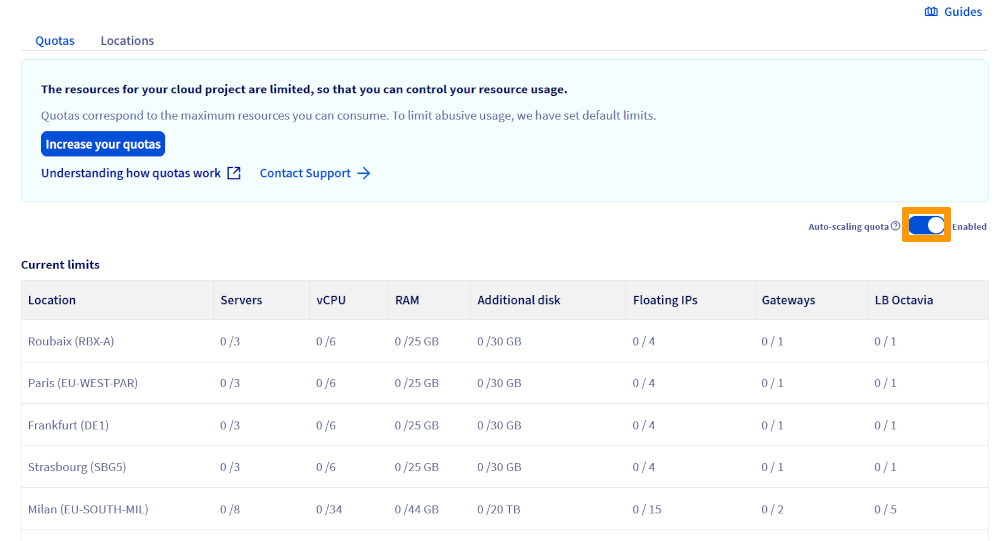
Once activated, auto-scaling will gradually increase your project's quota based on your actual needs.
#### Increasing your resources quota manually
:::info
If you need to increase your quota and the `Increase your quota!
` button is not available in your Control Panel, click on the `Contact Support
` button.
:::

This procedure allows for a rapid and significant increase in your quotas (e.g., rapid scaling, GPU instances, etc.). This method is based on the immediate purchase of credit, from which all cloud consumption will be automatically deducted.
It is possible to purchase different amounts of credit.
In the left-hand sidebar, click on `Quota & Regions
` under **Settings**
.
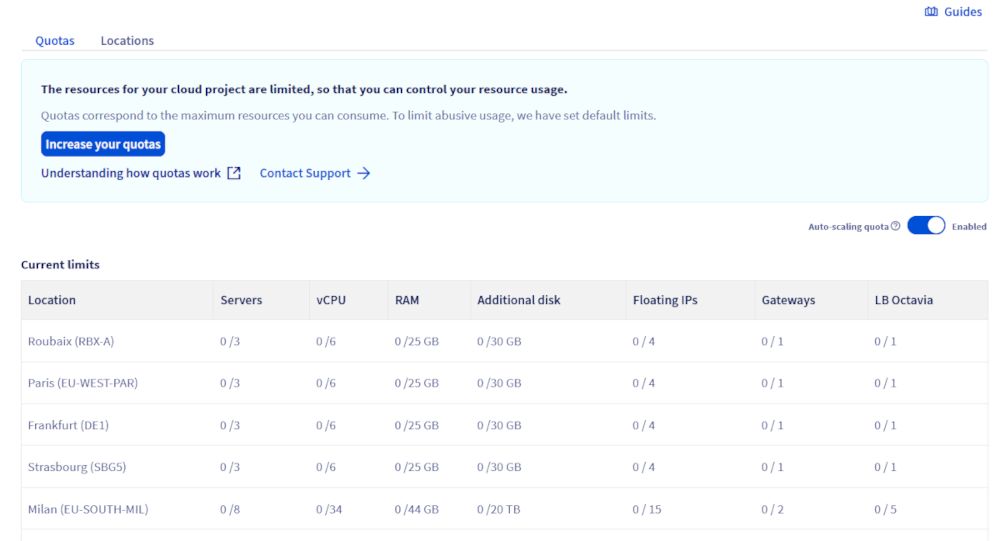
This page shows a summary of your project's current quotas by region. A warning appears as soon as a resource reaches 80% of its quota.
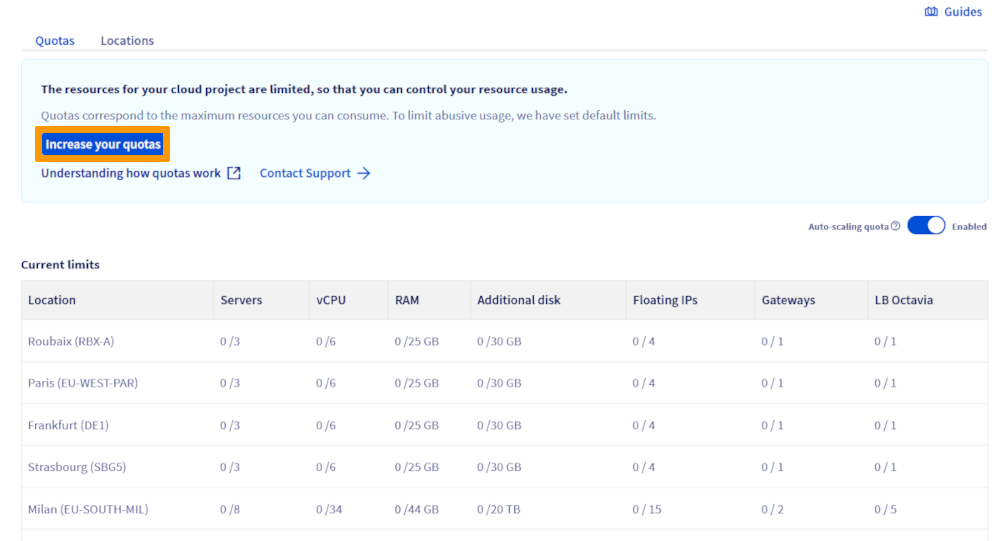
Click on the `Increase your quota!
` button.
Next, click on the drop down arrow next to "Select the volume" to view the list of quotas currently available to upgrade your resources to. This section also shows the amount to pay in order to benefit from these resources.
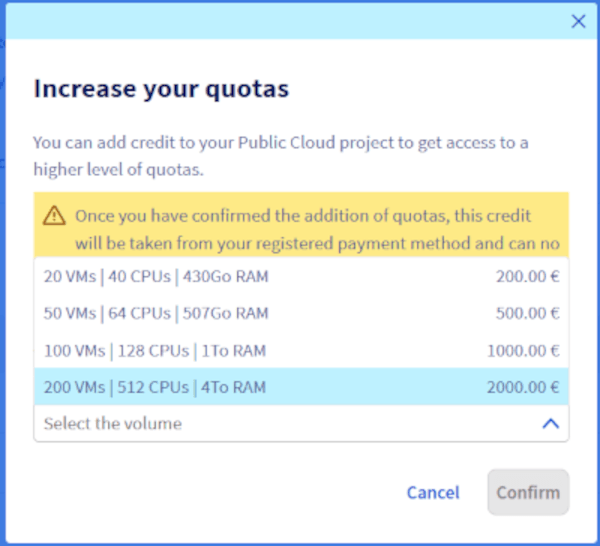
The table below shows the resources obtained for each quota:
| Quota | Instances | CPU/Cores | RAM (GB) | Volume Size (TB) | Volumes | Backups | Backup Size (TB) | Floating IPs | Octavia Load Balancer | Gateway (Routers) |
| ------- | --------- | --------- | -------- | ---------------- | ------- | ------- | ---------------- | ------------ | --------------------- | ----------------- |
| 20 VMs | 20 | 40 | 430 | 20 | 200 | 1200 | 120 | 30 | 10 | 4 |
| 50 VMs | 50 | 64 | 507 | 20 | 500 | 3000 | 300 | 75 | 25 | 10 |
| 100 VMs | 100 | 128 | 1015 | 40 | 1000 | 6000 | 600 | 300 | 50 | 10 |
| 200 VMs | 200 | 512 | 4063 | 80 | 2000 | 12000 | 1200 | 600 | 50 | 50 |
Once you have selected your volume, click on `Confirm
`. Your payment will be processed as soon as possible.
:::warning
**Any manual quota increase will be billed immediately.**
After clicking on the `Confirm
` button, the order is automatically created and the amount will be debited from your default payment method.
:::
You can get a more detailed view of your resources in the [Horizon interface](https://horizon.cloud.ovh.net/auth/login/)
. Once logged in, click on `Project
`, then on `Overview
`.
### Increasing the quota of your Public Cloud projects
There are two main situations where you may need a quota adjustment:
1. **Maximum number of projects reached**: If you have reached the maximum number of Public Cloud projects allowed in your customer account and want to create new ones, you must submit a request to our support team.
2. **Other types of quota requests**: For any other limits (CPU, RAM, storage, etc.) or specific needs related to your Public Cloud projects, you can also contact support to request an increase.
:::info
**Note**: Quota requests are processed manually by our team. Processing times may vary depending on the complexity of the request. We recommend that you submit your request as soon as possible to avoid any delays in your projects.
:::
To speed up processing, please specify the following in your request:
- The type of quota to be increased (number of projects, resources, etc.);
- The intended use and justification for the increase;
- The desired period or duration of the increase.
### Specific quotas and special resources
For certain resources or services, specific quotas may apply. For more information:
**S3 quota**
1
: See the official documentation "[Object Storage - Technical Limitations](/en/guides/storage-and-backup/object-storage/s3-limitations.md)
".
**Managed Kubernetes Service (MKS) quota**: See the official documentation "[ETCD Quotas, usage, troubleshooting and error](/en/guides/public-cloud/containers-orchestration/managed-kubernetes/etcd-quota-error.md)".
## Go further
Join our [community of users](https://community.ovhcloud.com/).
1
: S3 is a trademark of Amazon Technologies, Inc. OVHcloud’s service is not sponsored by, endorsed by, or otherwise affiliated with Amazon Technologies, Inc.