---
title: "Delegating projects"
description: "Find out how to delegate access rights for a Public Cloud project to other OVHcloud accounts"
url: https://docs.ovhcloud.com/en/guides/public-cloud/cross-functional/delegate-projects
lang: en
lastUpdated: 2025-04-28
---
# Delegating projects
## Objective
Depending on your use case, you may need to grant other users access to your project, without giving them full access to your services.
To this end, you can delegate read-only or read/write permissions for your projects to other OVHcloud customer accounts.
**This guide explains how to delegate access rights for a Public Cloud project in the OVHcloud Control Panel.**
### Requirements
- A [Public Cloud project](https://www.ovhcloud.com/en-gb/public-cloud/) in your OVHcloud account
## Instructions
***
### OVHcloud Control Panel Access
- **Direct link:** Public Cloud Projects
- **Navigation path:** Public Cloud > Select your project
***
Click on `Contacts & Rights
` in the left-hand menu under **Settings**
.
On this page you can see the contacts associated with your project.
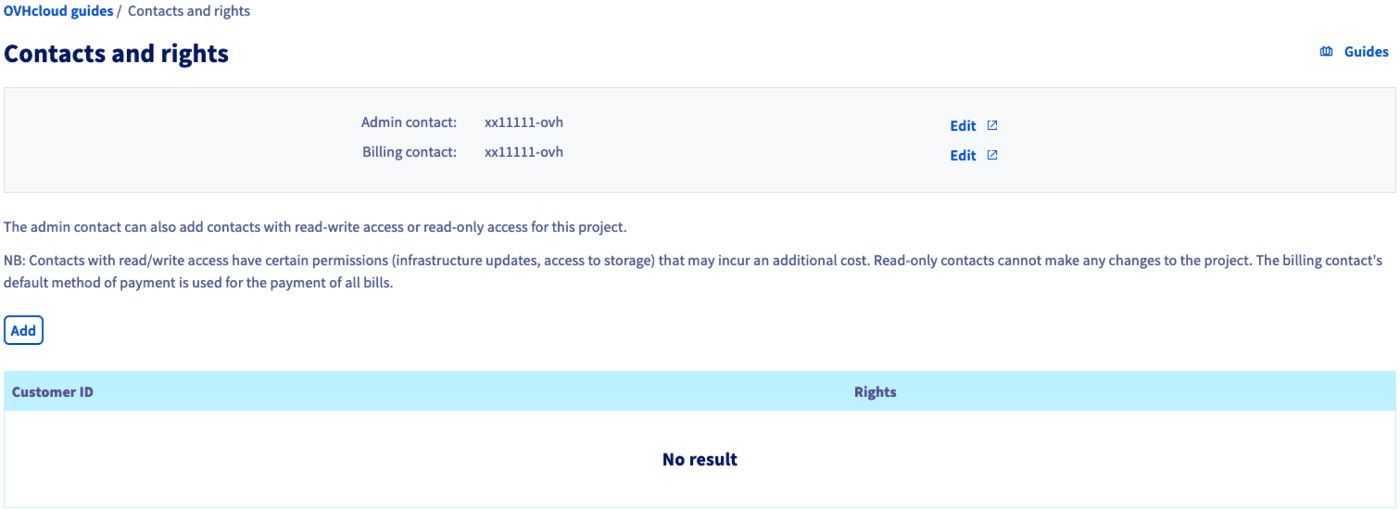
You can click on the `Edit
` buttons to change the current contacts. Follow the instructions in our guide [Changing project contacts](/en/guides/public-cloud/compute/change-project-contacts.md)
to complete this process.
### Adding contacts and permissions
Click on the `Add
` button in order to add a user and assign permissions. In the popup window, enter the NIC handle of the user (in the form xx00000-ovh), then select `Read-only`
or `Read/Write`
from the menu.
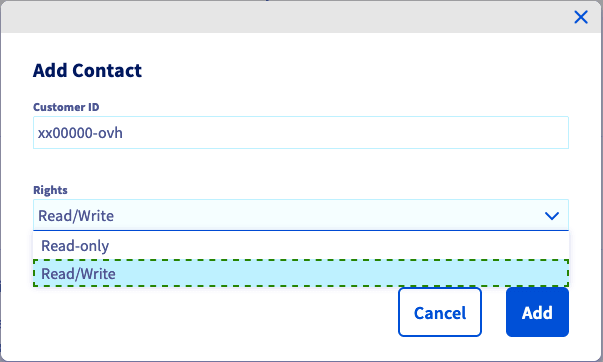
:::info
Note that `Read/Write` permissions will allow changes to the project that might affect future billing.
Click on `Add
` to confirm the access delegation. A confirmation email will be sent to you and the new user who will now be able to open the project in the Public Cloud section of their OVHcloud Control Panel.
:::
Once the page has reloaded, the added OVHcloud customer accounts and their respective permissions are listed in the table.

To revoke an access, click on the `...
` button and then select `Delete
`.
## Go further
[Getting started with a Public Cloud Instance](/en/guides/public-cloud/compute/first-steps-with-public-cloud-instance.md)
[Information regarding Public Cloud billing options](/en/guides/public-cloud/cross-functional/analyze-billing.md)
[Access and Security in Horizon](/en/guides/public-cloud/cross-functional/compute-horizon-access-security.md)
If you need training or technical assistance to implement our solutions, contact your sales representative or click on [this link](https://www.ovhcloud.com/en-gb/professional-services/) to get a quote and ask our Professional Services experts for assisting you on your specific use case of your project.
Join our [community of users](https://community.ovhcloud.com/).