---
title: "Resize an instance via Horizon"
description: "Find out how to resize an instance in the Horizon interface"
url: https://docs.ovhcloud.com/en/guides/public-cloud/compute/resize-of-an-instance
lang: en
lastUpdated: 2025-07-17
---
# Resize an instance via Horizon
## Objective
As a result of increased activity, or simply new needs, your instance may not be able to meet this new burden due to a lack of resources. However, with the Public Cloud, you can increase the resources available to your instance, and this can be done with just a few clicks.
**This guide will show you how to resize your instance using the OpenStack Horizon interface.**
:::warning
Only upscaling is possible for classic models.
In addition, this manipulation causes the instance to be shut down for the time of the operation.
:::
:::warning
Metal instances can only be resized to and from other Metal flavors.
:::
:::tip
Flex instances allow resizing to higher or lower models due to a locked single disk size.
:::
## Requirements
- An [OVHcloud Public Cloud instance](/en/guides/public-cloud/compute/getting-started.md)
- [Access to the Horizon interface](/en/guides/public-cloud/cross-functional/introducing-horizon.md)
## Instructions
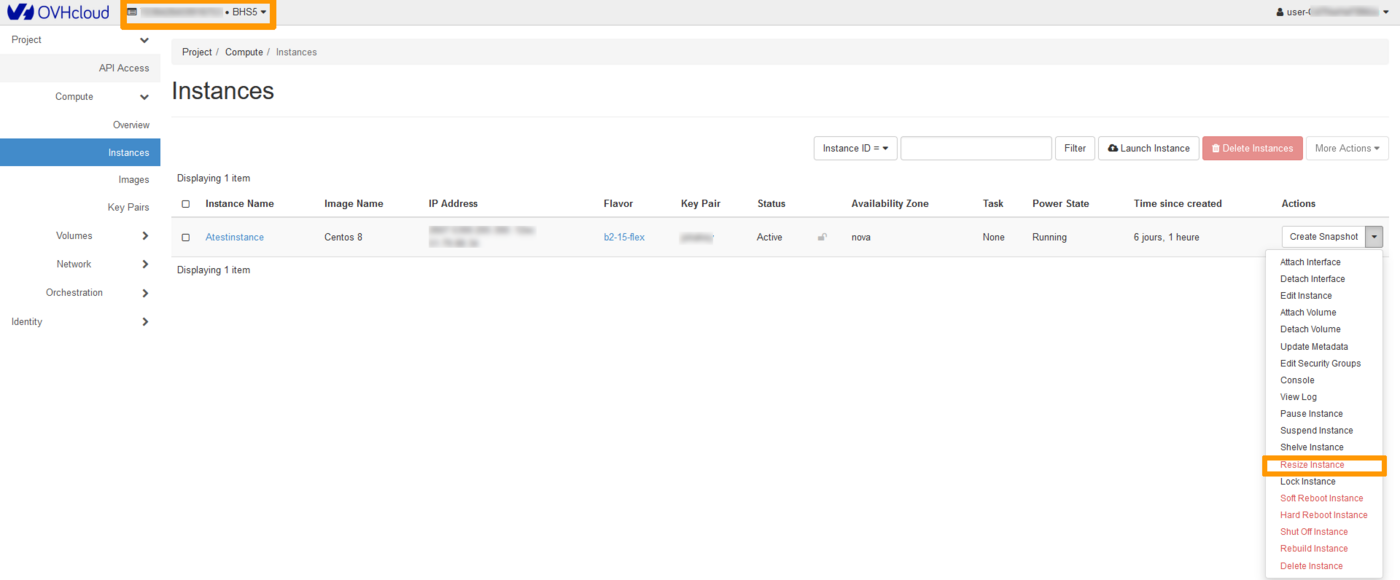
Log into the [Horizon interface](https://horizon.cloud.ovh.net/auth/login/)
, and make sure you are in the correct region. You can verify this on the top left corner.
Next, click on the `Compute
` menu on the left side and select `Instances
`. Select `Resize Instance
` in the drop list for the corresponding instance.
### Template Selection Tab (Flavor Choice)
This section shows the current template (old flavor) and allows you to select a new template (new flavor) for the instance resource.
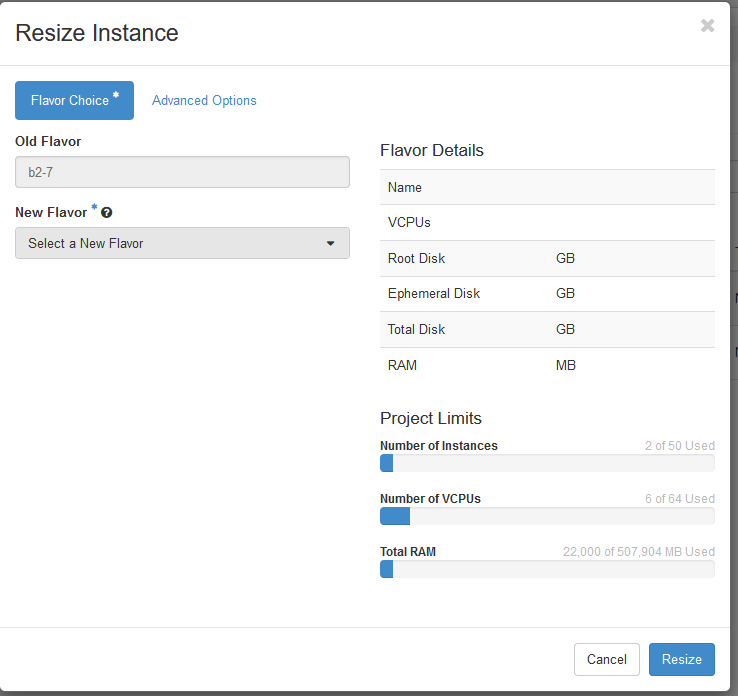
#### Flavor Details
In this section, you will see the resources associated with the new template you have chosen.
#### Project Limits
Under this section, you can view the occupied resources in relation to the total resources allocated to the project.
:::warning
Please note that you cannot switch models when resizing an instance. A resizing can only be done from a Linux model to another Linux model or from a Windows model to another Windows model.
:::
### Advanced Options
Use this section to manage the **Disk Partition** and **Server Group**.
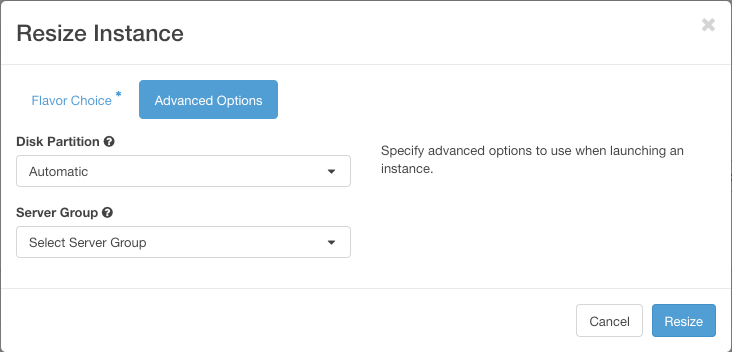
Once the configuration is complete, click on `Resize
`.
### Resizing a disk in Windows
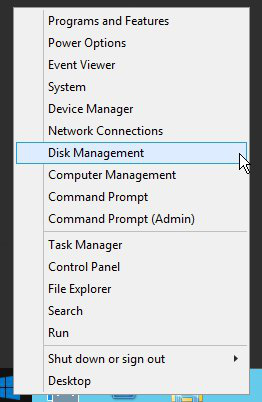
When performing a resize for a Windows Instance, please note that the partition size is not automatically updated, so you will have to extend it using the **disk manager**:
- Right-click on the Start menu and launch the disk manager by clicking on Disk Management:
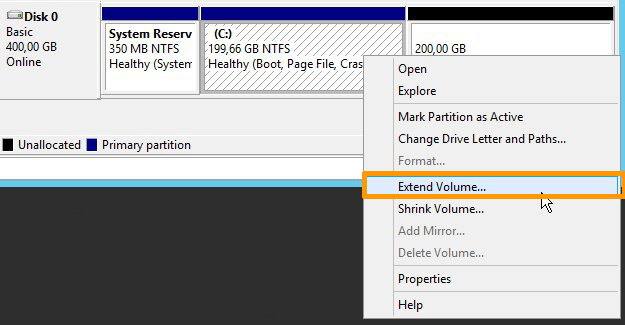
- Right-click on the main partition, then click on Extend Volume.
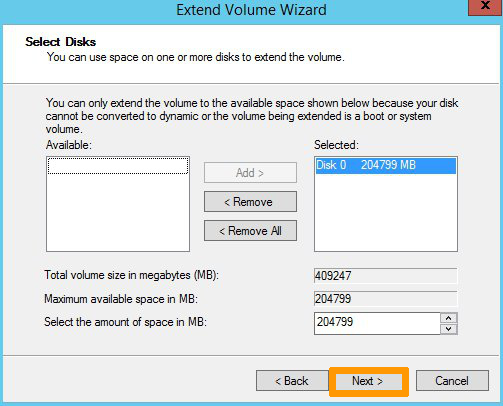
- In the `Extend Volume Wizard` menu, click on Next to proceed. In the next tab, choose the disk resources to extend and click on Next.
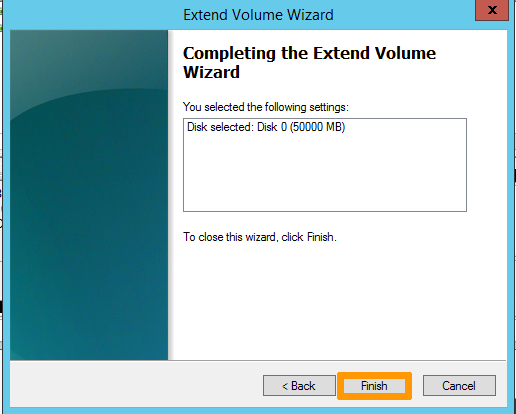
Once done, click on `Finish
` to confirm your choice.
- The new disk size will then be displayed in the disk manager.

## Go further
Join our [community of users](https://community.ovhcloud.com/).