---
title: "Managing your Public Cloud Instances in Horizon"
description: "Find out how to manage your Public Cloud projects via the Horizon interface"
url: https://docs.ovhcloud.com/en/guides/public-cloud/compute/managing-instances-horizon
lang: en
lastUpdated: 2026-06-23
---
# Managing your Public Cloud Instances in Horizon
## Objective
Besides the OVHcloud Control Panel, you can also manage your Public Cloud projects via the [Horizon interface](https://horizon.cloud.ovh.net/auth/login/). In this interface, you will find all of your infrastructure (instances, backups, disks, SSH keys, etc.) and storage projects (including the list of your containers).
**This guide details how to manage your Public Cloud instances via the Horizon interface.**
## Requirements
- You need to have created a Public Cloud instance in your [OVHcloud Control Panel](/en/guides/public-cloud/compute/getting-started.md) or through the [Horizon interface](/en/guides/public-cloud/compute/create-instance-in-horizon.md)
- [An SSH key](/en/guides/public-cloud/compute/creating-ssh-keys.md)
## Access the management interface for the instance
First, log into the [Horizon interface](https://horizon.cloud.ovh.net/auth/login/).
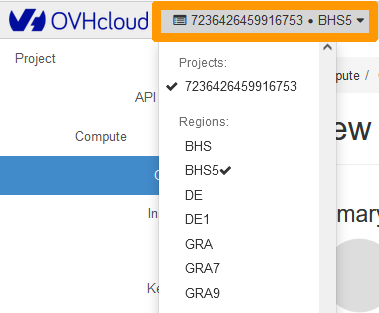
Unlike the OVHcloud Control Panel, Horizon separates your services according to their region/local zone. You can choose the region/local zone from the menu in the top left-hand corner:
Click the `Compute
` menu on the left-hand side, then select `Instances
`. On that page you will see a summary of all your instances. There will be several pieces of information displayed here:
- The model of your instance (Flavor)
- Its name, power state, and time since created
- Your instance’s IPv4 and IPv6 address
- Its associated private network and private IPv4 address
- Its status
- The image used to install the instance (if applicable)
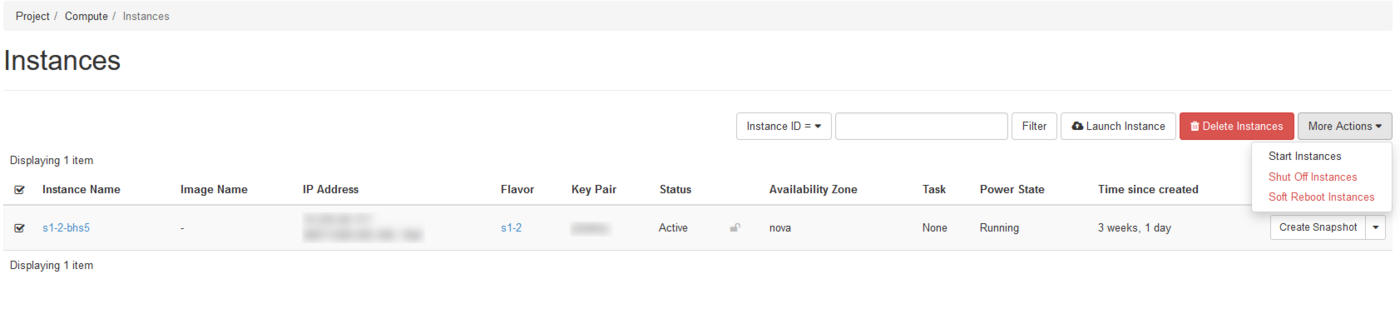
**Launch Instance**
This option allows you to create an instance. Please refer to [this guide](/en/guides/public-cloud/compute/create-instance-in-horizon.md) for more information.
**Delete Instances**
This option allows you to delete several instances at once. Make sure to tick the box to the left of the instance name.
**More Actions**
Use this menu to perform the following actions on one or more instances. First, tick the box to the left of the instance name:
- Start Instances: This option allows you to reboot one or more instances in "shutoff or off" status.
- Shut Off Instances: This option allows you to suspend one or more instances.
- Soft Reboot Instances: This option allows you to perform a software reboot on one or more instances.
**Create snapshot**: This option allows you to create a snapshot of your instance. Consult [this guide](/en/guides/public-cloud/compute/managing-snapshots-in-horizon.md) for more information.
### Modify an instance
In the management interface for the Instance, select the option you want from the dropdown list.
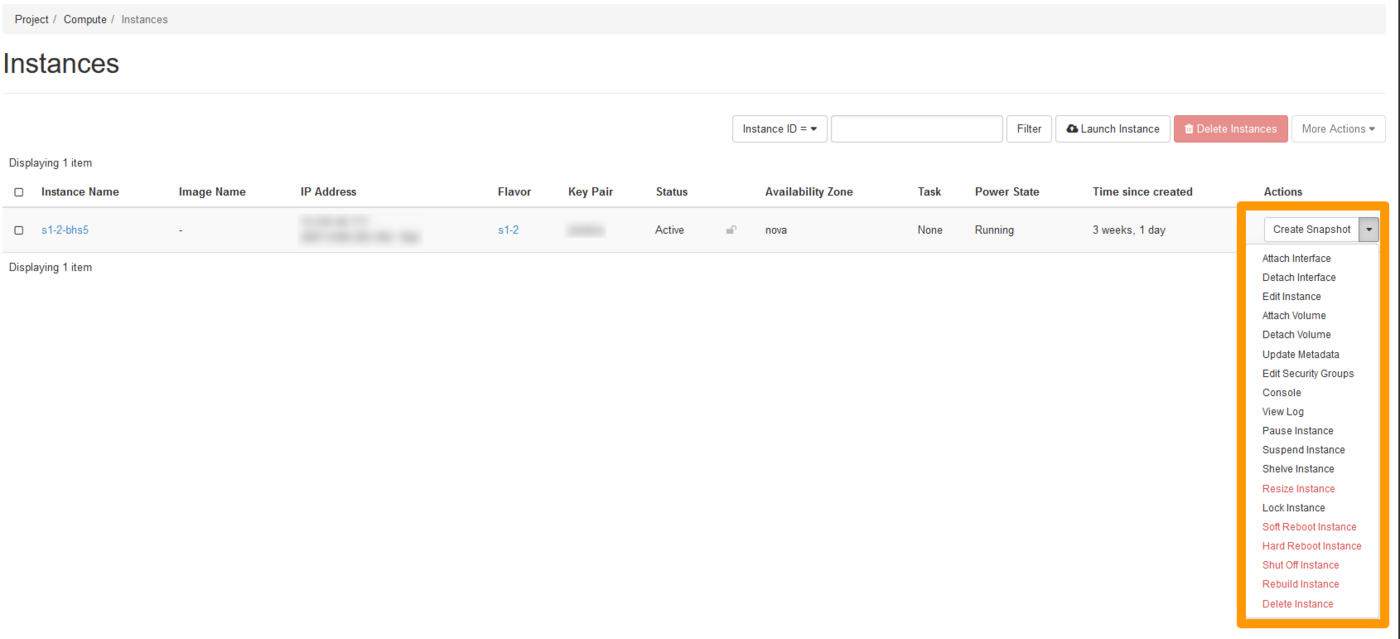
- Attach Interface: This option allows you to add one or more private interfaces to your instance via the VLAN. For more information, refer to [this section](/en/guides/public-cloud/network-services/vrack.md#adding-a-private-interface) of the corresponding guide.
- Detach Interface: This option allows you to detach an interface linked to an instance. For more information, refer to [this section](/en/guides/public-cloud/network-services/vrack.md#removing-a-private-interface) of the corresponding guide.
- Edit Instance: This option allows you to change the instance name and [security groups](/en/guides/public-cloud/compute/setup-security-group.md).
:::warning
The options in red indicate the possibility of data loss during the process, always make sure you have a backup of your data before making any changes to your instance.
:::
### Resize an instance
With the Public Cloud, you can increase the resources your instance has with just a few clicks.
:::warning
Only upscaling is possible for classic models.
In addition, this manipulation causes the instance to be shut down for the time of the operation.
:::
:::tip
Flex instances allow resizing to higher or lower models due to a locked single disk size.
:::
For detailed instructions, consult the following guide: [Resize an instance via Horizon](/en/guides/public-cloud/compute/resize-of-an-instance.md).
### Rebuild an instance
This option allows you to reconfigure your instance on a new basis, or simply change the operating system.
:::danger
This operation will delete the instance’s data.
:::
- Select Rebuild Instance from the drop-down list for the instance.
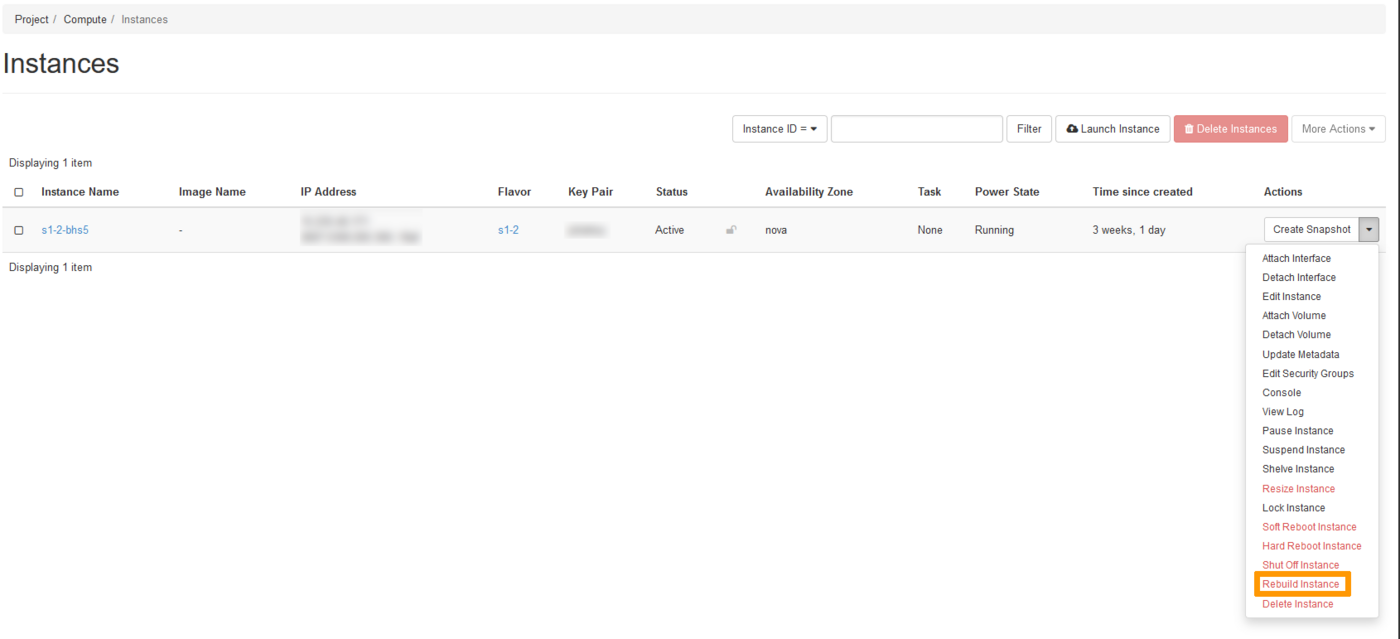
- Select the image for reconstruction.
- Select the type of partitioning ("Automatic" or "Manual"). This is optional.
- Finally, click Rebuild Instance. This operation may take a few minutes.
### Shelve or pause an instance
To find out how to shelve or pause an instance, please refer to [this guide](/en/guides/public-cloud/compute/suspend-or-pause-an-instance.md).
### Access the instance console [](#)
If you lose access to your instance, either because of a bad configuration, or because the SSH service is down, you can always reconfigure your instance using the VNC console.
:::info
You can access your instance directly through the VNC console. You will only need to set up a password for the root user beforehand.
Consult [this guide](/en/guides/public-cloud/compute/getting-started.md#user-mgmt) for more information.
The VNC console can also be used as a first approach during a malfunction, to establish a diagnostic using the analysis of your instance's startup phase.
:::
From the drop-down list for the instance, select `Console
`.
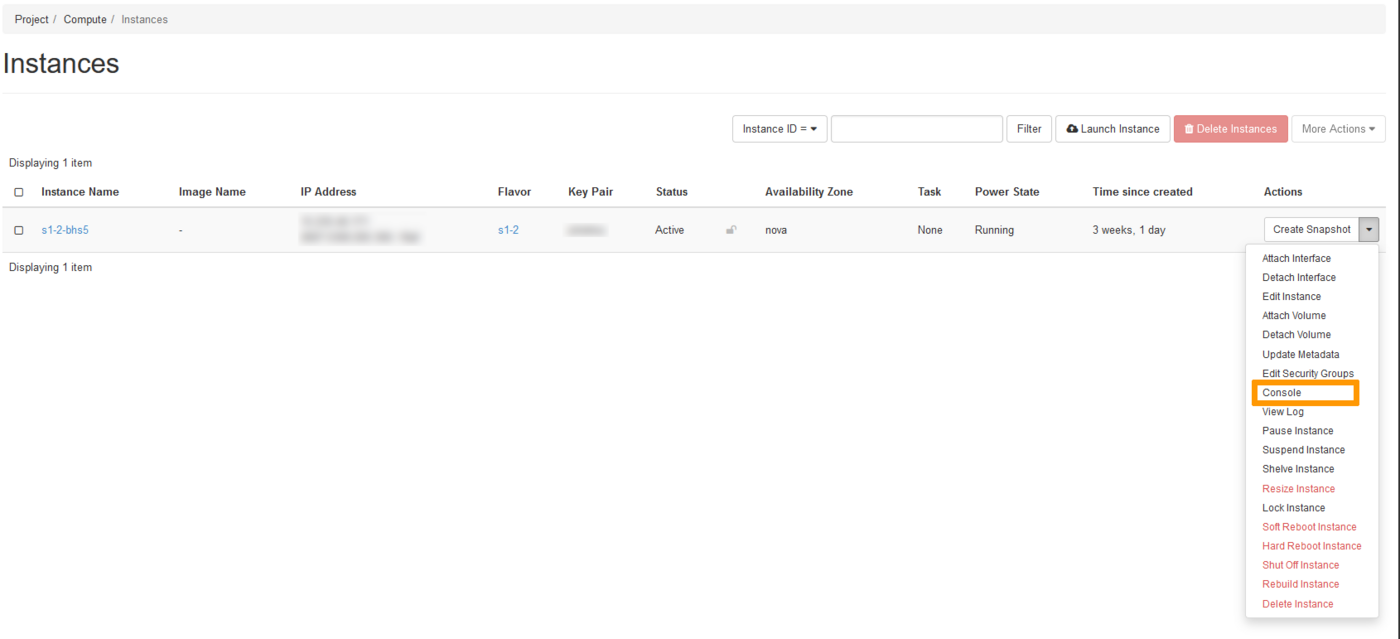
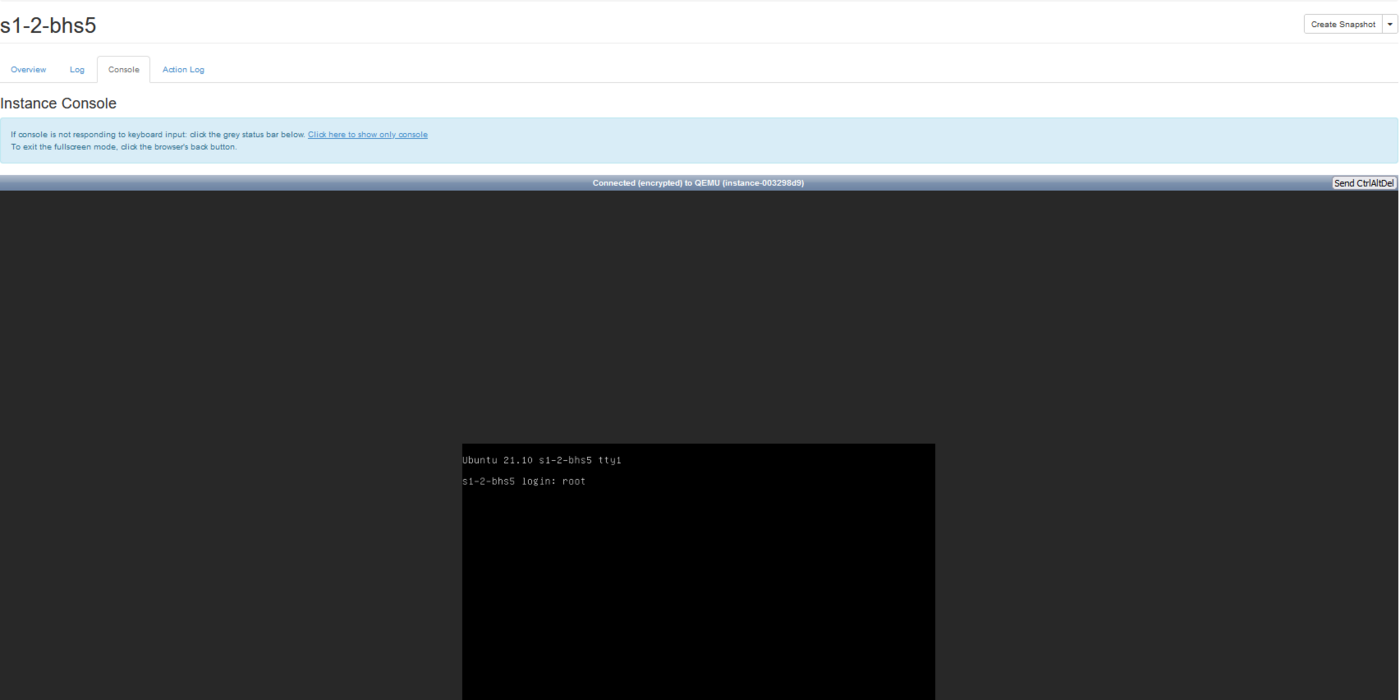
- The instance console will appear.
:::tip
If the console no longer responds to the keyboard input, click on the status bar.
To exit full-screen mode, click the browser's back button.
:::
**Instance console**
### Reboot an instance
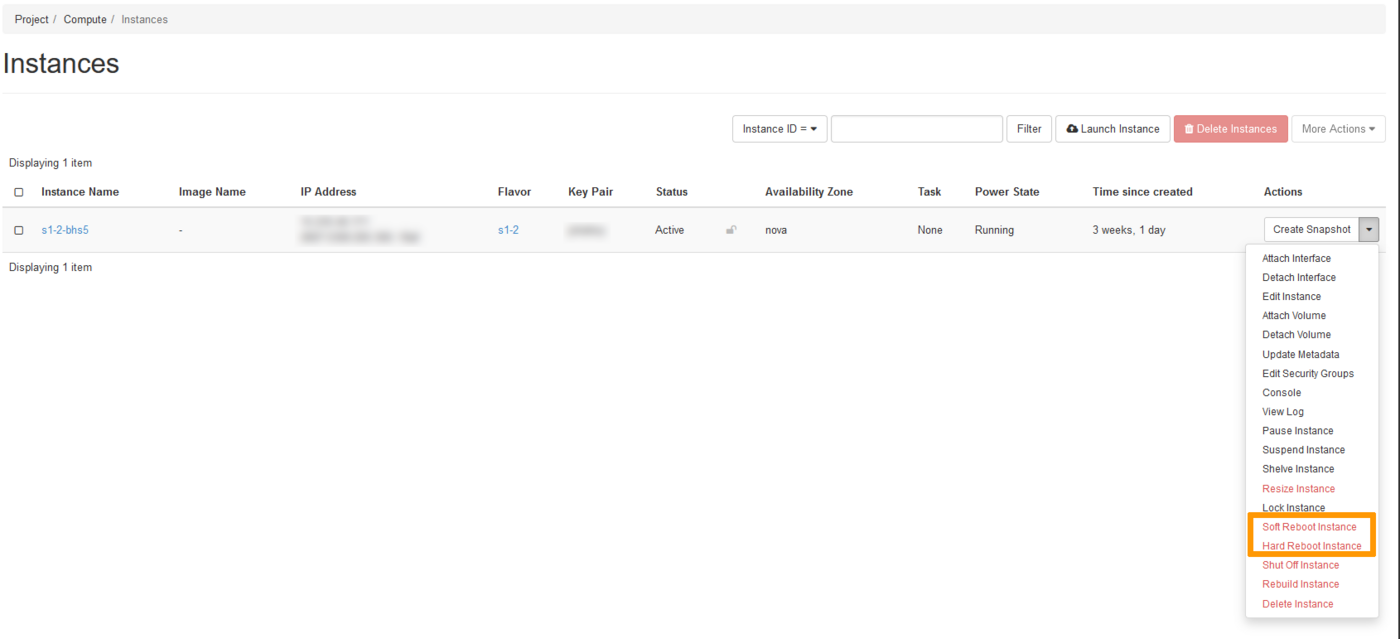
There are two methods for rebooting an instance:
- Soft Reboot Instance (Software)
- Hard Reboot Instance (Hardware)
From the drop-down list for the instance, select either `Soft Reboot Instance
` or `Hard Reboot Instance
`.
Confirm your request in the pop-up window.
### Delete an instance
If you no longer need one of your instances, you can delete it at any time.
:::danger
The data stored on the instance will be permanently deleted.
You can always create a backup of this instance if you want to keep the data and restart an identical instance later.
Deleting an instance does not automatically delete all the options associated with it (storage, snapshot, backup, etc...), so make sure that all other options associated with the instance are also deleted to stop being billed.
:::
From the drop-down list for the instance, select `Delete Instance
`.
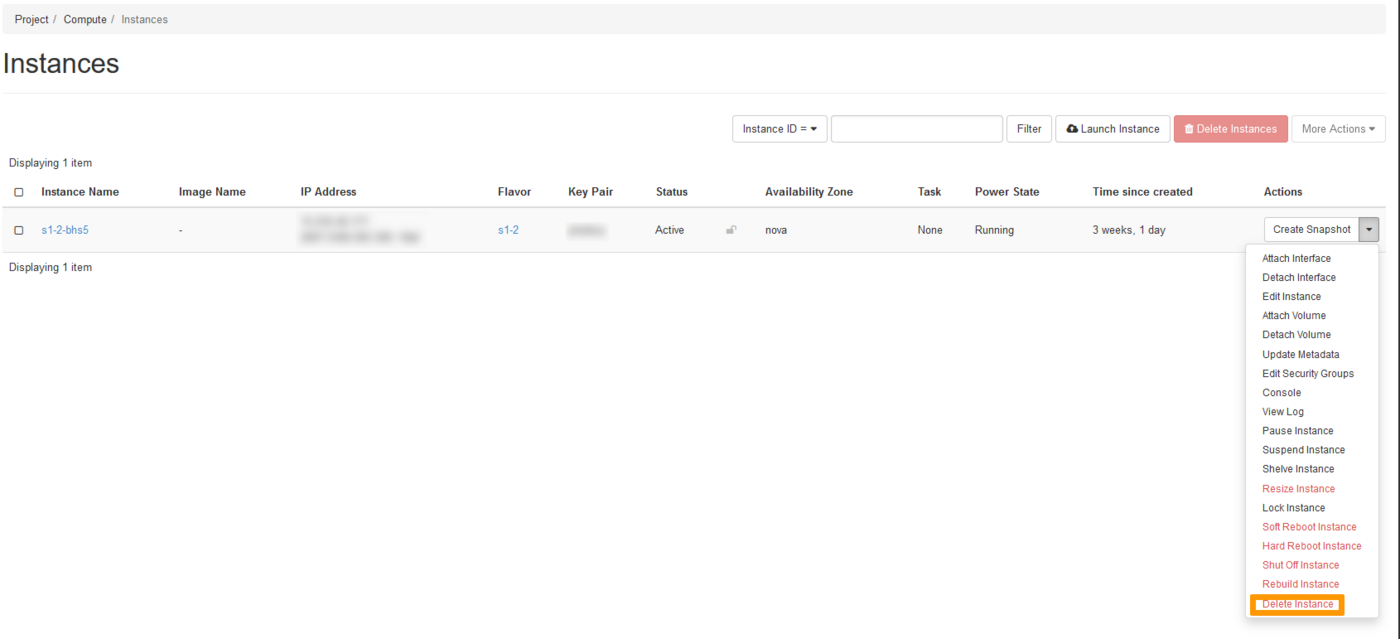
Then click `Confirm
` to start the process.
:::tip
Once deleted, you will no longer be charged for your instance, and you will not be able to recover it.
:::
## Go further
Join our [community of users](https://community.ovhcloud.com/).