---
title: "Changing project contacts"
description: "Find out how to change the contacts of a Public Cloud project"
url: https://docs.ovhcloud.com/en/guides/public-cloud/compute/change-project-contacts
lang: en
lastUpdated: 2025-04-28
---
# Changing project contacts
## Objective
You can change the contacts for project administration and billing of a Public Cloud project in the OVHcloud Control Panel.
Modifying these contacts enables you to separate the technical management of services within a project from the project's billing.
**This guide explains how to change the contacts of a Public Cloud project in the OVHcloud Control Panel.**
## Requirements
- A [Public Cloud project](https://www.ovhcloud.com/en-gb/public-cloud/) in your OVHcloud account
- Admin and billing contacts in the same OVHcloud subsidiary
***
### OVHcloud Control Panel Access
- **Direct link:** Public Cloud Projects
- **Navigation path:** Public Cloud > Select your project
***
## Instructions
Click on `Contacts & Rights
` in the left-hand menu under **Settings**
.
On this page you can see the administrative and billing contacts associated with your project.
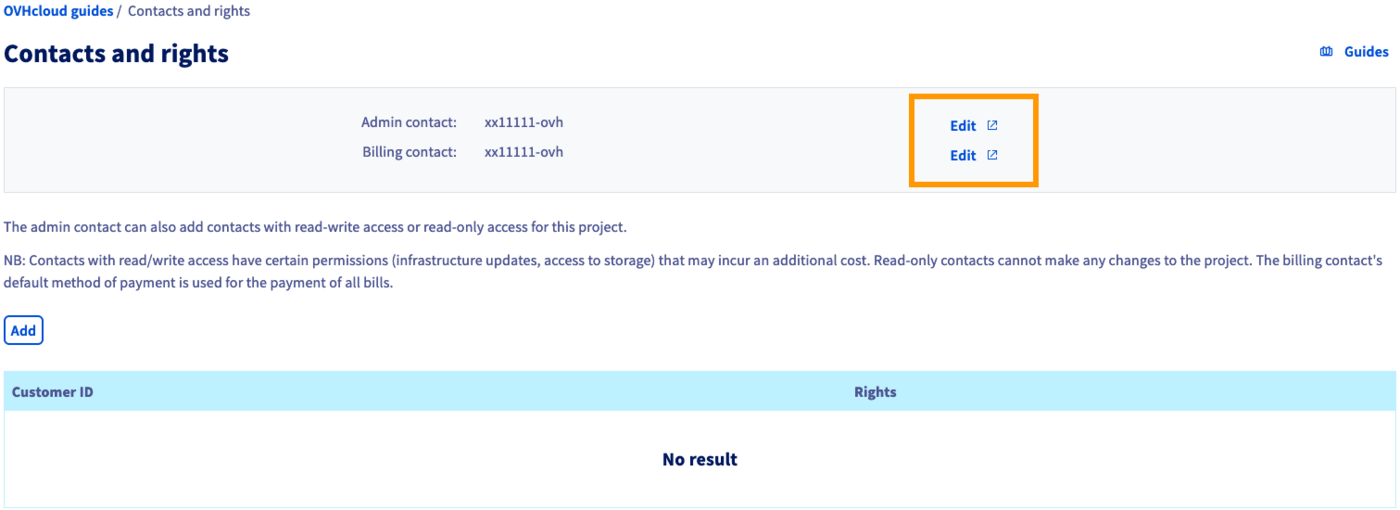
Click on one of the `Edit
` buttons to modify the current contacts. This will open the **Contact management**
section of your Control Panel.
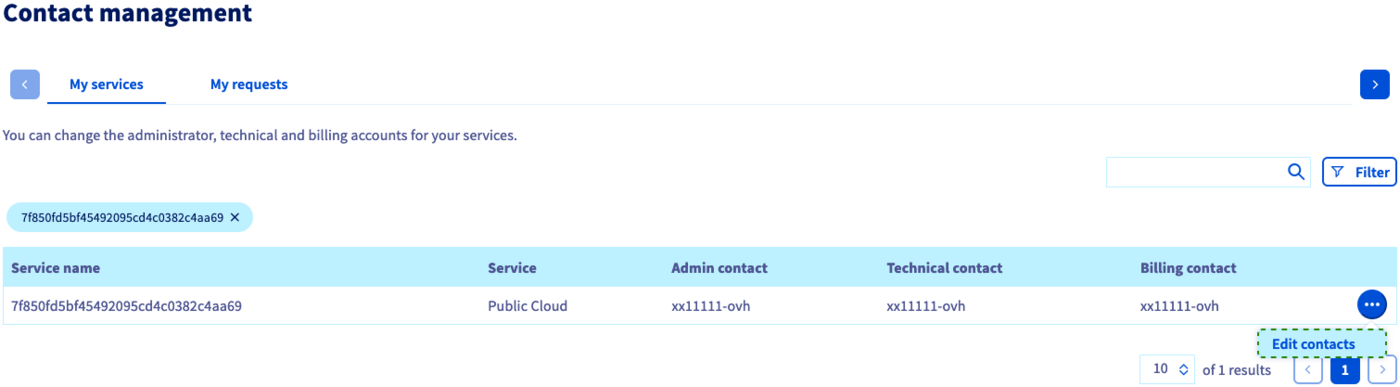
The contacts of your Public Cloud project are displayed in the table. Click on the `...
` button and then on `Edit contacts
`.
In the new window, enter the desired NIC handle for each contact you wish to change. Bear in mind that the OVHcloud accounts for `Admin` and `Billing` contacts have to be registered in the same OVHcloud subsidiary.
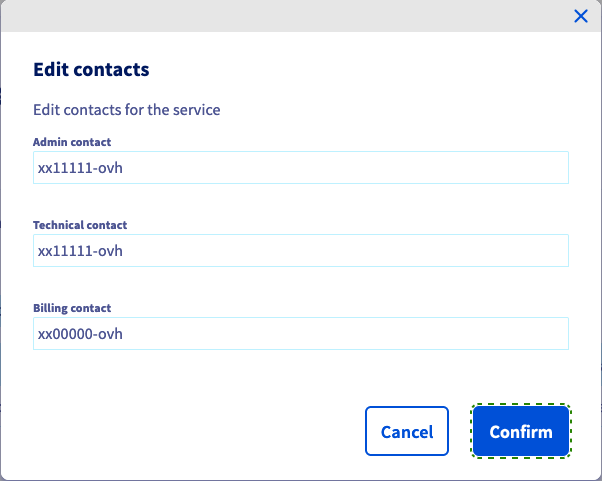
Once you have clicked `Confirm
`, both OVHcloud accounts affected by the change will receive a confirmation email. This email contains a token with which the contact change can be accepted in the tab `My requests
` of the **Contact management**
section.
For a more detailed explanation of this process, please consult our guide [Managing contacts for your services](/en/guides/account-and-service-management/account-information/managing-contacts.md).
## Go further
[Information regarding Public Cloud billing options](/en/guides/public-cloud/cross-functional/analyze-billing.md)
[Managing contacts for your services](/en/guides/account-and-service-management/account-information/managing-contacts.md)
[Delegating projects](/en/guides/public-cloud/cross-functional/delegate-projects.md)
Join our [community of users](https://community.ovhcloud.com/).