---
title: "AI Notebooks - Tutorial - Fine-Tune and export an AI model to ONNX"
description: "Learn how to train and export a PyTorch model to ONNX for optimized inference"
url: https://docs.ovhcloud.com/en/guides/public-cloud/ai-machine-learning/ai-notebooks-finetune-model-export-onnx
lang: en
lastUpdated: 2023-09-08
---
# AI Notebooks - Tutorial - Fine-Tune and export an AI model to ONNX
## Objective
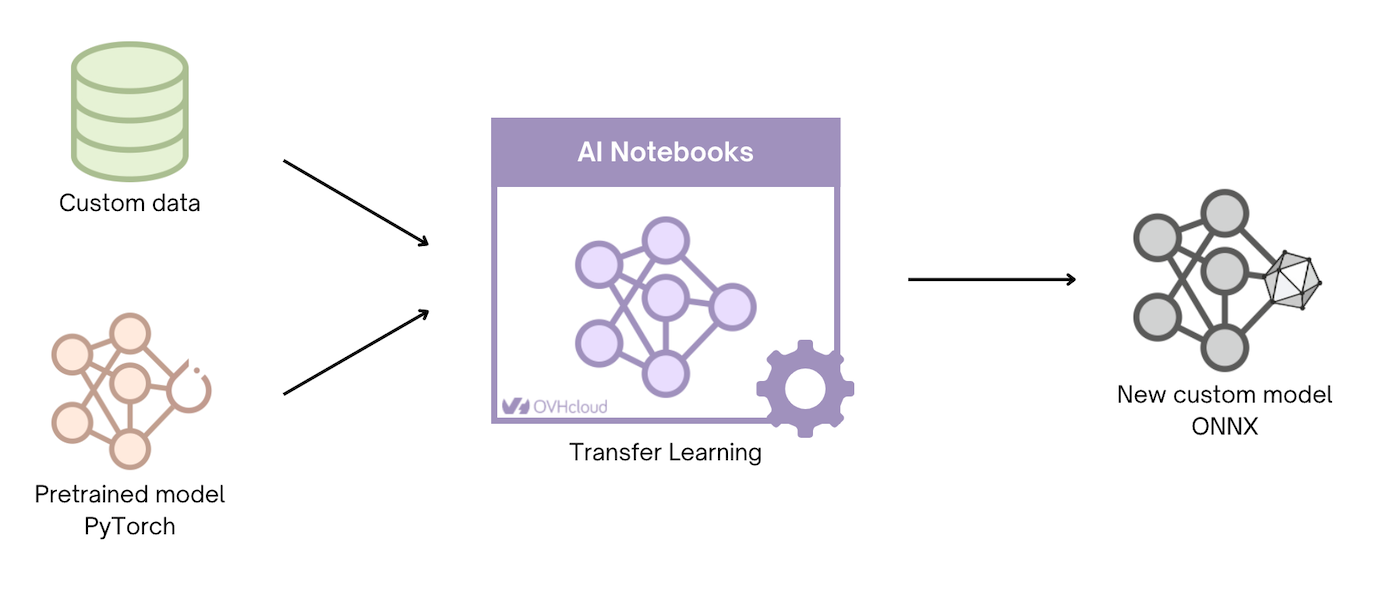
The aim of this tutorial is to show you how to **Fine-Tune** a PyTorch model and export it in **ONNX** ([Open Neural Network Exchange](https://onnx.ai/)) format.
For this purpose, we use an **image classification** model: [DenseNet](https://pytorch.org/hub/pytorch_vision_densenet/).
:::info
DenseNet models are pre-trained on [ImageNet](https://www.image-net.org/) dataset.
:::
The goal is to Fine-Tune a **DenseNet121** model to classify daily life images with the **CIFAR-10** dataset. It is composed of 10 classes:
- airplane
- automobile
- bird
- cat
- deer
- dog
- frog
- horse
- ship
- truck
_Find out more information about CIFAR-10 dataset on the following [link](https://www.cs.toronto.edu/~kriz/cifar.html)._
At the end of training, the DenseNet model is saved in PyTorch format (`.pth`). It will then be transformed into ONNX.
Exporting your model in ONNX format allows you to **optimize the inference** of a Machine Learning model.
## Requirements
- An AI Notebooks project created inside a [Public Cloud project](https://www.ovhcloud.com/en-gb/public-cloud/) in your OVHcloud account
- A user for AI Notebooks
- A [Kaggle](https://www.kaggle.com/) account to download the dataset
***
### OVHcloud Control Panel Access
- **Direct link:** Public Cloud Projects
- **Navigation path:** Public Cloud > Select your project
***
## Instructions
You can launch the notebook from the OVHcloud Control Panel
or via the ovhai [CLI](/en/guides/public-cloud/ai-machine-learning/ai-cli-run-notebook.md)
.
### Launching a Jupyter notebook with "Conda" via UI (Control Panel)
To launch your notebook from the OVHcloud Control Panel
, refer to the following steps.
#### Code editor
Choose the `Jupyterlab` code editor.
#### Framework
In this tutorial, the `conda` framework is used.
#### Resources
Using GPUs is recommended to train the image classification model: **densenet121**.
:::info
Here, using `1 GPU` is sufficient.
:::
### Launching a Jupyter notebook with "conda" via CLI
_If you do not use our CLI yet, follow [this guide](/en/guides/public-cloud/ai-machine-learning/ai-cli-install-client.md) to install it._
If you want to launch your notebook with the OVHcloud AI CLI, choose the `jupyterlab` editor and the `conda` framework.
To access the different versions of `conda` available, run the following command:
```console
ovhai capabilities framework get conda -o yaml
```
You will also need to choose the number of GPUs to use in your notebook, using ``.
To launch your notebook, run the following command:
```console
ovhai notebook run conda jupyterlab \
--name \
--framework-version conda-py310-cuda11.8-v22-4 \
--gpu
```
You can then reach your notebook’s URL once the notebook is running.
### Accessing the notebooks
Once our [AI examples repository](https://github.com/ovh/ai-training-examples/) has been cloned in your environment, find the fine-tuning notebook tutorial by following this path: `ai-training-examples` > `notebooks` > `go-further` > `onnx` > `notebook_finetune_densenet_export_onnx.ipynb`.
A preview of this notebook can be found on GitHub [here](https://github.com/ovh/ai-training-examples/blob/main/notebooks/go-further/onnx/notebook_finetune_densenet_export_onnx.ipynb).
## Go further
There are many other tasks that exist in the computer vision field. Check our other tutorials to learn how to:
- [Use Transfer Learning with ResNet50 for image classification](/en/guides/public-cloud/ai-machine-learning/ai-notebooks-transfer-learning-resnet.md)
- [Perform Brain tumor segmentation using U-Net](/en/guides/public-cloud/ai-machine-learning/ai-notebooks-tuto-image-segmentation-unet-tumors.md)
If you need training or technical assistance to implement our solutions, contact your sales representative or click on [this link](https://www.ovhcloud.com/en-gb/professional-services/) to get a quote and ask our Professional Services experts for a custom analysis of your project.
## Feedback
Please send us your questions, feedback and suggestions to improve the service:
- On the OVHcloud [Discord server](https://discord.gg/ovhcloud)