---
title: "How to configure a Personal Access Token (PAT)"
description: "Find out how to create, use, and revoke Personal Access Tokens (PATs) for OVHcloud IAM local users via the Control Panel, API, or CLI"
url: https://docs.ovhcloud.com/en/guides/manage-and-operate/iam/configure-personal-access-token-pat
lang: en
lastUpdated: 2026-06-24
---
# How to configure a Personal Access Token (PAT)
## Objective
Personal Access Tokens (PATs) let an [OVHcloud IAM local user](/en/guides/account-and-service-management/account-information/ovhcloud-users-management.md) authenticate with the OVHcloud API and product backend APIs without sharing their login credentials. A PAT is a bearer token whose permissions are defined by the [IAM policies](/en/guides/account-and-service-management/account-information/iam-policy-ui.md) attached to the user.
Unlike [service account credentials](/en/guides/manage-and-operate/api/manage-service-account.md), which are designed for machine-to-machine interactions, PATs are intended for scripts or applications acting on behalf of a local user.
**This guide explains how to configure a Personal Access Token (PAT) for an OVHcloud IAM local user.**
## Requirements
- An [OVHcloud customer account](/en/guides/account-and-service-management/account-information/ovhcloud-account-creation.md).
- A [local IAM user](/en/guides/account-and-service-management/account-information/ovhcloud-users-management.md), or permission to create one.
- [IAM policies](/en/guides/account-and-service-management/account-information/iam-policy-ui.md) granting the user the actions required for your use case.
***
### OVHcloud Control Panel Access
- **Direct link:** IAM Identities
- **Navigation path:** Identity, Security & Operations > Identities
***
## Instructions
### Understand Personal Access Tokens
PATs are linked to a single local user identity. When you use a PAT, the API calls inherit the rights of that user according to the IAM policies applied to them.
Key characteristics:
- **Authentication scheme:** Bearer token (`Authorization: Bearer `).
- **Expiration:** By default, a PAT does not expire. You can optionally set an expiration date when creating it.
- **Revocation:** Delete the PAT at any time to immediately revoke access.
- **One-time display:** The token value is only shown once at creation. Store it securely.
See [Identities management](/en/guides/manage-and-operate/iam/identities-management.md).
:::info
If you need credentials for automated, production-grade integrations that are not tied to a human user, use a [service account](/en/guides/manage-and-operate/api/manage-service-account.md) instead.
:::
### Create a Personal Access Token
Replace `{user}` with your local user login (for example, `1234-567-89/johnsmith`).
**Via the OVHcloud Control Panel**
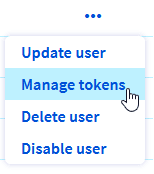
From the IAM Identities page, click the … button at the end of the local user row, then select Manage tokens.
On the **Manage Tokens** page, click Add a token, then fill in the required fields:
| Field | Details |
| ----------- | ----------------------------------------------------------------------------------------- |
| Name | A unique name to identify the token (for example, `pat-my-script`). |
| Description | A short description of how the token will be used. |
| Expiry date | Optional. Disable the toggle for a non-expiring token, or set a duration or a fixed date. |
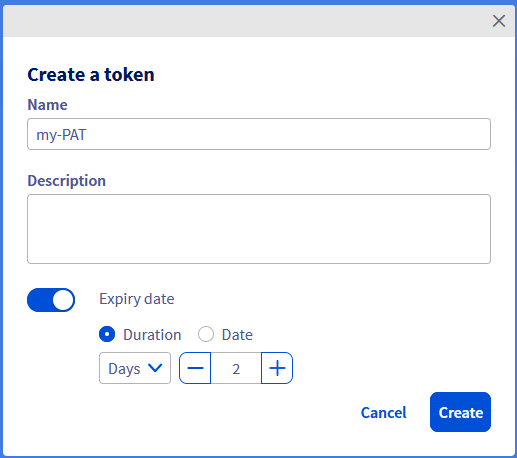Click Create to generate the token.
:::warning
Copy the token value immediately and store it in a secure location. It will not be displayed again.
:::
**Via the OVHcloud API**
Use the following API call:
🇪🇺EU▾
[POST/me/identity/user/{user}/token](https://eu.api.ovh.com/console/?section=/me&branch=v1#post-/me/identity/user/-user-/token)
With the following payload (fill in your own values):
```json
{
"description": "PAT for my automation script",
"name": "pat-my-script"
}
```
The API returns a response similar to the following:
```json
{
"creation": "2025-11-13T10:38:44.658926311Z",
"description": "PAT for my automation script",
"expiresAt": null,
"lastUsed": null,
"name": "pat-my-script",
"token": "eyJhbGciOiJ..."
}
```
:::warning
Save the value of the `token` field securely. It cannot be retrieved later.
:::
To set an expiration date, add an `expiresAt` field to the payload using the RFC3339 format (for example, `"expiresAt": "2026-12-31T23:59:59Z"`).
**Via the OVHcloud CLI**
Use the [OVHcloud CLI](/en/guides/manage-and-operate/cli/getting-started.md) to create the PAT:
```bash
ovhcloud iam user token create {user} \
--name pat-my-script \
--description "PAT for my automation script"
```
The CLI returns the token value:
```bash
✅ Token pat-my-script created successfully, value: eyJhbGciOiJ...
```
To store the token directly in an environment variable:
```bash
PAT_TOKEN=$(ovhcloud iam user token create {user} \
--name pat-my-script \
--description "PAT for my automation script" \
-o json | jq -r .details.token)
echo $PAT_TOKEN
```
To create a token that expires after a set duration, use the `--expiresIn` flag (value in seconds) or `--expiredAt` (RFC3339 date).
### Use a Personal Access Token
Use the PAT as a Bearer token in the `Authorization` header of your HTTP requests.
To retrieve information about your OVHcloud account:
```bash
curl -H "Authorization: Bearer " \
https://eu.api.ovh.com/1.0/me
```
Depending on the location of your account, use the appropriate API endpoint:
- **EU:** `https://eu.api.ovh.com/1.0/`
- **CA:** `https://ca.api.ovh.com/1.0/`
For product backend APIs that do not support the Bearer scheme, you can use hybrid authentication by prefixing the username with `pat_jwt_` and supplying the token as the password:
```bash
curl -u "pat_jwt_:" \
https://.logs.ovh.com:9200/_cluster/health?pretty
```
Replace `` with any ASCII string to identify the token.
### Manage and revoke tokens
#### List existing tokens
**Via the OVHcloud Control Panel**
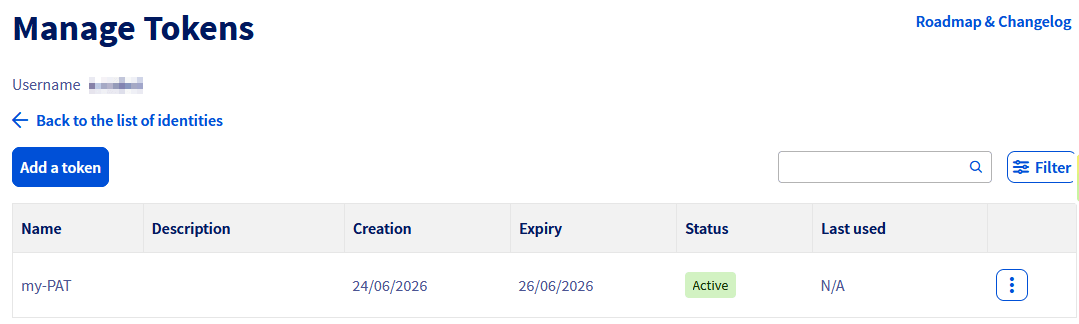
On the **Manage Tokens** page, all PATs for the user are listed.
**Via the OVHcloud API**
🇪🇺EU▾
[GET/me/identity/user/{user}/token](https://eu.api.ovh.com/console/?section=/me&branch=v1#get-/me/identity/user/-user-/token)
**Via the OVHcloud CLI**
```bash
ovhcloud iam user token list {user}
```
#### Delete a token
Deleting a PAT immediately blocks further API calls.
**Via the OVHcloud Control Panel**
From the **Manage Tokens** page, click the … button at the end of the token row, then select Delete.
Click Delete in the confirmation window to revoke the token.
**Via the OVHcloud API**
🇪🇺EU▾
[DELETE/me/identity/user/{user}/token/{name}](https://eu.api.ovh.com/console/?section=/me&branch=v1#delete-/me/identity/user/-user-/token/-name-)
Replace `{name}` with the token name (for example, `pat-my-script`).
**Via the OVHcloud CLI**
```bash
ovhcloud iam user token delete {user} pat-my-script
```
## Go further
- [First Steps with the OVHcloud APIs](/en/guides/manage-and-operate/api/first-steps.md)
Join our [community of users](https://community.ovhcloud.com/).