---
title: "Use OVHcloud Backint Agent with several Object Storage buckets"
description: "This guide provides instructions for using OVHcloud Backint Agent for SAP HANA with several Object Storage buckets"
url: https://docs.ovhcloud.com/en/guides/hosted-private-cloud/sap-on-ovhcloud/hana-use-ovhcloud-backint-agent-several-buckets
lang: en
lastUpdated: 2024-09-03
---
# Use OVHcloud Backint Agent with several Object Storage buckets
## Objective
This guide provides the details of using OVHcloud Backint Agent for SAP HANA with several Object Storage buckets.
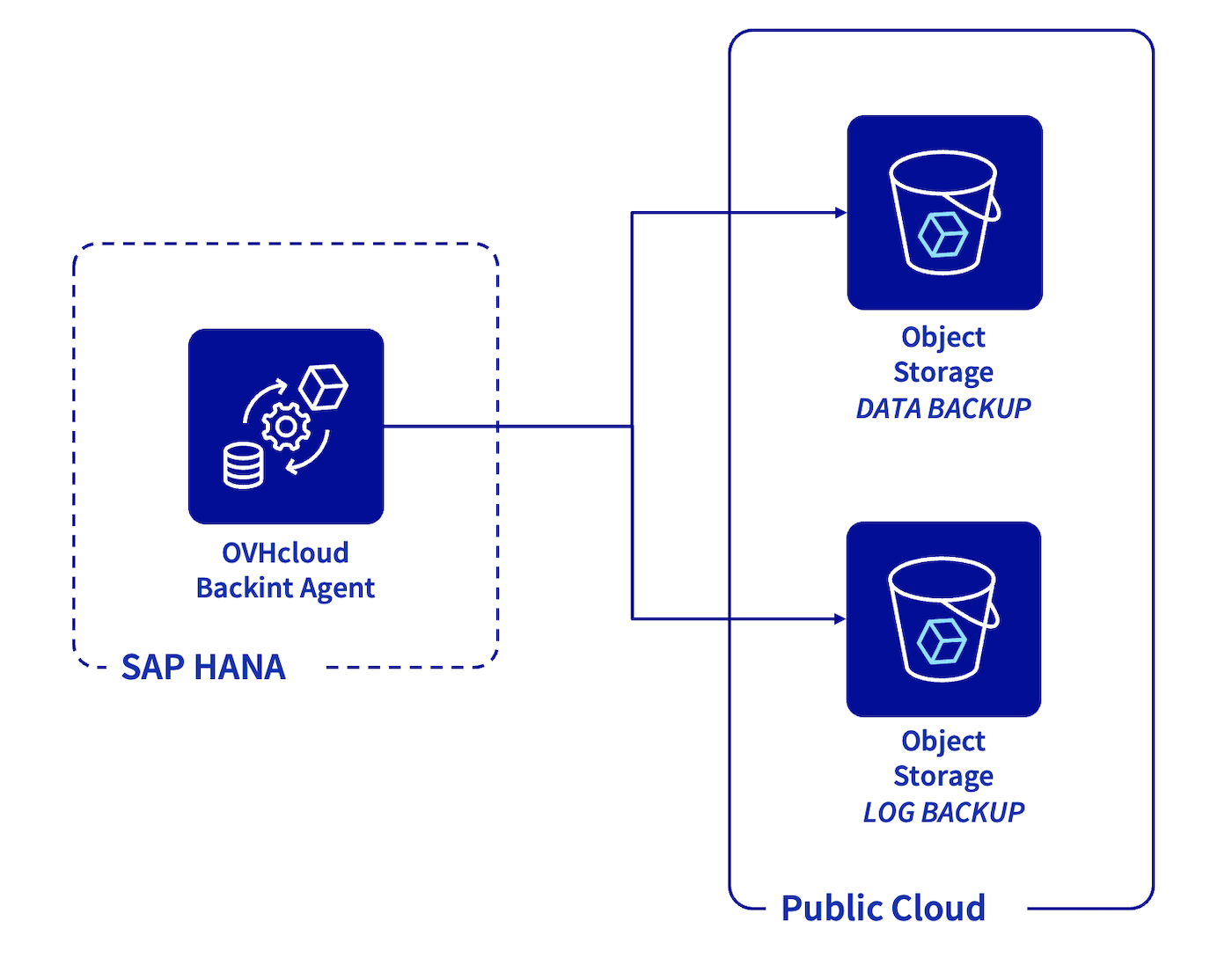
OVHcloud Backint Agent for SAP HANA allows you to back up and recover your SAP HANA database on one or many OVHcloud Object Storage buckets.
Using several Object Storage buckets can be useful to:
- separate the data backup named `databackup` from the log backup named `log_backup` ;
- store into Object Storage buckets with a different retention policy ;
- use different locations.
OVHcloud Backint Agent for SAP HANA has been certified by SAP, you can find certification information here:
- [SAP Certified Solutions Directory](https://www.sap.com/dmc/exp/sap-certified-solutions/#/solutions?filters=v:1108\&id=s:c5927e8a-cf79-40c1-84ad-cdd354554389)
- [SAP Note 2031547](https://me.sap.com/notes/0002031547)
- [SAP Note 3344150](https://me.sap.com/notes/3344150)
***
### OVHcloud Control Panel Access
- **Direct link:** [Public Cloud Projects](https://manager.eu.ovhcloud.com/#/public-cloud/pci/projects)
- **Navigation path:** Public Cloud > Select your project
***
## Requirements
- Access to the OVHcloud Control Panel.
- [A Public Cloud project](/en/guides/public-cloud/cross-functional/create-a-public-cloud-project.md) in your OVHcloud account with:
- Two [Object Storage buckets](/en/guides/storage-and-backup/object-storage/s3-getting-started-with-object-storage.md) and an [Object Storage user](/en/guides/storage-and-backup/object-storage/s3-identity-and-access-management.md#creating-a-user) with the read and write rights.
- A SAP HANA database installed.
- [OVHcloud Backint Agent for SAP HANA installed](/en/guides/hosted-private-cloud/sap-on-ovhcloud/cookbook-install-ovhcloud-backint-agent.md).
## Instructions
### Object Storage
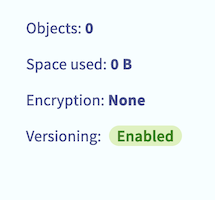
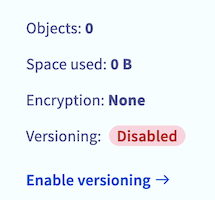
The Object Storage bucket versioning must be enabled to ensure the correct operation of OVHcloud Backint Agent. The versioning allows you to keep several versions of a same object in your Object Storage bucket.
With SAP HANA backups, the versioning allows you to trigger several backups with the same name (for example "COMPLETE\_DATA\_BACKUP") and keeping the capacity to recover a specific version of the backup named "COMPLETE\_DATA\_BACKUP". If the versioning is not enabled, only the latest version of the backup named "COMPLETE\_DATA\_BACKUP" can be recovered.
You can check the versioning status of your Object Storage bucket by following these steps:
1. Log in to the OVHcloud Control Panel.
2. Click Public Cloud and select your Public Cloud project. Then click Object Storage.
3. Click on the Object Storage bucket that will host backups of your SAP HANA database.
4. Check the value of the Versioning parameter, it must have the value Enabled. If the value of this parameter is Disabled, click on Enable versioning.
| Versioning enabled | Versioning disabled |
| --------------------------------------------------------------------------------------------------------------------------------------------------------------------------------------------------------- | ----------------------------------------------------------------------------------------------------------------------------------------------------------------------------------------------------------- |
|  |
|  |
### Configuration
Edit the content of the `hdbbackint.cfg` file and replace all values between chevrons by your first Object Storage bucket information. Below, an example of its content after edition.
```ini
[trace]
default = INFO
destination = outputfile
[ovhcloud]
endpoint_url = https://s3.rbx.io.cloud.ovh.net
bucket = my-sap-hana-bucket-data
region = rbx
access_key = 12345678901234567890123456789012
secret_key = 12345678901234567890123456789012
max_concurrency = 10
multipart_chunksize = 1GB
multipart_threshold = 1GB
```
The `multipart_chunksize` and `multipart_threshold` parameters can be set with values in byte (example: 52428800 equal 50MB), in KB, in GB, or in TB. If the value is set without unit, the default unit is byte.
- The `multipart_threshold` parameter triggers the upload of an object in multipart.
- The `multipart_chunksize` parameter sets the size of each part to be uploaded.
The default values for `multipart_chunksize` and `multipart_threshold` parameters in the `hdbbackint.cfg` file offer an optimal performance in many cases, but you can increase or decrease it, depending on your environment.
Create a copy of the `hdbbackint.cfg` file with another name, for example `hdbbackint-log.cfg` and replace its values by the details of your second Object Storage bucket.
```ini
[trace]
default = INFO
destination = outputfile
[ovhcloud]
endpoint_url = https://s3.rbx.io.cloud.ovh.net
bucket = my-sap-hana-bucket-log
region = rbx
access_key = 12345678901234567890123456789012
secret_key = 12345678901234567890123456789012
max_concurrency = 10
multipart_chunksize = 1GB
multipart_threshold = 1GB
```
:::warning
The following commands modify the backup configuration of your SAP HANA database, please execute these commands with caution.
We recommend triggering a full backup of your SAP HANA database after this operation to validate the configuration.
:::
Execute the following SQL commands to update the backup configuration of your SAP HANA database.
_Replace in the following SQL commands the_ `` _characters by the SID of your SAP HANA database._
```sql
ALTER SYSTEM ALTER CONFIGURATION('global.ini','SYSTEM') SET('backup','catalog_backup_parameter_file')='/usr/sap//SYS/global/hdb/opt/hdbbackint.cfg' WITH RECONFIGURE;
ALTER SYSTEM ALTER CONFIGURATION('global.ini','SYSTEM') SET('backup','catalog_backup_using_backint')='true' WITH RECONFIGURE;
ALTER SYSTEM ALTER CONFIGURATION('global.ini','SYSTEM') SET('backup','data_backup_parameter_file')='/usr/sap//SYS/global/hdb/opt/hdbbackint.cfg' WITH RECONFIGURE;
ALTER SYSTEM ALTER CONFIGURATION('global.ini','SYSTEM') SET('backup','log_backup_parameter_file')='/usr/sap//SYS/global/hdb/opt/hdbbackint-log.cfg' WITH RECONFIGURE;
ALTER SYSTEM ALTER CONFIGURATION('global.ini','SYSTEM') SET('backup','log_backup_using_backint')='true' WITH RECONFIGURE;
```
:::info
To discover all backup parameters for SAP HANA, we recommend the [SAP documentation](https://help.sap.com/docs/SAP_HANA_PLATFORM/009e68bc5f3c440cb31823a3ec4bb95b/e28fbdf1024c40e1a97fca48380aad98.html?locale=en-US). In the column "Section", set "Backup".
:::
### Backup
To validate the configuration, you can trigger manual backups with the following commands via SSH access:
_Replace in the following commands the_ `` _characters by the SID of your SAP HANA database and_ `` _characters by the instance number of your SAP HANA database._
```bash
# SYSTEMDB Backup
/usr/sap//HDB/exe/hdbsql -u SYSTEM -d SYSTEMDB "BACKUP DATA USING BACKINT ('MANUAL_COMPLETE_BACKUP');"
# TENANTDB Backup
/usr/sap//HDB/exe/hdbsql -u SYSTEM -d SYSTEMDB "BACKUP DATA FOR USING BACKINT ('MANUAL_COMPLETE_BACKUP');"
```
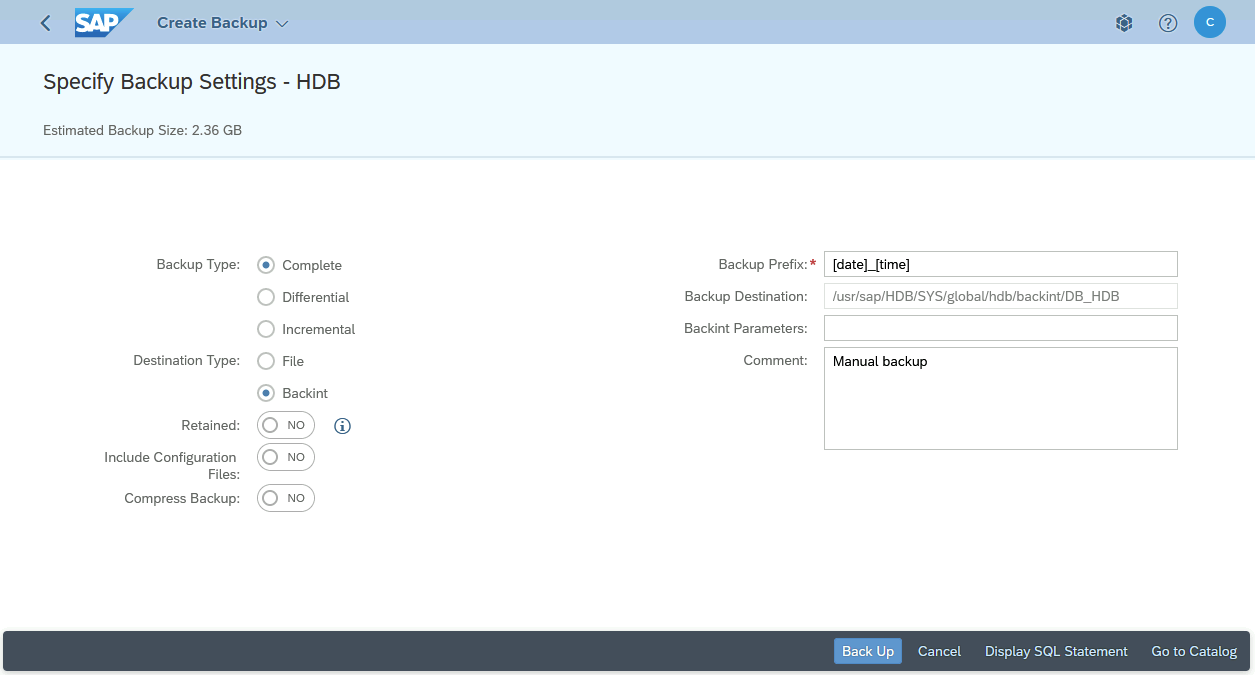
You also have the possibility to trigger these backups via the SAP HANA Cockpit. Select `Backint
` in the `Destination Type
` category.
After the execution of these backups, several files named `_databackup_` are now present in your first Object Storage bucket, these files correspond to backups of your SAP HANA database via the OVHcloud Backint Agent.
Two files named `log_backup_0_0_0_0` and which have `DB_` and `SYSTEMDB` prefixes are also present in your first Object Storage bucket. These files correspond to backups of the SAP HANA backup catalog, allowing you to list backups known by SAP HANA.
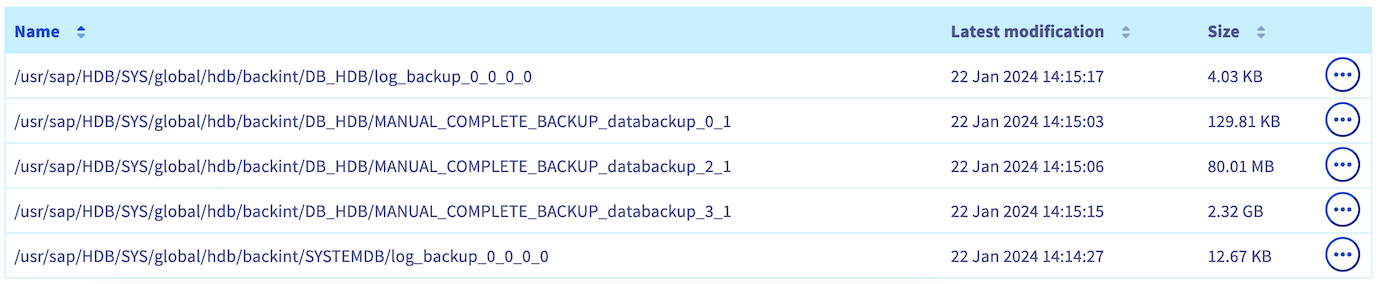
In your second Object Storage bucket, some files named `log_backup` are present and correspond to logs backups.

If these backups have not been done as expected, check the content of the following files to search for errors:
- backint.log
- backup.log
Both files are present in the repository `/usr/sap//HDB//trace` for the SYSTEMDB backup and in the repository `/usr/sap//HDB//trace/DB_` for the TENANTDB backup.
The `backint.log` file gives you information about the OVHcloud Backint Agent execution. For example, a permission issue with the Object Storage bucket:
```log
2024-02-08 14:10:41.266 backint started:
command: /usr/sap/HDB/SYS/global/hdb/opt/hdbbackint -f backup -p /usr/sap/HDB/SYS/global/hdb/opt/hdbbackint.cfg -i /var/tmp/hdbbackint_HDB.kwu3jY -o /var/tmp/hdbbackint_HDB.N1KX90 -u HDB -s 1707397841205 -c 2 -l COMPLETE
pid: 3702
input:
#SOFTWAREID "backint 1.04" "HANA HDB server 2.00.071.00.1687900751"
#PIPE "/usr/sap/HDB/SYS/global/hdb/backint/SYSTEMDB/FULL_BACKUP_databackup_0_1"
2024-02-08 14:10:41.967 backint terminated:
pid: 3702
exit code: 1
output:
exception:
exception 1: no.110507 (Backup/Destination/Backint/impl/BackupDestBackint_Executor.cpp:250)
Backint exited with exit code 1 instead of 0. console output: Bucket information error in hdbbackint.cfg - 403 Forbidden
```
The `backup.log` file gives you information about the backup execution through SAP HANA, its progress and its encountered errors.
```log
INFO BACKUP state of service: nameserver, :30001, volume: 0, BackupExecuteTopologyAndSSFSBackupInProgress
INFO BACKUP state of service: nameserver, :30001, volume: 0, BackupError
INFO BACKUP state of service: nameserver, :30001, volume: 1, BackupAbortSavepointInProgress
INFO BACKUP state of service: nameserver, :30001, volume: 1, BackupAbortSavepointFinished
ERROR BACKUP SAVE DATA finished with error: [447] backup could not be completed
```
You have the possibility to create more Object Storage buckets and apply on it different parameters as the retention policy or the managing object immutability.
In order to target the right Object Storage bucket, OVHcloud Backint Agent needs the corresponding `hdbbackint.cfg` file during the backup execution.
### Scheduling
About the backups scheduling, please refer to our guide [Install and use OVHcloud Backint Agent for SAP HANA](/en/guides/hosted-private-cloud/sap-on-ovhcloud/cookbook-install-ovhcloud-backint-agent.md#scheduling).
### Recovery
About the recovery of your SAP HANA database, please refer to our guide [Install and use OVHcloud Backint Agent for SAP HANA](/en/guides/hosted-private-cloud/sap-on-ovhcloud/cookbook-install-ovhcloud-backint-agent.md#recovery).
The steps are the same, even if you use different Object Storage buckets for your `DATA` and `LOG` backups.
## Go further
To improve the security of your backups, we advise you to set the [object immutability](/en/guides/storage-and-backup/object-storage/s3-managing-object-lock.md).
If you need training or technical assistance to implement our solutions, contact your sales representative or click on [this link](https://www.ovhcloud.com/en-gb/professional-services/) to get a quote and ask our Professional Services experts for assisting you on your specific use case of your project.
Join our community of users on [https://community.ovh.com/en/](https://community.ovh.com/en/).
|
### Configuration
Edit the content of the `hdbbackint.cfg` file and replace all values between chevrons by your first Object Storage bucket information. Below, an example of its content after edition.
```ini
[trace]
default = INFO
destination = outputfile
[ovhcloud]
endpoint_url = https://s3.rbx.io.cloud.ovh.net
bucket = my-sap-hana-bucket-data
region = rbx
access_key = 12345678901234567890123456789012
secret_key = 12345678901234567890123456789012
max_concurrency = 10
multipart_chunksize = 1GB
multipart_threshold = 1GB
```
The `multipart_chunksize` and `multipart_threshold` parameters can be set with values in byte (example: 52428800 equal 50MB), in KB, in GB, or in TB. If the value is set without unit, the default unit is byte.
- The `multipart_threshold` parameter triggers the upload of an object in multipart.
- The `multipart_chunksize` parameter sets the size of each part to be uploaded.
The default values for `multipart_chunksize` and `multipart_threshold` parameters in the `hdbbackint.cfg` file offer an optimal performance in many cases, but you can increase or decrease it, depending on your environment.
Create a copy of the `hdbbackint.cfg` file with another name, for example `hdbbackint-log.cfg` and replace its values by the details of your second Object Storage bucket.
```ini
[trace]
default = INFO
destination = outputfile
[ovhcloud]
endpoint_url = https://s3.rbx.io.cloud.ovh.net
bucket = my-sap-hana-bucket-log
region = rbx
access_key = 12345678901234567890123456789012
secret_key = 12345678901234567890123456789012
max_concurrency = 10
multipart_chunksize = 1GB
multipart_threshold = 1GB
```
:::warning
The following commands modify the backup configuration of your SAP HANA database, please execute these commands with caution.
We recommend triggering a full backup of your SAP HANA database after this operation to validate the configuration.
:::
Execute the following SQL commands to update the backup configuration of your SAP HANA database.
_Replace in the following SQL commands the_ `` _characters by the SID of your SAP HANA database._
```sql
ALTER SYSTEM ALTER CONFIGURATION('global.ini','SYSTEM') SET('backup','catalog_backup_parameter_file')='/usr/sap//SYS/global/hdb/opt/hdbbackint.cfg' WITH RECONFIGURE;
ALTER SYSTEM ALTER CONFIGURATION('global.ini','SYSTEM') SET('backup','catalog_backup_using_backint')='true' WITH RECONFIGURE;
ALTER SYSTEM ALTER CONFIGURATION('global.ini','SYSTEM') SET('backup','data_backup_parameter_file')='/usr/sap//SYS/global/hdb/opt/hdbbackint.cfg' WITH RECONFIGURE;
ALTER SYSTEM ALTER CONFIGURATION('global.ini','SYSTEM') SET('backup','log_backup_parameter_file')='/usr/sap//SYS/global/hdb/opt/hdbbackint-log.cfg' WITH RECONFIGURE;
ALTER SYSTEM ALTER CONFIGURATION('global.ini','SYSTEM') SET('backup','log_backup_using_backint')='true' WITH RECONFIGURE;
```
:::info
To discover all backup parameters for SAP HANA, we recommend the [SAP documentation](https://help.sap.com/docs/SAP_HANA_PLATFORM/009e68bc5f3c440cb31823a3ec4bb95b/e28fbdf1024c40e1a97fca48380aad98.html?locale=en-US). In the column "Section", set "Backup".
:::
### Backup
To validate the configuration, you can trigger manual backups with the following commands via SSH access:
_Replace in the following commands the_ `` _characters by the SID of your SAP HANA database and_ `` _characters by the instance number of your SAP HANA database._
```bash
# SYSTEMDB Backup
/usr/sap//HDB/exe/hdbsql -u SYSTEM -d SYSTEMDB "BACKUP DATA USING BACKINT ('MANUAL_COMPLETE_BACKUP');"
# TENANTDB Backup
/usr/sap//HDB/exe/hdbsql -u SYSTEM -d SYSTEMDB "BACKUP DATA FOR USING BACKINT ('MANUAL_COMPLETE_BACKUP');"
```
You also have the possibility to trigger these backups via the SAP HANA Cockpit. Select `Backint
` in the `Destination Type
` category.

After the execution of these backups, several files named `_databackup_` are now present in your first Object Storage bucket, these files correspond to backups of your SAP HANA database via the OVHcloud Backint Agent.
Two files named `log_backup_0_0_0_0` and which have `DB_` and `SYSTEMDB` prefixes are also present in your first Object Storage bucket. These files correspond to backups of the SAP HANA backup catalog, allowing you to list backups known by SAP HANA.

In your second Object Storage bucket, some files named `log_backup` are present and correspond to logs backups.

If these backups have not been done as expected, check the content of the following files to search for errors:
- backint.log
- backup.log
Both files are present in the repository `/usr/sap//HDB//trace` for the SYSTEMDB backup and in the repository `/usr/sap//HDB//trace/DB_` for the TENANTDB backup.
The `backint.log` file gives you information about the OVHcloud Backint Agent execution. For example, a permission issue with the Object Storage bucket:
```log
2024-02-08 14:10:41.266 backint started:
command: /usr/sap/HDB/SYS/global/hdb/opt/hdbbackint -f backup -p /usr/sap/HDB/SYS/global/hdb/opt/hdbbackint.cfg -i /var/tmp/hdbbackint_HDB.kwu3jY -o /var/tmp/hdbbackint_HDB.N1KX90 -u HDB -s 1707397841205 -c 2 -l COMPLETE
pid: 3702
input:
#SOFTWAREID "backint 1.04" "HANA HDB server 2.00.071.00.1687900751"
#PIPE "/usr/sap/HDB/SYS/global/hdb/backint/SYSTEMDB/FULL_BACKUP_databackup_0_1"
2024-02-08 14:10:41.967 backint terminated:
pid: 3702
exit code: 1
output:
exception:
exception 1: no.110507 (Backup/Destination/Backint/impl/BackupDestBackint_Executor.cpp:250)
Backint exited with exit code 1 instead of 0. console output: Bucket information error in hdbbackint.cfg - 403 Forbidden
```
The `backup.log` file gives you information about the backup execution through SAP HANA, its progress and its encountered errors.
```log
INFO BACKUP state of service: nameserver, :30001, volume: 0, BackupExecuteTopologyAndSSFSBackupInProgress
INFO BACKUP state of service: nameserver, :30001, volume: 0, BackupError
INFO BACKUP state of service: nameserver, :30001, volume: 1, BackupAbortSavepointInProgress
INFO BACKUP state of service: nameserver, :30001, volume: 1, BackupAbortSavepointFinished
ERROR BACKUP SAVE DATA finished with error: [447] backup could not be completed
```
You have the possibility to create more Object Storage buckets and apply on it different parameters as the retention policy or the managing object immutability.
In order to target the right Object Storage bucket, OVHcloud Backint Agent needs the corresponding `hdbbackint.cfg` file during the backup execution.
### Scheduling
About the backups scheduling, please refer to our guide [Install and use OVHcloud Backint Agent for SAP HANA](/en/guides/hosted-private-cloud/sap-on-ovhcloud/cookbook-install-ovhcloud-backint-agent.md#scheduling).
### Recovery
About the recovery of your SAP HANA database, please refer to our guide [Install and use OVHcloud Backint Agent for SAP HANA](/en/guides/hosted-private-cloud/sap-on-ovhcloud/cookbook-install-ovhcloud-backint-agent.md#recovery).
The steps are the same, even if you use different Object Storage buckets for your `DATA` and `LOG` backups.
## Go further
To improve the security of your backups, we advise you to set the [object immutability](/en/guides/storage-and-backup/object-storage/s3-managing-object-lock.md).
If you need training or technical assistance to implement our solutions, contact your sales representative or click on [this link](https://www.ovhcloud.com/en-gb/professional-services/) to get a quote and ask our Professional Services experts for assisting you on your specific use case of your project.
Join our community of users on [https://community.ovh.com/en/](https://community.ovh.com/en/).