---
title: "Managing global vSphere permissions"
description: "Find out how to manage global vSphere user permissions from the OVHcloud Control Panel"
url: https://docs.ovhcloud.com/en/guides/hosted-private-cloud/powered-by-vmware/vsphere-global-rights
lang: en
lastUpdated: 2026-07-30
---
# Managing global vSphere permissions
## Objective
Global vSphere permissions allow you to define a user's rights on your Hosted Private Cloud service. From the OVHcloud Control Panel, you can enable or disable these options for each user.
This guide explains how to manage these global permissions.
## Requirements
- An active [Hosted Private Cloud service](https://www.ovhcloud.com/en-gb/hosted-private-cloud/vmware/)
- A [vSphere user](/en/guides/hosted-private-cloud/powered-by-vmware/vsphere-interface-connexion.md) already created on your service
- Access to the OVHcloud Control Panel with sufficient rights to manage users
***
### OVHcloud Control Panel Access
- **Direct link:** [VMware vSphere](https://manager.eu.ovhcloud.com/#/dedicated/dedicated_cloud)
- **Navigation path:** Hosted Private Cloud > Managed VMware vSphere > Select your vSphere service
***
## Instructions
### Access the user rights management
1. From your vSphere service, go to the Users tab.
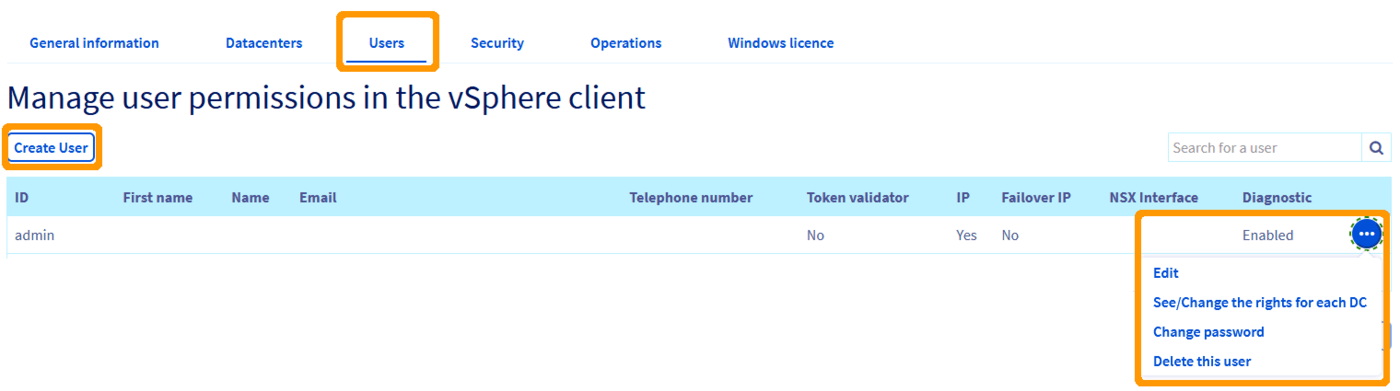 2. On the row of the relevant user, open the
 ... menu and click Edit.
### Configure global permissions
In the user edit window, several options correspond to the global permissions.
1. Enable or disable the options according to the rights you want to grant to the user.
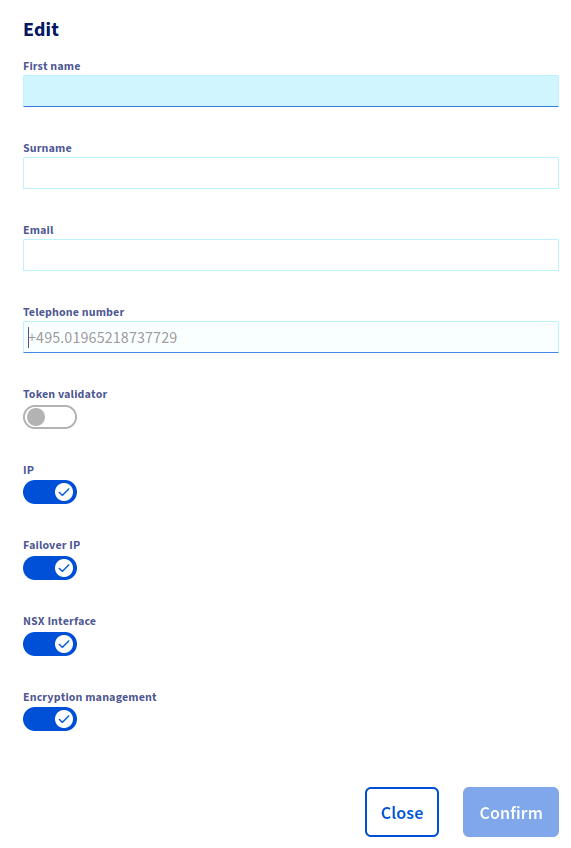 2. Confirm the change.
### Available permissions
The user edit window offers the following options:
| Permission | Description |
| ----------------------- | ---------------------------------------------------------------------------------------------------------------------------------------------------------------------------------------------------------------------------------------------------------------- |
| `Token validator` | Allows the user to validate operations that require a validation token. This permission is generally useful when two-factor authentication (2FA) is enabled on the service, for example as part of certain certifications such as Healthcare Data Hosting (HDS). |
| `IP` | Allows the user to manage the IP addresses associated with the service. |
| `Failover IP` | Allows the user to manage the IP Failover addresses associated with the service. |
| `NSX Interface` | Grants access to the NSX network management interface. |
| `Encryption management` | Allows the user to manage virtual machine encryption (KMS). |
### Manage rights by datacenter
In addition to the global service permissions, you can also define rights for each virtual datacenter in your Hosted Private Cloud.
1. From the
2. Confirm the change.
### Available permissions
The user edit window offers the following options:
| Permission | Description |
| ----------------------- | ---------------------------------------------------------------------------------------------------------------------------------------------------------------------------------------------------------------------------------------------------------------- |
| `Token validator` | Allows the user to validate operations that require a validation token. This permission is generally useful when two-factor authentication (2FA) is enabled on the service, for example as part of certain certifications such as Healthcare Data Hosting (HDS). |
| `IP` | Allows the user to manage the IP addresses associated with the service. |
| `Failover IP` | Allows the user to manage the IP Failover addresses associated with the service. |
| `NSX Interface` | Grants access to the NSX network management interface. |
| `Encryption management` | Allows the user to manage virtual machine encryption (KMS). |
### Manage rights by datacenter
In addition to the global service permissions, you can also define rights for each virtual datacenter in your Hosted Private Cloud.
1. From the Users tab, on the desired user row, open the ... menu and click View/Edit the rights for each DC.
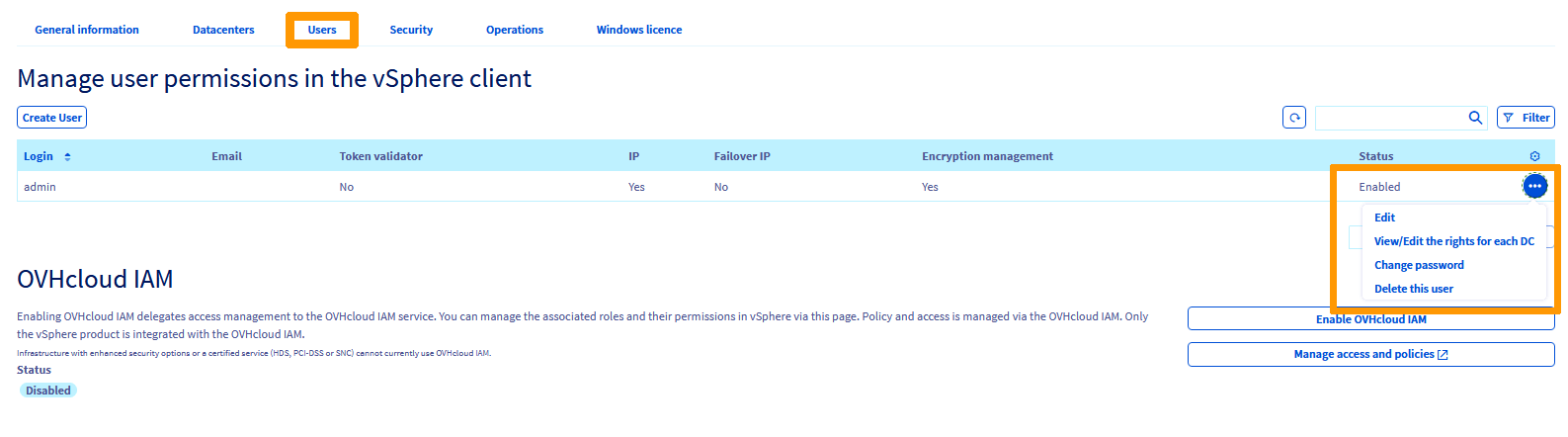 2. On the **Manage user rights by datacentre** page, locate the datacenter row. Open the
 ... menu and click Modify rights.
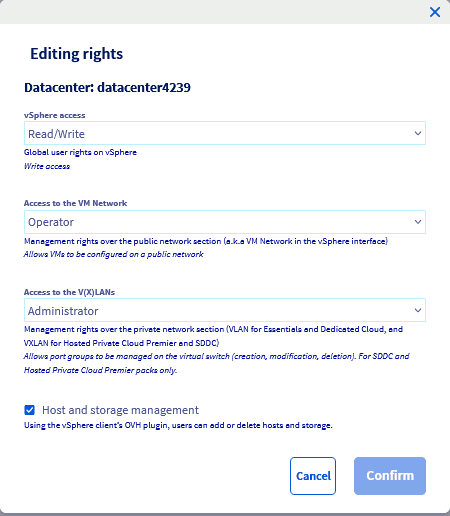
 3. In the **Editing rights** window, set the rights and confirm.
 #### Rights reference
**vSphere access** — global user rights on vSphere.
| Right | Description |
| ------------ | ------------------------------------ |
| `None` | No access |
| `Operator` | Reserved for OVHcloud administrators |
| `Read-only` | Read-only access |
| `Read/Write` | Read and write access |
**Access to the VM Network** — management rights over the public network section ("VM Network" in vSphere).
| Right | Description |
| ----------- | ----------------------------------------------- |
| `None` | No access |
| `Operator` | Allows VMs to be configured on a public network |
| `Read-only` | Read-only access |
**Access to the V(X)LANs** — management rights over the private network section (VXLAN for Hosted Private Cloud, VLAN for SDDC).
| Right | Description |
| --------------- | ------------------------------------------------------------------------------------------------------ |
| `None` | No access |
| `Operator` | Allows VMs to be configured on a private network |
| `Administrator` | Allows port groups to be managed on the virtual switch (create, modify, delete). SDDC and Premier only |
| `Read-only` | Read-only access |
**Host and storage management** — when enabled, the user can add or delete hosts and storage via the OVHcloud plugin in the vSphere client.
### Restricting access to specific vSphere objects
The permissions above apply to the whole service (vSphere cluster) or to a single virtual datacenter. To restrict a user to specific objects in the vSphere inventory — a virtual machine, a datastore or a folder — use the [granular rights on vSphere objects](/en/guides/hosted-private-cloud/powered-by-vmware/vsphere-granular-rights.md).
## Go further
For training or technical assistance implementing our solutions, contact your sales representative or visit our [Professional Services](https://www.ovhcloud.com/en-gb/professional-services/) page to request a quote and have your project analysed by our experts.
Join our [community of users](https://community.ovhcloud.com/).
#### Rights reference
**vSphere access** — global user rights on vSphere.
| Right | Description |
| ------------ | ------------------------------------ |
| `None` | No access |
| `Operator` | Reserved for OVHcloud administrators |
| `Read-only` | Read-only access |
| `Read/Write` | Read and write access |
**Access to the VM Network** — management rights over the public network section ("VM Network" in vSphere).
| Right | Description |
| ----------- | ----------------------------------------------- |
| `None` | No access |
| `Operator` | Allows VMs to be configured on a public network |
| `Read-only` | Read-only access |
**Access to the V(X)LANs** — management rights over the private network section (VXLAN for Hosted Private Cloud, VLAN for SDDC).
| Right | Description |
| --------------- | ------------------------------------------------------------------------------------------------------ |
| `None` | No access |
| `Operator` | Allows VMs to be configured on a private network |
| `Administrator` | Allows port groups to be managed on the virtual switch (create, modify, delete). SDDC and Premier only |
| `Read-only` | Read-only access |
**Host and storage management** — when enabled, the user can add or delete hosts and storage via the OVHcloud plugin in the vSphere client.
### Restricting access to specific vSphere objects
The permissions above apply to the whole service (vSphere cluster) or to a single virtual datacenter. To restrict a user to specific objects in the vSphere inventory — a virtual machine, a datastore or a folder — use the [granular rights on vSphere objects](/en/guides/hosted-private-cloud/powered-by-vmware/vsphere-granular-rights.md).
## Go further
For training or technical assistance implementing our solutions, contact your sales representative or visit our [Professional Services](https://www.ovhcloud.com/en-gb/professional-services/) page to request a quote and have your project analysed by our experts.
Join our [community of users](https://community.ovhcloud.com/).