---
title: "Trigger your first VCDA migration to Public VCF as-a-Service"
description: "Find out how to trigger your first VM migration to your Public VCF as-a-Service organisation using VMware Cloud Director Availability"
url: https://docs.ovhcloud.com/en/guides/hosted-private-cloud/powered-by-vmware/vcda-trigger-migration
lang: en
lastUpdated: 2026-06-09
---
# Trigger your first VCDA migration to Public VCF as-a-Service
## Objective
OVHcloud offers a VM migration feature to Public VCF as-a-Service based on **VMware Cloud Director Availability (VCDA)**. This feature allows you to migrate your VMs from a vSphere or VCD on-premises environment to your Public VCF as-a-Service organisation.
**This guide walks you through your first migration: data replication, monitoring, and the final cutover (migration) to your Public VCF as-a-Service organisation.**
## Requirements
- An active [Public VCF as-a-Service](https://www.ovhcloud.com/en-gb/lp/vmware-vcd-evolution/) organisation.
- The migration option enabled on your organisation from your OVHcloud Control Panel. If needed, refer to [Enable the VCDA migration option on your Public VCF as-a-Service organisation](/en/guides/hosted-private-cloud/powered-by-vmware/vcda-enable-offer.md).
- A **VCDA on-premises** appliance deployed, configured and paired with your Public VCF as-a-Service organisation. If this is not yet the case, refer to the [Public VCF as-a-Service Migration with VCDA - Getting Started](/en/guides/hosted-private-cloud/powered-by-vmware/vcda-getting-started.md) guide.
- A user account on your Public VCF as-a-Service organisation with enough rights to manage replications.
## Instructions
### Workflow overview
The migration workflow has 3 main steps:
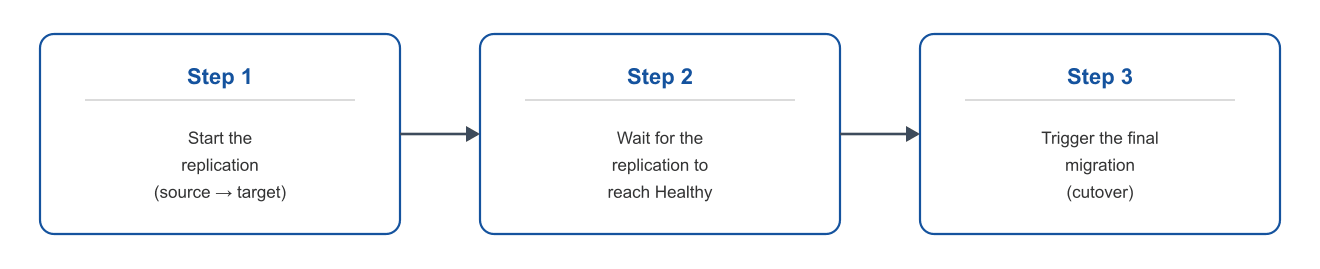
You can drive the operations from two interfaces:
- **Your on-premises VCDA appliance UI**, for source-side operations (recommended for this guide);
- **The VMware Cloud Director UI** of your Public VCF as-a-Service organisation, through the **Availability plugin**.
#### Accessing the Availability plugin in VMware Cloud Director
From your Public VCF as-a-Service organisation, open the VCD portal and click `More
` > `Availability
` to access the VCDA plugin:
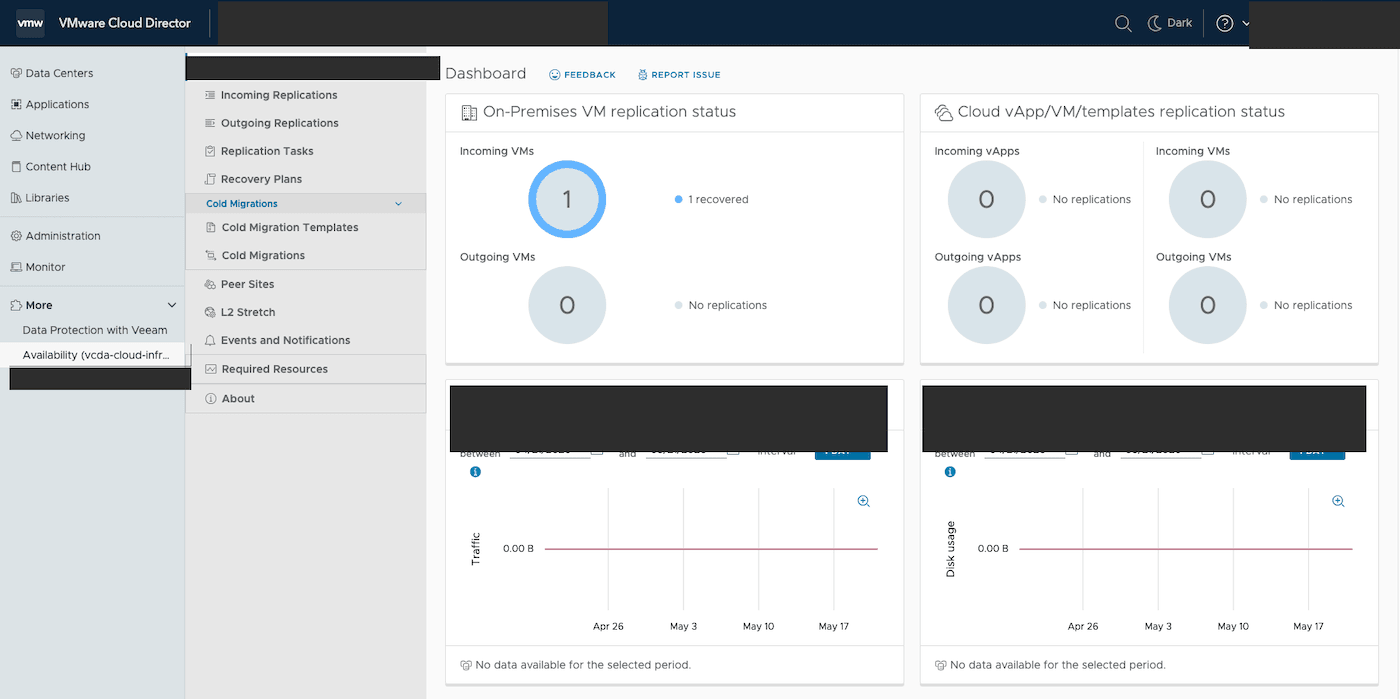
The plugin shows the status of inbound and outbound replications for your organisation.
### Step 1: Start the replication
In this example, the migration is triggered **from** the on-premises VCDA appliance **to** the Public VCF as-a-Service organisation.
Log in to your on-premises VCDA appliance interface (`https://`) with the `root` account.
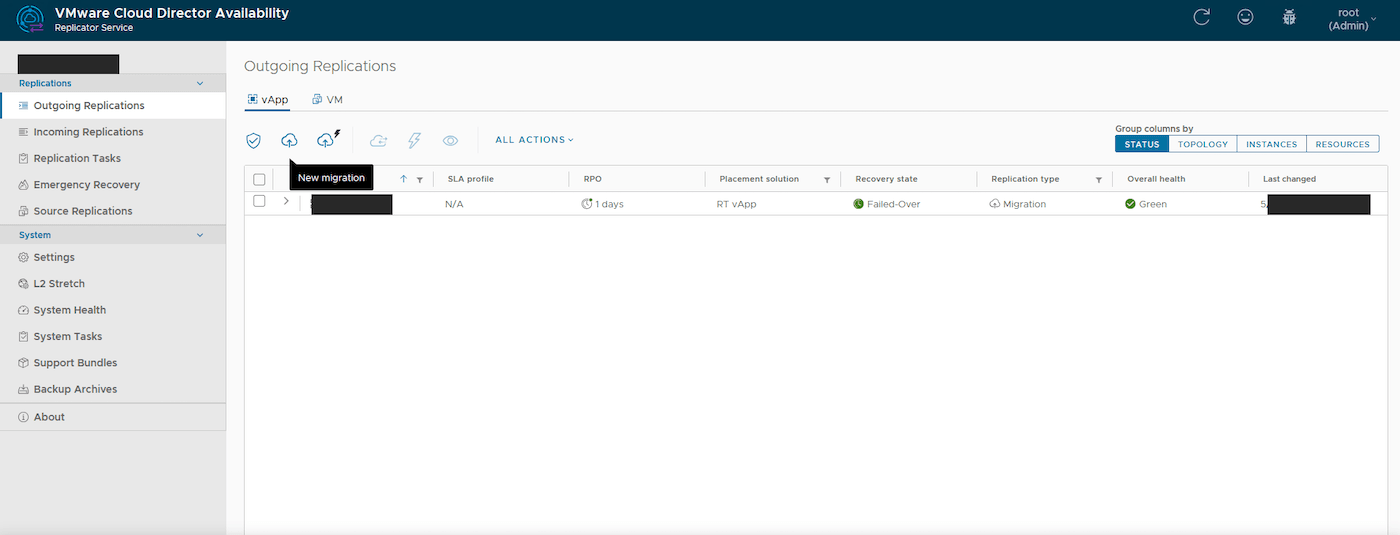
In the left menu, click `Outgoing Replications
`, then the `vApp
` tab.
Click the `New migration
` button (cloud icon with an upward arrow) to start the wizard.
#### Authentication to the target organisation
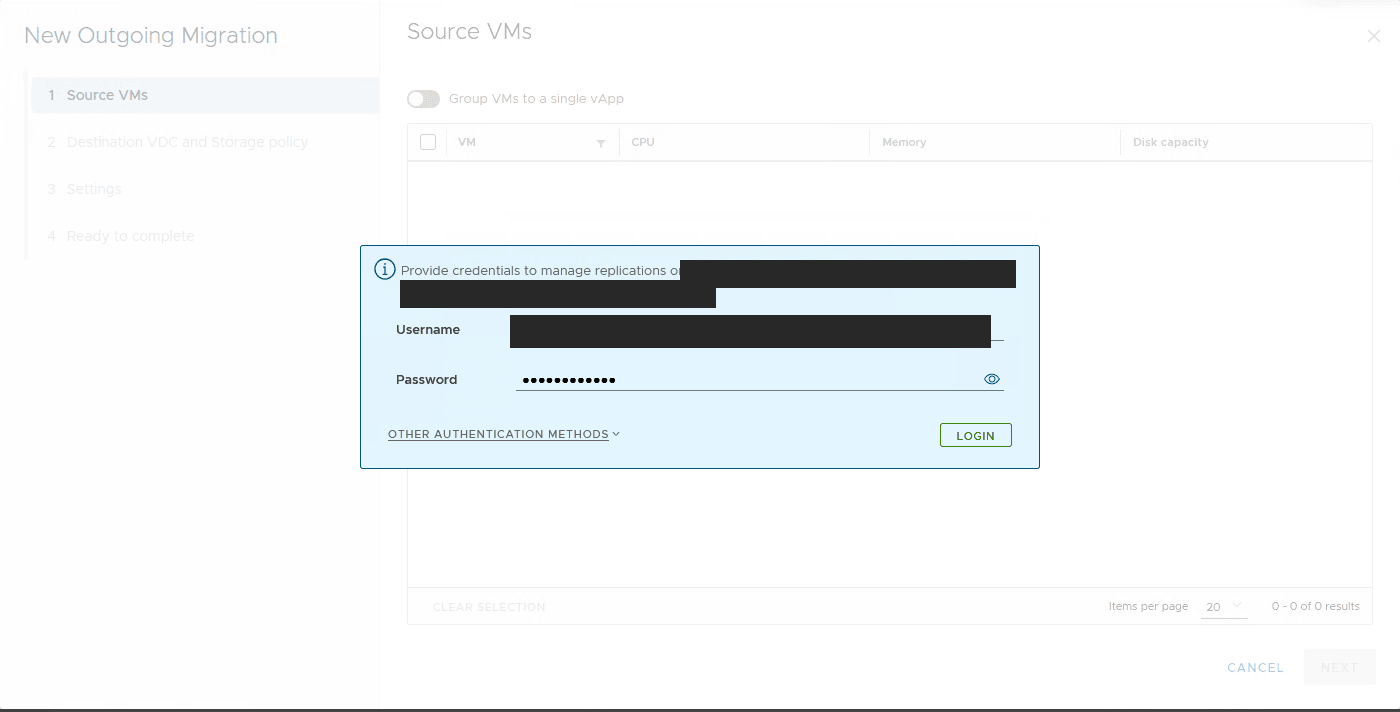
The wizard prompts you to authenticate against the Public VCF as-a-Service organisation that will be the migration target.
Enter:
- **Username**: your username on the Public VCF as-a-Service organisation (in the `user@organization` format);
- **Password**: the associated password.
Click `LOGIN
`.
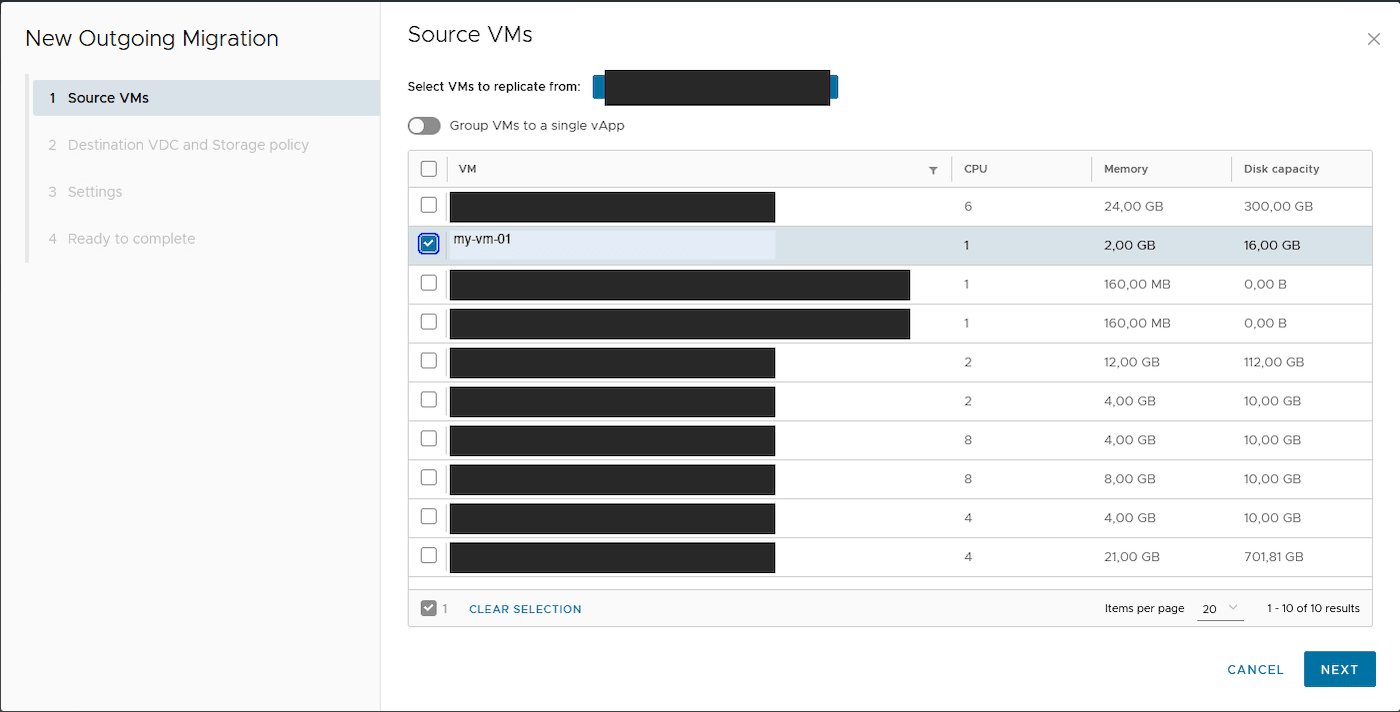
#### Step 1.1: Selecting source VMs
Select the source vCenter from the `Select VMs to replicate from
` dropdown, then tick the virtual machine(s) you want to migrate.
Click `Next
`.
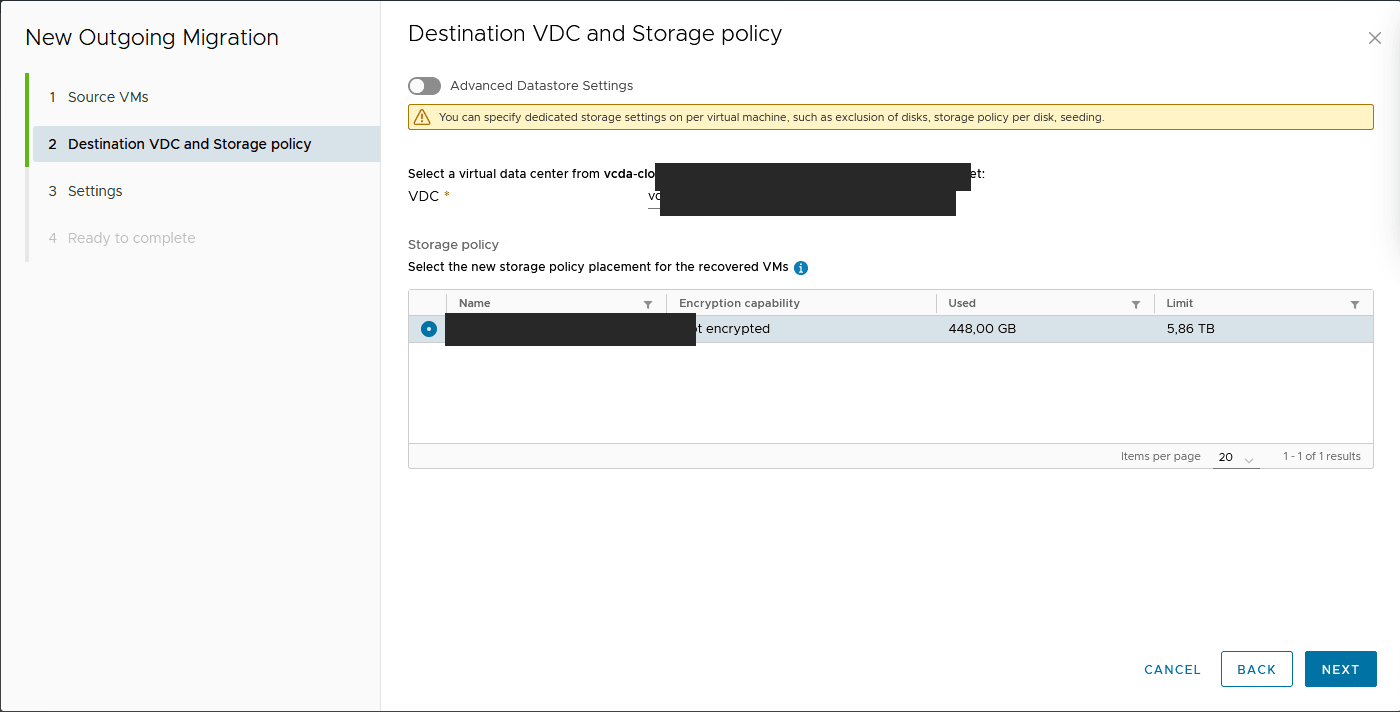
#### Step 1.2: Destination vDC and storage policy
Select the target **virtual datacenter (vDC)** in your Public VCF as-a-Service organisation and the **storage policy** to use for the migrated VMs.
Click `Next
`.
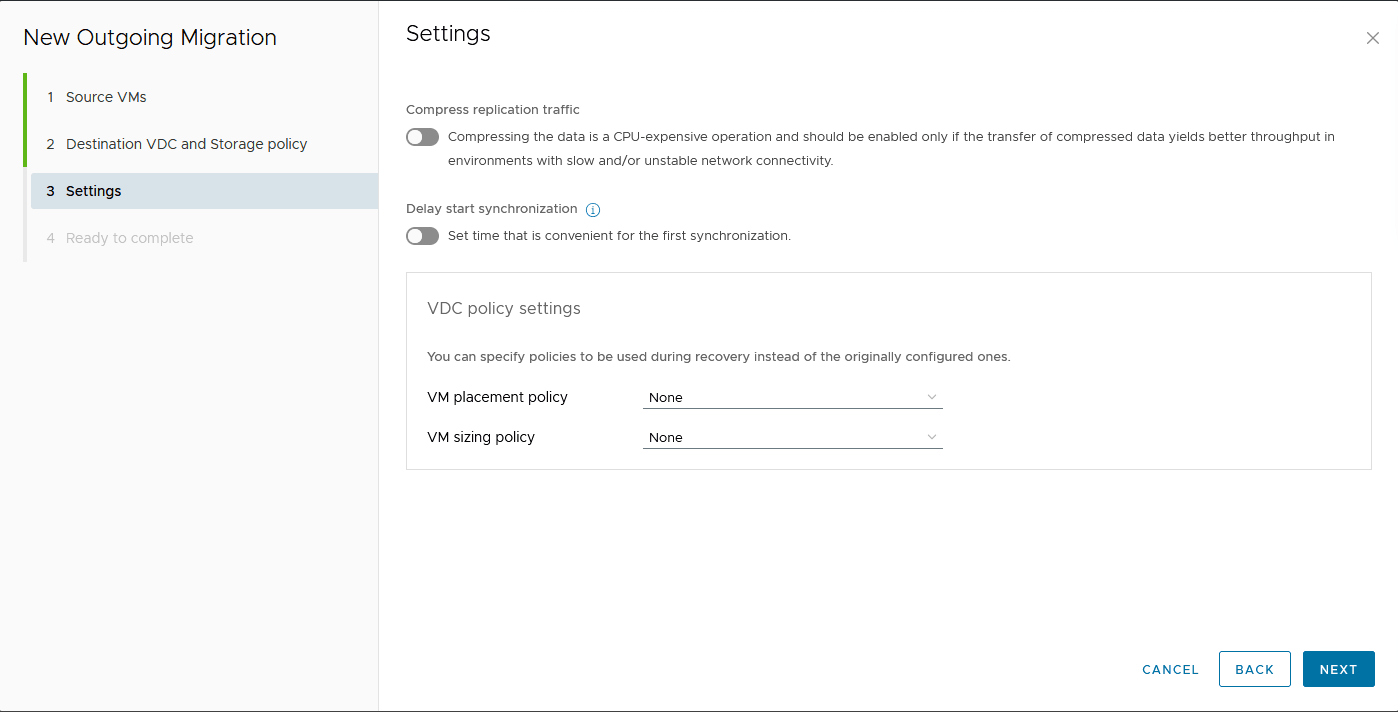
#### Step 1.3: Replication settings
This step allows you to adjust the replication settings:
- **Compress replication traffic**: enable it only on limited bandwidth links (increased CPU usage);
- **Delay start synchronization**: to postpone the start of the initial synchronisation;
- **VDC policy settings**: placement and sizing policies to apply on the target (leave None to keep the original configuration).
Click `Next
`.
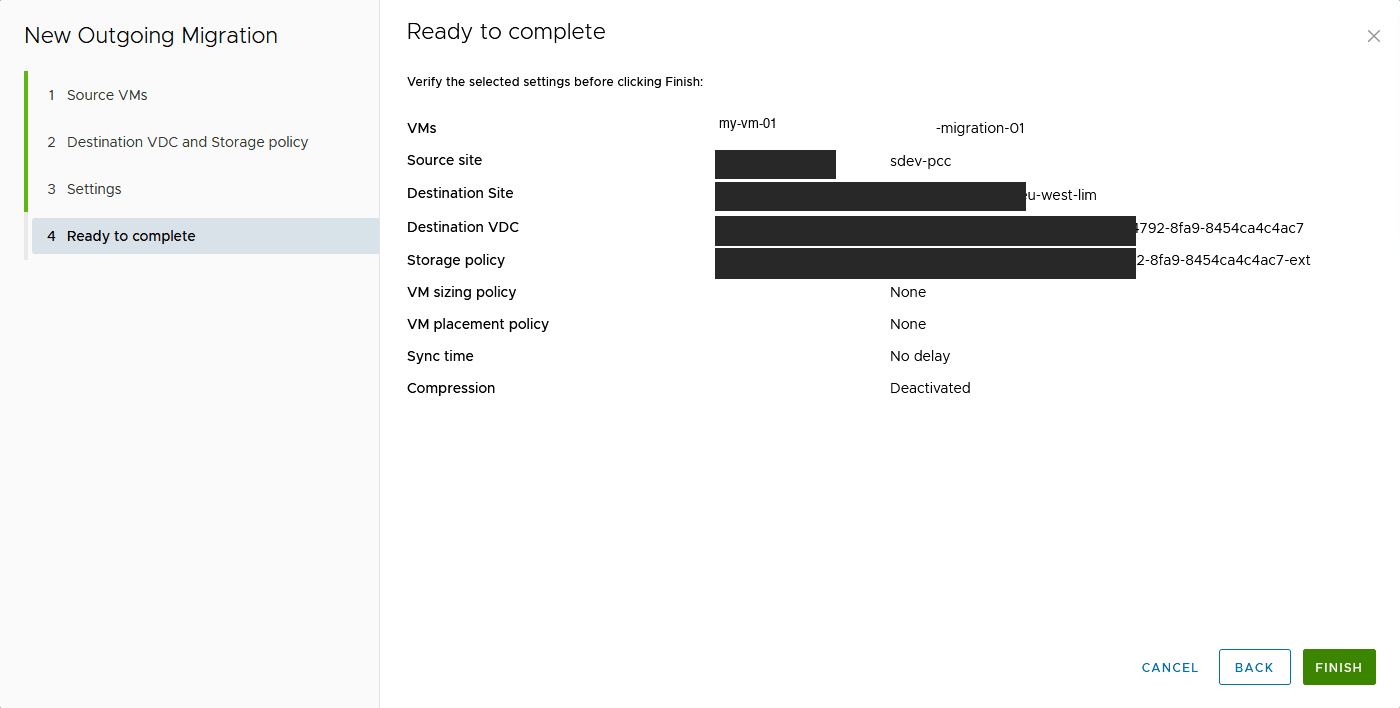
#### Step 1.4: Summary
The wizard displays a summary of the upcoming migration. Check:
- the selected VMs;
- the source and destination sites;
- the vDC and storage policy;
- the sizing and placement policies.
Click `Finish
` to start the replication.
### Step 2: Monitor the replication progress
Once the replication is started, it appears in the `Outgoing Replications
` list with the **Synchronizing**
state.
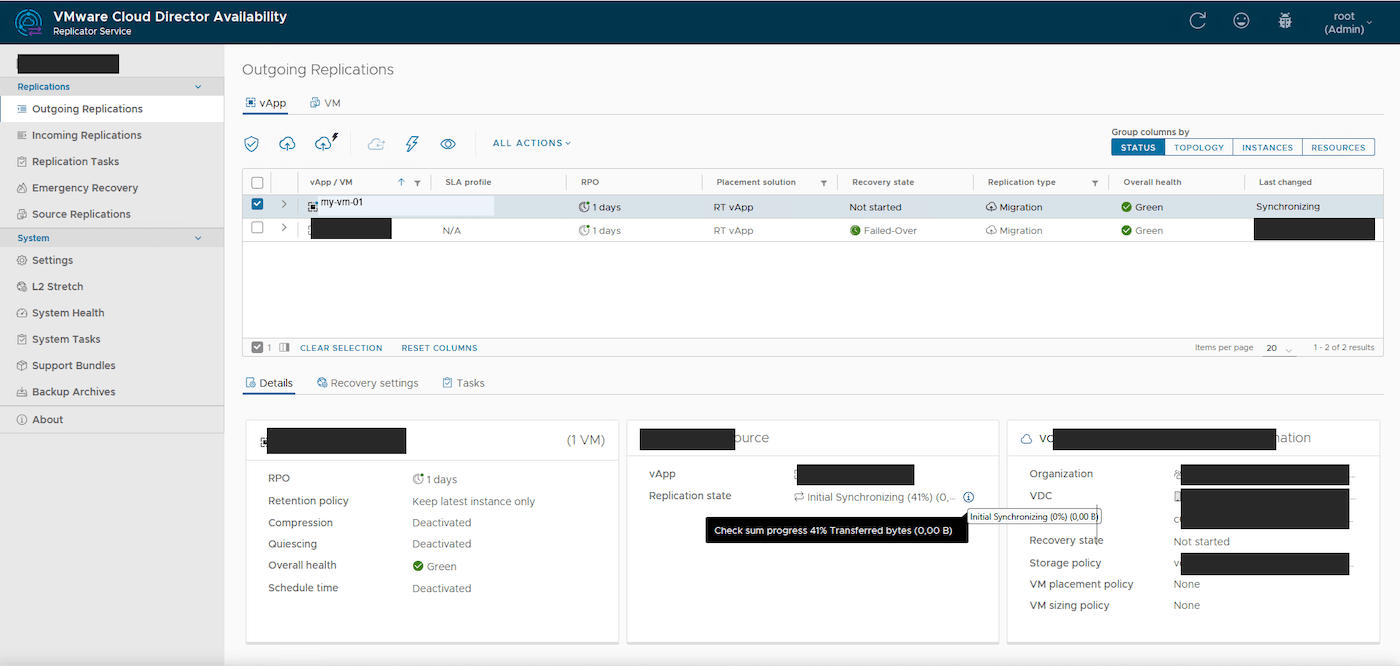
The replication details show:
- the checksum progress (block verification);
- the transferred bytes;
- the status of the source-side and target-side components.
:::warning
Wait until the replication reaches the **Healthy** state before triggering the final migration. The initial replication time depends on disk sizes and available bandwidth.
:::
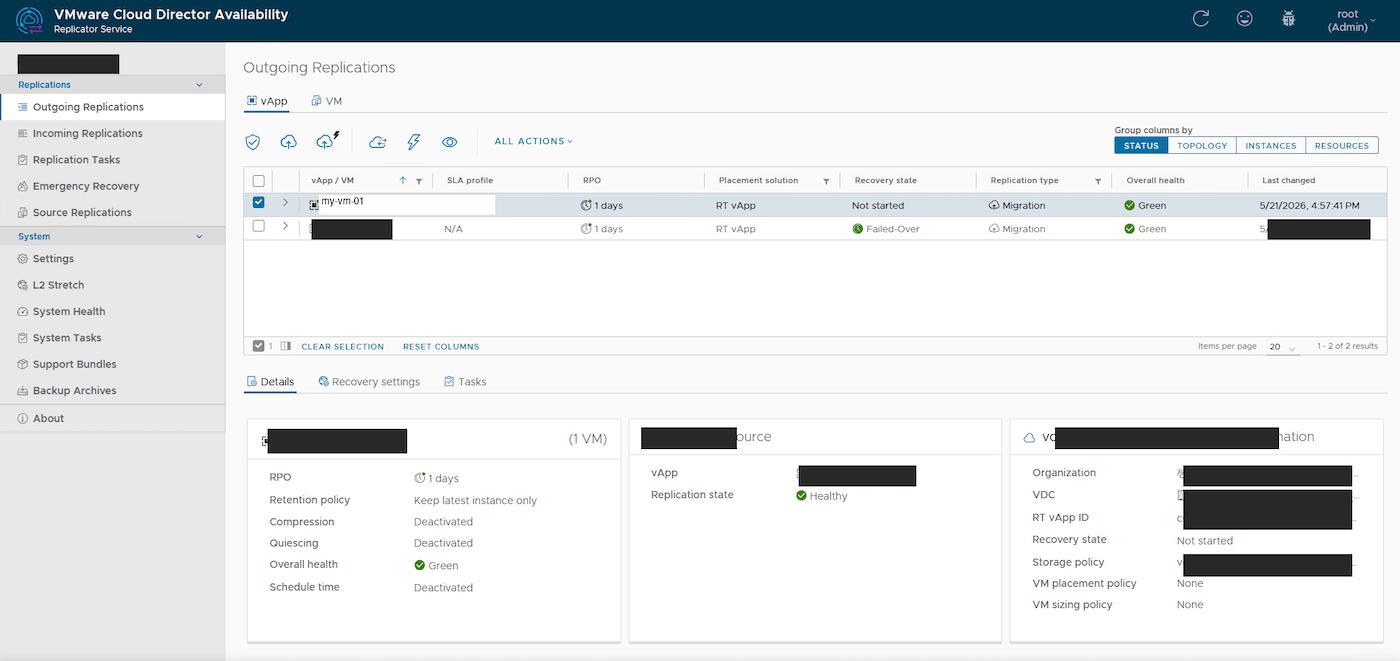
When the replication is ready to be cut over, the state becomes **Healthy** and the **Recovery state** shows **Not started**:
### Step 3: Trigger the migration
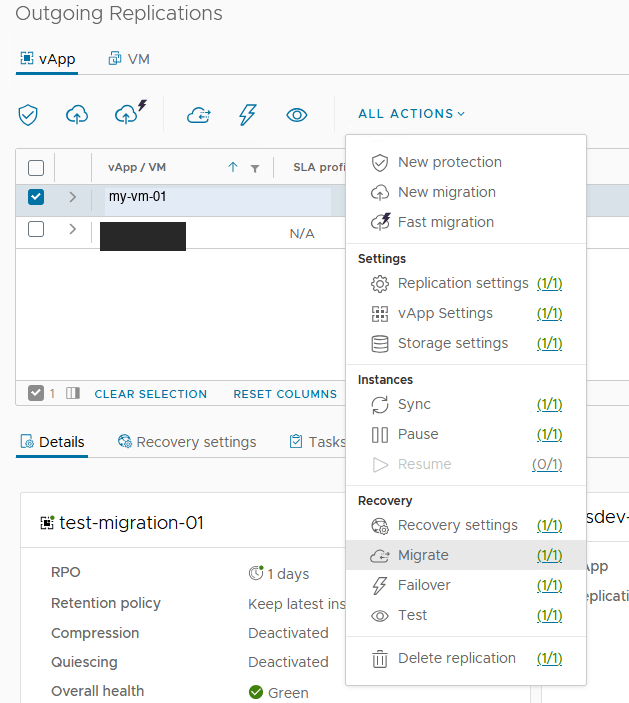
Once the replication is in the **Healthy** state, you can trigger the cutover.
Select the replication in the list, then click `ALL ACTIONS
` > `Migrate
`.
#### Step 3.1: Migration settings
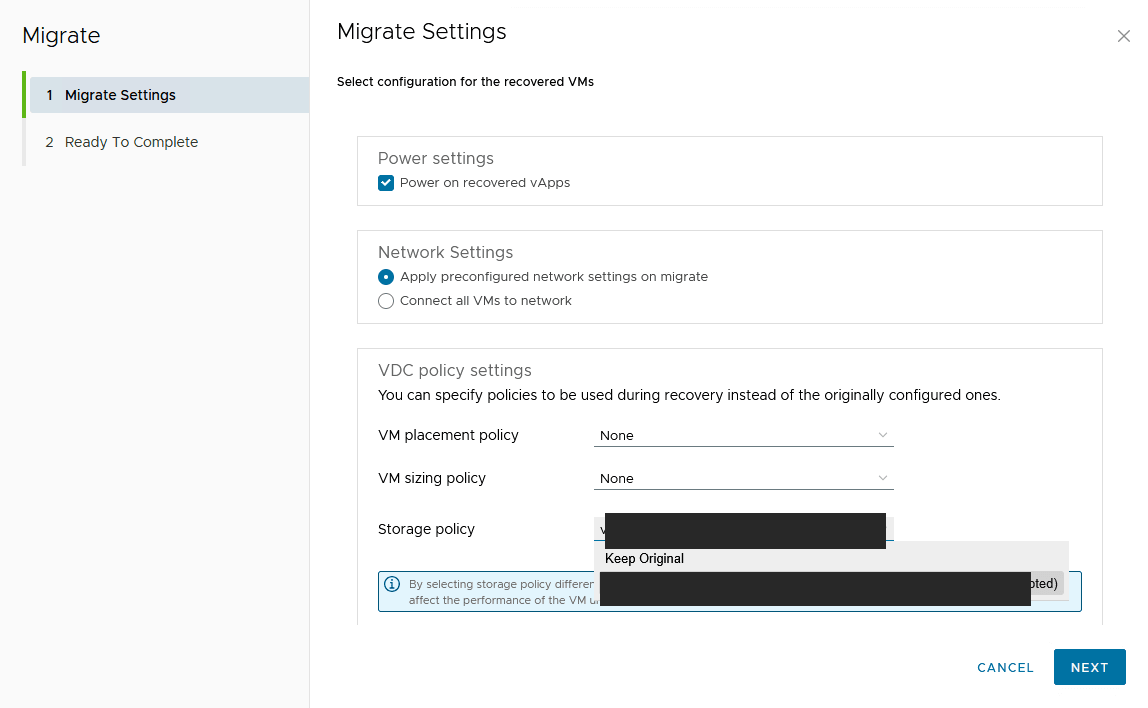
Configure the cutover parameters:
- **Power settings**: tick Power on recovered vApps to automatically start the VMs on the target side after the cutover;
- **Network Settings**:
- Apply preconfigured network settings on migrate: applies the network settings defined in the recovery profile;
- Connect all VMs to network: simply reconnects the VMs to the chosen network;
- **VDC policy settings**: placement, sizing and storage policies to use on the target.
Click `Next
`.
#### Step 3.2: Confirmation
Check the summary:
- the vApps to migrate;
- the recovery site;
- the network settings;
- the storage policy.
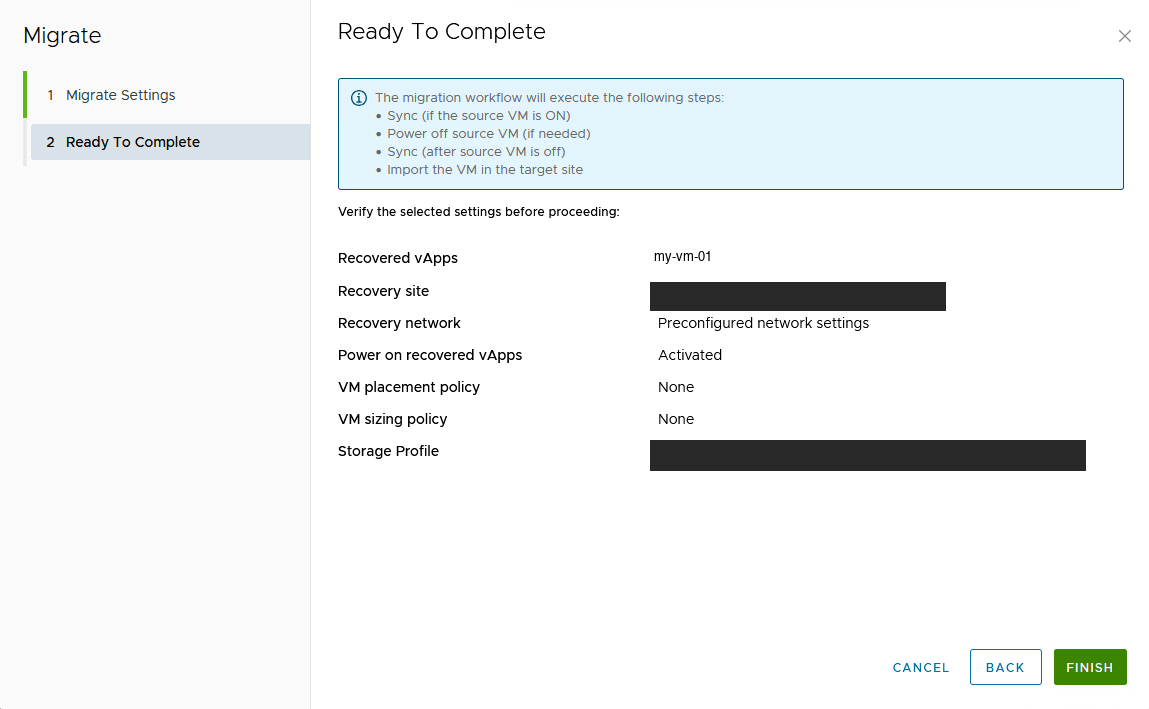
:::info
The migration workflow automatically performs the following steps:
1. Final synchronisation (if the source VM is powered on);
2. Shutdown of the source VM;
3. Final synchronisation (once the source VM is off);
4. Import of the VM into the target site.
:::
Click `Finish
` to start the migration.
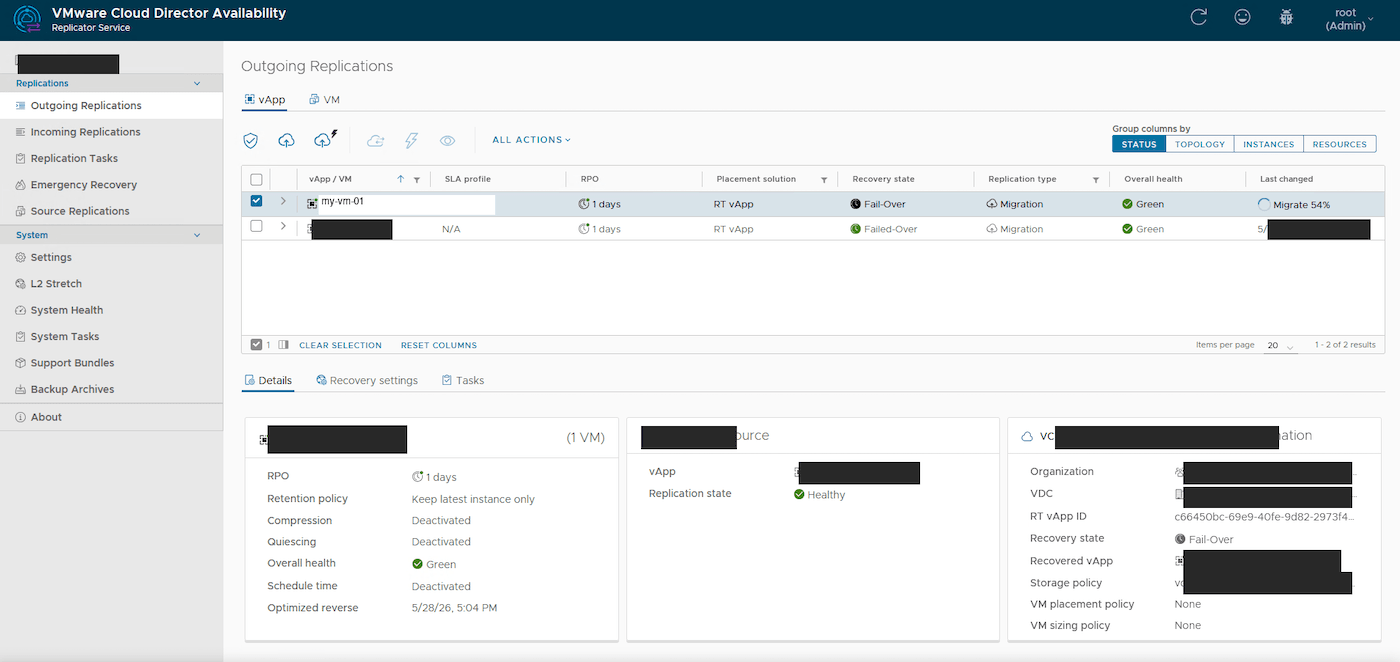
#### Monitoring the migration
The cutover appears in the replication list with the **Migrate** state and a progress percentage:
#### Migration completed
Once the migration is finalised, the VM appears in your Public VCF as-a-Service organisation and the replication state changes to **Failed-Over** in the **Incoming Replications** view of the VCD portal:
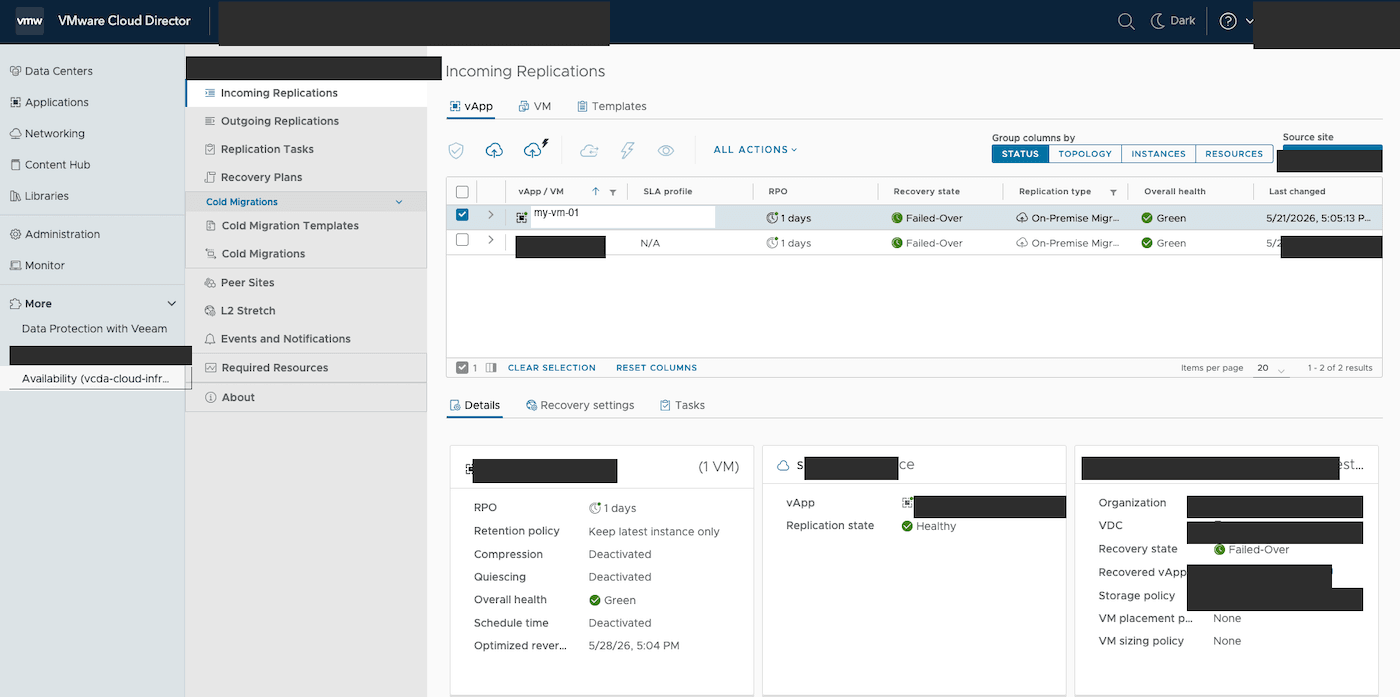
You can now find your migrated VMs directly in your Public VCF as-a-Service vDC, ready to use.
## Go further
- [Enable the VCDA migration option on your Public VCF as-a-Service organisation](/en/guides/hosted-private-cloud/powered-by-vmware/vcda-enable-offer.md)
- [Public VCF as-a-Service Migration with VCDA - Getting Started](/en/guides/hosted-private-cloud/powered-by-vmware/vcda-getting-started.md)
- [How to use the Public VCF as-a-Service user interface](/en/guides/hosted-private-cloud/powered-by-vmware/vcd-getting-started-dashboard-overview.md)
- [Official VMware Cloud Director Availability documentation](https://techdocs.broadcom.com/us/en/vmware-cis/cloud-director/vmware-cloud-director-availability.html)
For training or technical assistance implementing our solutions, contact your sales representative or visit our [Professional Services](https://www.ovhcloud.com/en-gb/professional-services/) page to request a quote and have your project analysed by our experts.
Join our [community of users](https://community.ovhcloud.com/).