---
title: "DHCP Configuration in NSX"
description: "Learn how to add a DHCP server to a segment"
url: https://docs.ovhcloud.com/en/guides/hosted-private-cloud/powered-by-vmware/nsx-configure-dhcp-onsegment
lang: en
lastUpdated: 2023-02-27
---
# DHCP Configuration in NSX
## Objective
**Learn how to configure a DHCP server in a segment**
:::warning
OVHcloud provides services for which you are responsible, with regard to their configuration and management. It is therefore your responsibility to ensure that they work properly.
This guide is designed to assist you as much as possible with common tasks. However, we recommend contacting a [specialist provider](https://partner.ovhcloud.com/en-gb/directory/) if you experience any difficulties or doubts when it comes to managing, using or setting up a service on a server.
:::
## Requirements
- Being an administrative contact of your [Hosted Private Cloud infrastructure](https://www.ovhcloud.com/en-gb/enterprise/products/hosted-private-cloud/) to receive login credentials
- A user account with access to the OVHcloud Control Panel
- Having **NSX** deployed with two overlay and VLAN segments configured in your NSX configuration. Use our guide on [segment management in NSX](/en/guides/hosted-private-cloud/powered-by-vmware/nsx-segment-management.md) for more information.
## Instructions
We will configure DHCP for :
- An overlay segment behind the gateway **ovh-T1-gw**
- A segment on a VLAN connected to the gateway **ovh-T1-gw**.
### Common DHCP configuration for all overlay segments
First we will create a DCHP server common to all segments in Overlay.
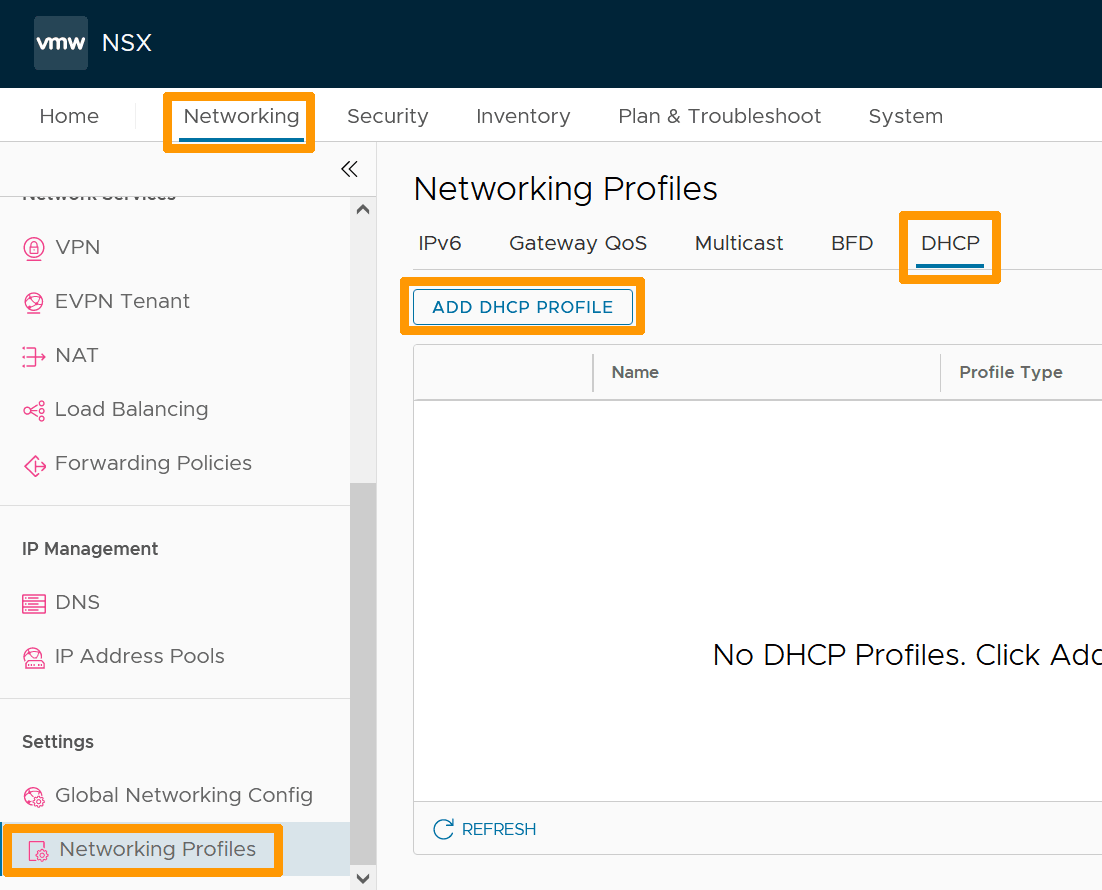
Through the NSX interface, go to the `Networking
` tab and click on `Networking Profiles
` on the left in the **Settings**
section. Then go to the `DHCP
` tab and click `ADD DHCP PROFILE
`.
Type `Name
` in **Name**
and click `SAVE
`.
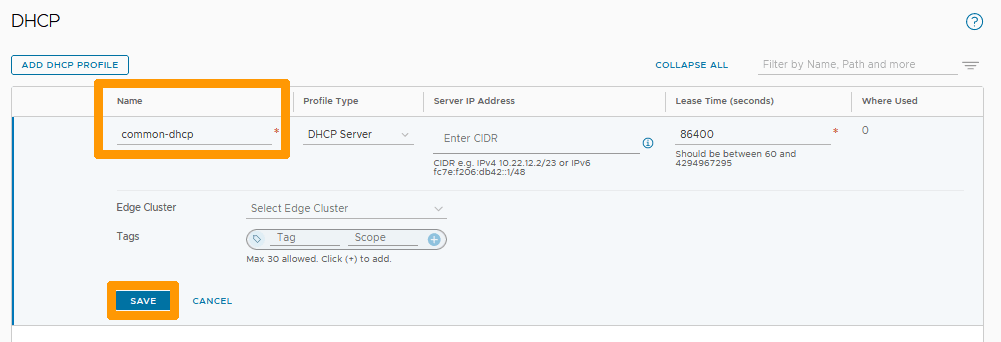
The DCHP server is active, it uses a network in 100.96.0.1/30, do not use this network in one of your segments.

### DHCP assignment to the ovh-T1-gw gateway
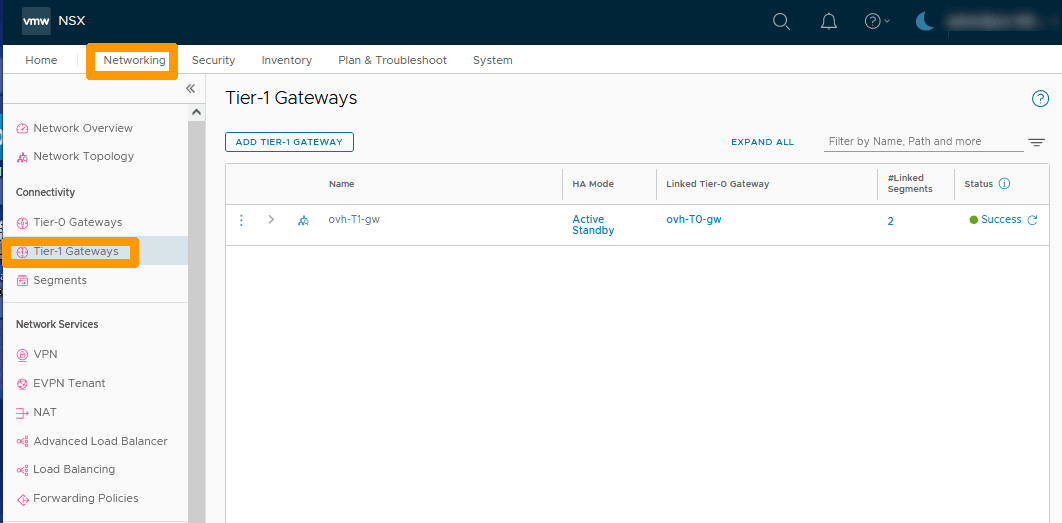
In the `Networking
` tab, click on `Tier-1-Gateways
` on the left in the **Connectivity**
section.
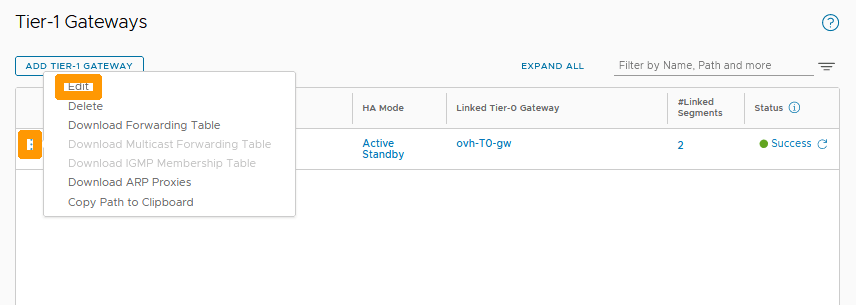
Click the `three vertical dots
` and choose `Edit
` from the menu.
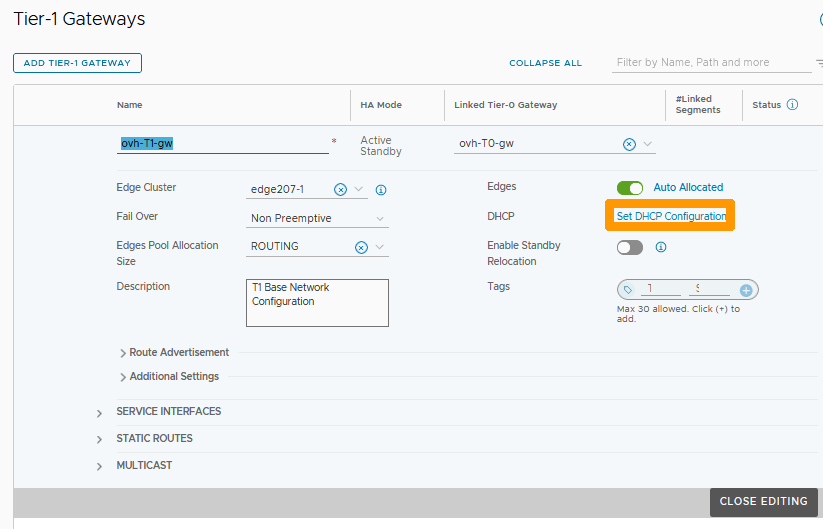
Click `Set DHCP Configuration
`.
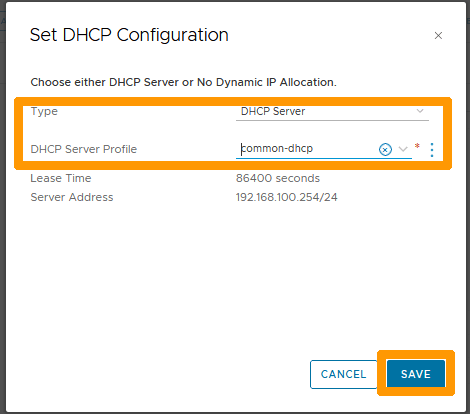
Choose `DHCP Server
` from **Type**
and your `DHCP profile
` from **DHCP Server Profile**
. Then click `SAVE
`.
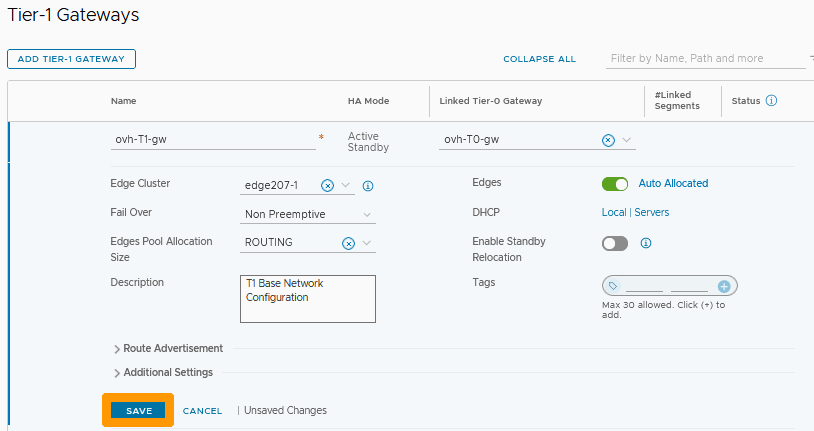
Click `SAVE
`.
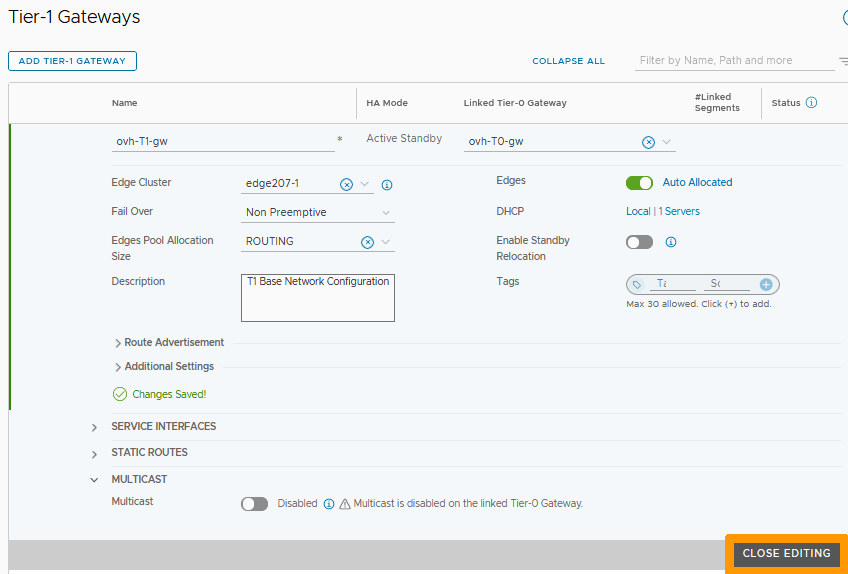
Click `CLOSE EDITING
`.
### Setting up DHCP on an Overlay segment
From the NSX interface, go to the `Networking
` tab and click on `Segments
` on the left in the **Connectivity**
section.
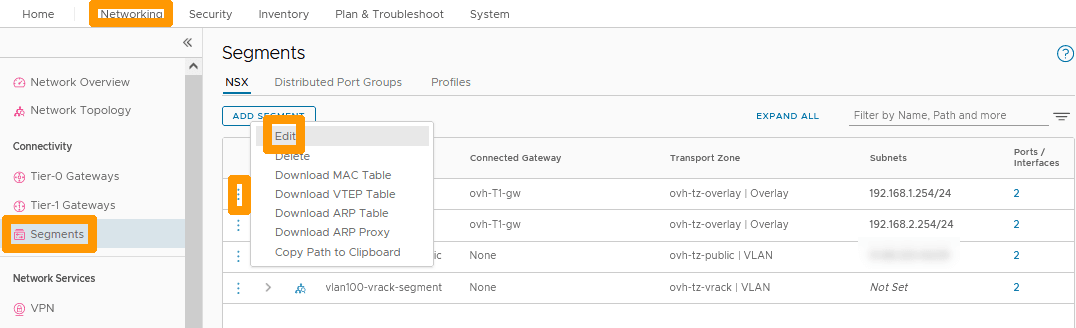
Go to the `Segments
` section, click on the configuration icon indicated with `three vertical dots
` to the left of your segment and choose `Edit
`.
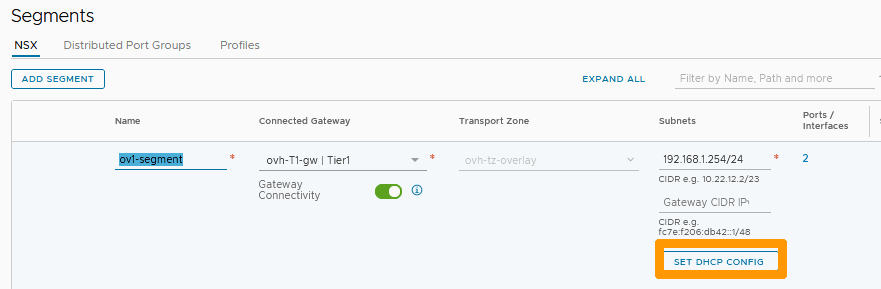
Click `Set DHCP CONFIG
`.
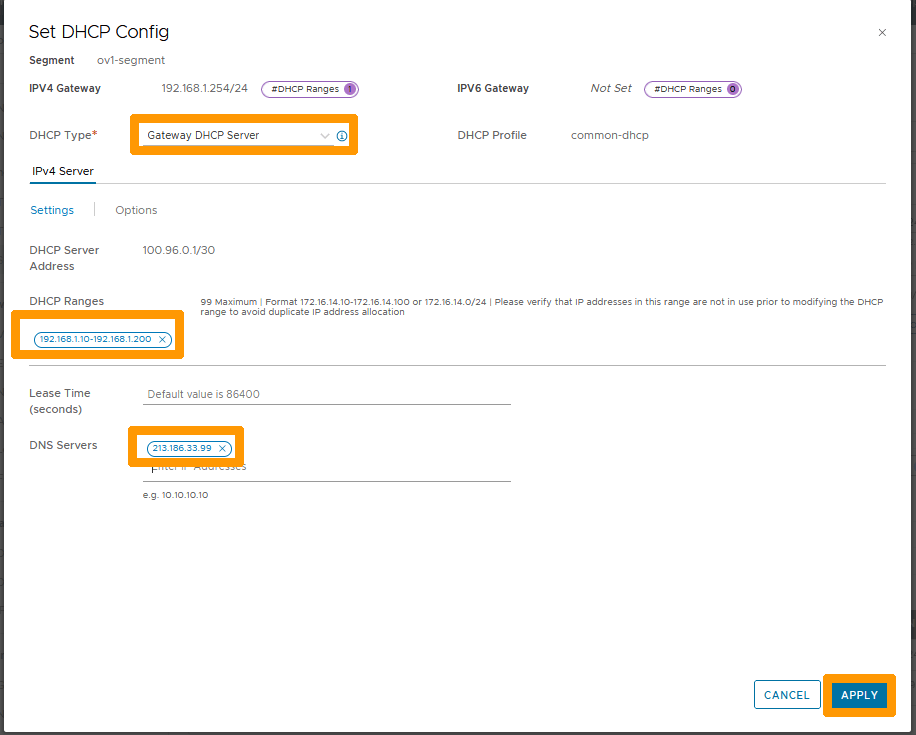
Fill in this information :
- **DHCP Type** : Leave DHCP Server Gateway.
- **DHCP Ranges** : Enter your range 192.168.1.10-192.168.1.200.
- **DNS Servers** : Add OVHcloud DNS server 213.186.33.99.
Click on `APPLY
`.
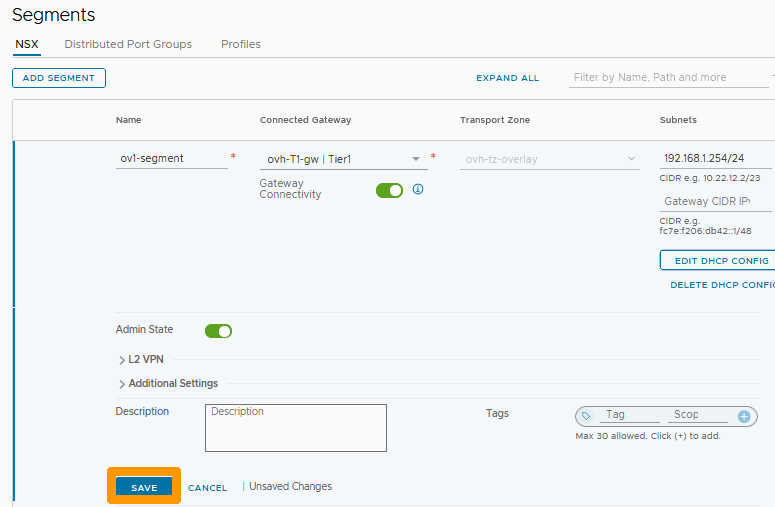
Click `SAVE
`.
Click `CLOSE EDITING
`.
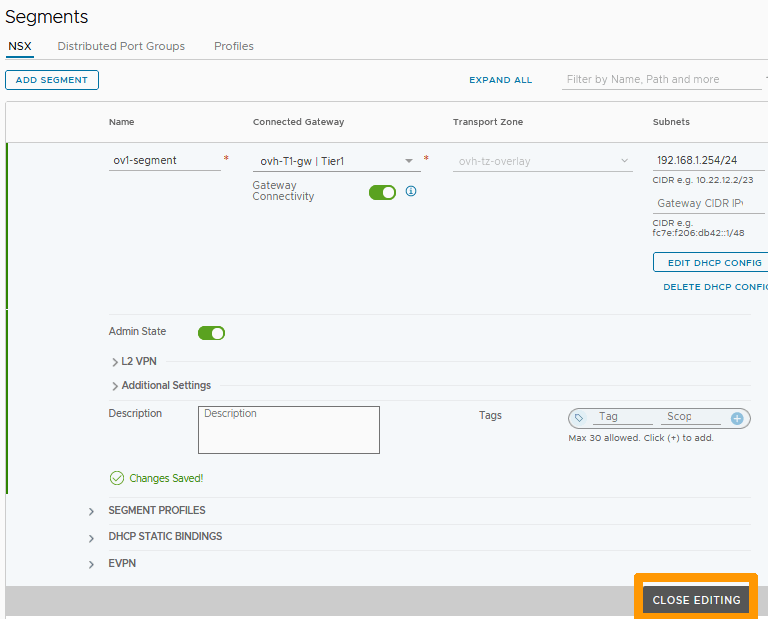
Virtual machines in this segment can now be configured with DHCP.
### Setting up DCHP on a VLAN segment
On a VLAN segment it is not possible to use the profile created for Overlay segments.
In order to have a DHCP server on this segment, we will create a DHCP configuration with a new profile directly attached to the segment.
If you do not have a VLAN type segment, use the [Segment Management in NSX](/en/guides/hosted-private-cloud/powered-by-vmware/nsx-segment-management.md) guide to create it with these settings :
- **VLAN Subnet**: 192.168.100.0/24.
- **Gateway and interface IP address** : 192.168.100.254/24.
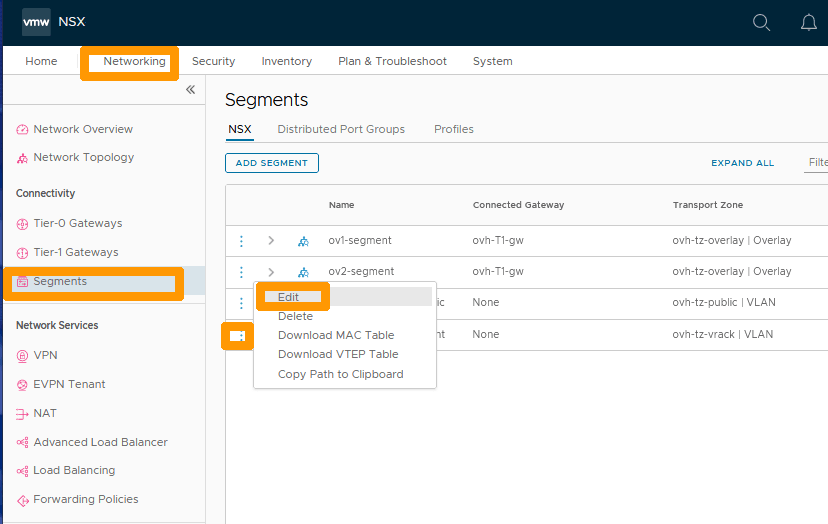
Go to the `Networking
` tab, click on `Segments
` on the left in the **Connectivity**
section, then click on the `three vertical dots
` on the left of your VLAN segment and choose `Edit
` from the menu.
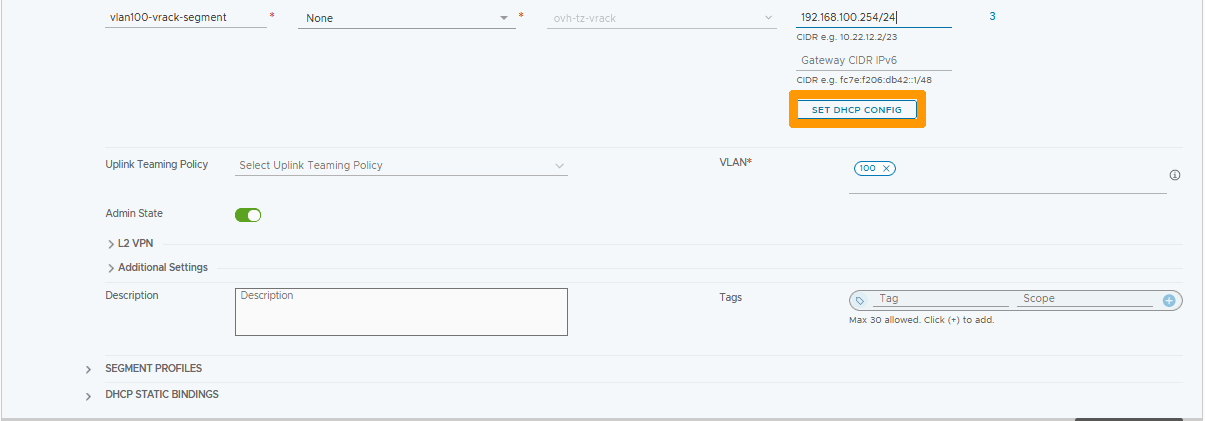
Click `SET DHCP CONFIG
`.
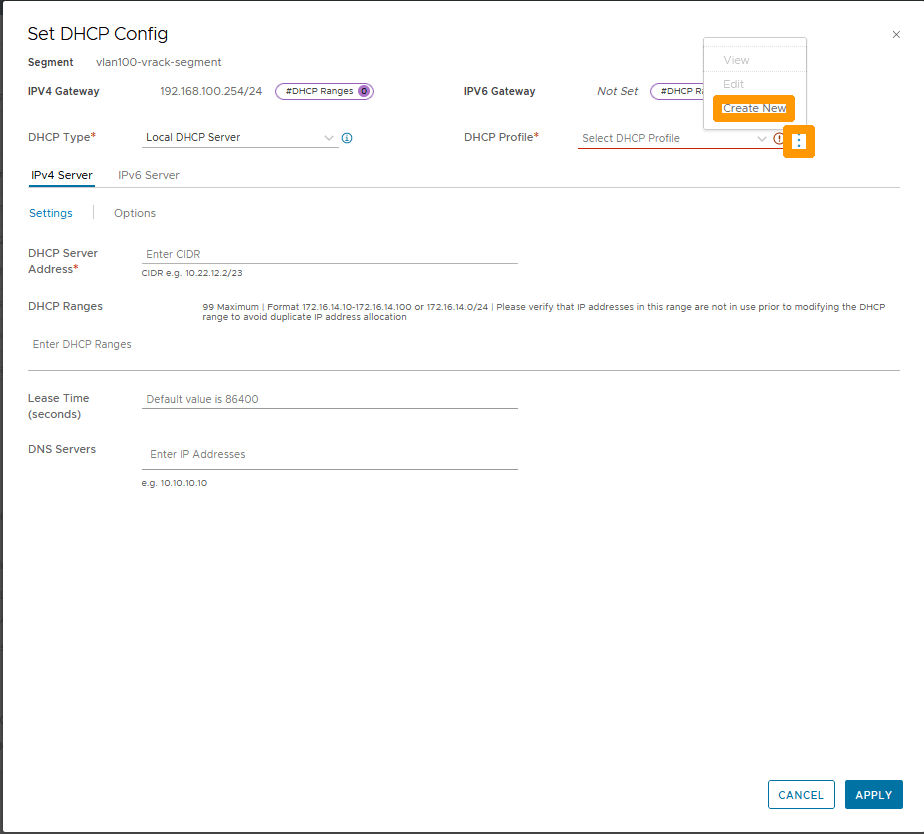
Leave `Local DHCP Server
` in **DHCP Type**
, click the `three vertical dots
` to the right of **DHCP Profile**
and choose `Create New
` from the menu.
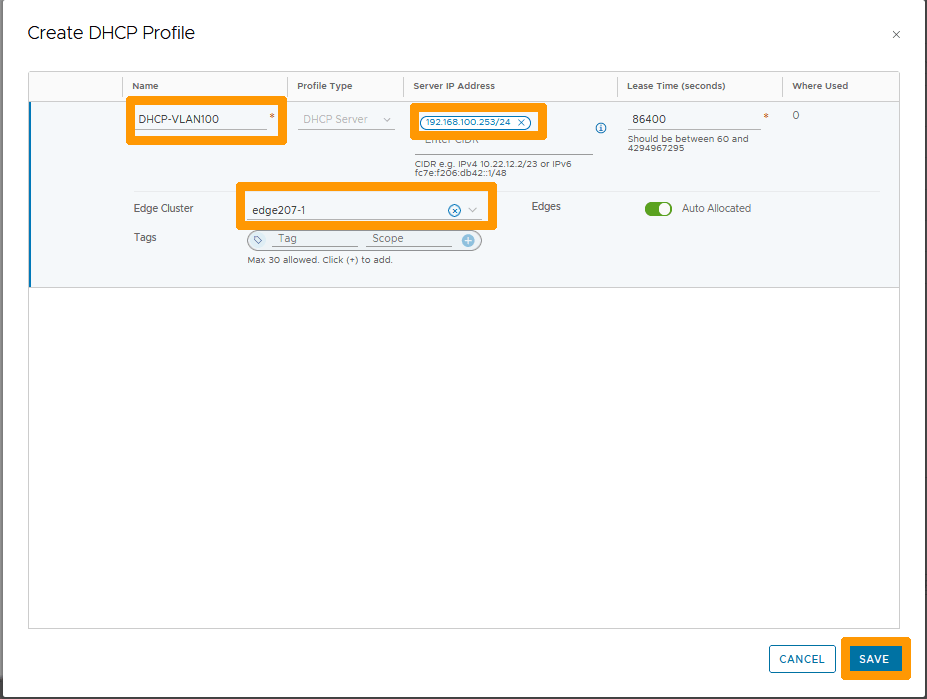
Enter this information :
- **Name**: Leave `DHCP-VLAN100`.
- **Server IP Address** : IP address of DHCP server `192.168.100.253/24`.
Then select your `Edge Cluster
` and click `SAVE
`.
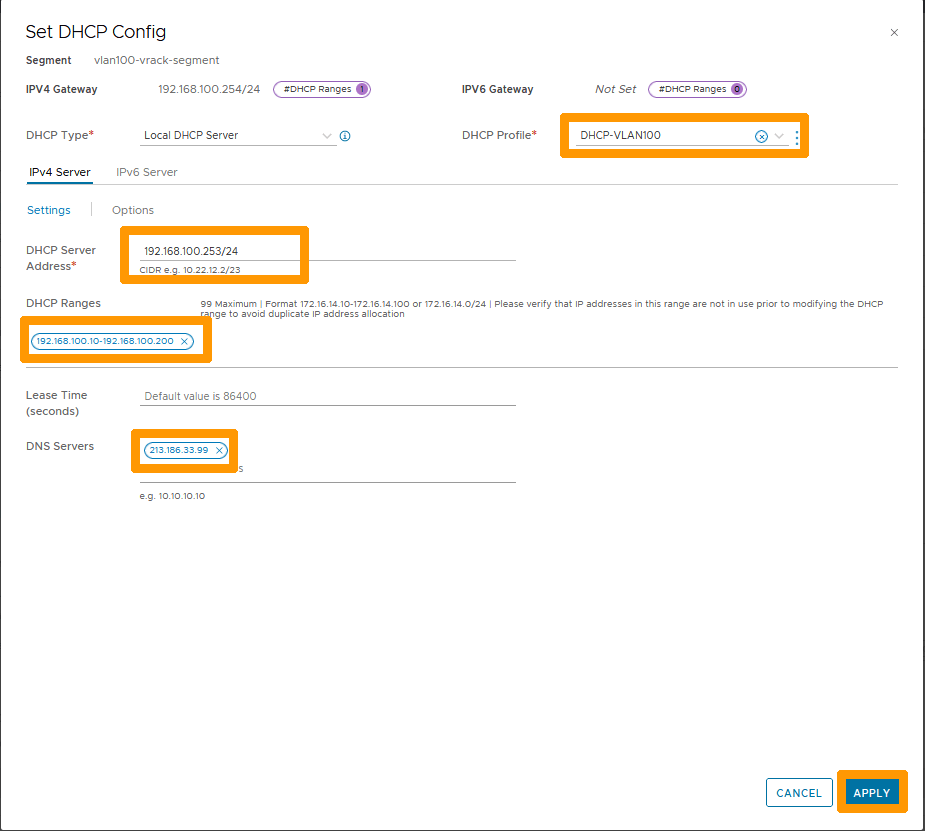
Verify in **DHCP Profile** that the profile is present and enter this information :
- **DHCP Server** : DHCP server address `192.168.100.253/24`.
- **DHCP Ranges** : DHCP Server range `192.168.100.10-192.168.100.200`.
- **DNS Servers** : OVHcloud DNS server IP address `213.186.33.99`.
Then click `APPLY
`.
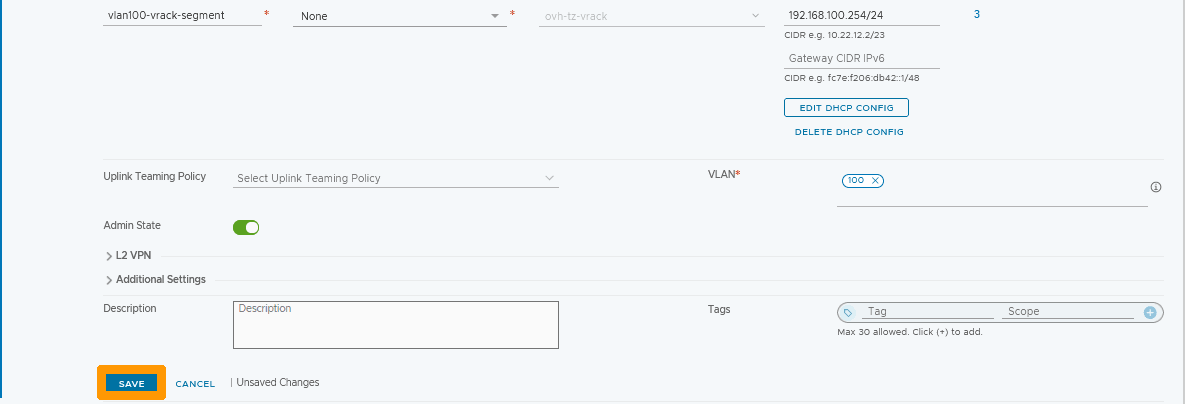
Click `SAVE
`.
Click `CLOSE EDITING
`.
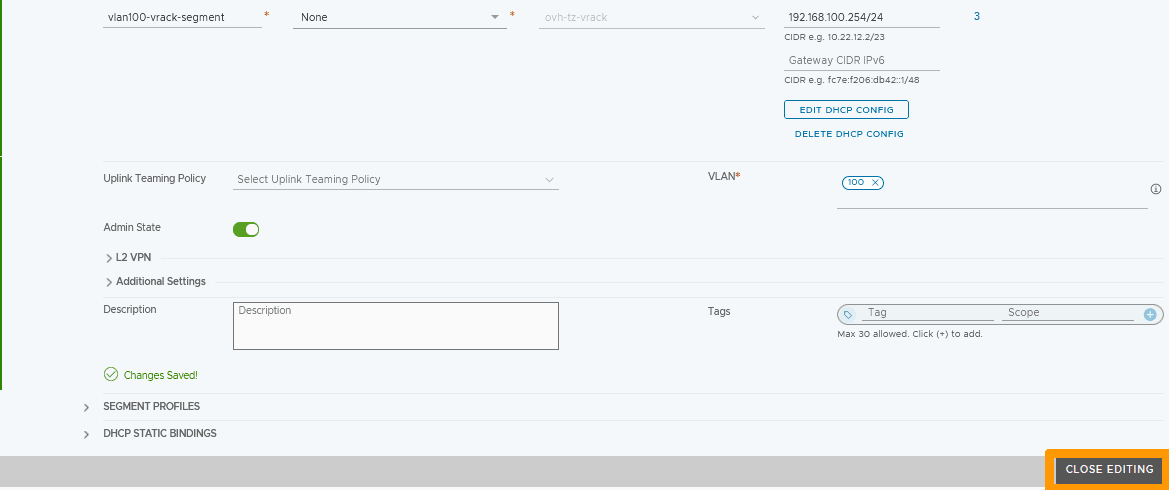
The DHCP server is active on this VLAN segment.
## Go further [](#)
[Getting started with NSX](/en/guides/hosted-private-cloud/powered-by-vmware/nsx-first-steps.md)
[Segment management in NSX](/en/guides/hosted-private-cloud/powered-by-vmware/nsx-segment-management.md)
If you need training or technical assistance to implement our solutions, contact your sales representative or click on [this link](https://www.ovhcloud.com/en-gb/professional-services/) to get a quote and ask our Professional Services experts for a custom analysis of your project.
Join our community of users on [https://community.ovh.com/en/](https://community.ovh.com/en/).