---
title: "Understanding vScope"
description: "The vScope interface allows you to monitor your infrastructure"
url: https://docs.ovhcloud.com/en/guides/hosted-private-cloud/powered-by-vmware/how-to-use-vscope
lang: en
lastUpdated: 2025-10-01
---
# Understanding vScope
## Objective
OVHcloud provides you with a **supervision** and **monitoring** tool for your virtual machines and infrastructure: **vScope**.
This web interface gathers all the essential information about your resources.
**This guide explains how to read and use the vScope interface.**
***
### OVHcloud Control Panel Access
- **Direct link:** [VMware vSphere](https://manager.eu.ovhcloud.com/#/dedicated/dedicated_cloud)
- **Navigation path:** Hosted Private Cloud > Managed VMware vSphere > Select your vSphere service
***
## Requirements
- You must be an administrator contact of the [Hosted Private Cloud](https://www.ovhcloud.com/en-gb/hosted-private-cloud/vmware/) infrastructure, in order to receive login credentials.
- An active user ID (created in the OVHcloud Control Panel).
## Instructions
### Accessing vScope
1. In the OVHcloud Control Panel, click Hosted Private Cloud.
2. In the left-hand menu, click Managed VMware vSphere.
3. Select your PCC service.
4. In the `General information` tab, scroll down and click the vScope link.
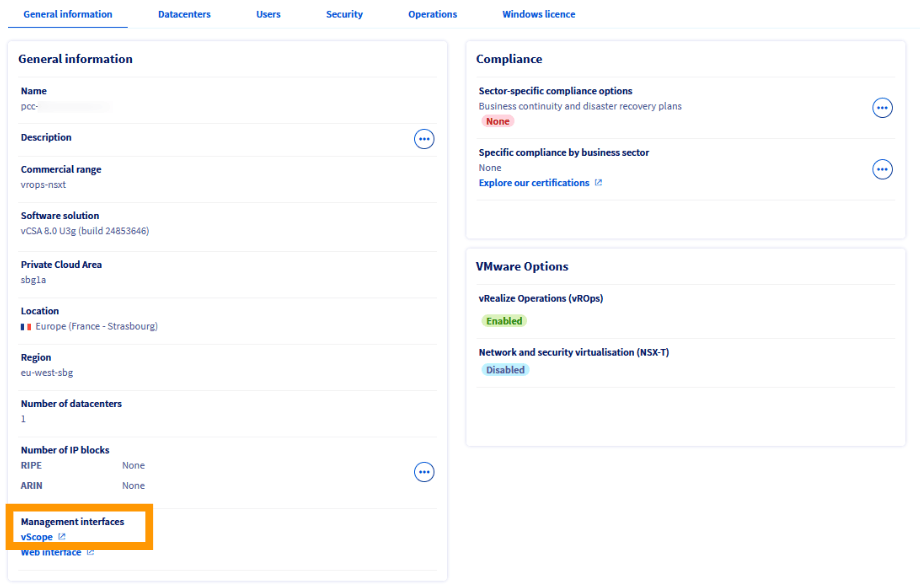
The interface opens in a new tab in your browser.

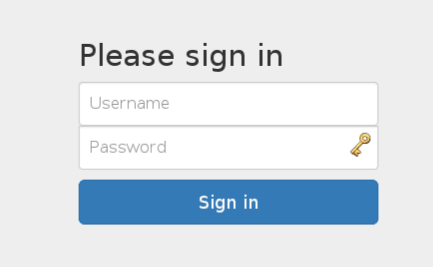
Log in with your **user** and **password** - the same credentials you use to connect to the vSphere client.
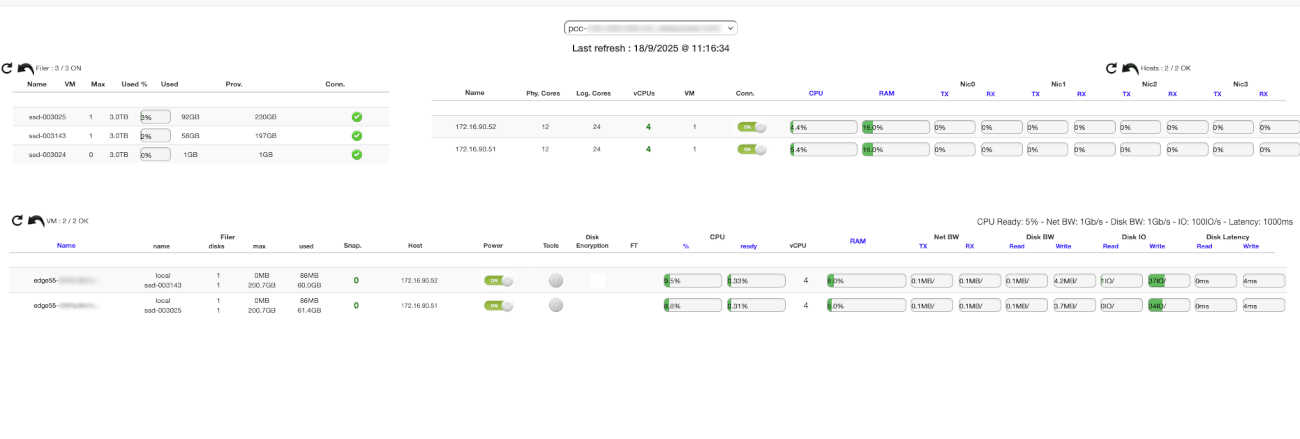
You are now connected to **vScope**. This page centralises the key information about your resources.
For example, for each host, you can immediately view:
- The number of cores and VMs
- CPU and RAM usage
- Network traffic
### Browsing vScope
#### Selecting the datacenter
If your Hosted Private Cloud contains several datacenters, select the one you want to display from the drop-down menu.
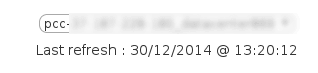
The **Last refresh** field corresponds to the last refresh of the web page, not of vScope data. vScope data is automatically updated every 2 to 5 minutes.
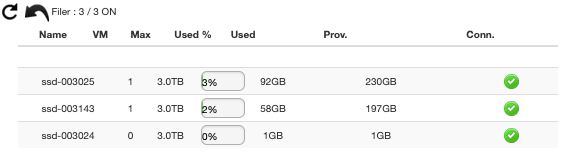
#### Filer menu
The **Filer** menu shows the usage of your datastores: number of virtual machines and consumed storage space.
Use this view to anticipate extension needs or monitor load balancing.
### Hosts menu
The **Hosts** menu details the characteristics of each host in your datacenter:
- Number of cores, vCPUs and VMs
- CPU and RAM usage percentages
- Network connectivity
- Number of physical network cards (VMNic)

### Virtual machines menu
This section provides a detailed view of each virtual machine:
- Status of VMware Tools
- Network traffic
- VM size
- FT (Fault Tolerance) activation
- CPU Ready Time
- Disk IO
- Disk latency

## Go further
If you need training or technical assistance to implement our solutions, contact your sales representative or click on [this link](https://www.ovhcloud.com/en-gb/professional-services/) to get a quote and ask our Professional Services experts for a custom analysis of your project.
Join our [community of users](https://community.ovhcloud.com/community/en).